
Self-Order Kiosk
Self-Order Kiosks That Free Up Your Front Counter
With an Adoluna kiosk, guests order at their own pace and build their meals the way they want, without waiting for help. Your counter staff and servers spend less time taking orders and more time looking after guests.
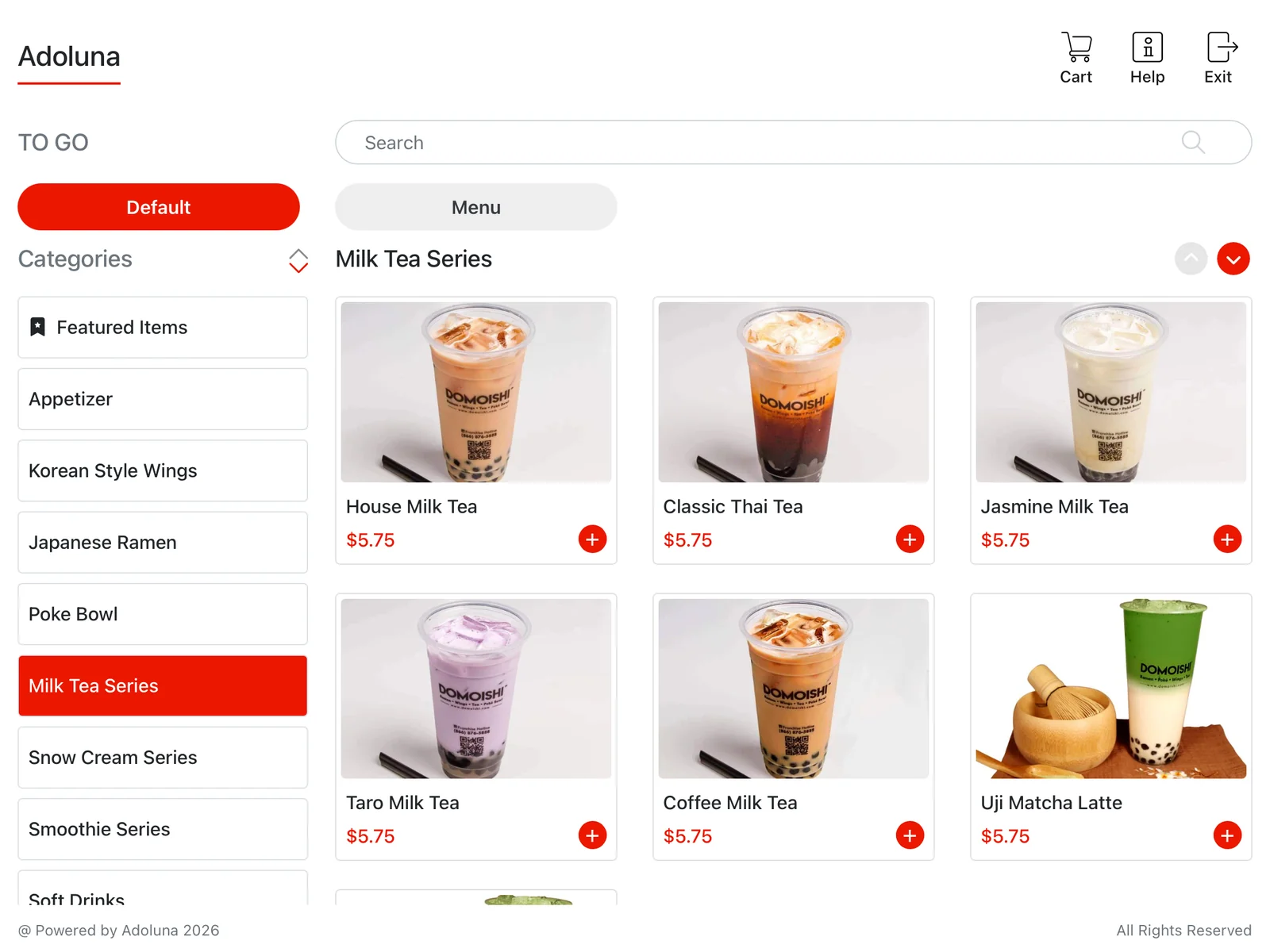
Same menu, photos and descriptions
The kiosk uses the menu you manage in the Backoffice, with item photos and descriptions. Choose which categories and items appear on the kiosk, and set availability schedules. Recommended and best-selling items are shown as their own categories. Required choices (forced modifiers) keep orders complete, and can come with default options already selected.
Self-service, dine-in and buffet modes
In Self Help mode, guests start their own orders. In Dine In mode, guests order from the kiosk once the table is open; in the server-opened table mode, a server enters a passcode on the kiosk, picks the table and server, and a passcode is needed again to exit. Kiosks set to Dine In mode with a table number also support All You Can Eat (buffet) ordering: after the first order is submitted, guests can only order items included in their buffet menu.
Multiple languages
Guests can pick their preferred language on the welcome screen.
Payments at the kiosk
The kiosk connects to its own card terminal. Guests choose a tip before paying, and the payment request goes straight to the card reader. Partial payments are supported, and guests can pay with your store’s gift cards (a magnetic card reader is required), including gift cards with a PIN.
A Need Help button
When a guest taps Need Help on the kiosk, the current order is saved and the POS shows the kiosk name and order number. Staff can open the order on the POS and make changes, and saved changes sync back to the kiosk in real time. Turn it on per kiosk in the Backoffice device settings.
Scan a receipt to open a table
After a guest pays at the POS, a QR code prints on their receipt. The kiosk scans it with its camera to open the table for ordering. Currently available on Android devices.
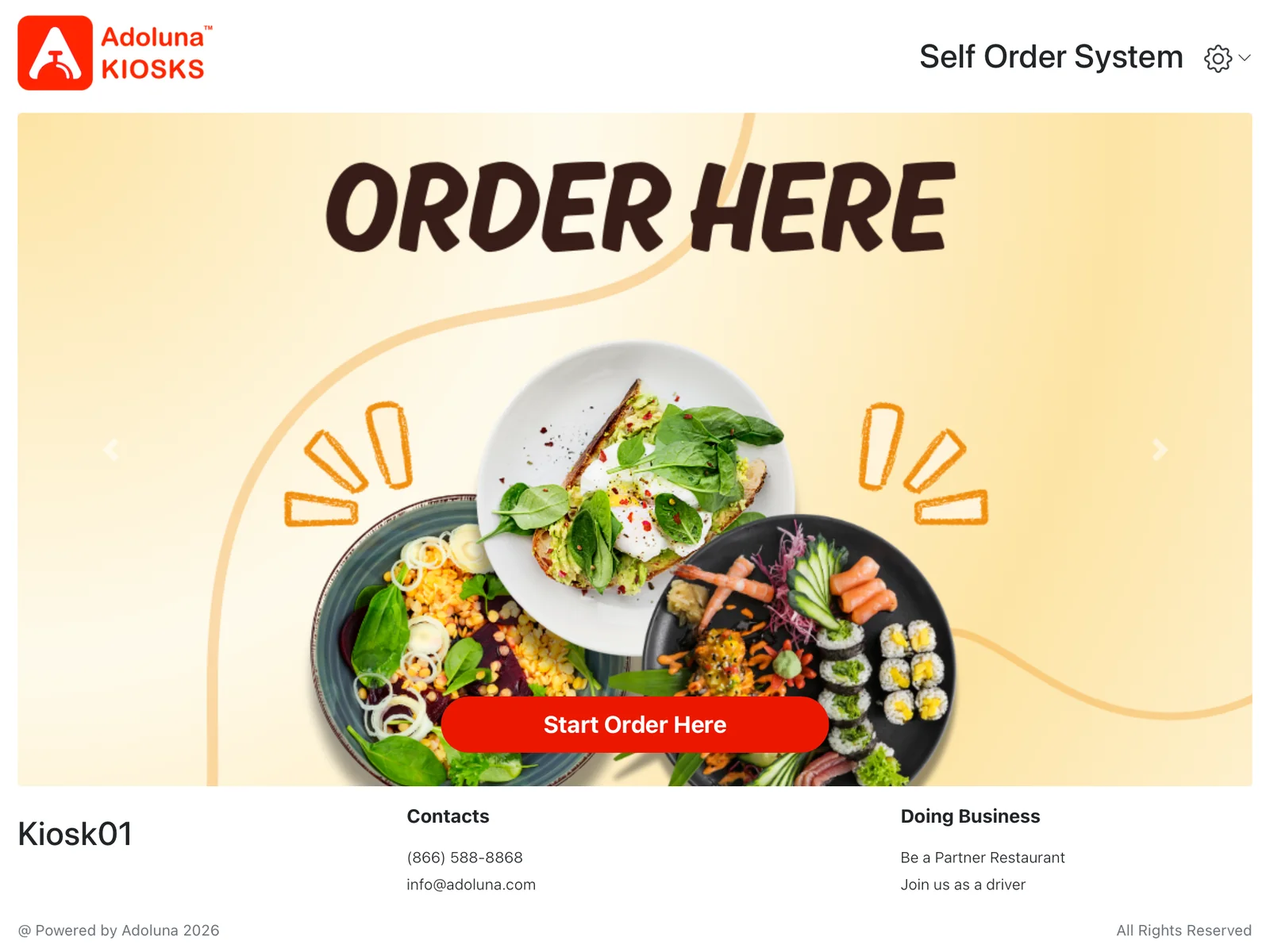
Your brand on the start screen
Choose up to three pictures for the kiosk start screen, set a welcome page, and have the kiosk return to the start screen automatically when no one is using it. Run kiosk-specific promotions from the Backoffice.
Add kiosks to your restaurant
The number of kiosks is configured per store. Contact us for a demo and a quote.