
POS Register
A POS Register Built for Busy Restaurant Shifts
Everything your staff needs during service is on one home screen: Dine In, To Go, Pick Up, Delivery, Gift Card, Recall, Scan & Notify, Time Clock, Cash Drawer, Batch, Report, Hostess, Caller ID, Driver and Waitlist. Each POS station’s home screen can be customized: hide modules you don’t use, rearrange them, and set how many appear per row.
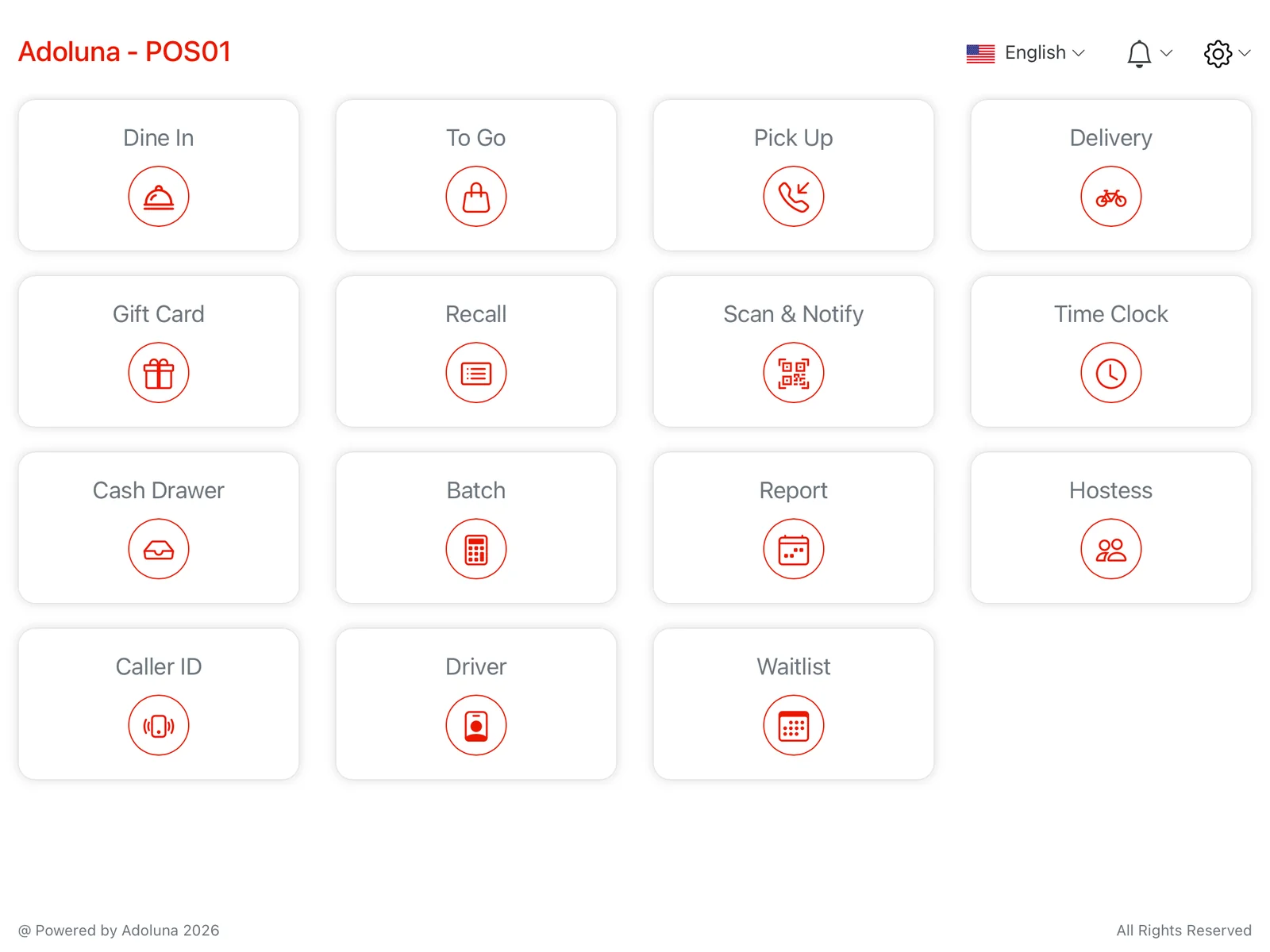
On the main screen
- Scan & Notify
- Caller ID
- Driver
- Waitlist
- Hostess
- Time Clock
- Gift Card
- Batch
- Cash Drawer
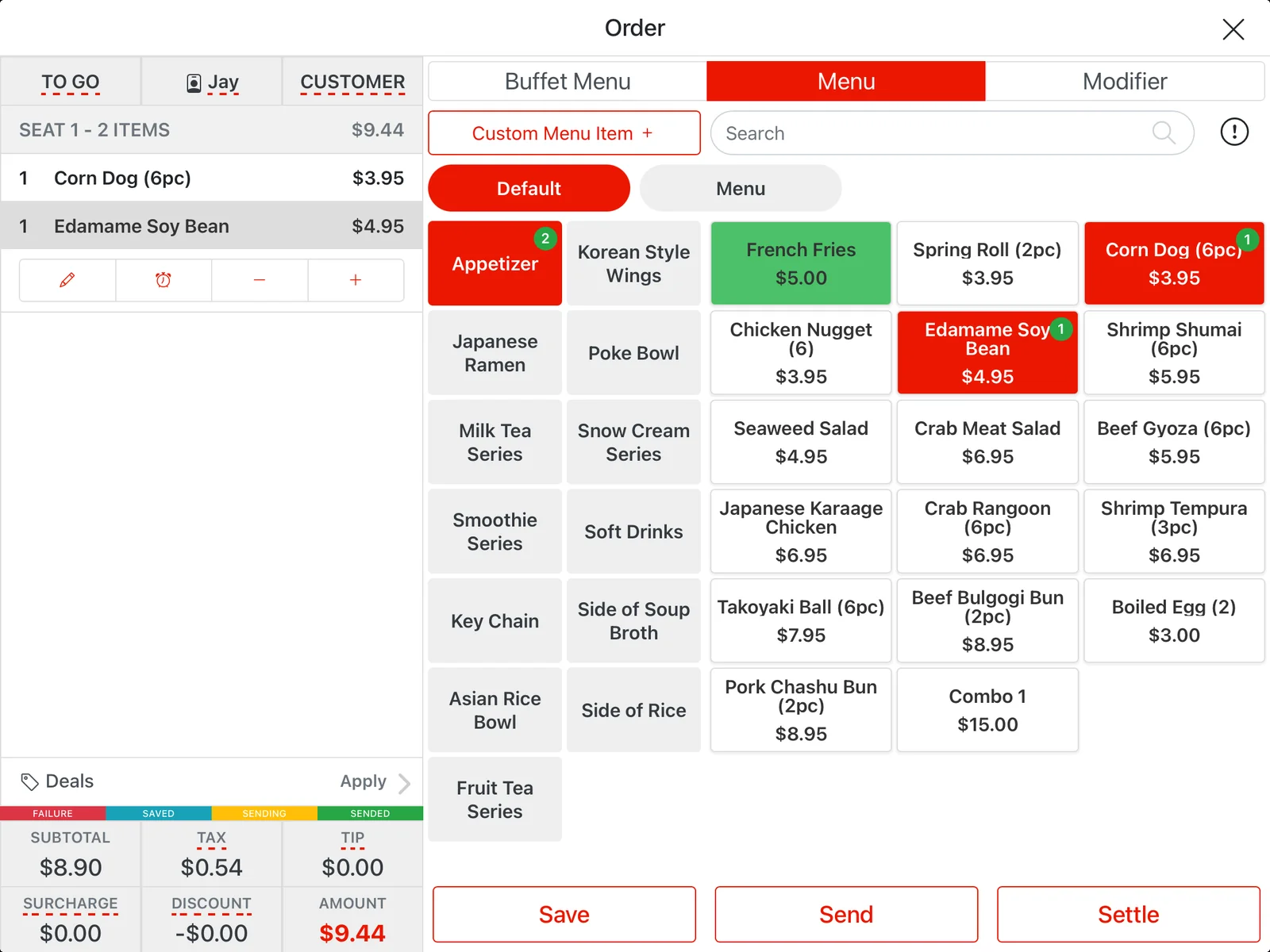
Fast order entry for every order type
- Dine-in orders start from the table map. To-go, phone pick-up and delivery orders start with the customer’s details, and past orders can be copied with one tap.
- Search the menu, add modifiers (including required “forced” modifiers), or enter a custom item or custom modifier on the fly.
- The POS remembers each item’s frequently used modifiers and shows the most-used ones with one tap.
- Hold items and send them to the kitchen later, change the server, table or order type, and mark orders tax-exempt when needed.
Tables and waitlist
The Hostess view shows every table’s status at a glance: vacant, needs cleaning, or occupied. On the dine-in table screen, a server’s own tables show in green and other servers’ tables stay red. On busy nights the waitlist lets guests check in at a self-service kiosk or with staff at the POS, and you can set a maximum waitlist size in the Backoffice. Guests get an SMS with a live status link, and staff can notify them by SMS or voice call when the table is ready.
Flexible checkout and payments
Settle with cash, credit card, gift card or your own custom payment types (each one can open the cash drawer or not). Split a check evenly or by item, combine orders, and apply tips, charges and discounts as a preset or a custom amount or percentage. You can also turn on a cash payment discount in the Backoffice; the tip is not included in the discount. Customer receipts can be printed or sent by SMS.
Card terminals are linked to your POS stations and kiosks, so staff send the amount straight to the terminal with no manual keying. Adoluna POS works with PAX terminals, and the VP3300 Bluetooth card reader and VP3350 are also supported, with tip selection and e-signature that can be turned on or off to suit your restaurant. Each terminal can have its own signature threshold and a transaction fee rate used for the server’s tip report.
Set tip presets and a minimum tip, print tip guidelines on receipts, pool tips, and add automatic gratuity for larger parties. On the kiosk and customer display, guests choose the tip before paying. Tips can be calculated on the subtotal, on the subtotal minus discounts plus surcharges, or on the order total.
We work with PAX and First Data. For merchant services and processing options, ask us when you request a quote.
Recall, refunds and voids with a record
Recall any current or past order by date, order number, customer name, phone or table. Reprint, resend to the kitchen, reopen, void with a reason, or refund cash, card or gift card payments. Every void and refund is tracked in your reports.
Delivery with driver tracking
Delivery orders move through clear stages: Pending, Departure (assigned to a driver) and Arrival. Filter by order source and run a report for each driver.
Gift cards
Sell and reload gift cards at the register from your own templates or a custom amount, look up balances, and accept gift cards as payment. Gift cards with a PIN are supported too: import the card numbers and PINs in the Backoffice first, then sell them and accept them in store or online. The gift card sales report shows the amount paid, the discount amount and the actual face value.
Shared orders for large tables
When several servers look after a large table, assign the order to all of them. They can edit the same order at the same time with changes synced in real time, and the order’s sales, tips and tip share are split evenly among them.
All You Can Eat (buffet) ordering
Built for sushi, hot pot and BBQ buffets with different price levels. Create buffet menus with their own price and dining schedule, choose items from your main menu and give each a buffet price and quantity limit. The server opens the table on the POS and picks the buffet menu, then guests order from a kiosk or by scanning a QR code. Set table dining time and ordering intervals in the Backoffice. Checkout is done by the server.
Time clock, cash drawer and closing
Employees clock in and out (including breaks) with their passcode. Managers with the right permissions can review and correct time cards. Cashiers count in and out of the cash drawer. End-of-day settlement, server, cash drawer and driver reports can be previewed, printed or emailed. Filter employees by position or name on the time clock, report, hostess and change-server screens, and use employee permissions to turn off access to report time ranges.
Credit card batch and reconciliation
Enter card tips in batch, close batches per terminal and review batch history. Before a batch is posted, the Batch screen reconciles card terminal transactions against POS payments: void extra terminal transactions or match them to a POS order, or void and re-collect extra POS payments. You can choose Bypass Reconciling to post anyway.
Kitchen and label printing
Route each menu item to the right kitchen printer with printer mapping (kitchen, receipt and packager tickets), and choose the print language, font size and beep alerts. Kitchen tickets can show the order round (Order Round: #), and label printers show the order type so dine-in, to-go and online orders are easy to tell apart.
Designed to prevent costly mistakes
Orders lock while a card payment is being requested, and the system warns staff about duplicate or overpaid card transactions so they can be found and voided quickly. If a printer goes offline, staff see a warning within seconds, and kitchen tickets reprint automatically if the printer reconnects within 30 minutes. When two devices have the same order open, saved changes sync to the other device in real time.
Your language
Staff can set their language preference on the POS. Spanish is supported, and printouts can be configured with a second language.