
Purpose: How staff log in to the POS with their own passcode and how to log out. For: all front-of-house staff (servers, cashiers).
Steps #
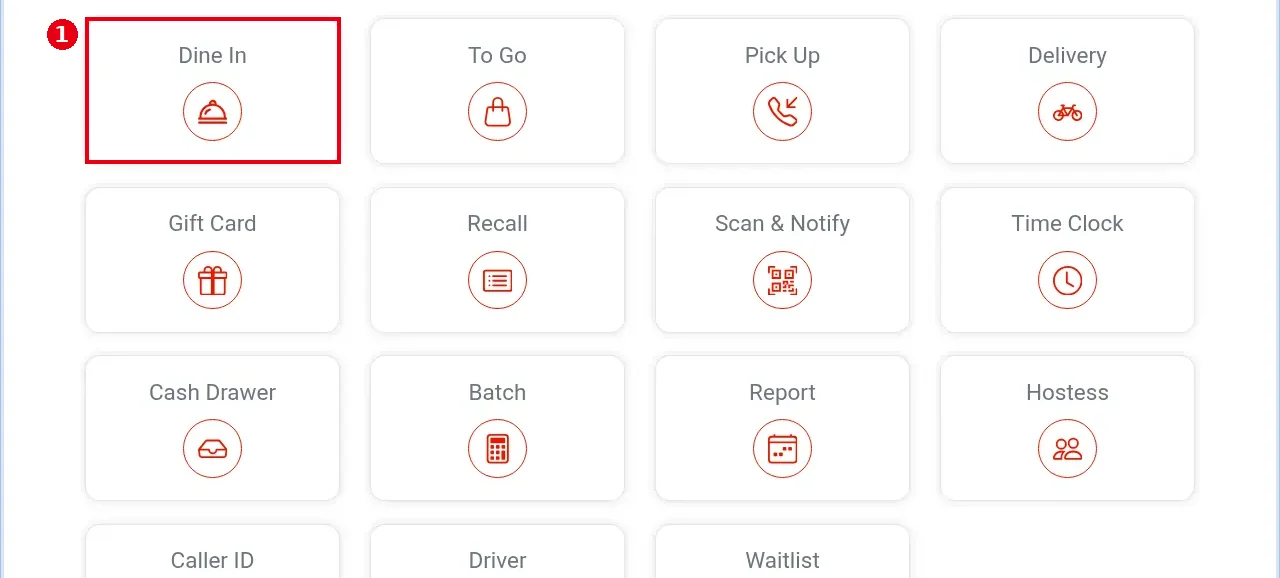
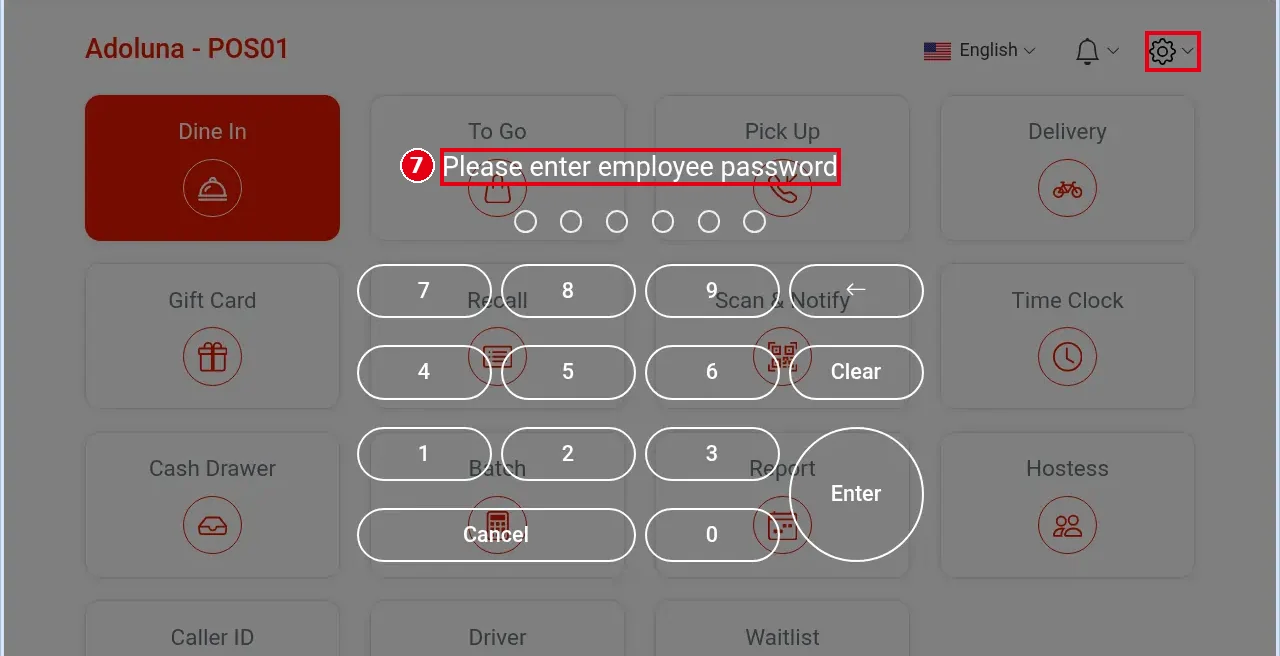
1. On the POS home screen, tap any function button, e.g. Dine In. If nobody is logged in, the POS asks for an employee password first.
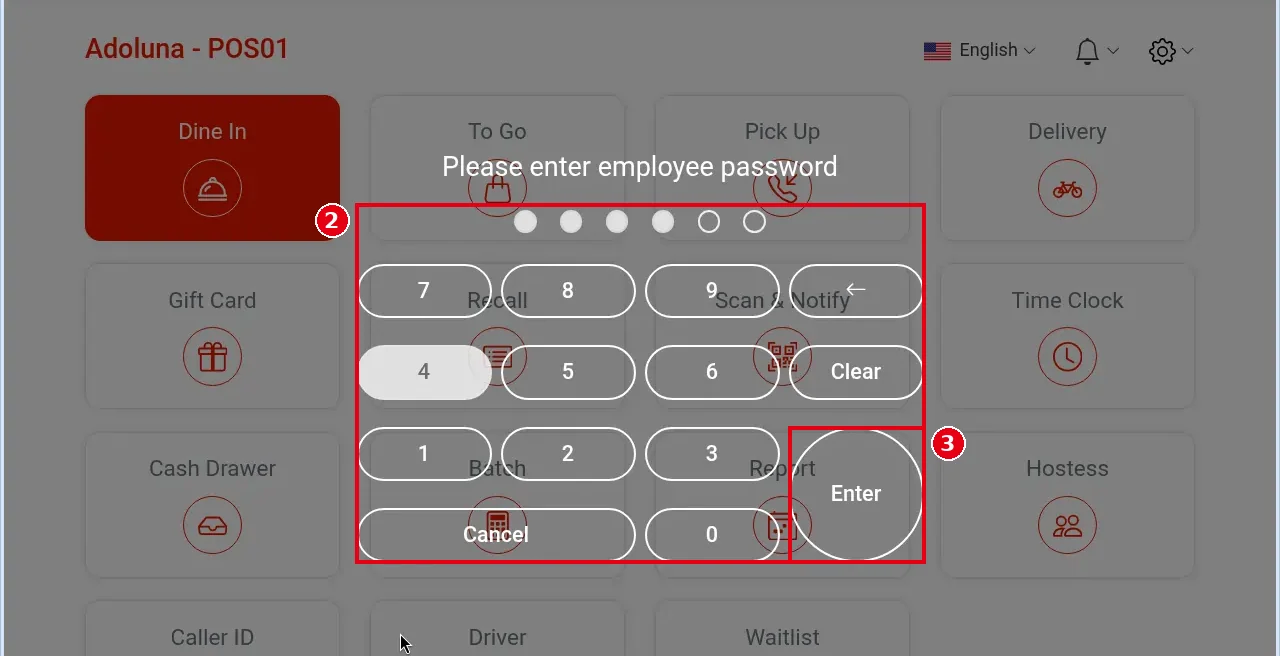
2. When Please enter employee password appears, type your passcode on the keypad (← deletes one digit, Clear clears all).
3. Tap Enter (or Cancel to cancel).
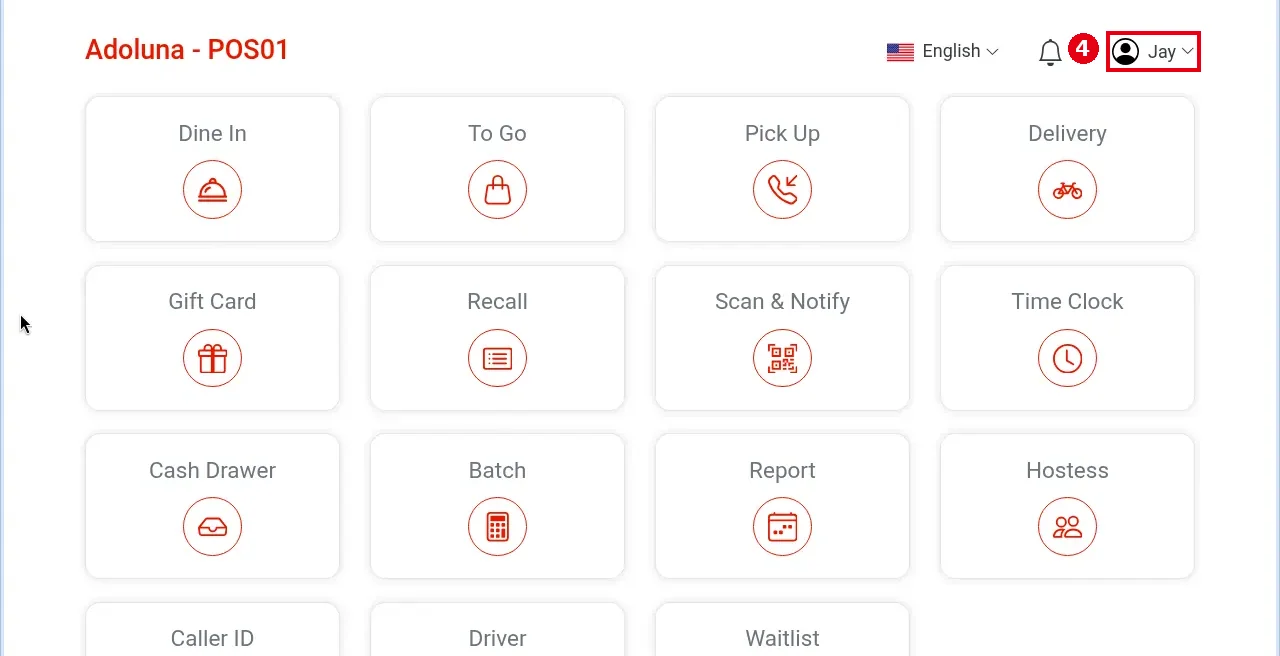
4. After login the selected function opens. Back on the home screen, the gear icon at top right is replaced by your name (e.g. Jay).
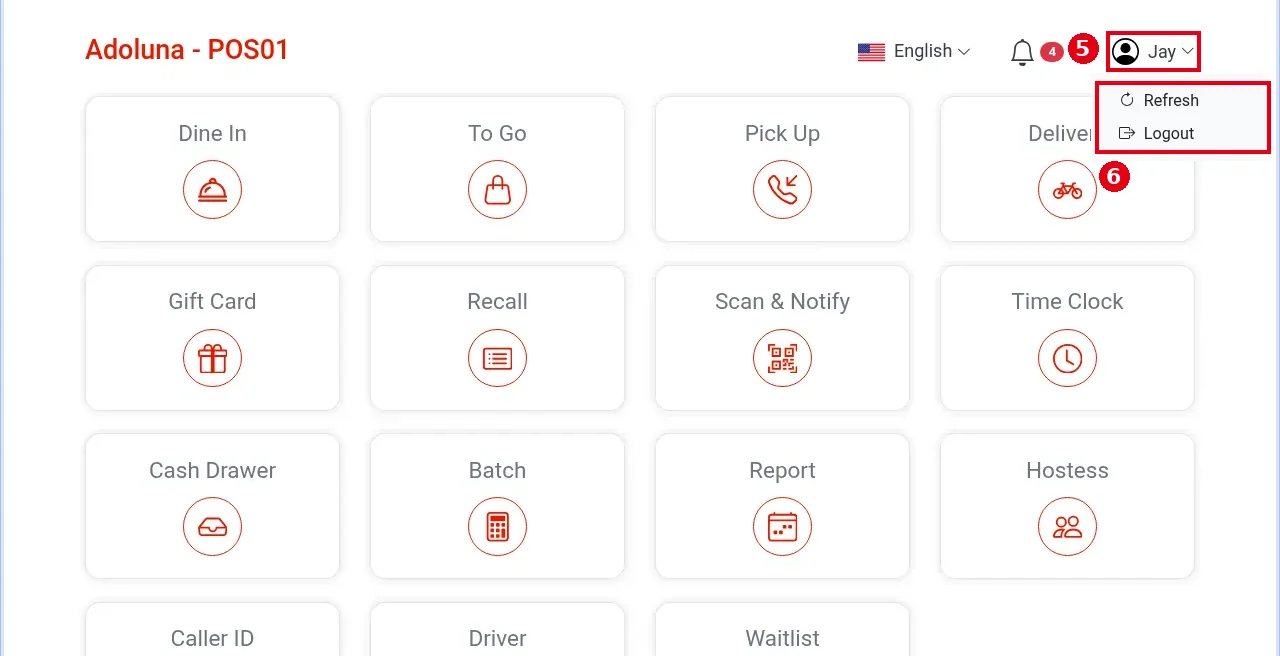
5. To log out, tap your name at top right.
6. Tap Logout in the menu (Refresh reloads the screen).
7. Logging out returns you to the signed-out home screen, and the gear icon replaces your name at top right. The next time someone taps a function (e.g. Dine In), Please enter employee password appears again. No passcode keypad appears right after logout.
Notes / FAQ #
-
After one login, opening To Go, Pick Up and Delivery did not ask for the passcode again. Whether price changes, discounts, voids and similar actions need manager approval depends on each employee’s permissions, which are set per employee in the back office employee screen. If an employee doesn’t have the permission, a manager-approval prompt appears and a manager enters their own passcode (see 1.2.7, 1.2.10).
-
The POS does not log out automatically. Staff must log out by hand; logging in as the same employee on another device also logs them out of this one.
-
One employee passcode can be signed in on only one device at a time. Signing in with the same passcode on another device logs the employee out of this one. This has nothing to do with changing the screen language; switching language does not log you out (see 1.1.3 How to change the POS display language).
-
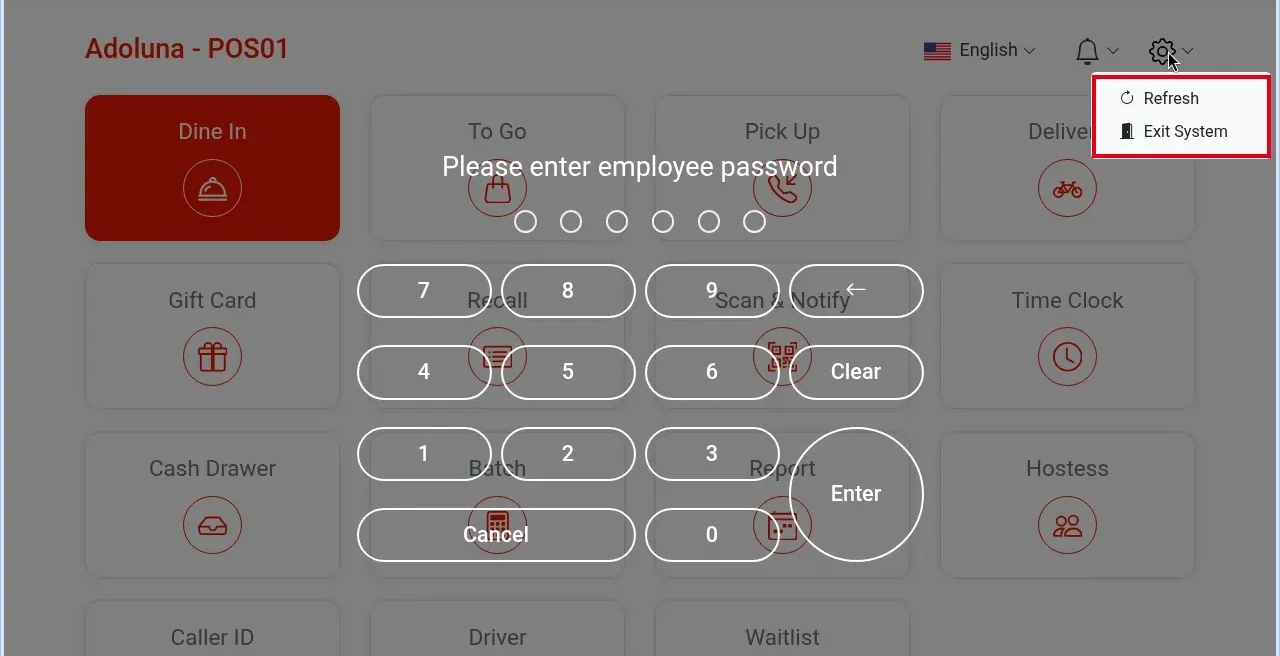
Before login, the gear menu has only Refresh and Exit System. After login, the name menu has Refresh and Logout (no Exit System). Exit System unbinds this device from the system (it can also be unbound from the back office); it is not a normal logout – staff should use Logout at the end of a shift.
-
Employee passcodes are 4 to 6 digits. The prompt always shows 6 dot positions and fills one per digit typed (e.g. 4 filled after 4 digits).
-
Depending on the store’s settings, employees may need to clock in at Time Clock before they can open orders. The highest-permission account used for this manual’s screenshots did not need to clock in first.
-
Each employee should log in with their own passcode; the order header shows the logged-in employee as the server.


