
Purpose: When a guest orders online and picks a later pick-up time (a scheduled order), set how many minutes before the pick-up time the order goes to the kitchen. For: owners, managers.
Before you start: for guests to order ahead outside business hours, Order Ahead must be on (see 2.9.1 How to set online store availability and hours). The 2025-09-09 release notes say scheduled orders from third-party platforms (via Deliverect) use this setting too.
Steps #
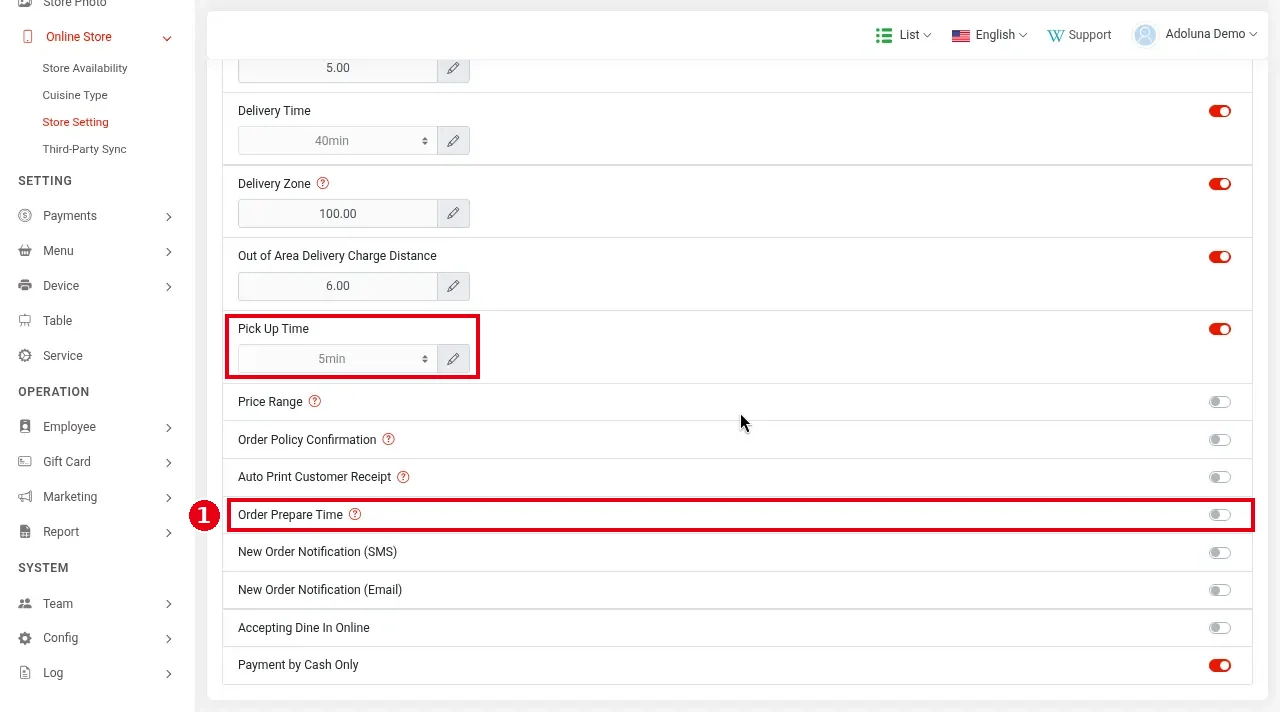
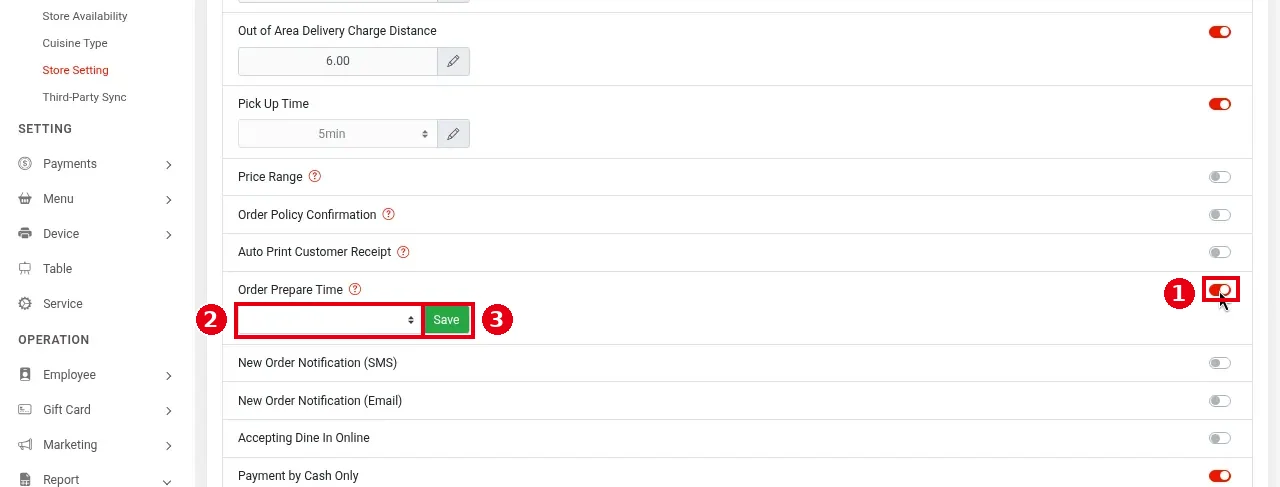
1. In the Backoffice left menu, click Online Store > Store Setting, find ① Order Prepare Time (off in the screenshot) and turn on its switch.
2. Once it’s on, ② a dropdown and ③ Save appear below it: choose how early the order goes to the kitchen and click Save.
How it works: it only applies to orders with a pick-up time. The order goes to the kitchen that many minutes before the pick-up time (official website docs, old version). For example, with 20 minutes set and a 6:00 PM pick-up, the order goes to the kitchen at about 5:40 PM.
Notes / FAQ #
-
Pick Up Time (boxed above) is the estimated pick-up time shown to guests; it’s a different setting from Order Prepare Time (see 2.9.2 How to set online pick-up and delivery rules).
-
When Order Prepare Time is off, scheduled orders go to the kitchen as soon as they’re placed.
-
Once sent to the kitchen, the order prints by printer mapping; see 3.3.3 How to set up printer mapping and route items to kitchen printers.


