
Purpose: Check the messages the POS has received (notification center). For: all front-of-house staff.
Steps #
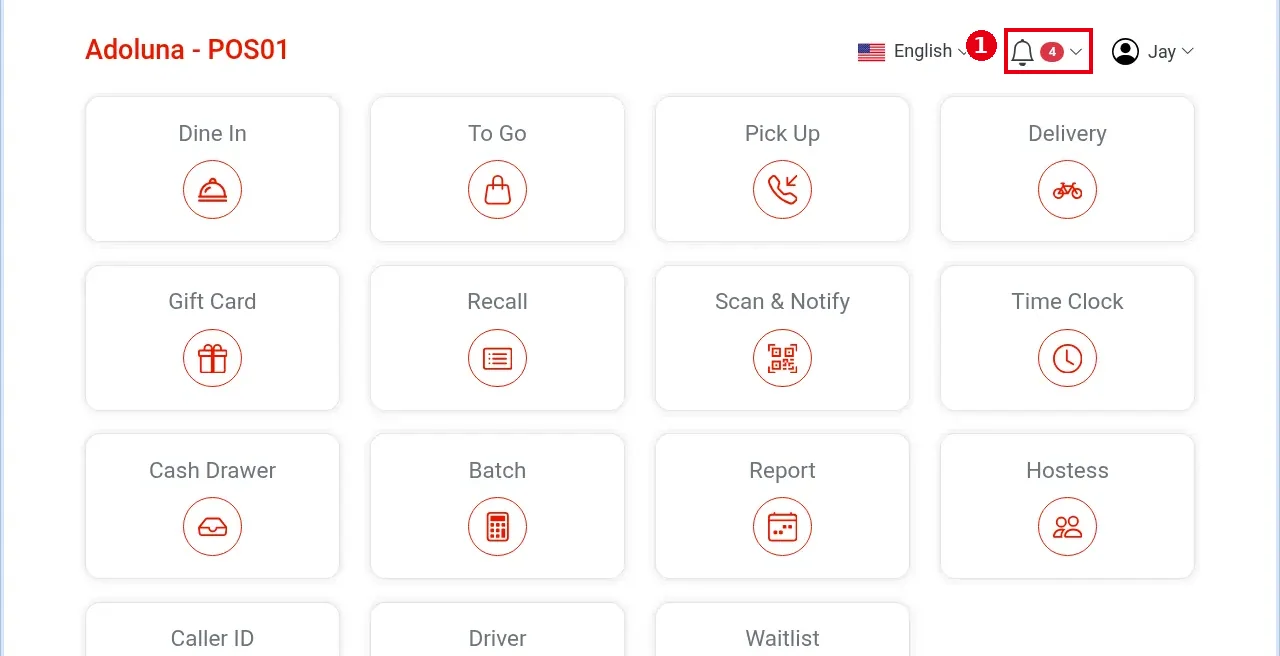
1. Tap the bell icon at top right of the home screen. A red number next to it shows new messages (e.g. 4).
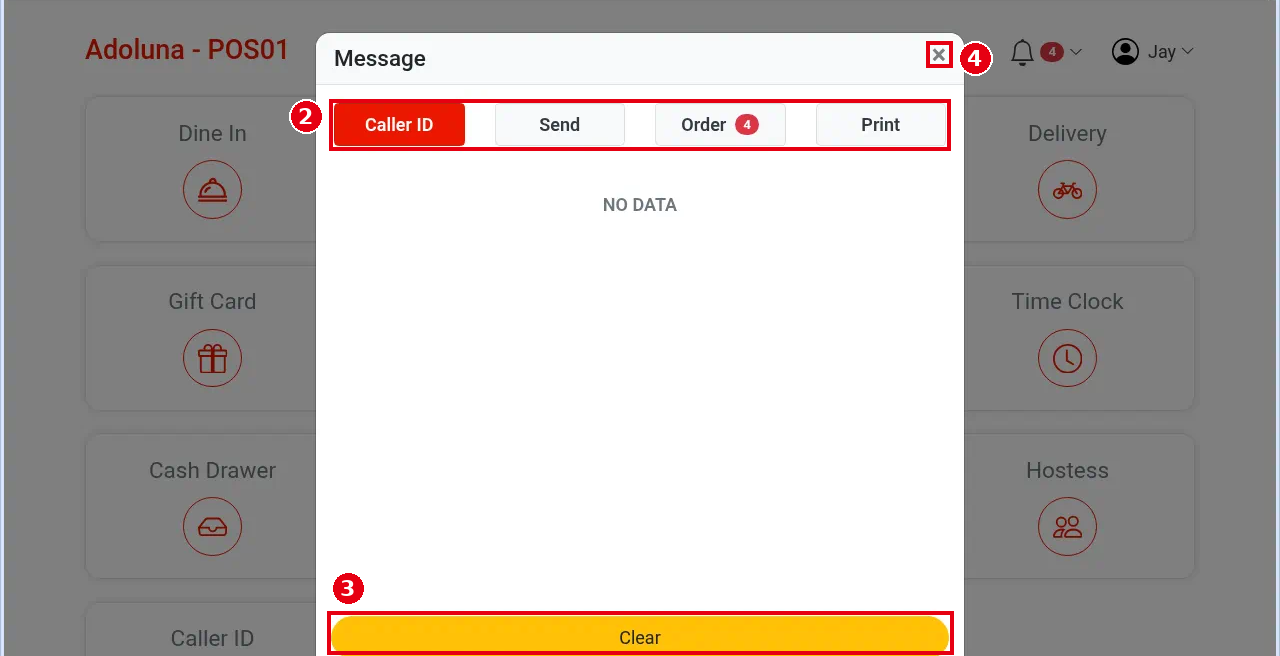
2. The Message window has four tabs: Caller ID, Send, Order, Print. Tap a tab to see its messages; NO DATA means there are none.
3. Tap the yellow Clear button to clear messages.
4. Tap × at top right to close.
Notes / FAQ #
-
The outline calls it the Notification Center; the window title on screen is Message. It can be opened before login. Every Notification Center message first shows as a pop-up for 5 seconds, then collapses into the Notification Center. New Adoluna Online orders also send a notification here (see 2.9.3 How to set up auto-accept and new order notifications).
-
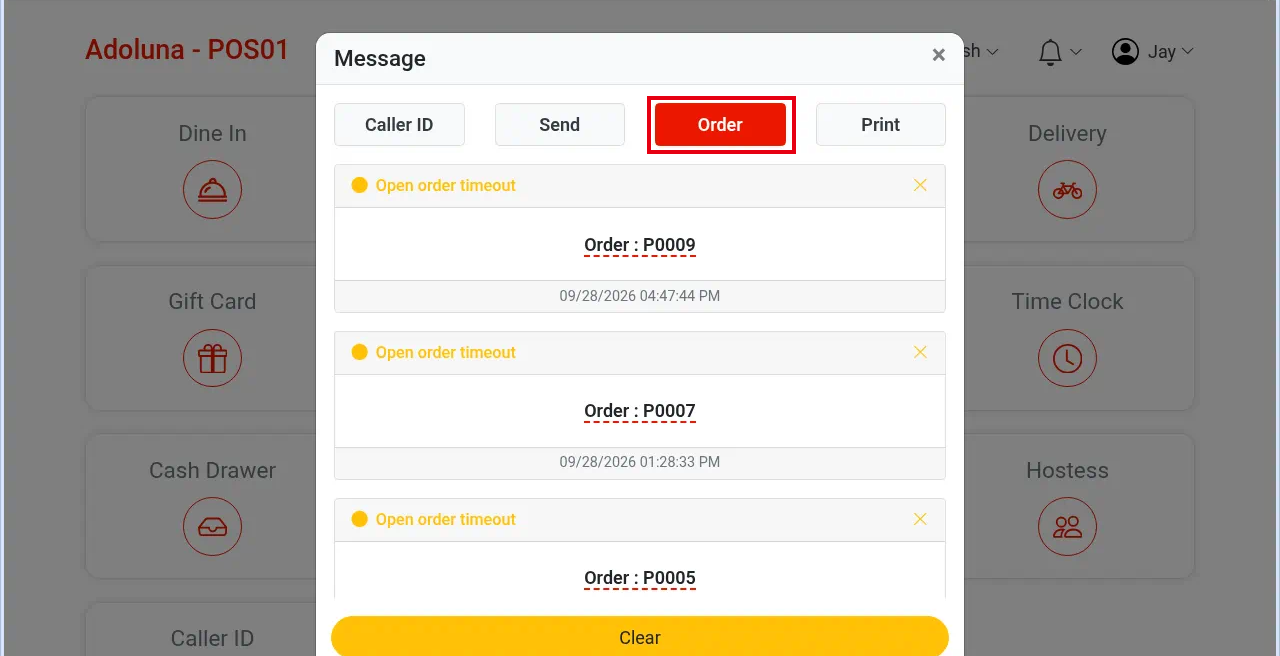
During the test a pop-up “Open order timeout / Order#:P0001” appeared, then the bell showed a red 1. These timeout alerts are listed in the notification center under the Order tab (below: several Open order timeout entries on the Order tab). The timeout is set in the back office under Service, separately for each service (e.g. dine-in, to-go).
-
What each tab records:
| Tab | Records |
|---|---|
| Caller ID | Caller ID notifications |
| Send | Kitchen tickets that failed to print when sent |
| Order | New online orders (Adoluna Online Order and third-party orders), Open order timeout alerts, and duplicate or over-payment notices for card payments |
| Receipts that staff printed but failed to print |
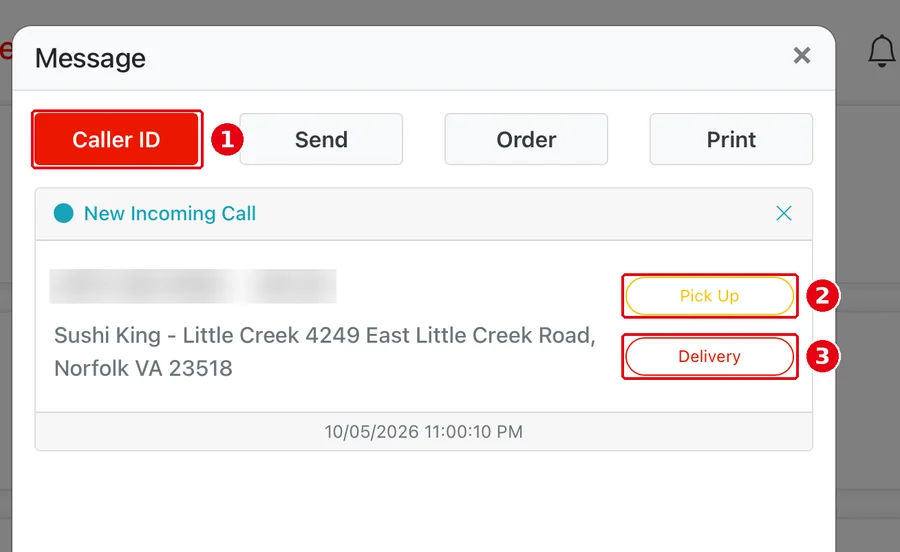
Caller ID tab example: when a call comes in, ① the Caller ID tab shows New Incoming Call (caller’s number, customer name and address); tap ② Pick Up to open a pick-up order for the caller, or ③ Delivery for a delivery order (see 1.12.1 How to use Caller ID to take phone orders). The number and name are blurred in the screenshot.
-
Clear clears only the current tab.
-
After a print failure, if the printer or local server comes back within 30 minutes, kitchen tickets reprint automatically; other receipts must be reprinted by hand (see 1.1.2).
-
When a customer taps “Need Help” on a Kiosk, the POS shows a pop-up; it is not recorded in the notification center.


