
Purpose: What to check when the waitlist confirmation text, the “table is ready” (Ready) text or the cancellation text fails to send, or a guest says they didn’t get it. For: hosts, front desk, managers.
First, check whether the text went out #
On the POS home screen tap Waitlist and find the guest. When a text goes out, a record is added under the Notify column (e.g. “Check-In SMS”, “Ready SMS”); its colour shows the status: orange = sending (In Progress), green = sent (Successful), red = failed (Failed) (see 1.7.3 How to notify a waiting party that their table is ready). A failed text shows up in one of two ways:
Wrong phone number: a red failed record (Failed) is added under the Notify column. See item 3 below for the fix.
The guest unsubscribed or blocked our number: the POS only pops up ① the reason (the picture shows the message for a guest who unsubscribed; see item 2 below). Tap Close to close it.
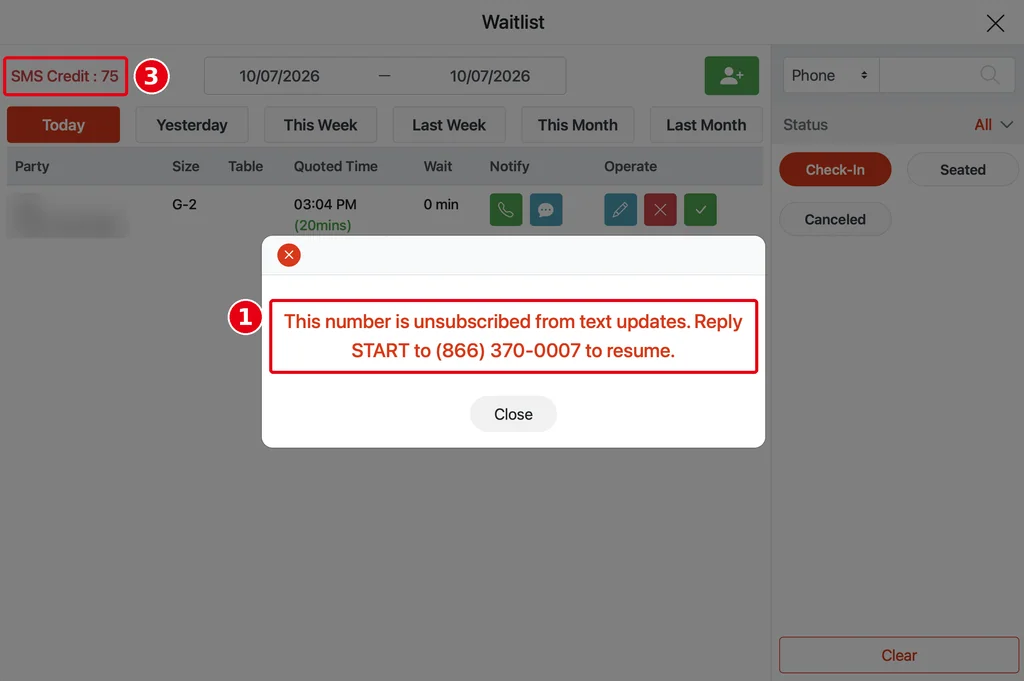
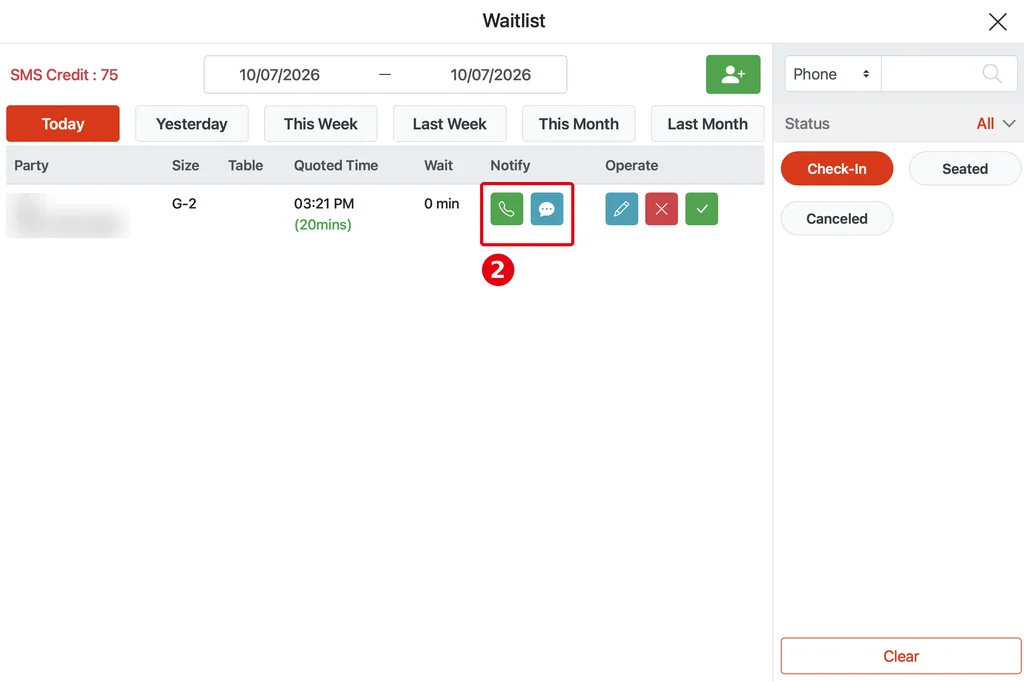
In this case no record is added: after you close the pop-up, there’s nothing for it under ② the Notify column.
Common causes and fixes #
1. Out of SMS credits: ③ SMS Credit at the top left of the Waitlist screen is the credit left. At 0 you can still add parties, but no texts are sent (see 1.7.2 How to add a party to the waitlist). When credits run short, the POS shows Insufficient SMS balance (the same message as Scan & Notify; see 1.12.2 How to use Scan & Notify). To top up, contact Adoluna: phone +1 (866) 588-8868, email support@adoluna.com.
2. The guest unsubscribed: every text ends with “To unsubscribe, reply STOP”. Once the guest has replied STOP, later texts fail with This number is unsubscribed from text updates. Reply START to (866) 370-0007 to resume. Ask the guest to text START to (866) 370-0007 from that phone, then send again (see 1.7.3 How to notify a waiting party that their table is ready). The POS has no separate unsubscribed flag.
3. Wrong phone number: a red failed record shows under the Notify column. Tap the blue pencil in the Operate column to correct it (see 1.7.2 How to add a party to the waitlist), then tap the text icon to send the Ready notice again (see 1.7.3 How to notify a waiting party that their table is ready). Only US 10-digit numbers (with the area code) are supported; don’t add +1.
4. That text is turned off in the Backoffice: the confirmation text (Waitlist Confirmation SMS) and the cancellation text (Waitlist Cancellation SMS) each have a switch under Service > Waitlist, and nothing is sent when it’s off. After editing a template you must click Save (see 2.6.1 How to set up the waitlist, 3.5.3 How to set up a Waitlist self check-in kiosk).
5. It shows sent (green) but the guest didn’t get it: ask the guest to check the number and whether their phone filtered the text as spam. If you need to reach them quickly, tap the phone icon to call them (it also uses SMS credits; see 1.7.3 How to notify a waiting party that their table is ready), or ask them to come to the host stand.
Notes / FAQ #
-
When guests sign in on the self check-in page at the door, they must tick the SMS consent box or they can’t sign in (see 1.7.2 How to add a party to the waitlist).
-
Every text and voice call uses SMS credits (see 2.6.1 How to set up the waitlist).
-
Test with your own phone number; don’t send test texts to real guests.
-
Still not working? Contact Adoluna support: phone +1 (866) 588-8868, email support@adoluna.com.


