
Purpose: View, print or email sales, employee, cash-drawer and driver reports on the POS. For: managers, cashiers (depending on permissions).
Steps #
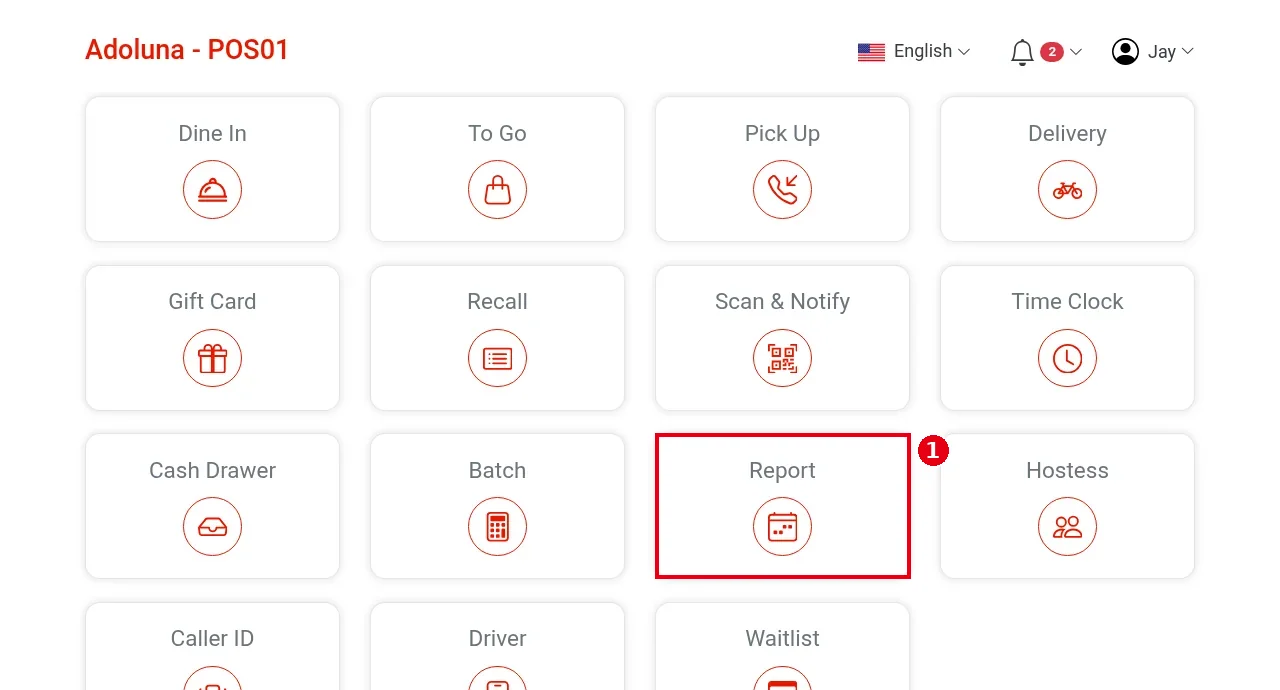
1. On the home screen tap ① Report.
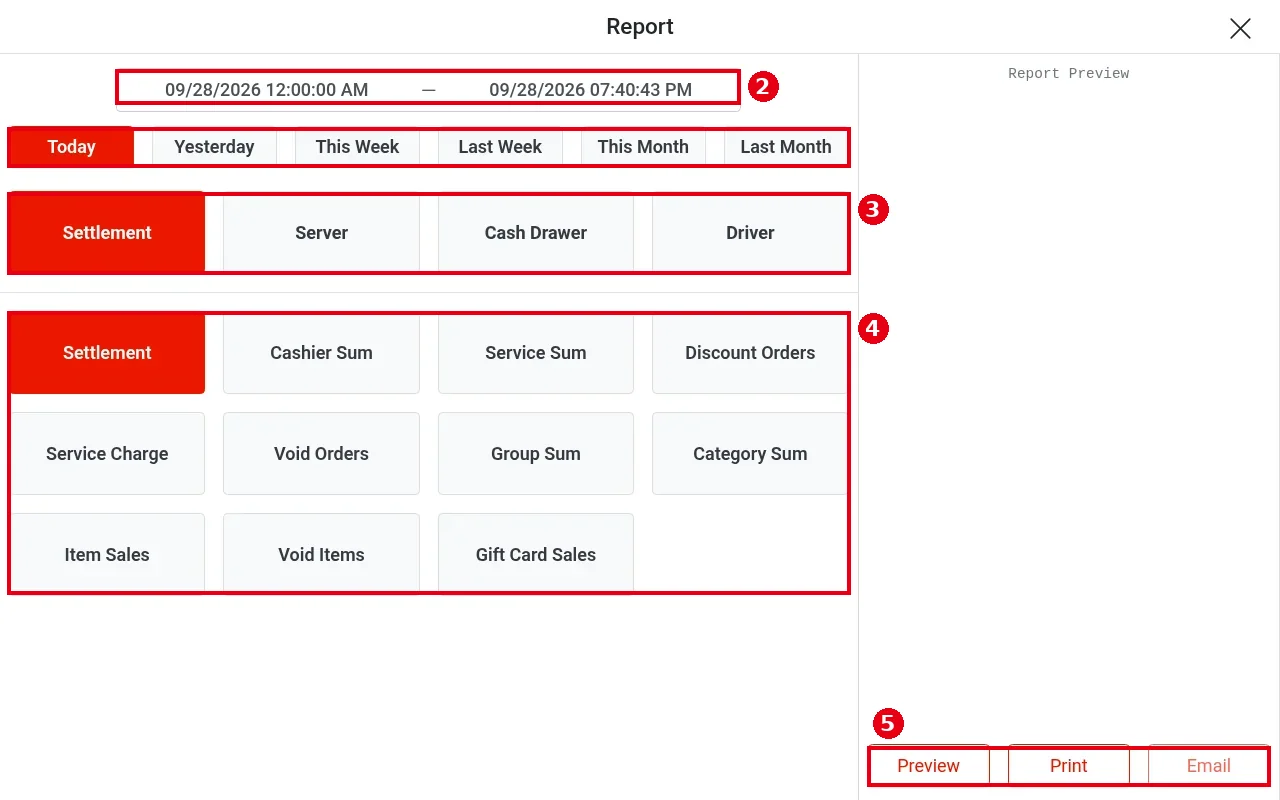
2. ② Pick the time range: by default today 12:00:00 AM to now; or tap Today, Yesterday, This Week, Last Week, This Month, Last Month.
3. ③ Pick a report category: Settlement (sales summary), Server (employee), Cash Drawer or Driver.
4. ④ Select the reports you want under the category (multi-select; the selected reports are stacked in one preview). Settlement includes Settlement, Cashier Sum, Service Sum, Discount Orders, Service Charge, Void Orders, Group Sum, Category Sum, Item Sales, Void Items and Gift Card Sales.
5. ⑤ Tap Preview at the bottom right to show it in the Report Preview area on the right, Print to print, or Email to email it. Tapping Preview with nothing selected shows Please select a report type.
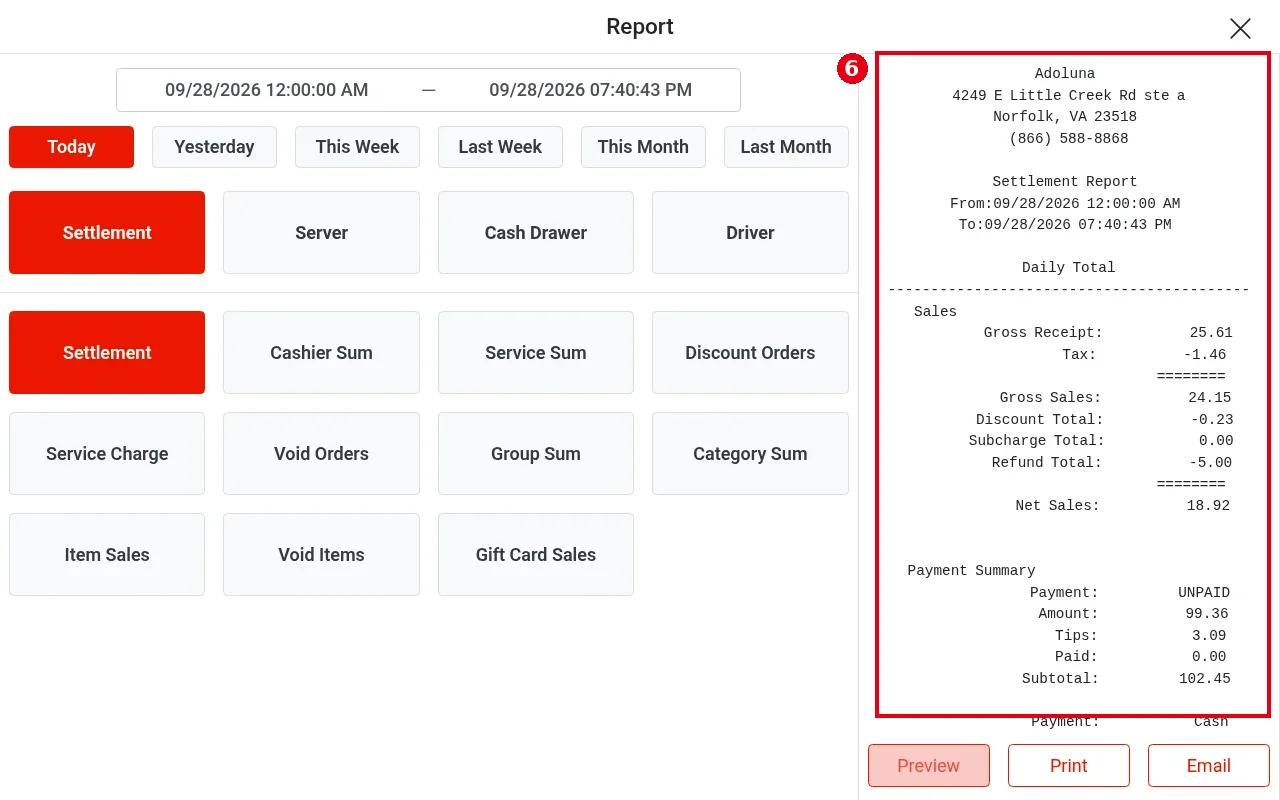
6. ⑥ The Settlement (daily sales) report lists, under Daily Total, from top to bottom:
-
Sales: Gross Receipt, Tax (the store’s own tax), then, when there are third-party platform orders, one tax line per platform (the platform name plus (T), e.g. UBEREATS(T), GRUBHUB(T), DOORDASH(T), all negative), Gross Sales, Discount Total, Subcharge Total, Refund Total, Net Sales (e.g. Net Sales 18.92). See “How the sales section is calculated” below.
-
Payment Summary: one block per payment type with Amount, Tips, Refund and Subtotal, where Subtotal = Amount + Tips; Cash also has Cash Discount; UNPAID shows Amount, Tips, Paid and Subtotal. Lines such as DoorDash and Uber Eats are custom payment types the store created itself, tendered by hand on the POS (see 1.3.4 How to settle with a custom payment type); Third-Party is third-party platform orders that come in through Deliverect (see 2.9.5 How to set up third-party delivery sync (Deliverect) and 4.7.2 How do third-party sales and tax show in reports?). A custom payment type can have the same name as a platform (e.g. DOORDASH): the DOORDASH payment is then tendered by hand, while the DOORDASH(T) tax line comes from platform orders received through Deliverect.
-
Total Payment With Tips: the sum of the payment types’ Subtotal, excluding UNPAID.
-
Tips Total: the sum of tips across payment types. A guest paying for a meal with a gift card can also add a tip, and that tip counts in Tips Total like tips on other payment types. Third-Party payments can carry tips too, and these also count in Tips Total.
-
Transaction Fee: credit card tips (the tips under Credit Card and Bolt Pay) × the rate the store has set (e.g. 3%). Each store can set its own rate. Tips on other payment types, such as Third-Party, are not included.
-
Tip Pooling(%): the tip pool (see 2.5.4 How to set up tip pooling).
-
Claim Tips: the tips owed to staff = Tips Total − Transaction Fee − Tip Pooling (see 2.8.5 How to edit or add time card records).
-
Cash Remaining: the cash left in the drawer after paying all claimed tips to staff in cash = the Cash Subtotal (cash amount + cash tips) − Tips Total + Transaction Fee + Tip Pooling, which is the same as the Cash Subtotal − Claim Tips. It can be negative when the card tips paid out in cash are more than the cash taken.
-
Points Spend.
-
Gift Card Sale: gift cards sold, by payment method (e.g. Cash, Custom, Credit Card), then Amount Paid, Promotion Bonus and Total Gift Card Value. Gift card sales are not sales and are not in Net Sales, but gift cards bought by credit card are included in the Credit Card payment amount. A gift card purchase can’t carry a tip.
Scroll down for the other selected reports.
How the sales section is calculated depends on Tax Calculation in the Backoffice Store Info (see 2.2.2 How to choose the tax calculation method):
-
Discount after tax (After Tax, tax on the full subtotal before the discount): Gross Receipt − Tax − each third-party platform’s (T) tax = Gross Sales; Gross Sales − Discount Total + Subcharge Total − Refund Total = Net Sales. Gross Receipt is the amount before the discount is taken off.
-
Discount before tax (Before Tax, the discount comes off first and tax is calculated on the rest): Gross Receipt − Tax − each third-party platform’s (T) tax = Gross Sales; Gross Sales − Refund Total = Net Sales. Discount Total and Subcharge Total are display only and are not used in the calculation.
-
Either way, Net Sales = subtotal − refunds − gift cards sold − discounts + surcharges. Net Sales excludes tax and tips.
Example: subtotal 10, discount 4, tax rate 12.5%, no surcharge or refund:
| Discount after tax (After Tax) | Discount before tax (Before Tax) | |
|---|---|---|
| Tax | 10 × 12.5% = 1.25 | (10 − 4) × 12.5% = 0.75 |
| Gross Receipt | 11.25 | 6.75 |
| Gross Sales | 11.25 − 1.25 = 10 | 6.75 − 0.75 = 6 |
| Net Sales | 10 − 4 = 6 | 6 |
The demo store in the screenshot above uses After Tax: 25.61 − 1.46 = 24.15 (Gross Sales); 24.15 − 0.23 + 0.00 − 5.00 = 18.92 (Net Sales). For an example with third-party platform orders, see 4.7.2 How do third-party sales and tax show in reports?.
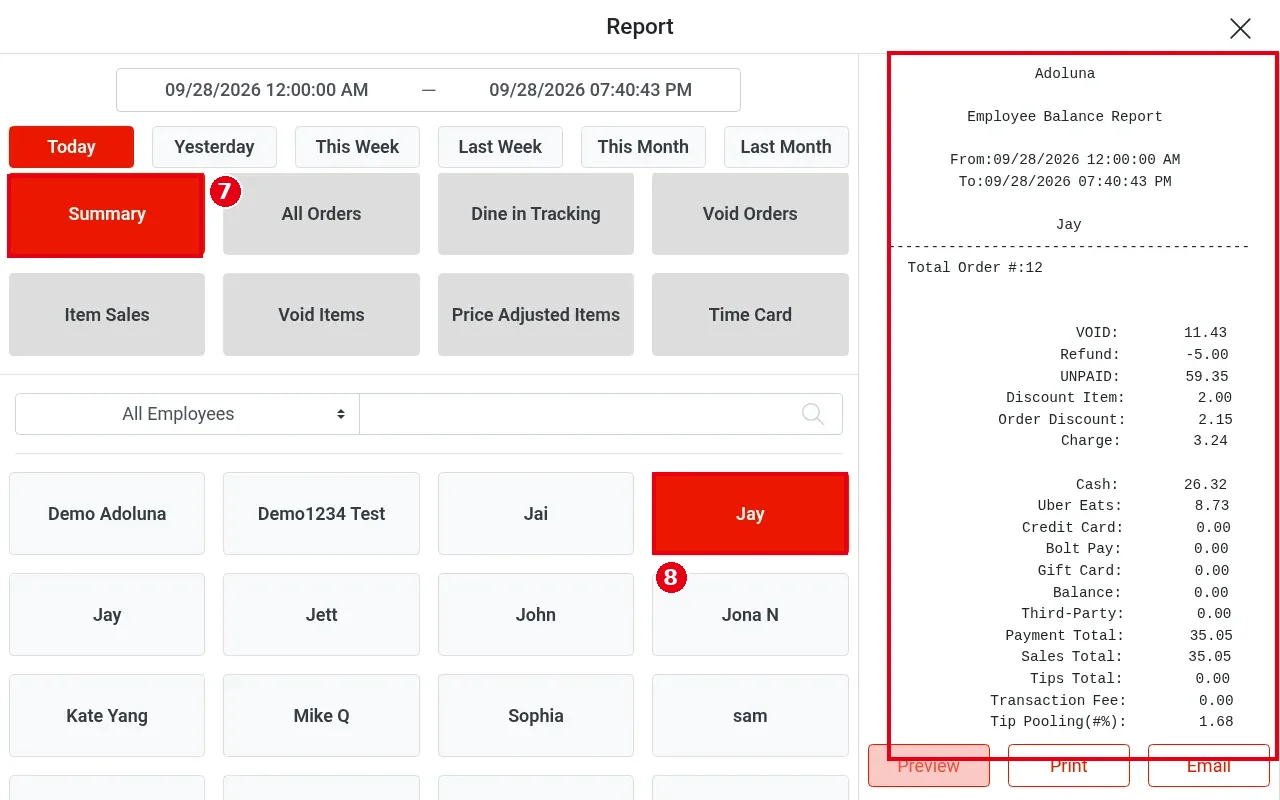
7. Server (employee reports): ⑦ select reports (Summary, All Orders, Dine in Tracking, Void Orders, Item Sales, Void Items, Price Adjusted Items, Time Card), ⑧ then pick an employee below (e.g. Jay). You can filter the employee list by role or name. Summary produces that employee’s Employee Balance Report (order count, voids, refunds, unpaid, discounts, totals per tender, tips…); All Orders adds the order list; Time Card shows punches and hours (see 1.5.2 How to view your time card history).
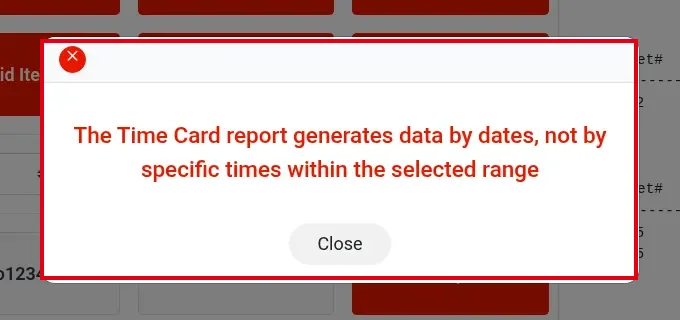
8. Selecting Time Card shows The Time Card report generates data by dates, not by specific times within the selected range.; tap Close. Time Card counts whole days.
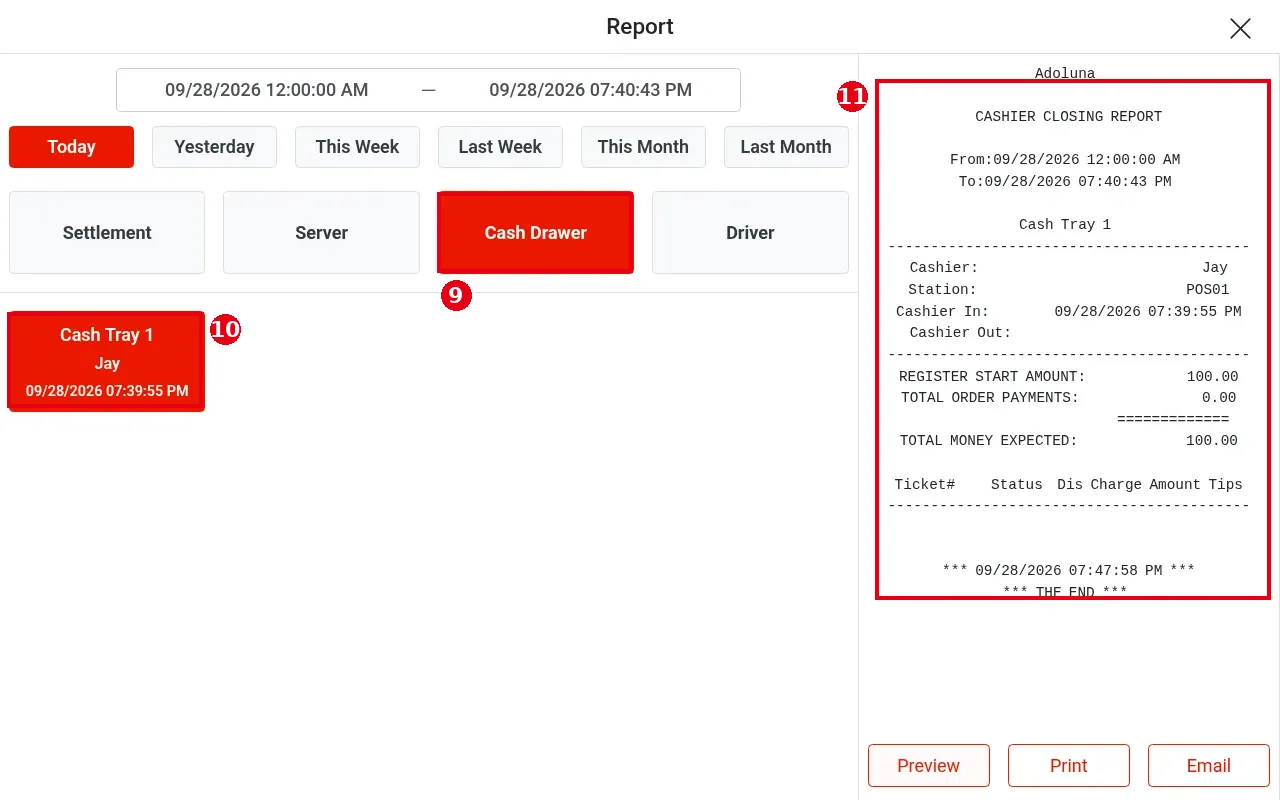
9. ⑨ Cash Drawer: ⑩ each cashier-in session appears as a button (e.g. Cash Tray 1 / Jay / 09/28/2026 07:39:55 PM). ⑪ Selecting it produces the CASHIER CLOSING REPORT: Cashier, Station, Cashier In, Cashier Out, REGISTER START AMOUNT, TOTAL ORDER PAYMENTS, TOTAL MONEY EXPECTED (see 1.5.4 How to close out a cash drawer (Cashier Out)).
10. Driver: pick a driver to produce the Driver Balance Report.
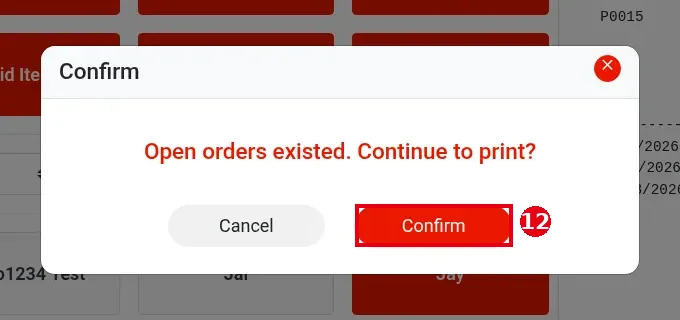
11. To print, tap Print. If there are still open orders, Open orders existed. Continue to print? appears; tap ⑫ Confirm to print anyway (on the receipt printer), or Cancel to deal with the open orders first (see 1.4.1 How to find an order in Recall).
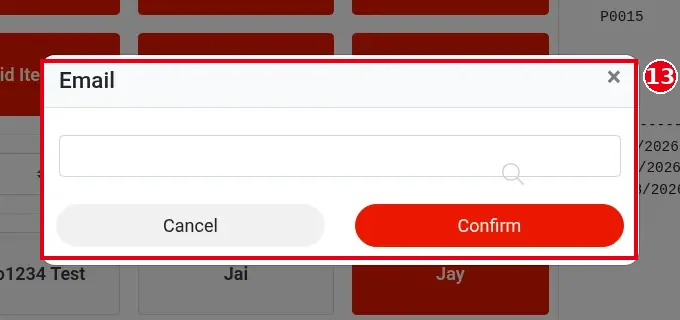
12. To email, tap Email, ⑬ type the recipient’s email address in the Email window, then tap Confirm.
Notes / FAQ #
-
Whether an employee can view reports and set a custom time range depends on their permissions (set per employee on the back-office Employees screen).
-
Tax on third-party orders is shown separately in the Sales section of the daily report, one line per platform (e.g. UBEREATS(T), see 4.7.2 How do third-party sales and tax show in reports?); the Void Items report shows the order number.
-
In the Settlement report, sales include orders in the date range that are still unpaid, and exclude earlier orders that were paid within the range.
-
For orders shared by several servers, sales and tips are split evenly in the employee reports (see 1.2.14 How to share an order among multiple servers); such orders show as e.g. P0001*S2 both on screen and on the printed server report (updated 2026-10-05).
-
Order and punch data of frozen or deleted employees can still be found in reports.


