
Purpose: Set the buffet table time limit, the interval between rounds of ordering, and whether to hide the buffet order total. For: owners, managers.
Before you start: these settings are at the bottom of the Service > Dine In page, not in each buffet menu, so they’re the same for every buffet menu. For the buffet menu itself, see 2.3.13 How to set up an All You Can Eat (buffet) menu.
Steps #
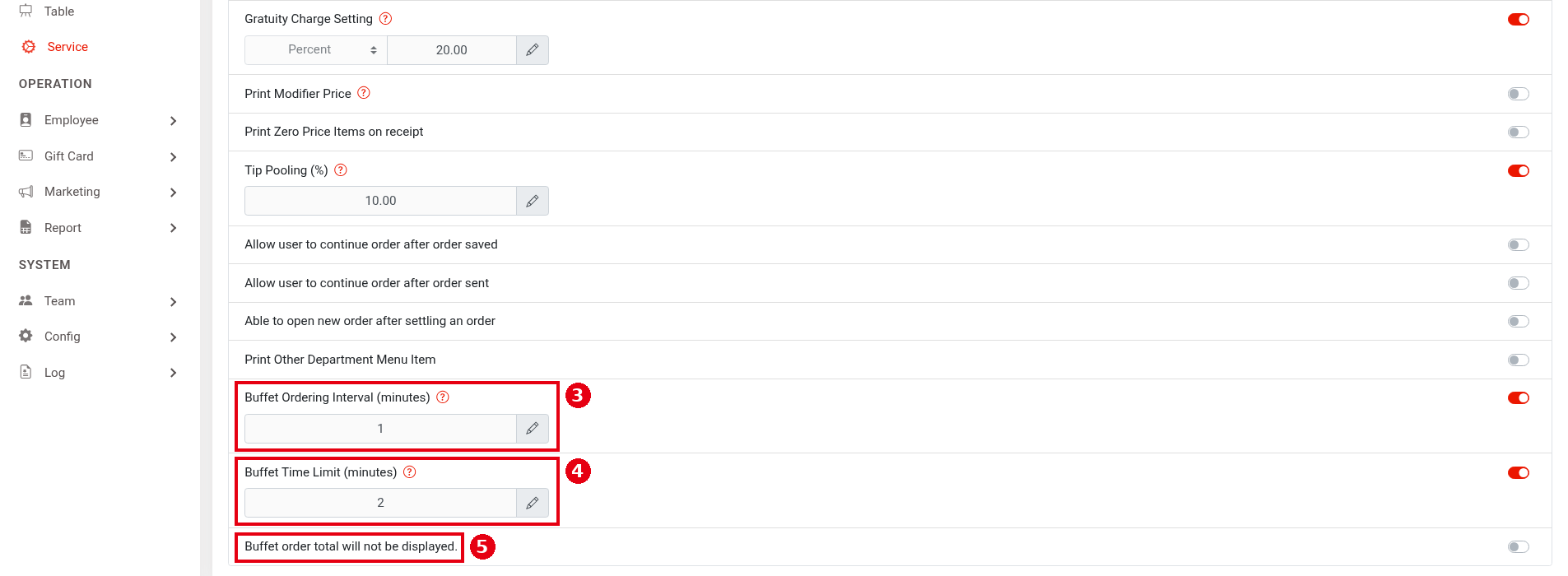
1. In the Backoffice left menu, click ① Service and choose the ② Dine In tab at the top.

2. Scroll to the bottom of the page and set:
-
③ Buffet Ordering Interval (minutes): the minimum number of minutes between two rounds of ordering. During the interval, guests can still add items, but the Send to Kitchen button is greyed out with a countdown timer next to it. This interval doesn’t limit servers adding items on the POS.
-
④ Buffet Time Limit (minutes): the dining time limit for each buffet table, in minutes. The timer starts when the table is opened. When time is up, the Kiosk can still add items but can’t send them to the kitchen.
-
⑤ Buffet order total will not be displayed.: on/off switch; when on, the Kiosk cart screen doesn’t show the buffet order total.
Each item has a switch on the right; click the pencil icon to change the value, then save (click Save, as in step 2 of 2.6.2 How to set up Scan to Order).
Notes / FAQ #
-
Guests can keep ordering on their own in two ways: by scanning the QR code on their receipt at the store’s Kiosk (Kiosk mode 4, Scan-to-Order, see 3.5.2 How to configure a Kiosk; scanning the receipt QR code currently needs a barcode scanner connected and will later change to the device camera, see 1.8.4 How to open a table on the Kiosk by scanning a receipt QR code), or with Scan to Order’s Buffet Mode, where the server opens the buffet table first, guests scan the table’s QR code with their own phone to order, and the server settles at the end (see 2.6.2 How to set up Scan to Order).
-
For how servers start and settle a buffet table, see 1.8.5 How to start an All You Can Eat (buffet) table and 1.8.6 How to settle an All You Can Eat (buffet) table.
-
For the other settings on the Dine In page, see 2.5.1 How to configure Dine In service settings.


