
Purpose: Close out the day in order: add card tips, reconcile, close the batch, close out cash drawers, print reports, clock staff out. For: managers, cashiers.
Steps #
Below is the end-of-day order: the basic flow (cash-drawer close-out → reports → clock-out) plus the batch steps (steps 2–4). See each linked article for details. The numbers in the image match the home-screen buttons you’ll use.
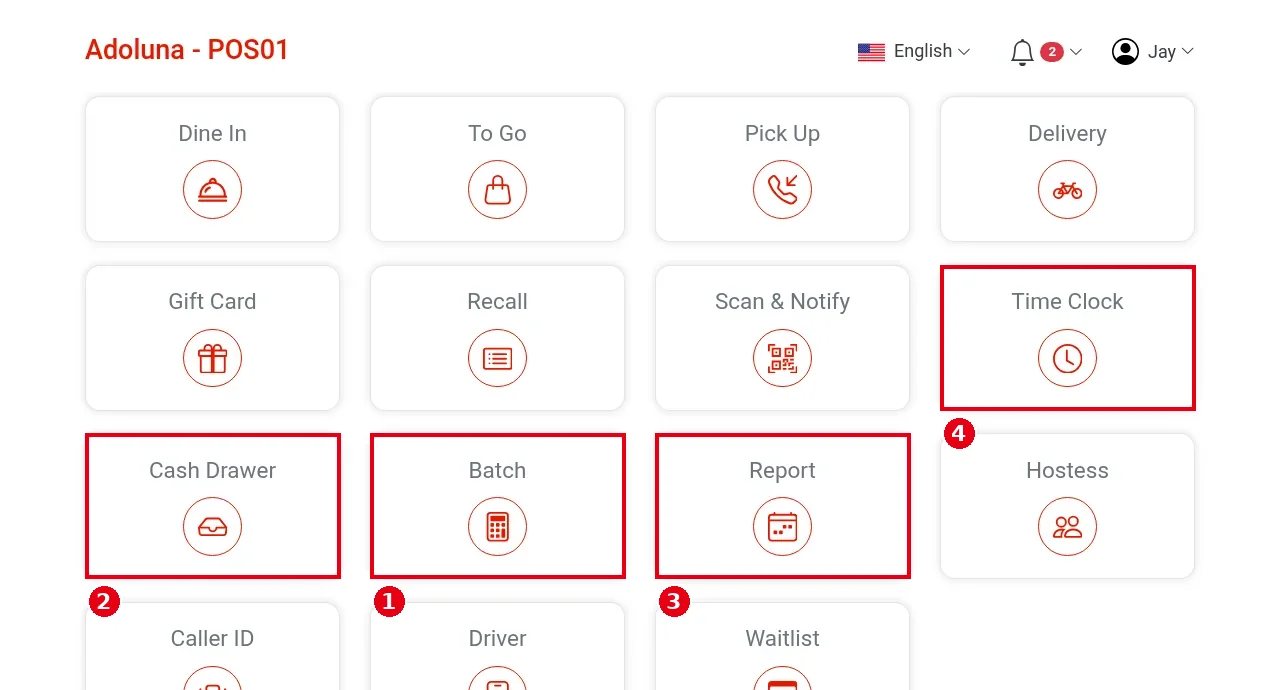
1. Make sure there are no open orders: check unpaid orders in Recall and settle or void them as needed (see 1.4.1 How to find an order in Recall, 1.3.1 How to take a cash payment, 1.4.5 How to void an unpaid order). If open orders remain when you print reports, the system warns Open orders existed. Continue to print?.
2. Add credit card tips: Batch > Batch – PAX > Actions > Tip, to add the tips guests wrote on card receipts (see 1.6.1 How to add credit card tips in bulk).
3. Reconcile: Actions > Reconcile to check that card transactions on the terminals match the POS, and fix any mismatch first (see 1.6.2 How to reconcile card transactions before batching).
4. Close the batch: Actions > Batch, pick the terminals and confirm (see 1.6.3 How to close a credit card batch). By default the batch reconciles first. If the store has auto batch set up in the back office, skip this step, but still finish the tips (step 2) and reconciliation (step 3) before the auto batch runs.
5. Close out cash drawers: home Cash Drawer; count and close out the drawer on every POS that has one cashiered in (see 1.5.4 How to close out a cash drawer (Cashier Out)).
6. View and print reports: home Report; print the Settlement daily report, plus employee and cash-drawer reports as needed (see 1.5.6 How to view, print or email POS reports).
7. Clock staff out: home Time Clock; every employee clocks out (see 1.5.1 How to clock in, take a break and clock out). Check the day’s hours in the Time Card report (see 1.5.2 How to view your time card history).
Notes / FAQ #
-
Add credit card tips before closing the batch; once it’s closed, tips can’t be added or changed.
-
If the store has set up auto batch in the back office, the batch closes automatically at the set time; see 2.2.3 How to set up Auto Batch.
-
If a card payment was charged twice, fix it before closing the batch (see 4.1.1 Why was a card charged twice, and how do I fix it?); for a failed batch or a reconciliation mismatch see 4.1.3 What to do when a batch fails or doesn’t reconcile.


