
Purpose: Create surcharge options (e.g. Charge$1.25) for servers to add to orders on the POS (see 1.2.10 How to add an order-level discount, charge or tip). For: owners, managers.
Before you start: surcharges are set up the same way as discounts (see 2.4.1 How to set up discounts). Whether tax is calculated before or after a surcharge is also decided by Tax Calculation in Store Info.
Steps #
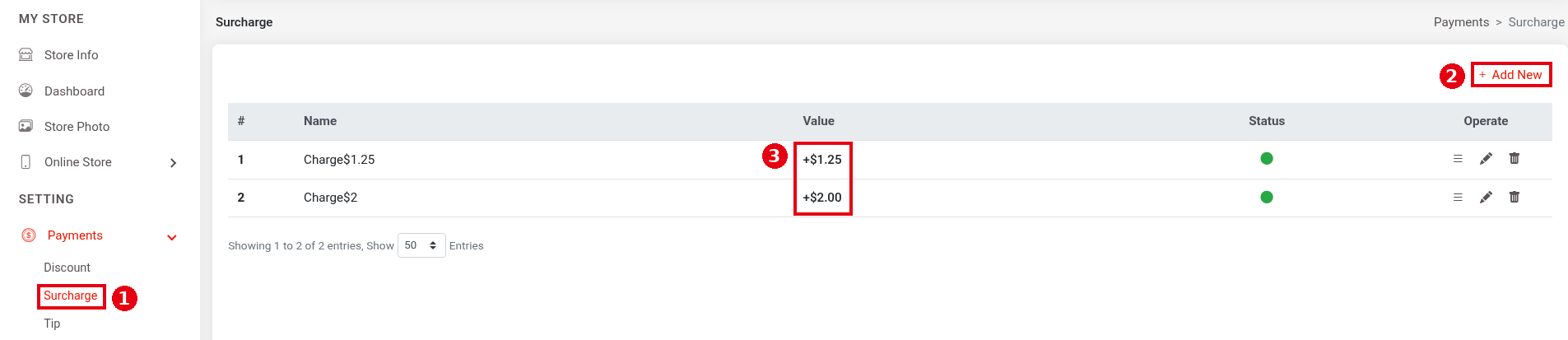
1. In the Backoffice left menu, click Payments > ① Surcharge. The list’s columns are Name, Value, Status and Operate; the demo store has Charge$1.25 (+$1.25) and Charge$2 (+$2.00), and ③ Value is the amount added. Click ② + Add New to add a surcharge.
2. Fill in the form:
-
④ Name (English), Name (中文): the surcharge name (required).
-
⑤ Value: choose Percent or Cash (a fixed amount) on the left and enter the value on the right (0.00 by default).
-
⑥ Enable: turns the surcharge on.
-
⑦ Click Save to save or Cancel to cancel.

Notes / FAQ #
-
Whether surcharges count toward the tip base depends on Tip Calculation Mode (see 2.4.3 How to set up tip options, minimum tip and tip base).
-
To edit or delete, click the pencil or bin icon under Operate in the list.


