
Purpose: Where an order goes after it’s combined into another with Combine, and how to find the original order and the combined order. For: servers, cashiers, managers.
How it works #
Combine merges one or more unpaid orders into a main order (see 1.3.8 How to combine orders). After combining:
-
The merged order (e.g. P0003) goes to AutoVoid (voided automatically). It’s no longer an unpaid order, so with the default filters Recall shows only the main order (e.g. P0002).
-
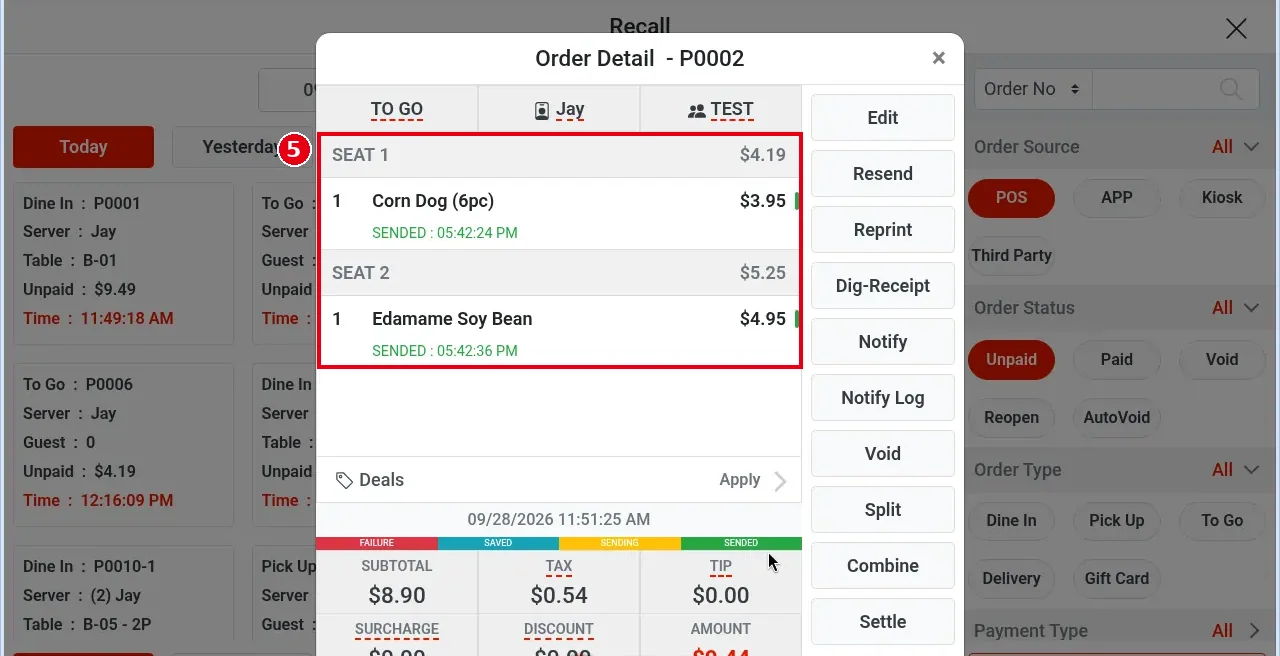
The merged order’s items are all in the main order, grouped by seat: ⑤ SEAT 1 holds the main order’s own items, and SEAT 2 the items merged in.
-
The main order keeps its order type and customer.
-
Discounts and surcharges on both orders are voided; add them again to the main order if needed (see 1.2.10 How to add an order-level discount, charge or tip).
How to find the combined order and the original #
1. In Recall, search by the main order’s number, the table number or the customer’s phone (see 1.4.1 How to find an order in Recall). If you don’t know the main order number, search by table or phone, or sort by time and look through the orders.
2. If the main order has been paid, choose Paid under Order Status, or it won’t show (Recall opens showing only Unpaid).
3. To find the original merged order, choose AutoVoid under Order Status in Recall (see 1.4.1 How to find an order in Recall).
If you combined by mistake #
A combine can’t be undone. You can split the merged items into another order by item (see 1.3.7 How to split a check by item), but that creates a new order; the original order doesn’t come back.
Notes / FAQ #
-
The Combine window lists only unpaid orders, filtered by the order source, order type and Server at the top. If the order you want isn’t there, change those filters first (see 1.3.8 How to combine orders).
-
Paid orders can’t be combined.


