
Purpose: Fix the order type, change the server, move the table or change the customer. For: servers, managers.
Steps #
Rule: every change below is kept only after you tap Save. If you exit without Save (× at top right → Exit?), the changes are lost.
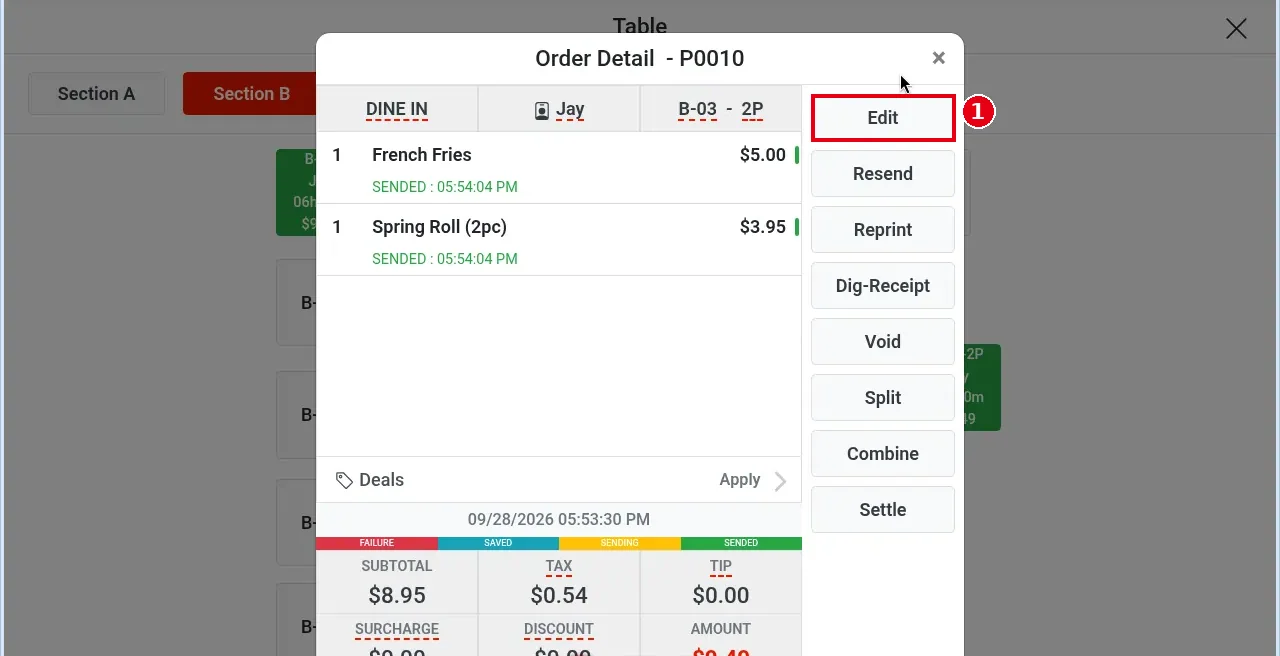
1. Tap the table on the table map to open Order Detail, then tap Edit (the title changes to Order – P0010).
Change the order type
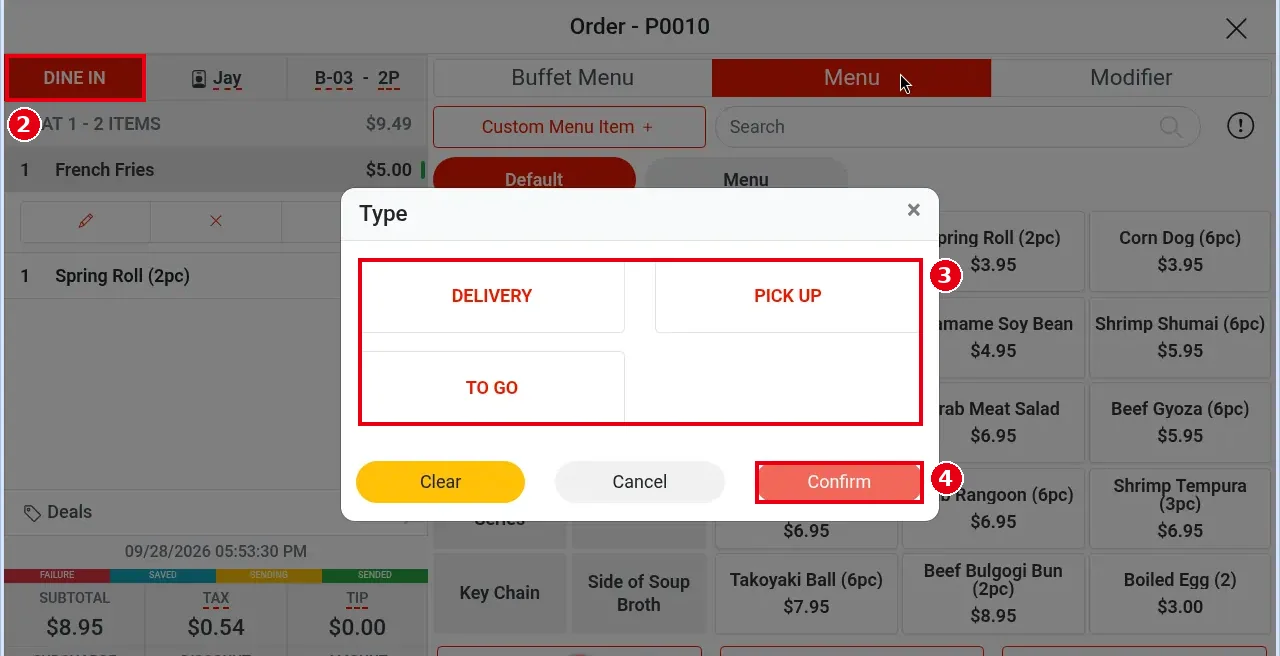
2. Tap the order type at top left (e.g. DINE IN).
3. In the Type window pick the new type: DELIVERY, PICK UP or TO GO.
4. Tap Confirm.
Change the server
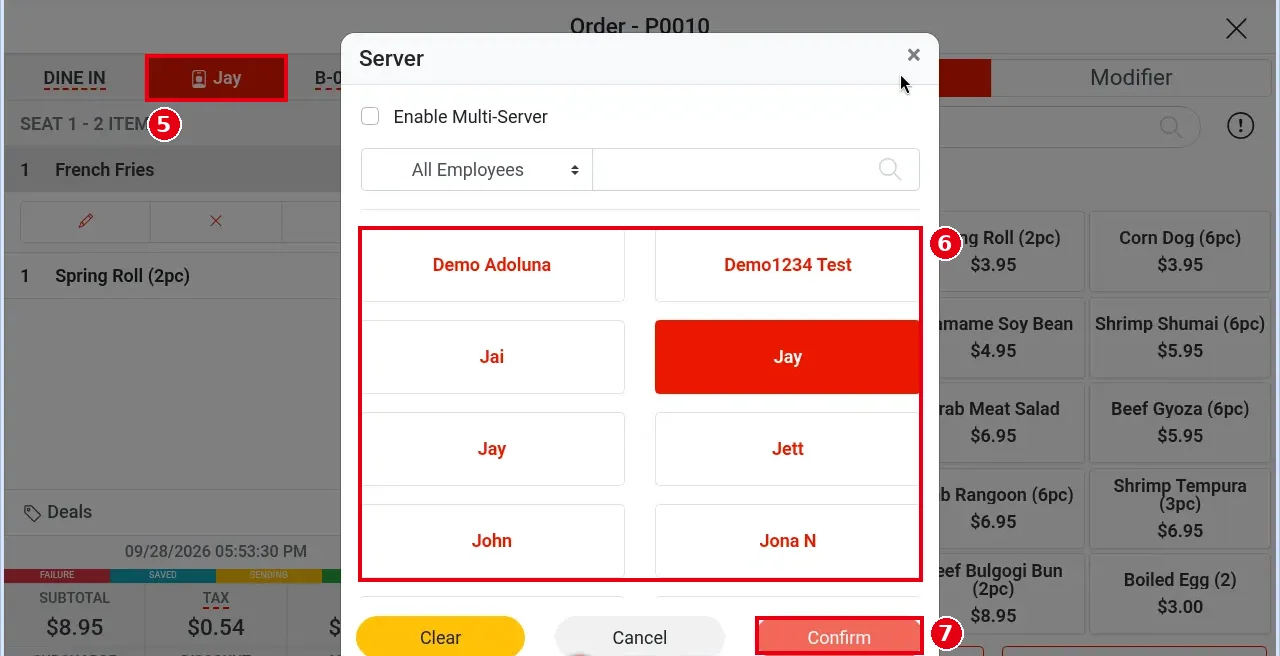
5. Tap the server name in the middle of the header (e.g. Jay).
6. In the Server window tap the new server (use the All Employees drop-down and search box to find them).
7. Tap Confirm.
Move to another table
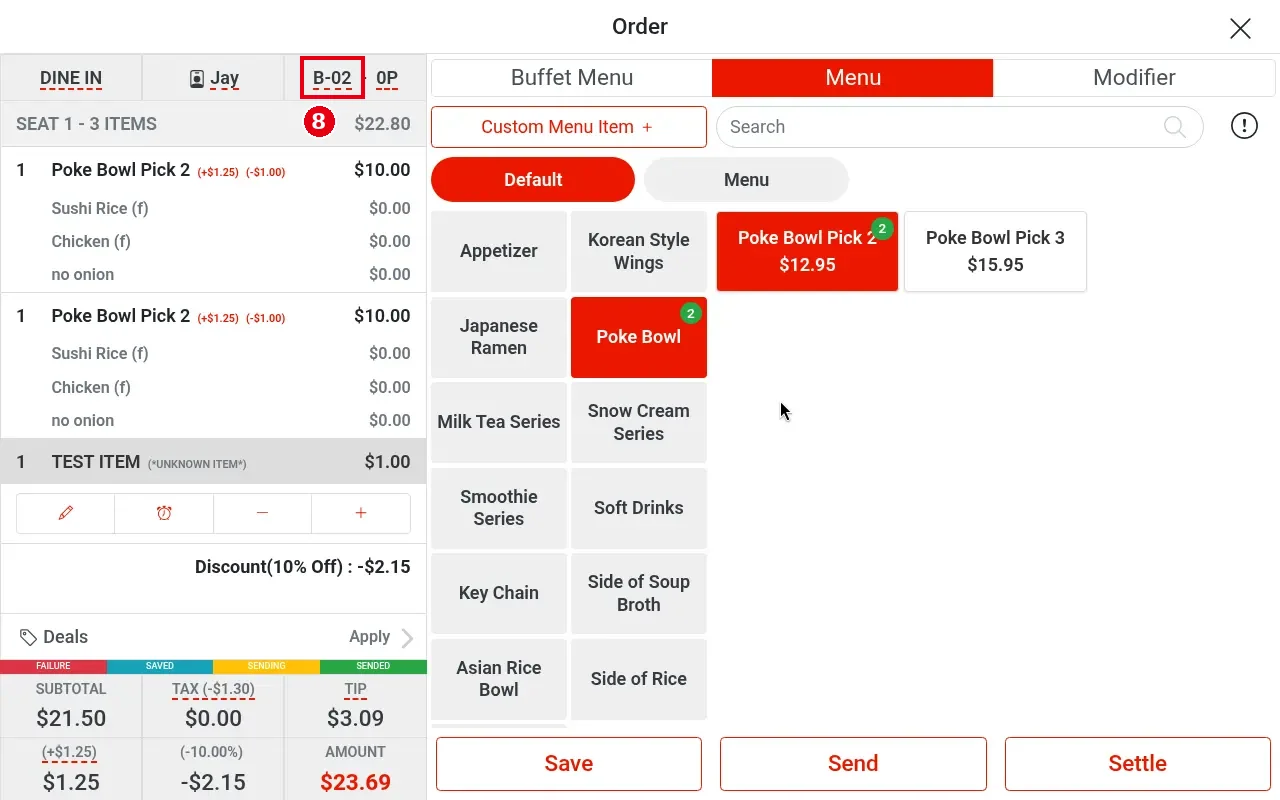
8. Tap the table number at top right (e.g. B-02). Tap the table number itself – tapping the guest count after it (e.g. 0P) opens the Guest window instead.
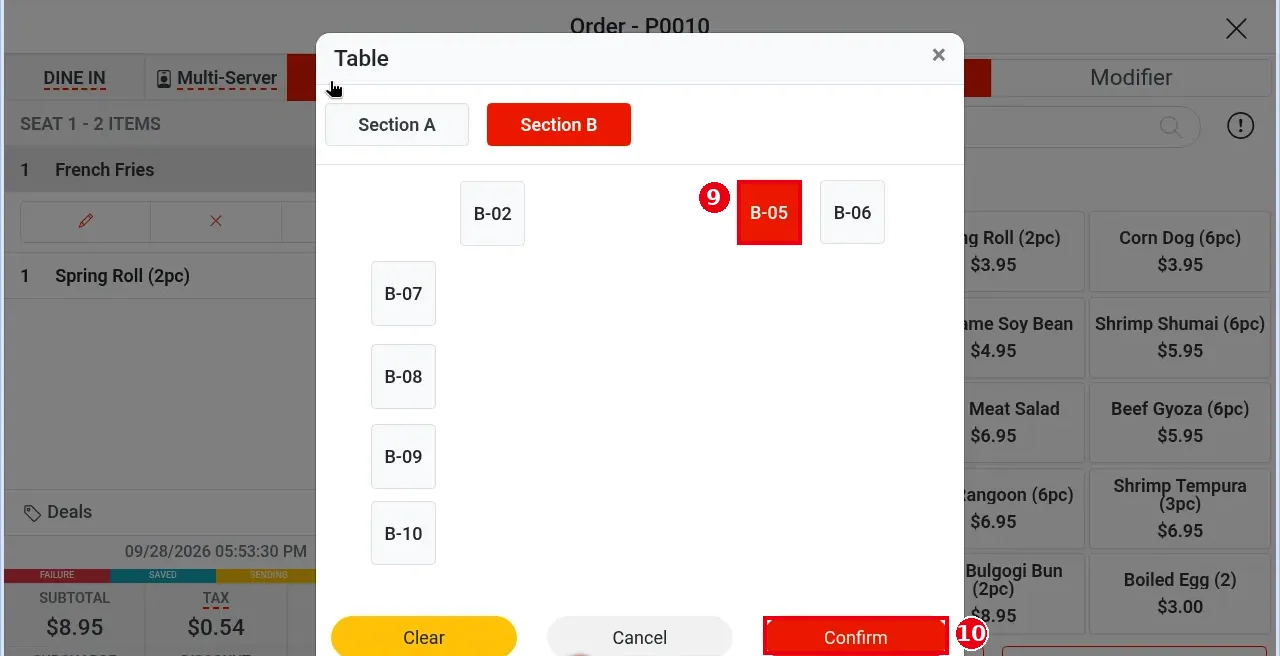
9. In the window titled Table, choose the section and new table (e.g. Section B → B-05).
10. Tap Confirm.
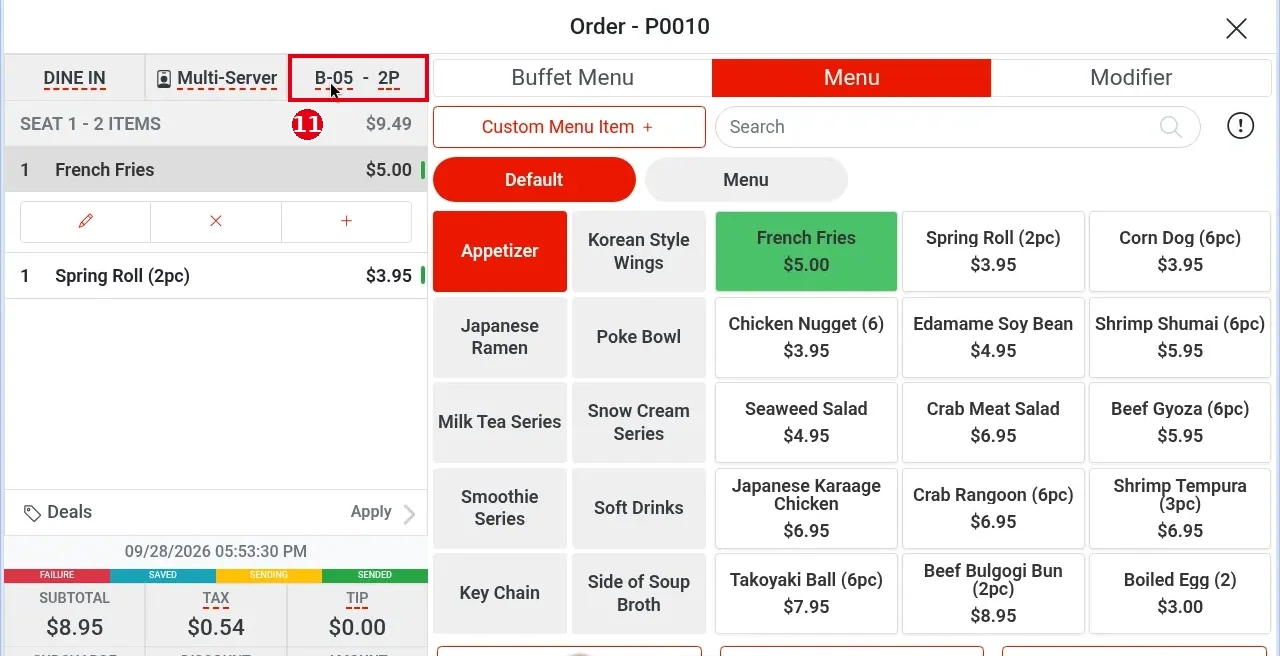
11. When you are done, you must tap Save (same for type, server and table changes). Here the header shows the new table B-05 – 2P; after saving, the order also moves to the new table on the table map and the old table becomes free.
Change the customer
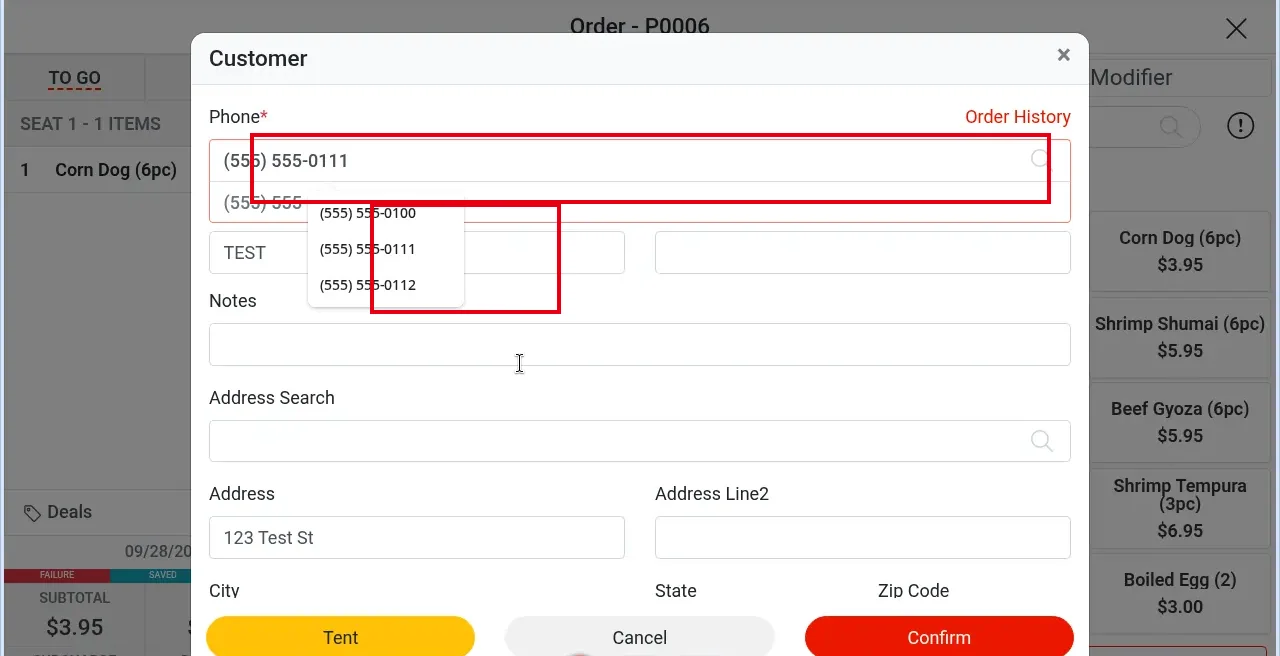
12. Tap CUSTOMER (or the customer name shown) in the header to open the Customer window: on a dine-in order tap the fourth header cell, CUSTOMER; on to-go, pick-up and delivery orders tap CUSTOMER at top right. In the window enter Phone* (required); First Name, Last Name, Notes and address fields are optional. Tap Confirm to confirm (Cancel to cancel) and look up or edit the customer (same as 1.2.2 and 1.2.3). As you type the phone number, matching numbers are listed below; tap one (e.g. (555) 555-0111).
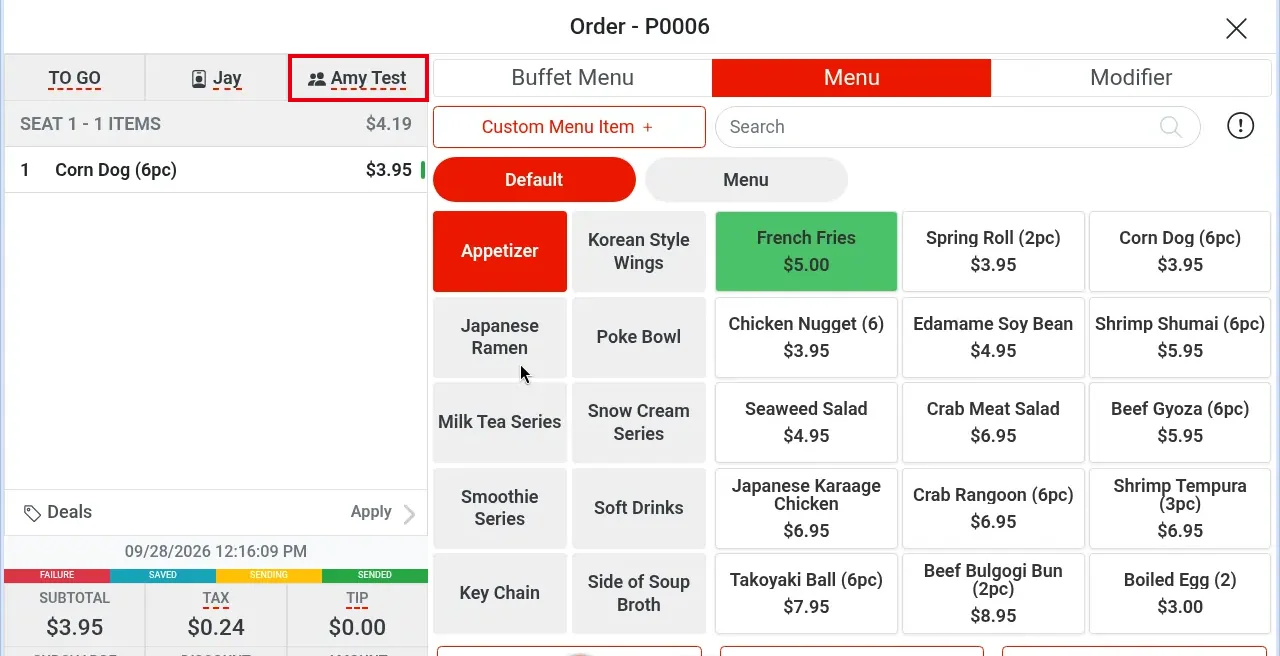
13. After confirming, the header shows the new customer (e.g. Amy Test). Tap Save.
Notes / FAQ #
-
Rule: changes take effect only after Save. If you tap × and confirm Exit?, unsaved type, server and table changes are lost.
-
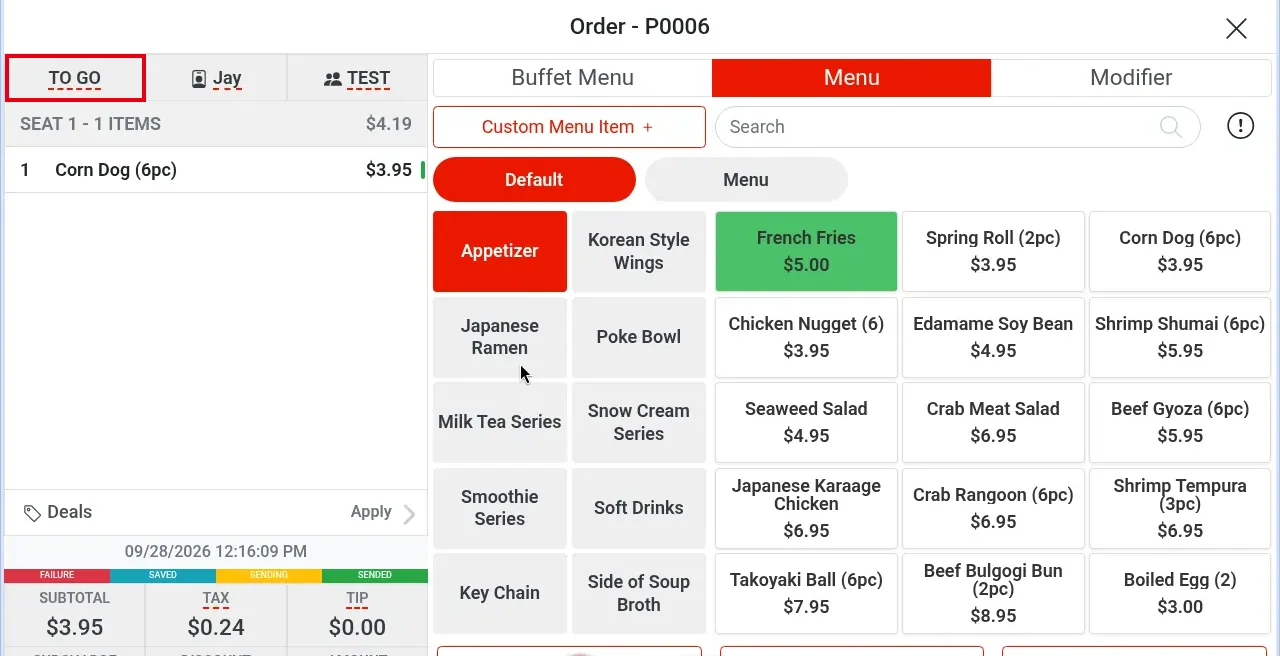
The Type window has no Dine In because this order is already dine-in, so it lists only DELIVERY, PICK UP, TO GO. After a type change the first header cell shows the new type; below, pick-up order P0006 after changing it to to-go shows TO GO:
-
On dine-in orders the header has four cells: order type, server, table + guests, and CUSTOMER. The third cell is table + guests; tap the fourth cell, CUSTOMER, to link a customer (see steps 12 and 13 above).
-
Whether changing the server, table or order type needs manager approval depends on each employee’s permissions, which are set per employee in the back office employee screen. If an employee doesn’t have the permission, a manager-approval prompt appears and a manager enters their own passcode (for the manager password prompt see 1.2.7). For example, with the demo store’s regular employee account, order discount, surcharge, tip, tax exempt, changing the order type, server or table, and voiding a sent item all asked for the manager password (Please enter manager password), while item discount, item price change and item charge did not. In the demo store, the regular employee was asked for the manager password as soon as they tapped the order type, server or table in the header; the Type, Server or Table window opened only after that. The step screenshots used the highest-permission account, so no approval appears.


