
Purpose: When a guest taps Help on the Kiosk to call staff, find the order on the POS and help the guest change it. For: front counter, servers, managers.
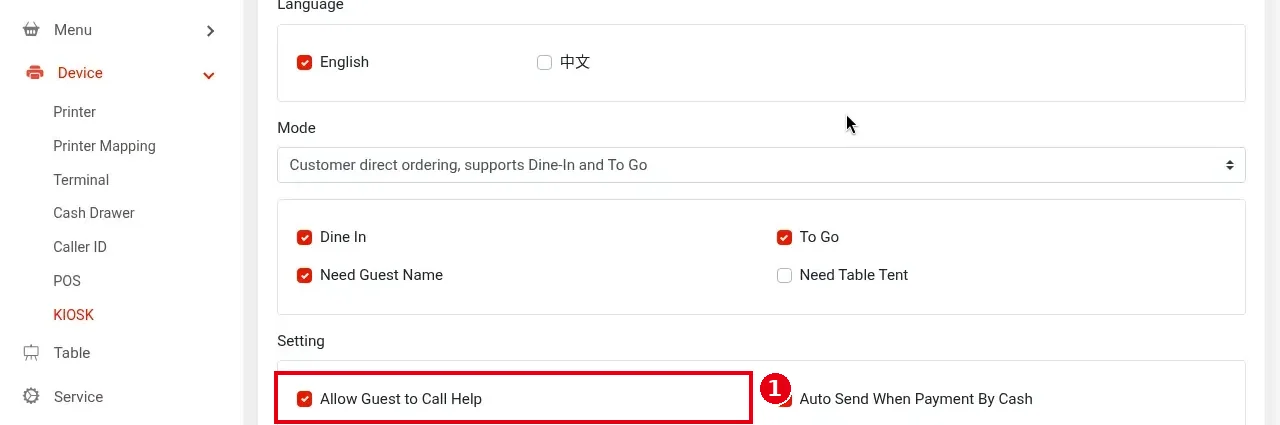
Before you start: the Kiosk shows a Help button only when ① Allow Guest to Call Help is ticked in the Backoffice Kiosk settings (see 3.5.2 How to configure a Kiosk).
Steps #
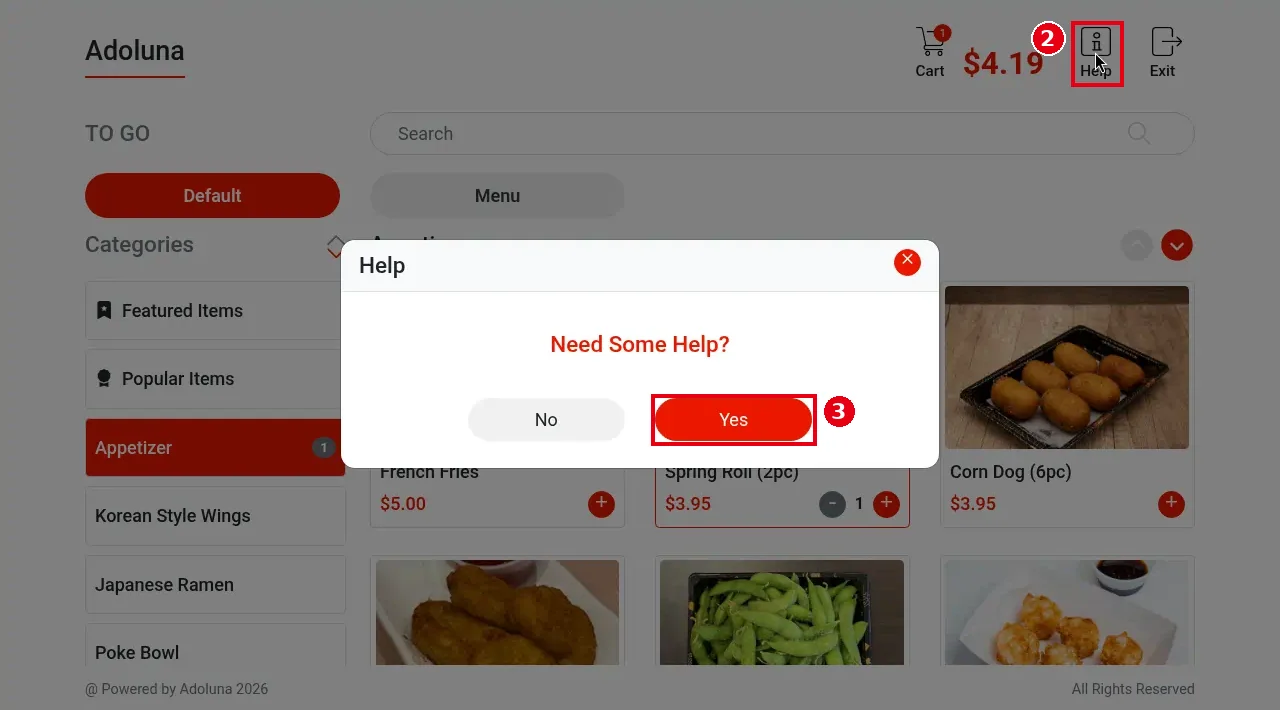
1. The guest taps ② Help at the top right of the Kiosk ordering screen. “Need Some Help?” appears; tap ③ Yes to call staff (No cancels).
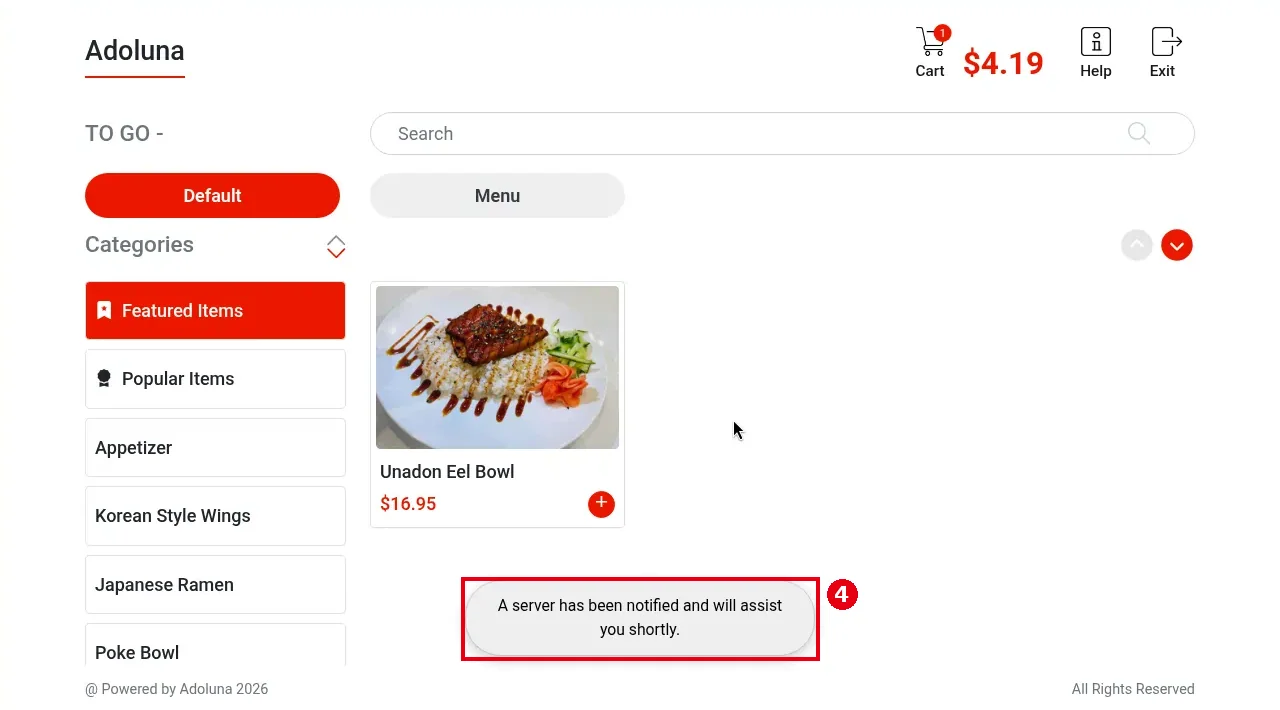
Once the call goes through, the Kiosk shows ④ “A server has been notified and will assist you shortly.” at the bottom. The call saves the cart as an order with an order number (e.g. K0004); the guest hasn’t checked out yet.
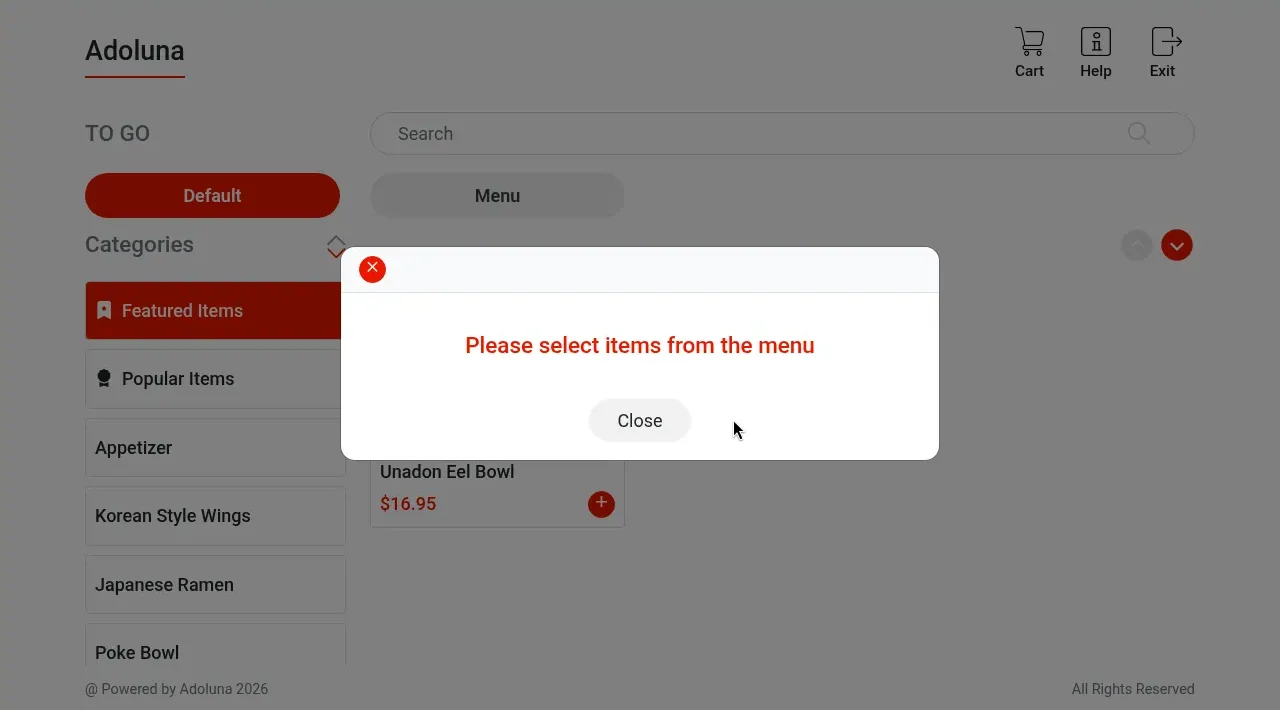
With an empty cart, Yes only shows “Please select items from the menu” and no call is sent; the guest must add an item first.
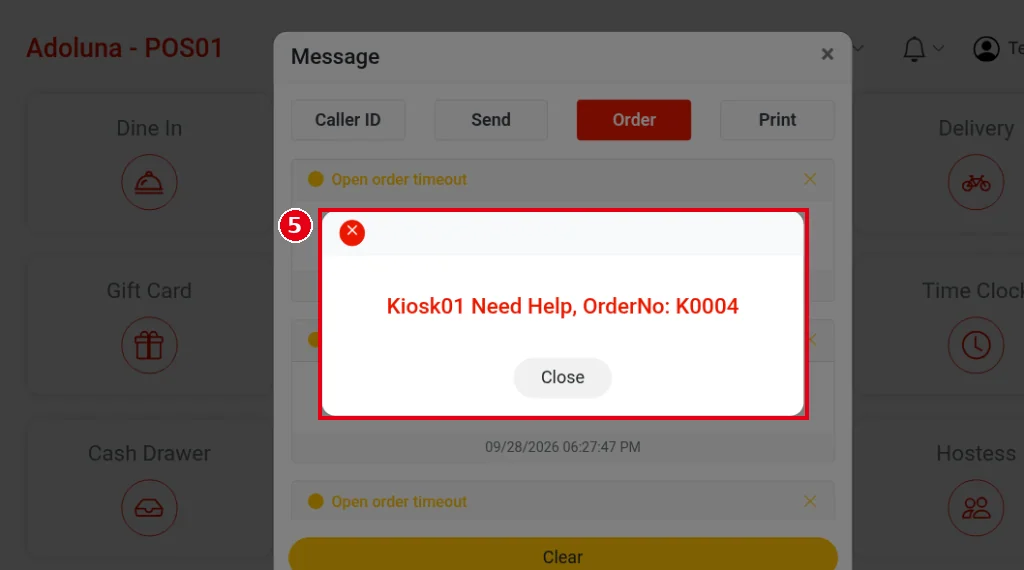
2. A pop-up appears on the POS right away with the Kiosk name and order number (e.g. ⑤ “Kiosk01 Need Help, OrderNo: K0004”); tap Close to close it.
3. Go to the Kiosk and help the guest. If the order needs changes (e.g. change items, add a discount), find the Kiosk order in Recall on the POS and open it (the Order Source filter can show only Kiosk orders, see 1.4.1 How to find an order in Recall); the changes sync back to the Kiosk in real time.
4. The guest carries on ordering and pays on the Kiosk (see 1.8.1 How guests order and pay at the Kiosk).
Notes / FAQ #
-
If the guest’s payment fails, you can also take payment for the order on the POS (see 1.3.2 How to take a credit card payment). Kiosk orders with a failed payment are voided automatically if nobody opens them within 30 minutes.


