
Purpose: Sell a gift card at the POS, either from a template set up in the Backoffice or with a custom value. For: cashiers, managers.
Before you start: Gift card templates (face value, sale price, expiry) are set up in the Backoffice; see 2.10.1 How to set up gift card templates. A physical card’s number can be swiped on a magnetic stripe reader or typed in. PIN gift cards must be imported in the Backoffice first; see 1.11.4 How to sell a PIN gift card.
Steps #
1. On the home screen tap ① Gift Card.
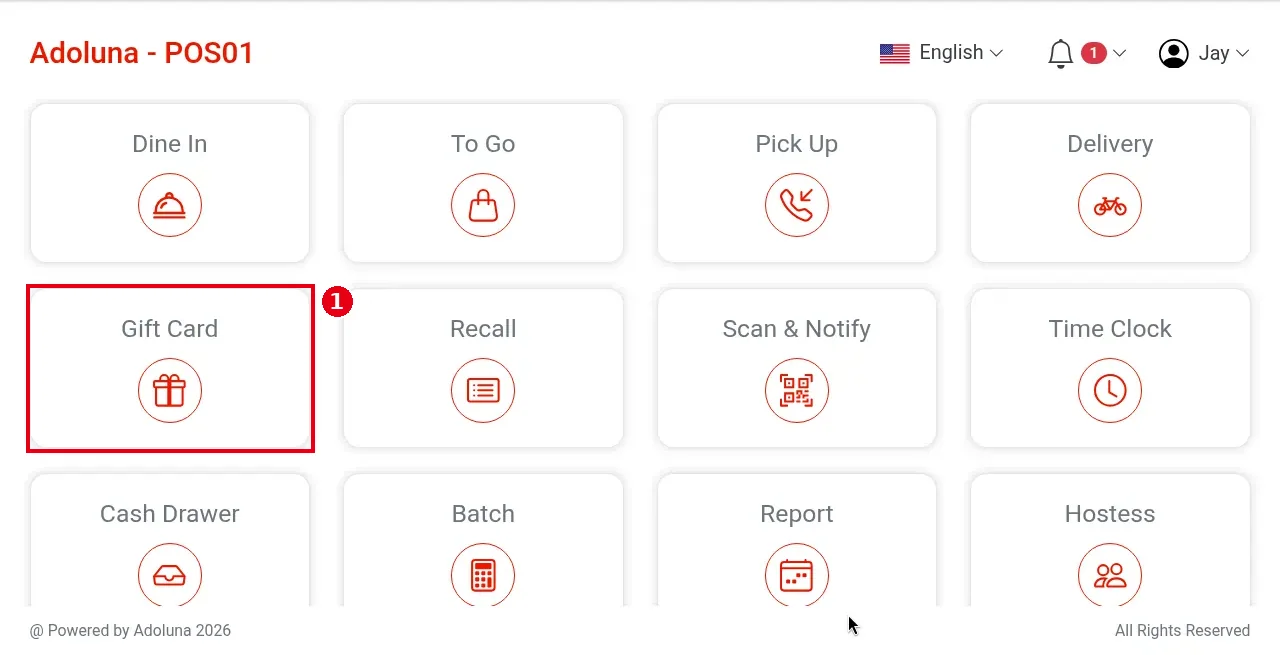
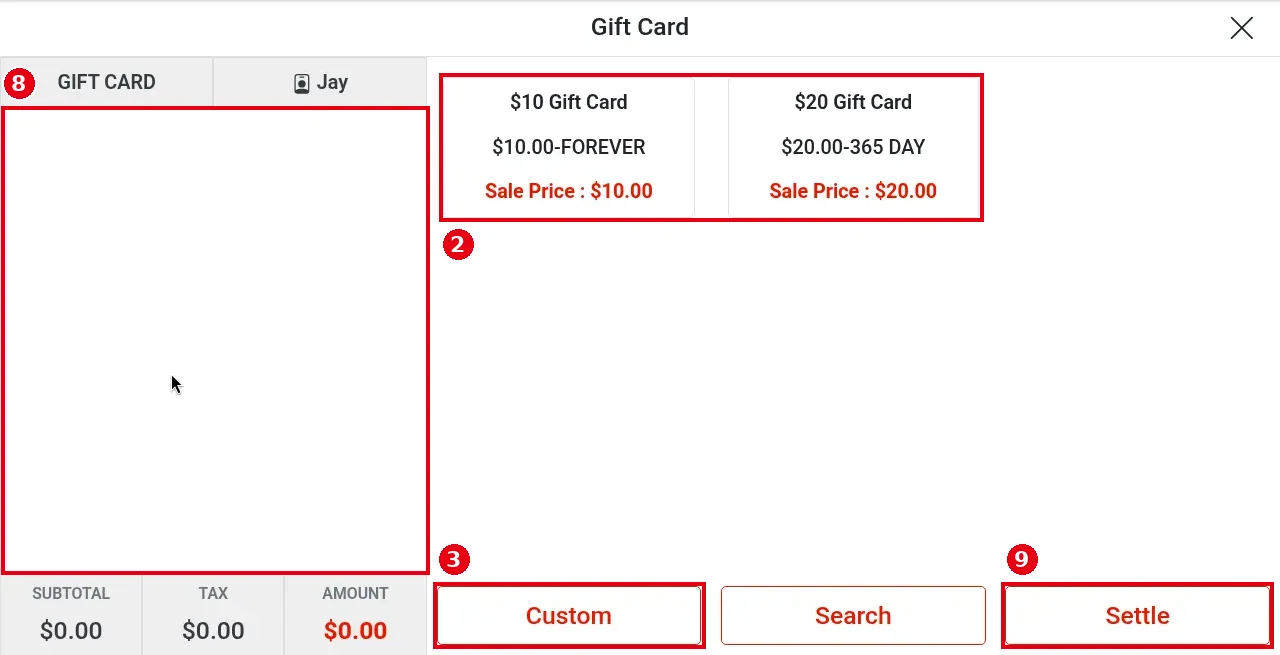
2. On the Gift Card screen choose the card to sell:
-
② tap a template (e.g. $10 Gift Card, showing the value and expiry $10.00-FOREVER and Sale Price : $10.00);
-
or tap ③ Custom to set your own value (see step 3).
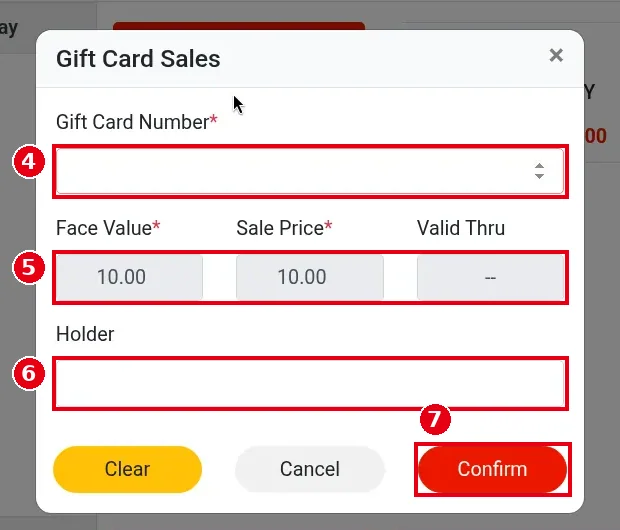
3. The Gift Card Sales window opens:
-
④ Gift Card Number*: swipe or type the card number (required).
-
⑤ Face Value*, Sale Price* and Valid Thru: filled in from the template and locked when you chose a template; with Custom you enter them yourself, and Valid Thru uses MM/DD/YYYY (see the screenshot in 1.11.4 How to sell a PIN gift card).
-
⑥ Holder: the cardholder’s name, optional.
Tap ⑦ Confirm to add the card to the list on the left (Clear clears the form, Cancel closes it).
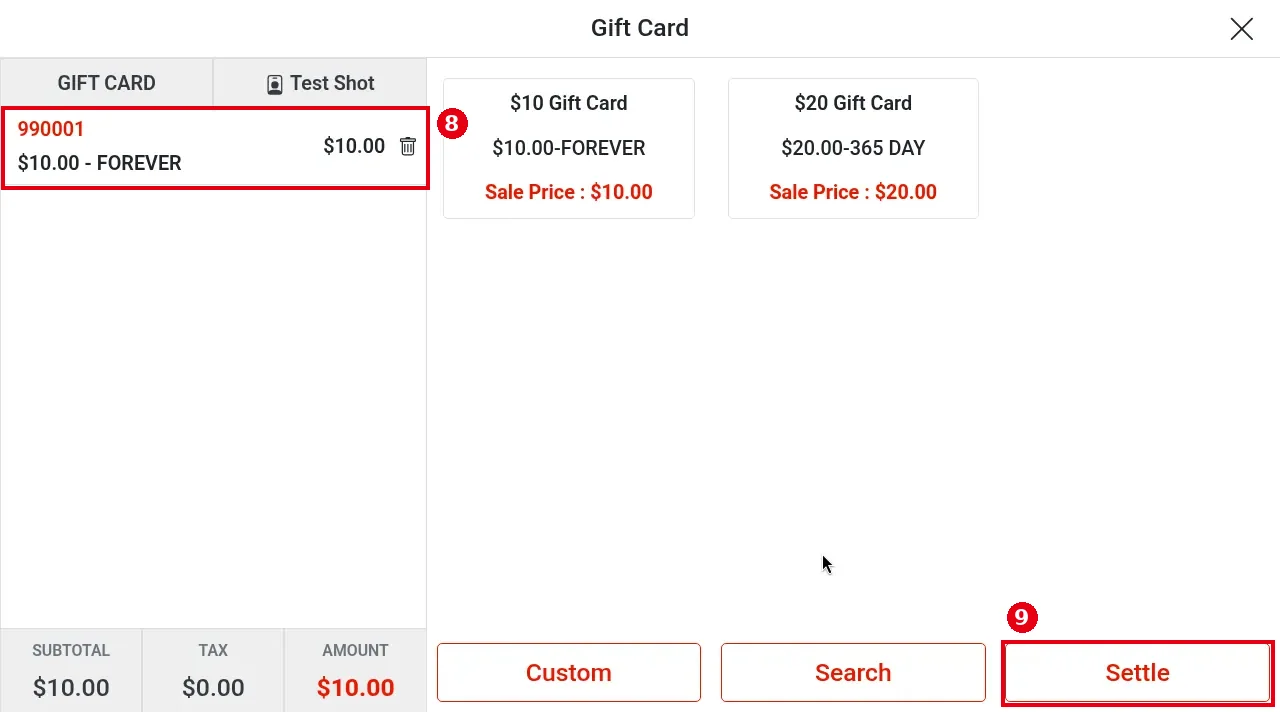
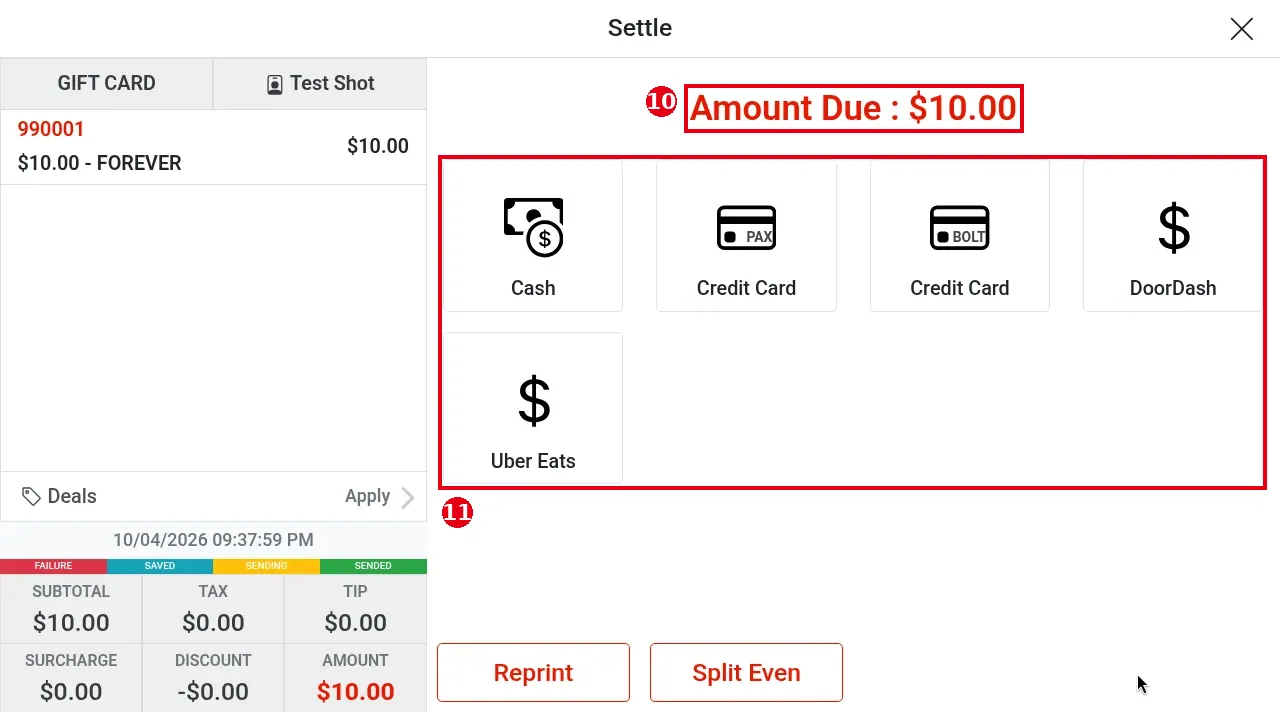
4. The card appears in list ⑧ on the left, showing the card number, value and expiry (e.g. 990001 / $10.00 – FOREVER); the bin icon on the right removes it. You can add several cards. In the screenshot, TAX on the gift card is $0.00.
5. Tap ⑨ Settle to open the payment screen: ⑩ Amount Due is the amount to pay; ⑪ choose the payment type, the same way as a normal order (cash: 1.3.1 How to take a cash payment; credit card: 1.3.2 How to take a credit card payment). The screenshot offers Cash, Credit Card (PAX), Credit Card (BOLT) and the store’s custom DoorDash and Uber Eats types, but no Gift Card. Selling a gift card does not count toward sales; when a guest later pays for a meal with the gift card, that meal counts toward sales.
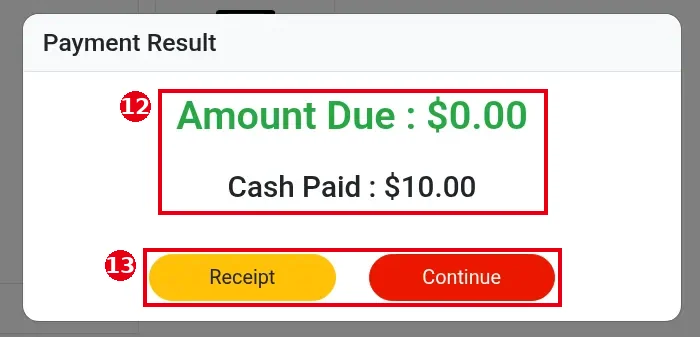
6. When payment is done, Payment Result appears: ⑫ shows Amount Due : $0.00 and the amount paid (e.g. Cash Paid : $10.00). ⑬ Tap Receipt to print a receipt or Continue to carry on. The card can be used once it’s paid for.
Notes / FAQ #
-
The sale price can be lower than the face value (e.g. sell for $50 with a $100 value). The POS Report > Gift Card Sales report lists the amount paid (Amount Paid), the bonus (Promotion Bonus) and the total card value (Total Gift Card Value); see 1.5.6 How to view, print or email POS reports.
-
To check a balance see 1.11.2 How to check a gift card balance, to reload see 1.11.3 How to reload a gift card, and for paying with a gift card see 1.3.3 How to pay with a gift card.
-
Sold cards are recorded in the Backoffice under Gift Card Records; see 2.10.2 How to view, export and freeze gift card records.


