
Purpose: Take a phone pick-up order: find the customer by phone number, then order. For: staff answering the phone.
Steps #
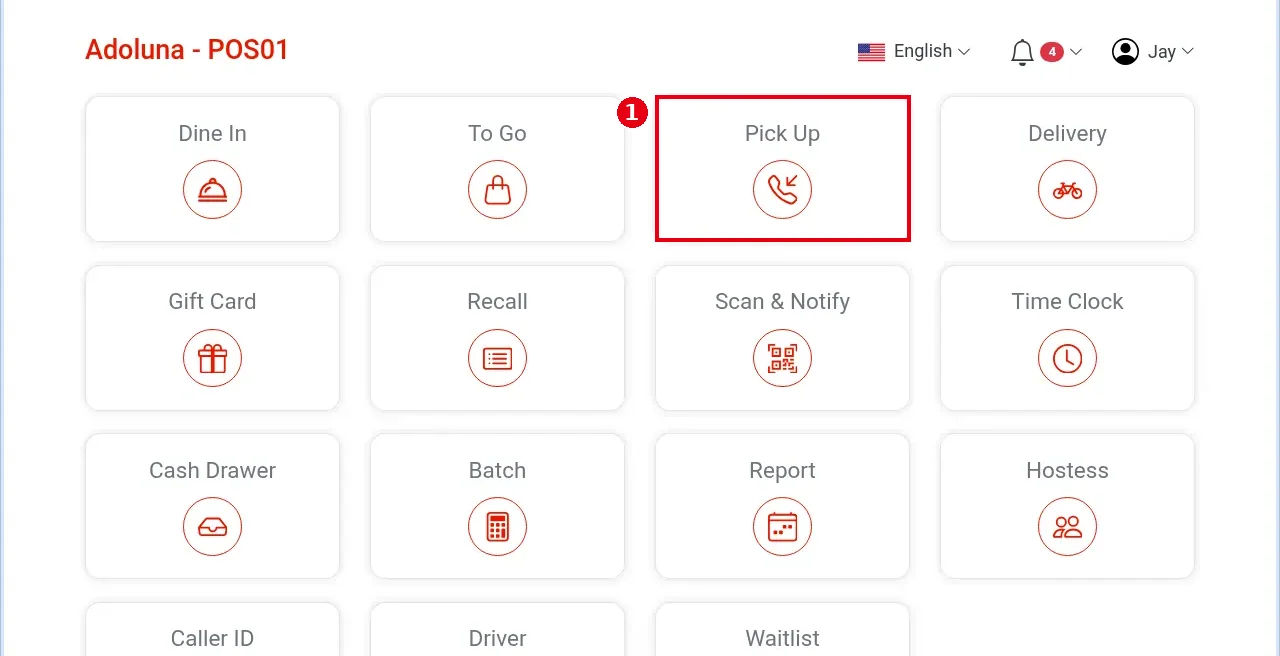
1. On the home screen tap Pick Up.
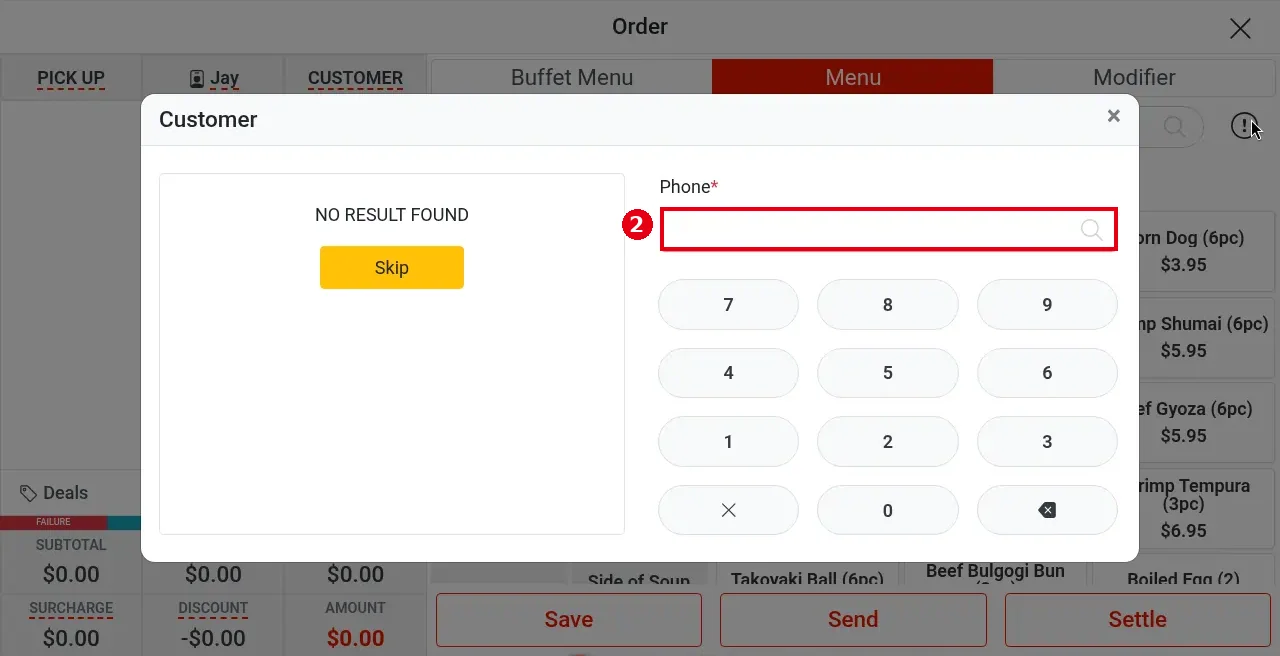
2. The Customer lookup opens. Type the caller’s number into Phone* with the keypad on the right.
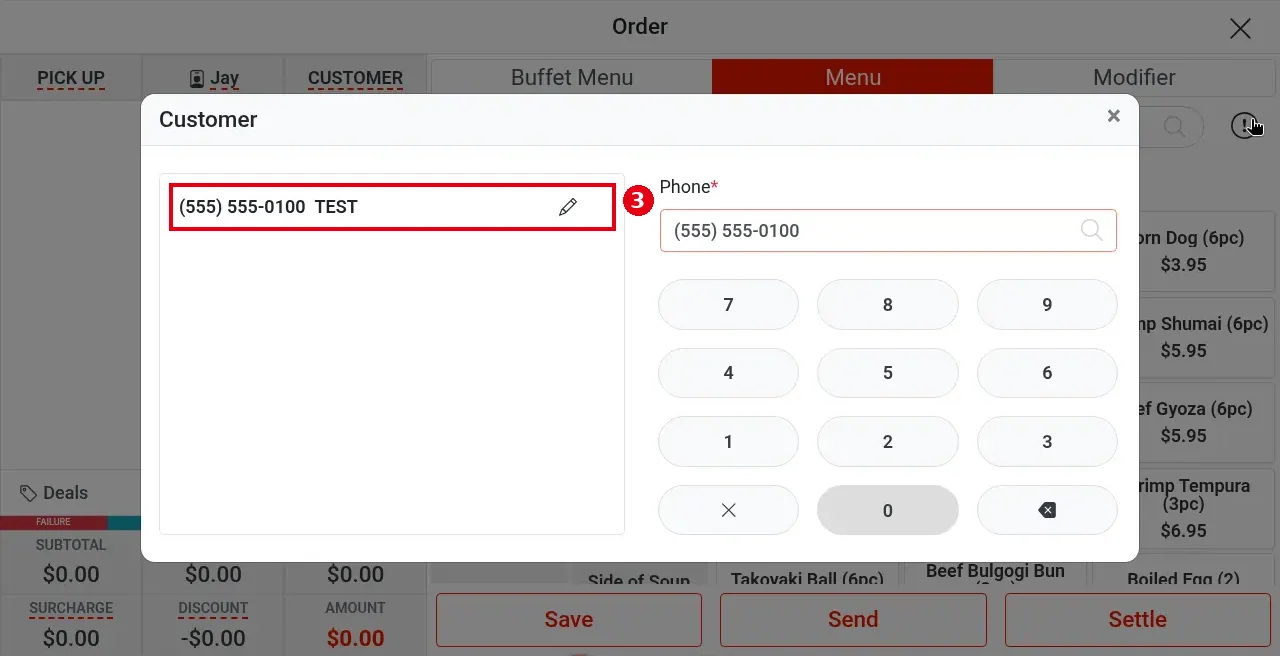
3. Matching customers appear on the left (e.g. (555) 555-0100 TEST). Tap the row.
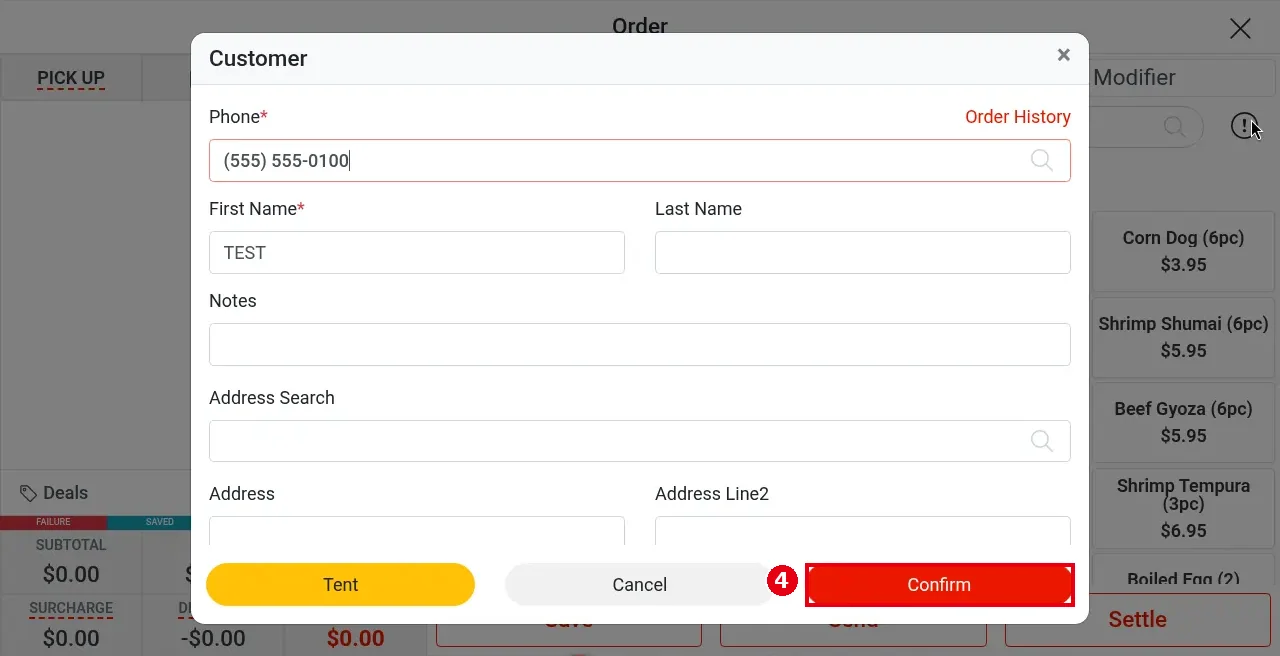
4. Check the customer details and tap Confirm.
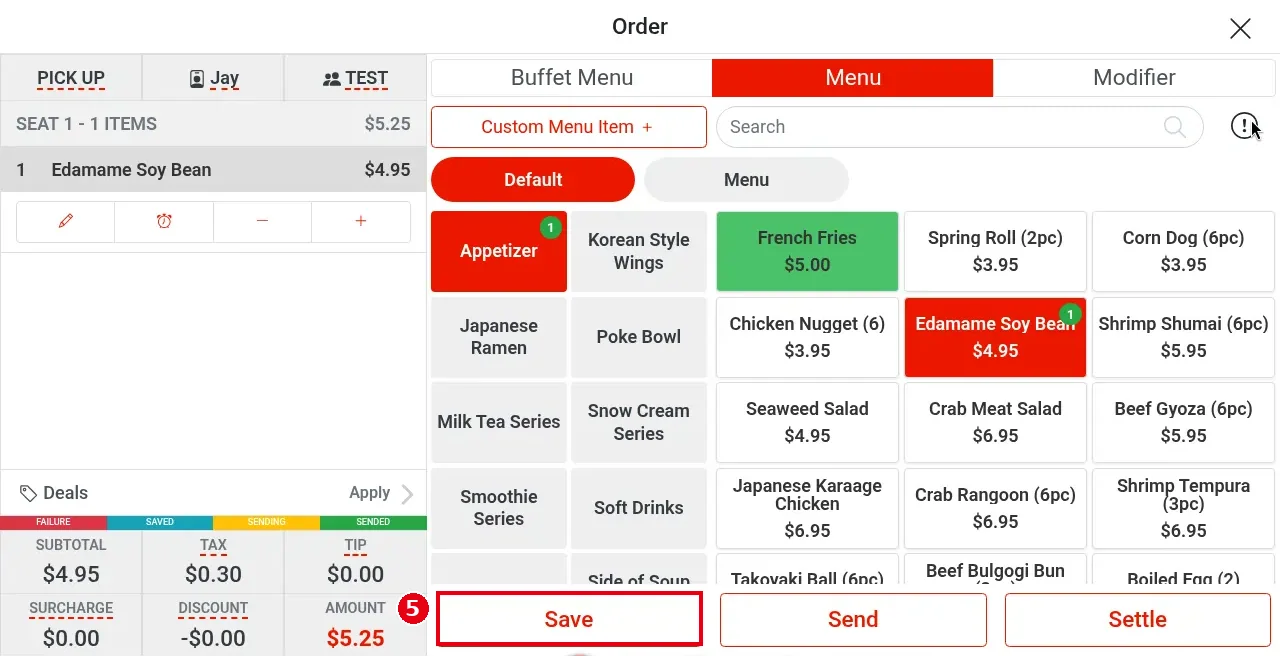
5. Back on the order screen, the header shows PICK UP and the customer name (e.g. TEST). Add items and tap Save (or Send).
Notes / FAQ #
-
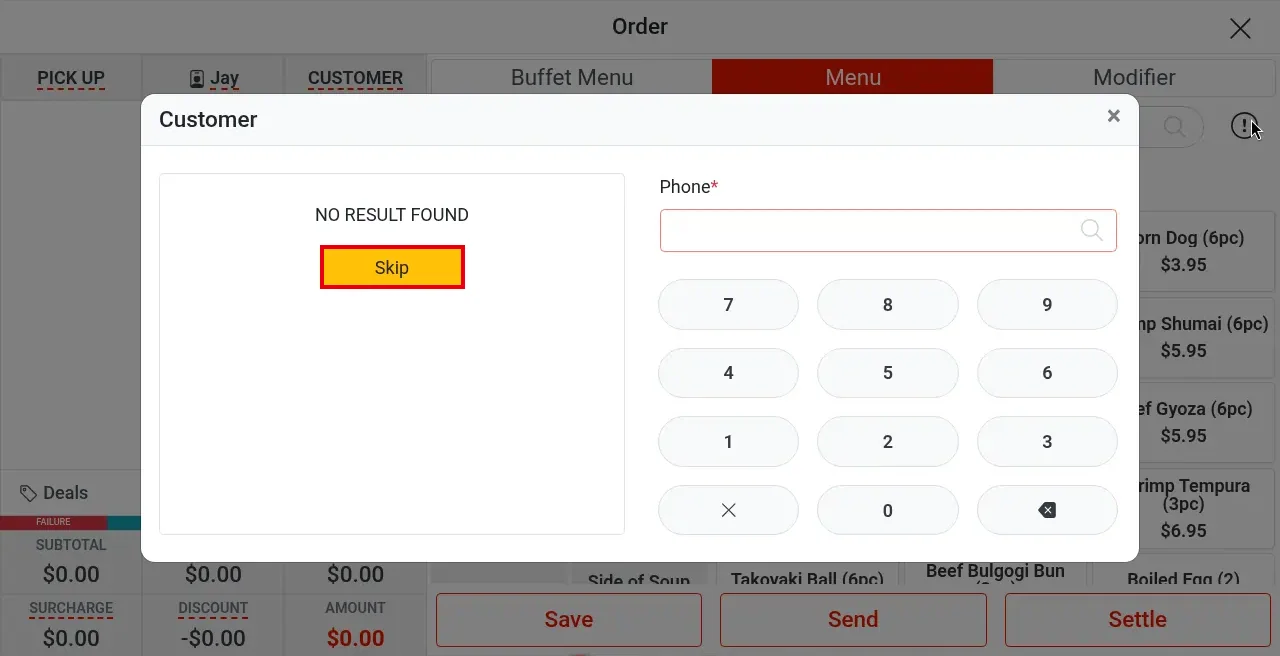
While the phone field is still empty, the left side has a yellow Skip button (on Pick Up and To Go only); Skip lets you order without a customer. Once you type a number, Skip is no longer shown.
-
Creating a new customer when the number isn’t found:
-
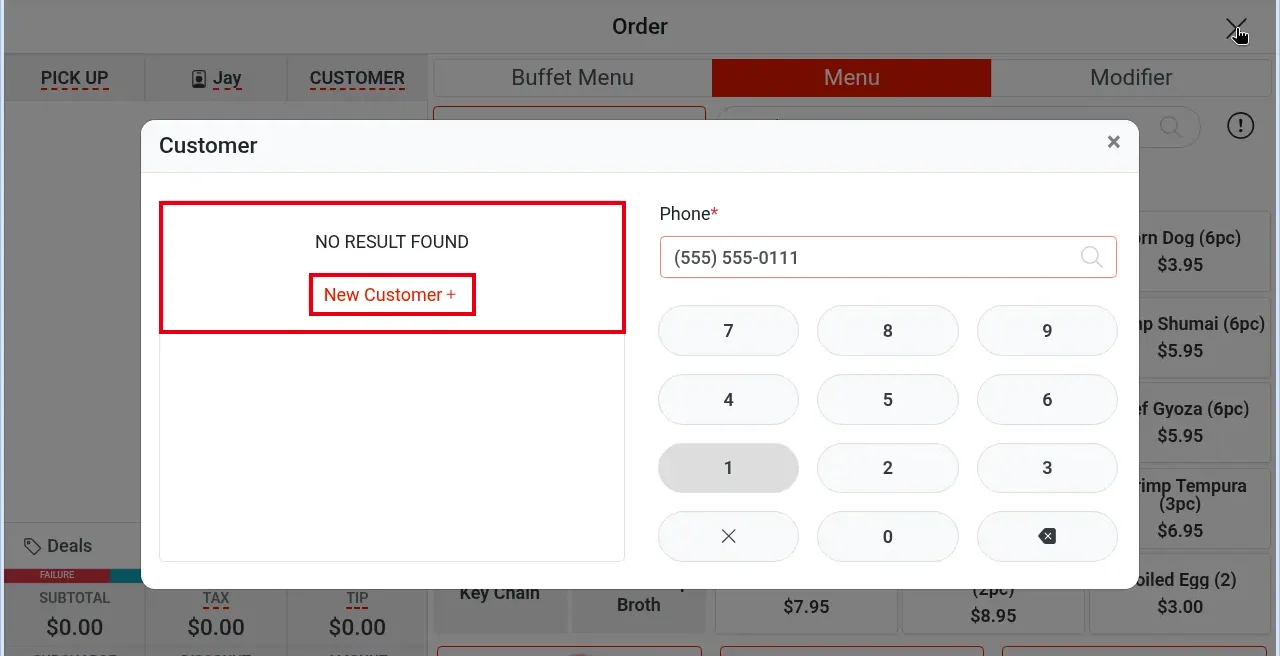
If the number you typed isn’t found, the left side shows NO RESULT FOUND and a New Customer + button. Tap New Customer +.
-
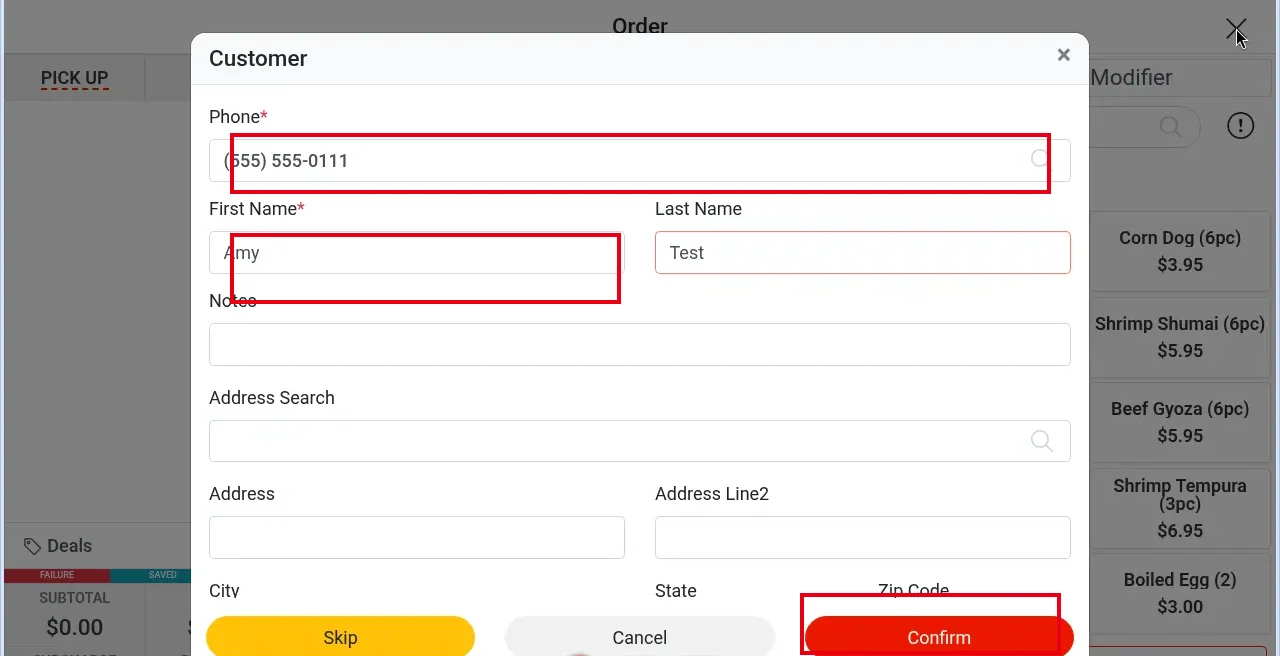
In the customer form check Phone*, enter the name (e.g. Amy / Test) and tap Confirm.
-
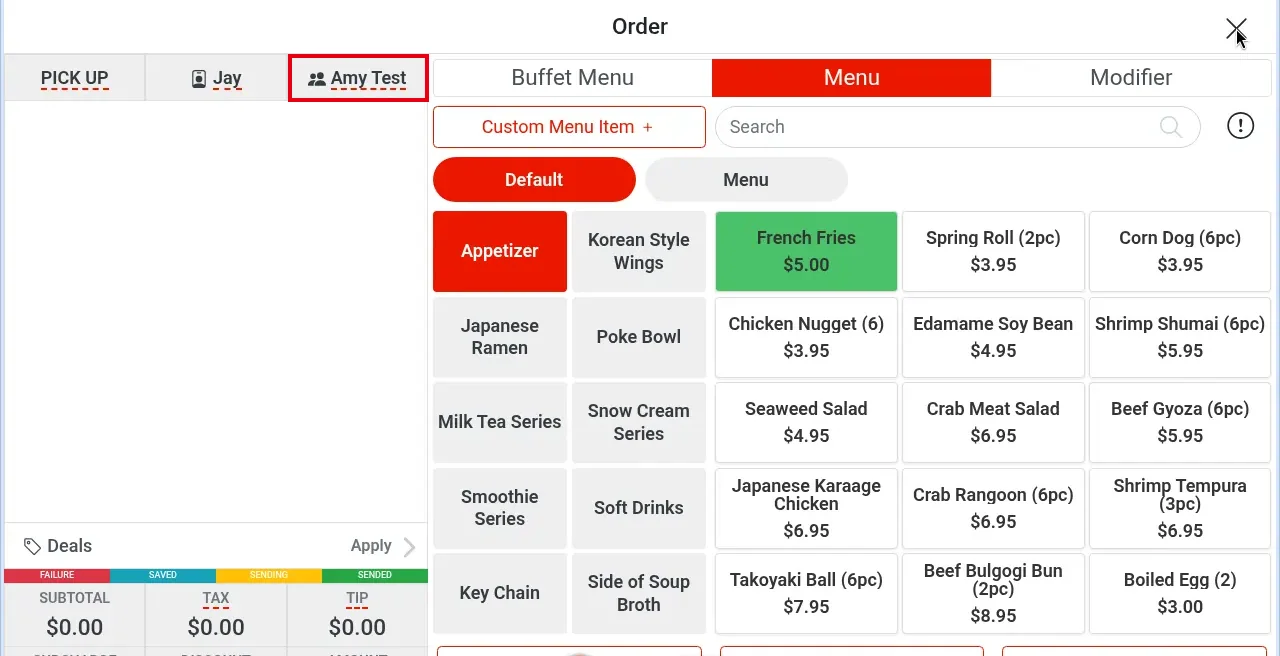
Back on the order screen, the third header cell shows the new customer (e.g. Amy Test).
-
-
The pencil icon on each result row edits the customer’s details.
-
The customer window has a red Order History link at top right for reordering (see 1.2.5).
-
In the Chinese UI Pick Up reads “来取”.


