
Purpose: When kitchen tickets or receipts won’t print, check the POS alerts, the printer, the network, the local service and the Backoffice settings, in that order. For: managers, Adoluna onboarding staff.
Steps #
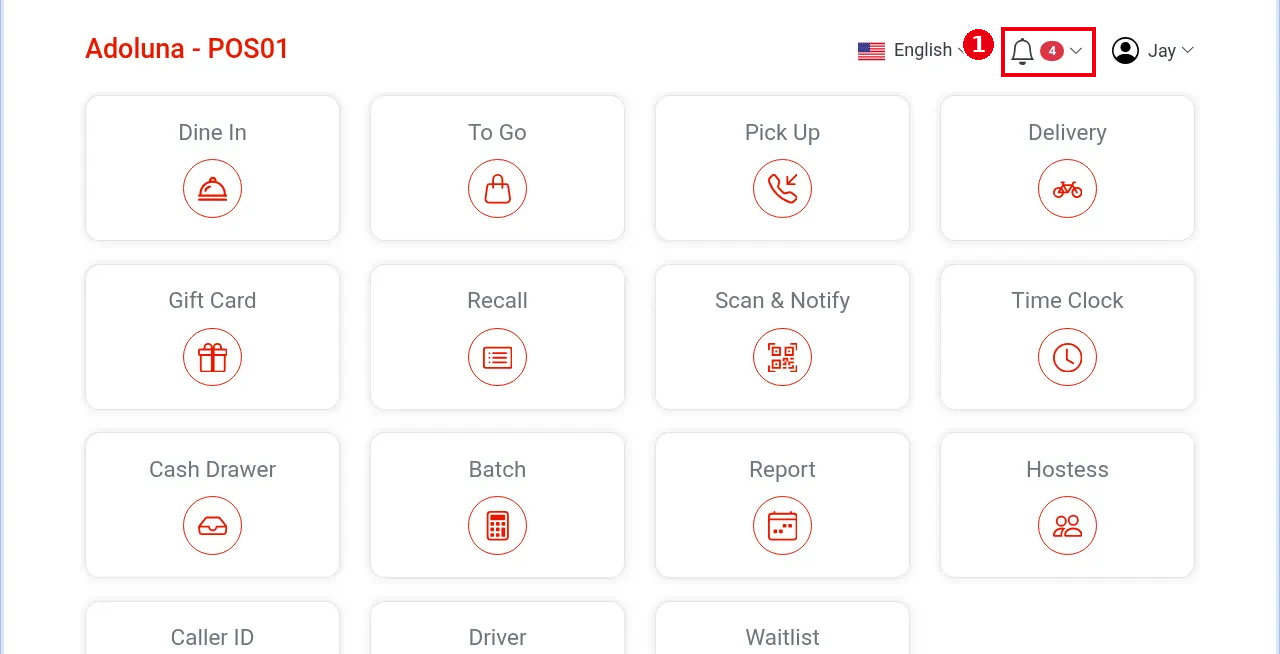
1. Check the POS alerts: when a printer goes offline, the POS warns within 5 seconds. Tap the ① notification bell at the top right of the home screen to see failed print jobs (see 1.1.4 How to check the Notification Center).
2. Check the printer itself: is it on, does it have paper, is the paper cover closed, is an error light on? Turn it off and on again.
3. Print a config page as in 3.3.2 How to print a config page and change a printer’s IP. If it prints, the printer itself works. Also check the IP on the config page.
4. Check the network: is the cable plugged in (the lights at both the printer and switch ends should be on)? Are the switch and router working?
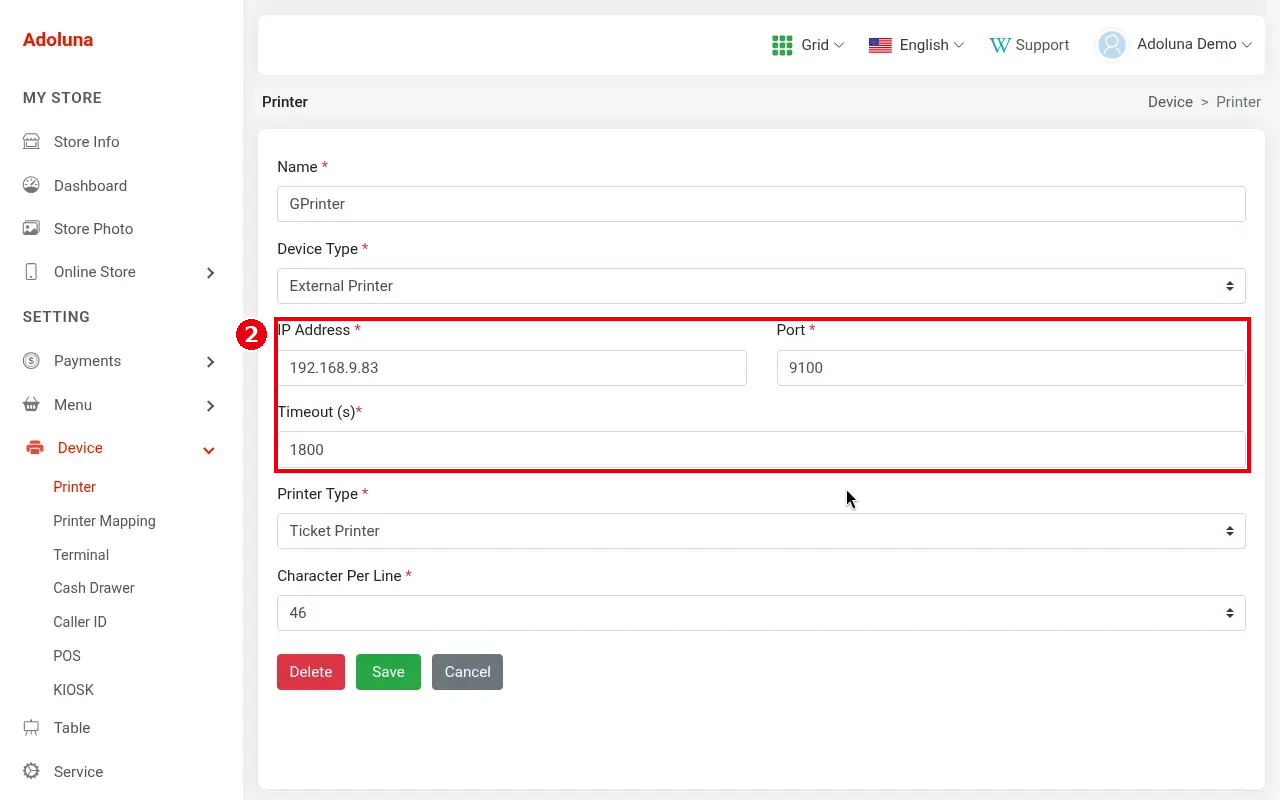
5. Check the Backoffice: under Device > Printer, this printer’s ② IP Address and Port must match the config page (the port is usually 9100, see 3.3.1 How to add a printer). After a power cut or a router change, the printer’s IP may have changed.
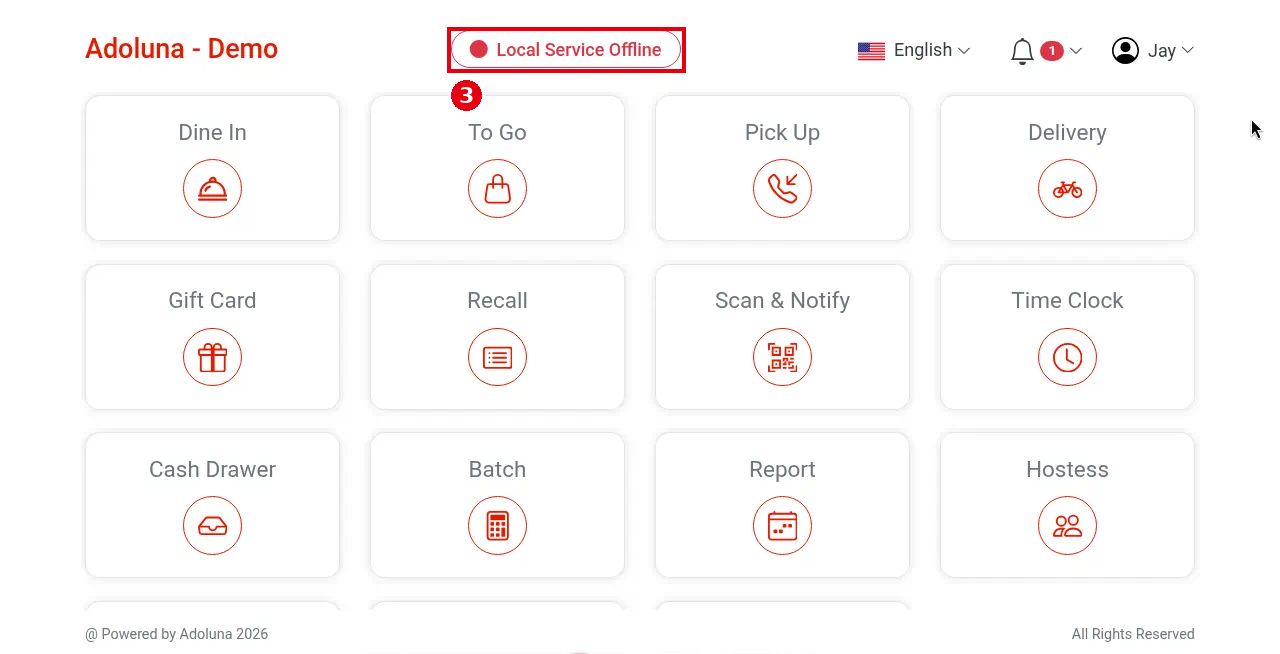
6. Check whether the POS home screen shows a red ③ Local Service Offline. If it does, fix the local service first (4.4.1 What to do when the Local Server is offline). While the local service is offline, printing retries until the printer timeout.
7. If only some tickets don’t print, check the print settings:
-
Is the item’s printer mapping correct, and is that mapping linked to this printer (see 3.3.3 How to set up printer mapping and route items to kitchen printers)?
-
Receipts: does this POS have a default Receipt mapping (see 3.2.2 How to create POS and Kiosk devices in the Backoffice)?
-
Are the auto-print switches on (see 3.3.4 How to set up automatic printing of checks, receipts and packager tickets)?
8. Deal with missed tickets after recovery: if the printer comes back within 30 minutes, kitchen tickets reprint automatically, so don’t reprint them by hand (to avoid duplicates). Reprint other tickets, and kitchen tickets older than 30 minutes, from Recall (see 1.4.2 How to resend or reprint an order).
9. Refresh the POS (see 4.4.3 How to refresh or restart the POS). If it still won’t print, contact the technical team: +1 (866) 588-8868, support@adoluna.com.
Notes / FAQ #
-
Kitchen tickets follow the printer’s Timeout (s): if the printer doesn’t respond within that time (default 1800 seconds), the ticket is dropped. Dropped kitchen tickets currently don’t show in the Notification Center.
-
When a printer comes back after more than 30 minutes, the POS currently doesn’t prompt staff to reprint. Once the printer is back, check the orders sent during that time in Recall and reprint them by hand (see 1.4.2 How to resend or reprint an order).
-
A cash drawer that won’t open can also be a printer problem; see 3.3.6 How to set up a cash drawer.


