
Purpose: When a table is ready, text the waiting party, then mark them seated when they arrive. For: hosts, front counter, managers.
Steps #
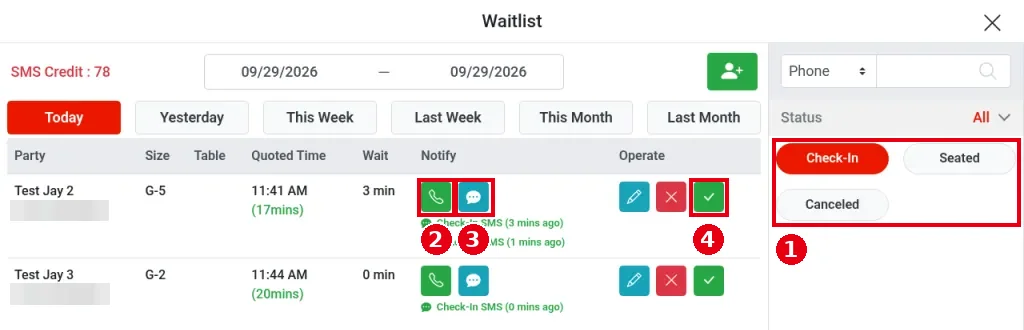
1. On the POS home screen, tap Waitlist (see 1.7.2 How to add a party to the waitlist). Under Status on the right, choose ① Check-In. The list shows waiting parties: Party (name and phone), Size (e.g. G-5), Table, Quoted Time, Wait (time waited), Notify and Operate. Phone at the top right searches by phone number.
-
Notify column: ② phone icon = places a voice call to the guest (this also uses SMS credit; see 2.6.1 How to set up the waitlist); ③ SMS icon = sends the “table ready” text.
-
Operate column: blue pencil = edit (see 1.7.2 How to add a party to the waitlist); red X = cancel (see 1.7.4 How to cancel a waitlist entry); ④ green check = seat.
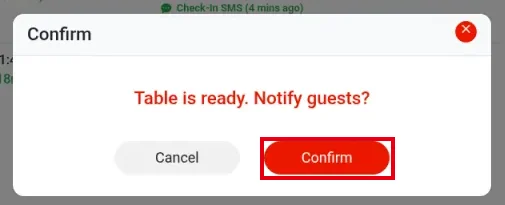
2. When the table is ready, tap the ③ SMS icon. Use the SMS icon to tell guests their table is ready; the phone icon places a voice call straight away. “Table is ready. Notify guests?” appears; tap Confirm.
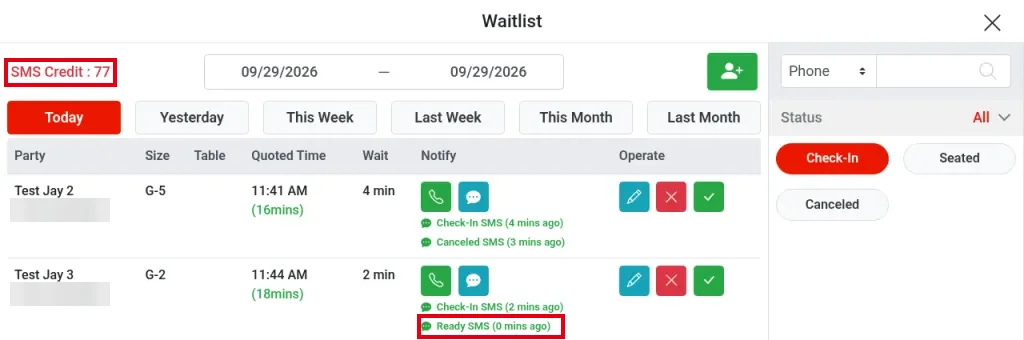
3. A new line “Ready SMS (0 mins ago)” appears under the icons, and SMS Credit at the top left goes down by 1 (from 78 to 77 in the screenshot). Colors show the text status: orange = sending (In Progress), green = delivered (Successful), red = failed (Failed).
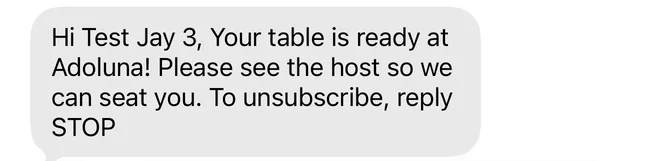
The guest’s text uses the template set in the Backoffice (see 3.5.3 How to set up a Waitlist self check-in kiosk): “Hi Test Jay 3, Your table is ready at Adoluna! Please see the host so we can seat you.”
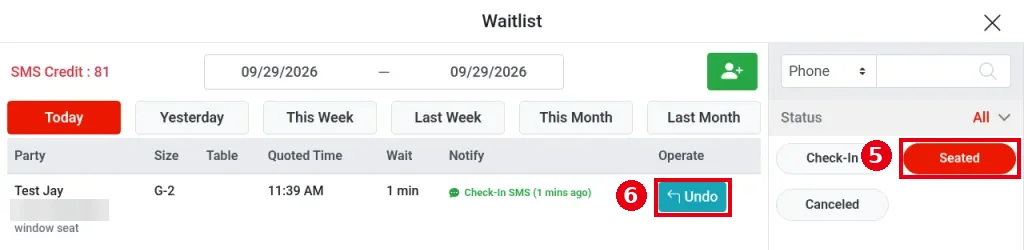
4. When the party arrives, tap the ④ green check. It seats them immediately, with no prompt and no table choice. The party moves to the ⑤ Seated list. If you tapped it by mistake, tap ⑥ Undo in the Seated list. Seating doesn’t open an order; open one at the table separately (see 1.2.1 How to start a dine-in order).
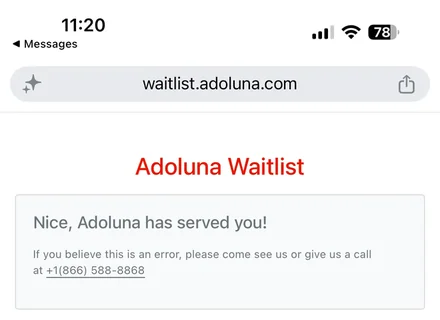
Once seated, the guest’s waitlist page shows “Nice, Adoluna has served you!”.
Notes / FAQ #
-
After the Ready text is sent, the guest’s waitlist page (waitlist.adoluna.com) doesn’t change; it still shows the estimated wait and place in line, so the text is the only “table ready” notice.
-
Every text ends with “To unsubscribe, reply STOP”. Once a guest replies STOP, later texts fail. The guest can reply START to (866) 370-0007 to receive texts again. The POS has no separate “unsubscribed” mark: when you text a guest who has unsubscribed or blocked our number, the POS shows the reason in a pop-up and no text record is added; with a wrong phone number, a red failed record (Failed) is added instead (see 4.6.2 What to do when waitlist texts fail or guests don’t get them).
-
If the party doesn’t come back, cancel the entry as in 1.7.4 How to cancel a waitlist entry.
-
Scan & Notify on the home screen is a different feature; see 1.12.2 How to use Scan & Notify.


