
Purpose: Set which channels (online, Kiosk), order types and times an item shows in. For: owners, managers, Adoluna onboarding staff.
Before you start: menus, categories and items all have Order Type, Show on Online, Show on Kiosk and Schedule settings. If an item doesn’t show in a channel, check all three levels (see 4.3.2 Why isn’t an item showing on the Kiosk or online?). For items that are temporarily sold out, use On Stock; see 2.3.9 How to mark an item as unavailable (out of stock).
Steps #
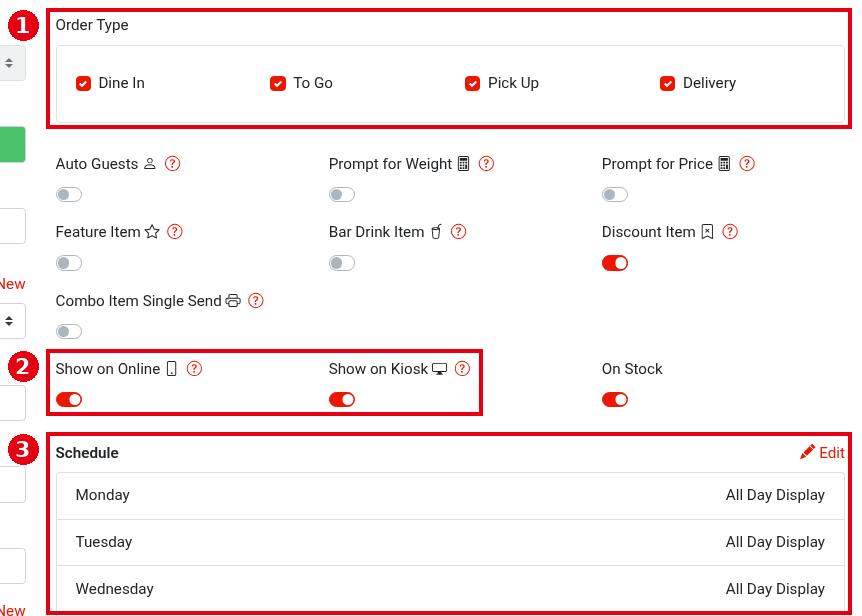
1. Item: in Menu > Menu, click the pencil icon on the item card (see 2.3.5 How to add menu items) and set, in the right column of the form:
-
① Order Type: tick the order types this item is for (Dine In, To Go, Pick Up, Delivery).
-
② Show on Online (phone icon), Show on Kiosk (monitor icon): when on, the item shows in online ordering and on the Kiosk. Scan to Order follows Show on Kiosk.
-
③ Schedule: the display time for each day, Monday to Sunday, All Day Display by default; click Edit to set the display times, which also apply on the POS. The same Schedule can also set different prices for different time periods on each day (e.g. Happy Hour; see FAQ question 39).
Then click Save at the bottom of the form.
2. Category: click the pencil icon on the category card (see 2.3.4 How to create and sort menu categories) and, in the bottom part of the form, set ④ Order Type and ⑤ Show on Online and Show on Kiosk. The category’s Schedule is at the top right of the form. Then click Save.

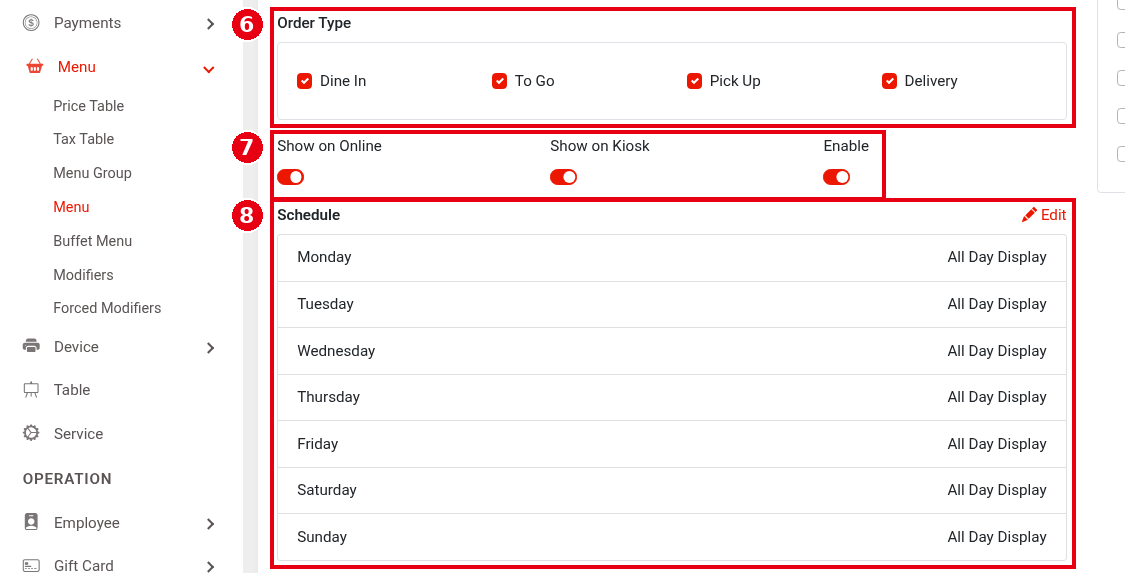
3. Menu: click the pencil icon on the menu in the left column and set ⑥ Order Type, ⑦ Show on Online, Show on Kiosk and Enable, and ⑧ Schedule. Then save.
Notes / FAQ #
-
Unticking an Order Type hides the item on the POS. The Schedule display times also apply on the POS. Scan to Order follows Show on Kiosk (not Show on Online).
-
The three levels stack: if any level (menu, category or item) doesn’t have a channel turned on, the item doesn’t show on that channel. Example: the item has Show on Kiosk on but its category doesn’t, so the item doesn’t show on the Kiosk.
-
For the Kiosk’s own settings, see 3.5.2 How to configure a Kiosk; for online store hours, see 2.9.1 How to set online store availability and hours.


