
Purpose: Void an item that was entered by mistake or is no longer wanted, and record the reason. For: servers, managers.
Steps #
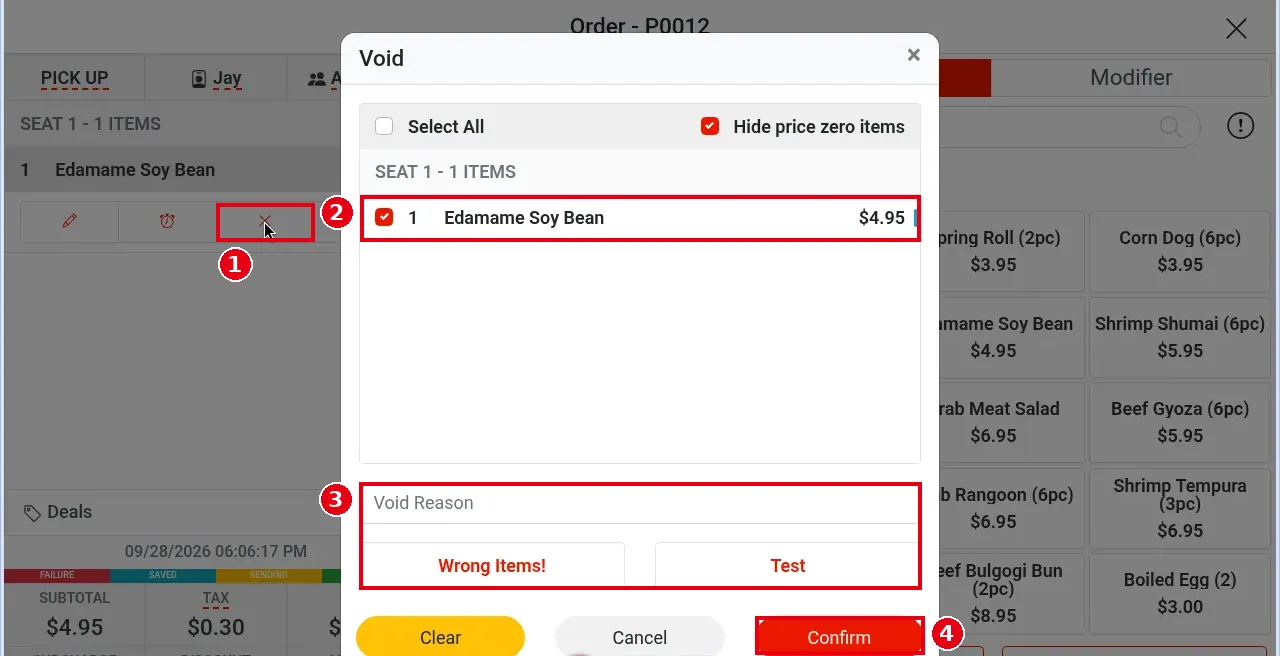
1. Open the order screen (tap Edit in Order Detail), tap the item to void in the ticket on the left; a row of buttons appears below it – tap ×.
2. The Void window opens. Tick the items to void (you can tick several; Select All ticks all; with Hide price zero items ticked, $0 items are hidden).
3. Choose the reason: tap a preset reason (e.g. Wrong Items!, Test) or type one in Void Reason.
4. Tap Confirm (Clear to clear, Cancel to go back).
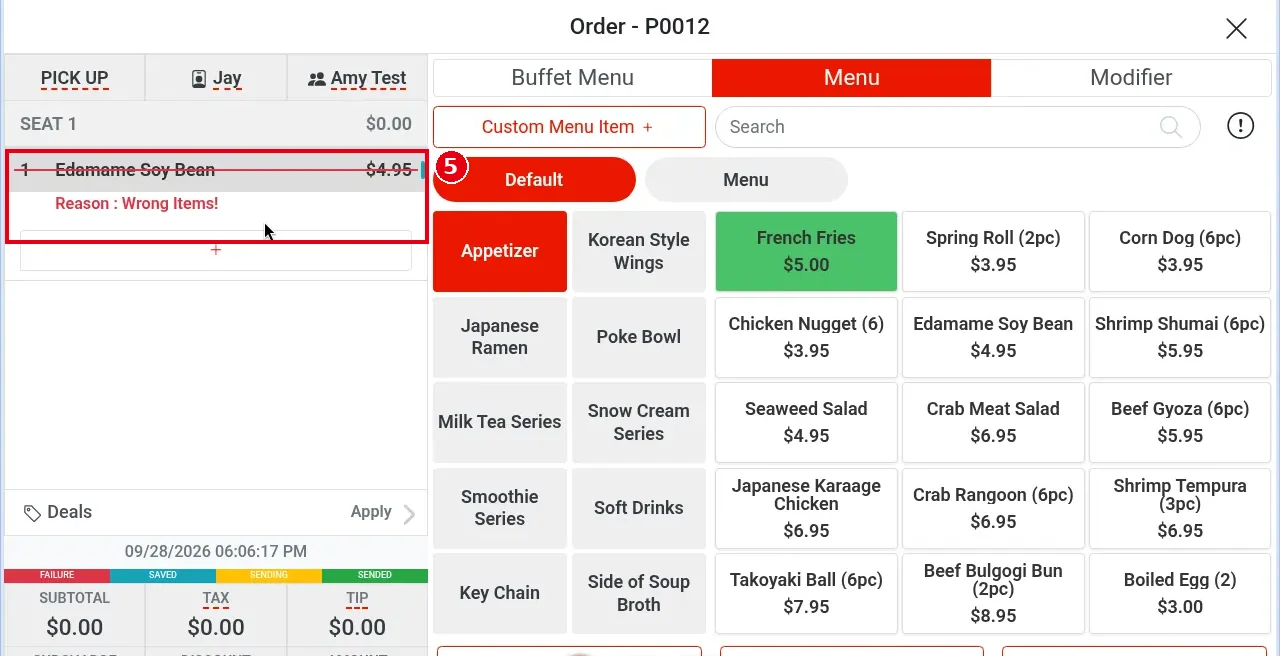
5. The voided item is struck through with the reason in red below it (e.g. Reason : Wrong Items!), and its amount no longer counts toward the order. Save the order as in 1.2.12.
Notes / FAQ #
-
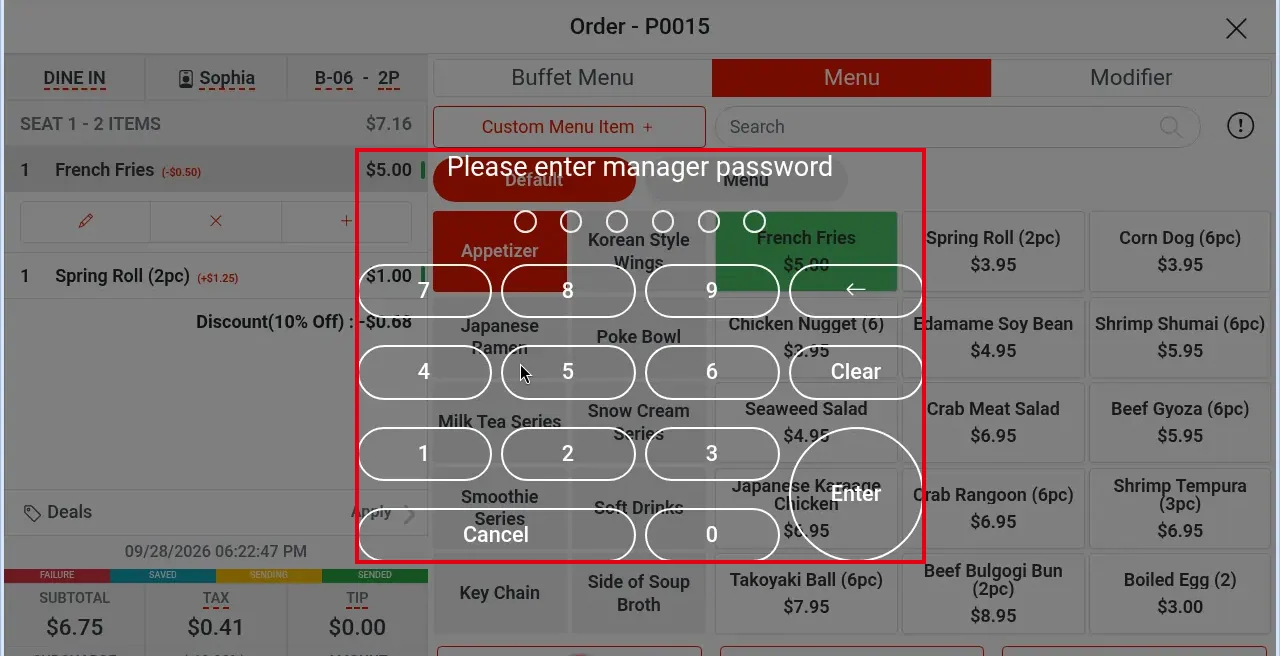
Whether voiding an item needs manager approval depends on each employee’s permissions (set per employee on the back-office Employees screen). For example, when the demo store’s regular employee voided an item that had already been sent, tapping × first showed Please enter manager password; the Void window appeared only after a manager entered their own passcode.
-
The Void Item report shows the order number each voided item came from.
-
A void reason is required. Preset reasons (e.g. Wrong Items!, Test) are set in the back office under Payments > Void Reason (see 2.4.5 How to set up void reasons).
-
Voiding an item that was already sent prints a void ticket in the kitchen, telling the kitchen to stop making that item. This only happens when Print Void Ticket to Kitchen is turned on in the back office under Service > Other (off by default; see 2.5.5), and only for items that were already sent; deleting an unsent item prints nothing.


