
Purpose: Add a discount, a surcharge or a tip to the whole order. For: servers, cashiers.
Steps #
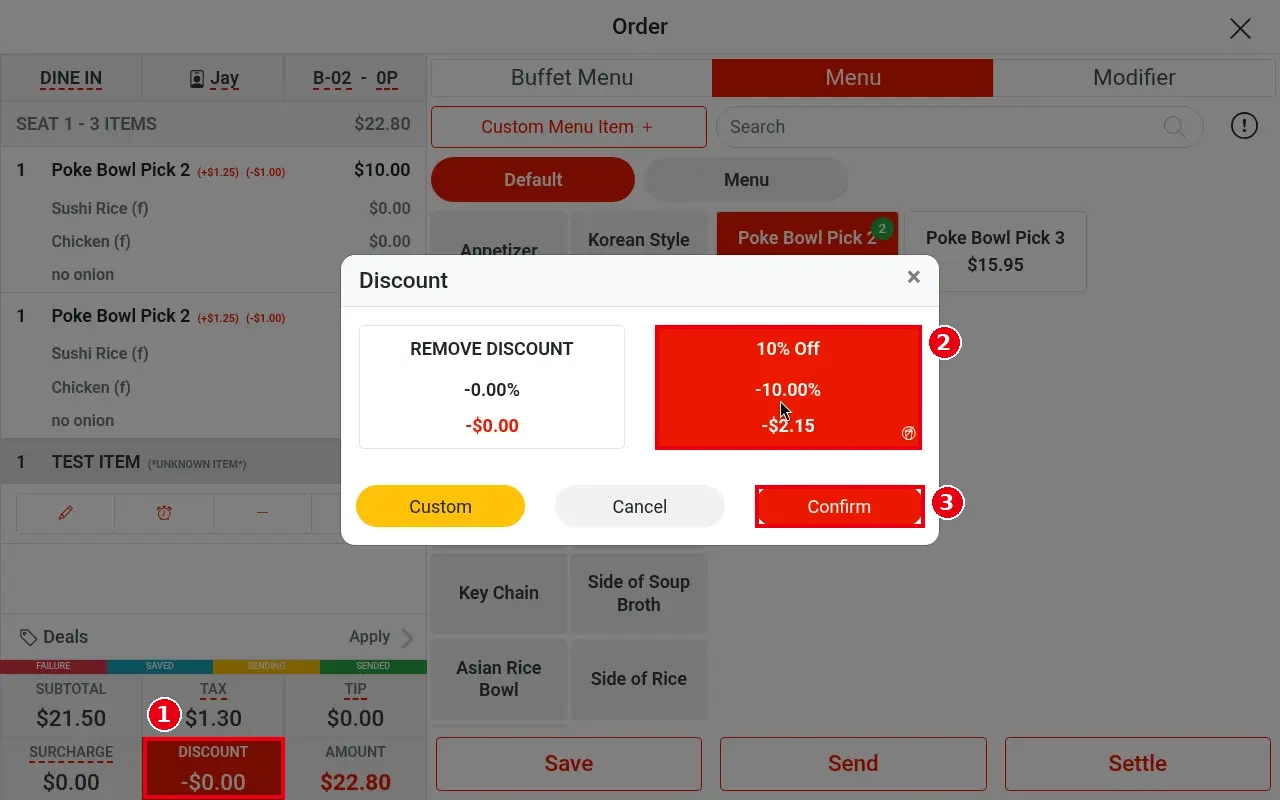
1. Tap DISCOUNT at the bottom of the order (footer items with a dashed underline can be tapped).
2. In the Discount window pick a discount (e.g. 10% Off, showing -10.00% / -$2.15). REMOVE DISCOUNT removes it, Custom lets you enter your own.
3. Tap Confirm.
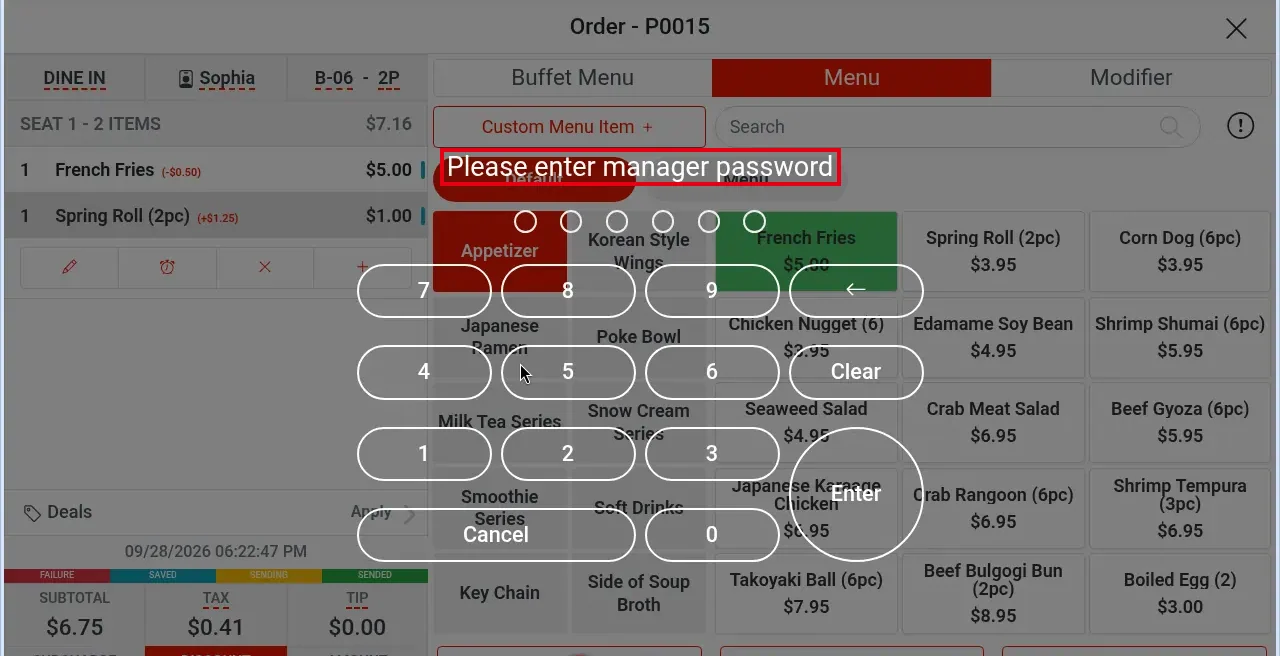
If the employee doesn’t have the order-discount permission, tapping DISCOUNT first shows Please enter manager password; the Discount window opens only after a manager enters their own password:
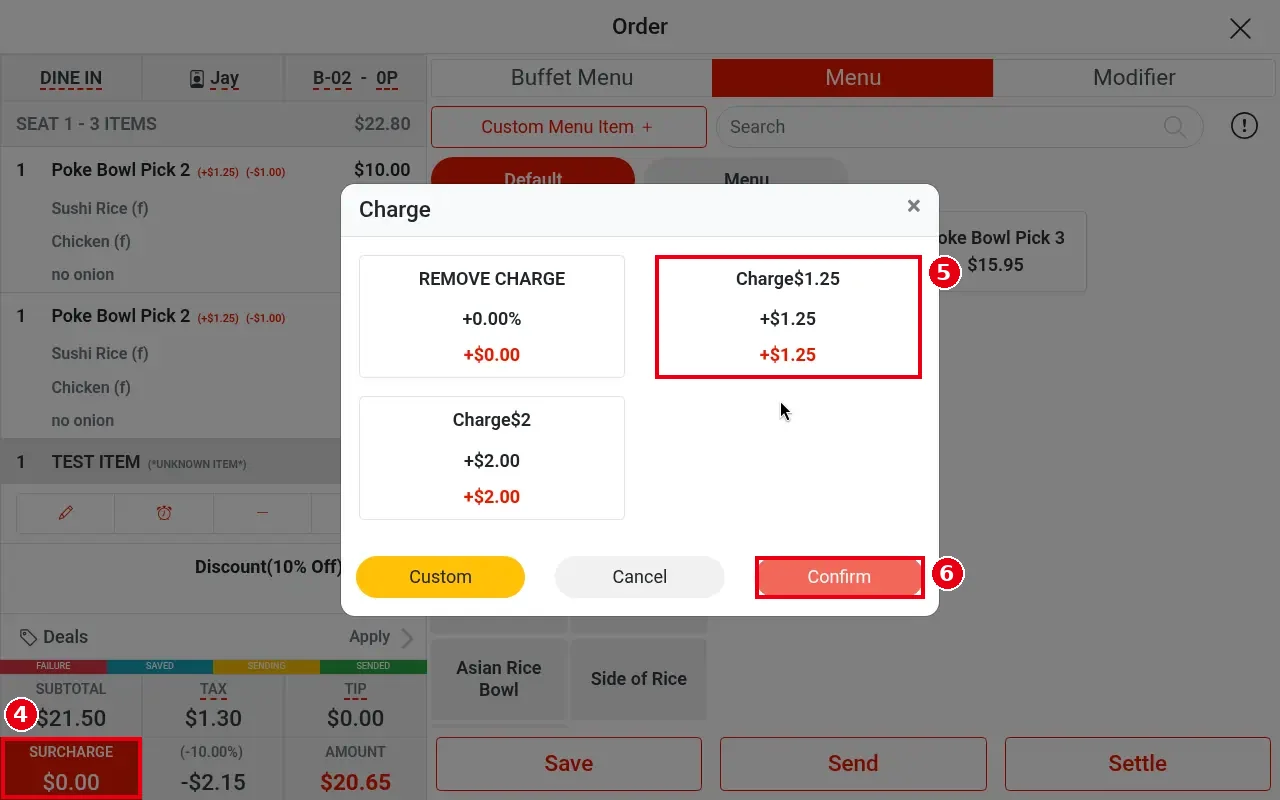
4. Tap SURCHARGE at the bottom; the Charge window opens.
5. Pick a charge (e.g. Charge$1.25). REMOVE CHARGE removes it, Custom for your own.
6. Tap Confirm.
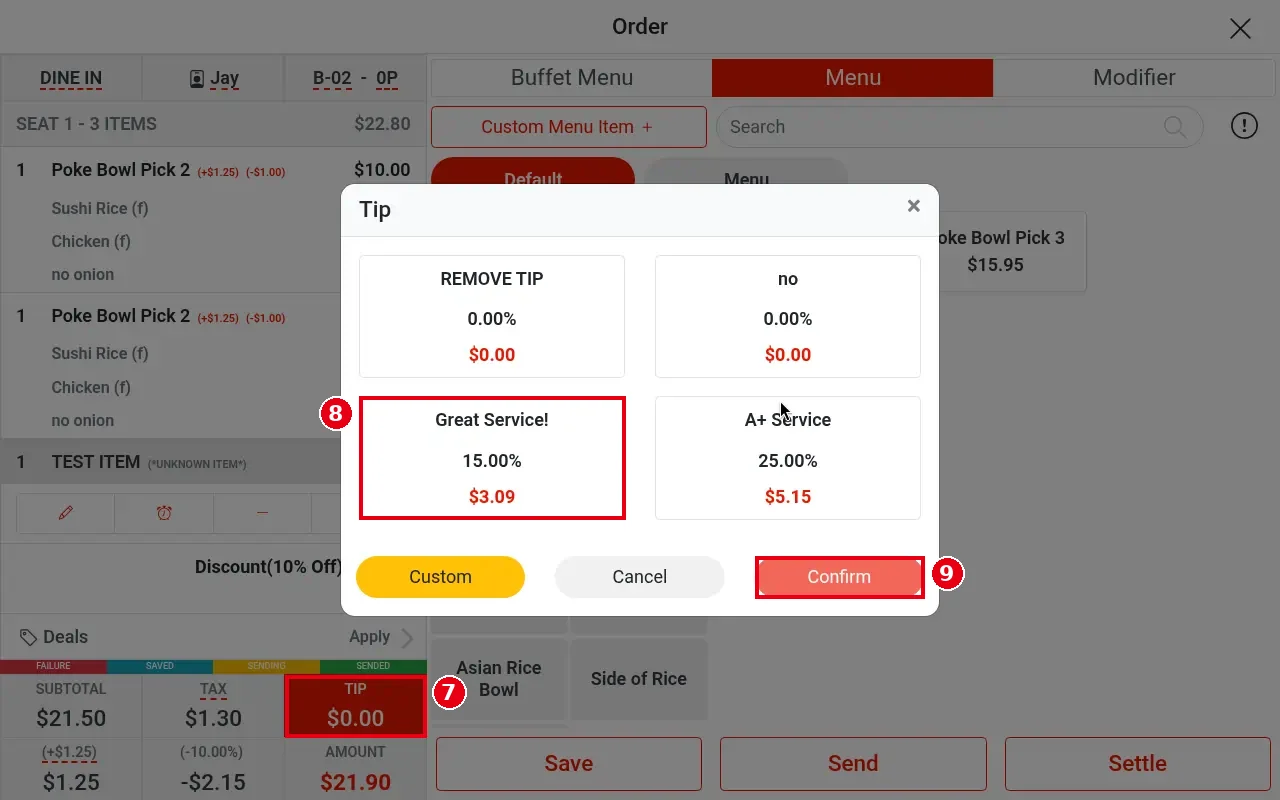
7. Tap TIP at the bottom.
8. In the Tip window pick a tip (e.g. Great Service! 15.00% / $3.09; also A+ Service 25.00%, no 0.00%). REMOVE TIP removes it, Custom for your own.
9. Tap Confirm.
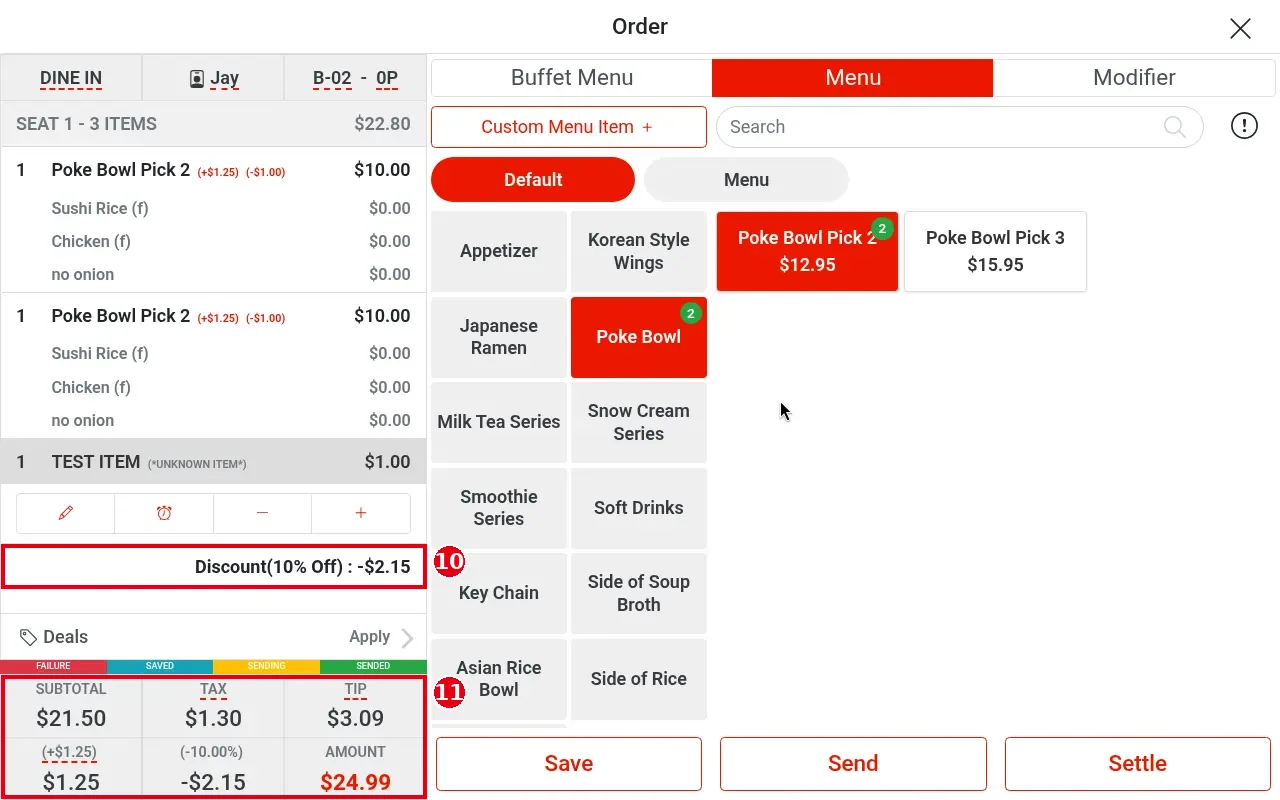
10. Below the items the ticket shows Discount(10% Off) : -$2.15.
11. The totals update: SUBTOTAL $21.50, TIP $3.09, charge (+$1.25) $1.25, discount (-10.00%) -$2.15, AMOUNT $24.99.
Notes / FAQ #
-
The footer button says SURCHARGE but its window is titled Charge – same feature. Once applied, the label changes to the amount (e.g. (+$1.25)); likewise DISCOUNT becomes (-10.00%).
-
The order discount is taken from SUBTOTAL: $21.50 × 10% = $2.15.
-
An order discount is different from an item discount: an item discount (set in the item edit window, see 1.2.7) only changes that item’s price and is not an order discount. Reports count only order discounts like this one as discounts.
-
The base for percentage tips is set in the back office under Service > Other > Tip Calculation Mode (see 2.4.3 How to set up tip options, minimum tip and tip base), with three options: Order Total (the default); Subtotal; Subtotal + Discount + Surcharge (i.e. the pre-tax amount). Stores may use different settings. Preset discounts and surcharges are set up as in 2.4.1 How to set up discounts and 2.4.2 How to set up surcharges.
-
Each tip option has two back-office settings under Payments > Tip: a percentage (Value (%)) and a minimum tip amount (Minimum Tip) (see 2.4.3 How to set up tip options, minimum tip and tip base). If the percentage works out lower than the minimum, the system uses the minimum tip amount instead.
-
The demo store in this example uses the third option: the 15% tip of $3.09 = ($21.50 − $2.15 + $1.25) × 15%.
-
If the restaurant has a cash payment discount turned on, the tip portion is not included when the cash payment discount is calculated for a cash payment. (The cash payment discount is a payment-method discount the restaurant sets in the back office – not the order discount described here; see 1.2.12.)
-
Whether order discounts, surcharges and tips need manager approval depends on each employee’s permissions, which are set per employee in the back office employee screen. If an employee doesn’t have the permission, a manager-approval prompt appears and a manager enters their own passcode. For example, with the demo store’s regular employee account, order discount, surcharge, tip, tax exempt, changing the order type, server or table, and voiding a sent item all asked for the manager password (Please enter manager password), while item discount, item price change and item charge did not. The step screenshots here were taken with the highest-permission employee account, so they show no manager approval.
-
On delivery orders the delivery fee also shows in the SURCHARGE spot (see 1.2.4).


