
Purpose: Install remote support tools on the store’s computers and POS devices so the Adoluna technical team can view and fix problems remotely. For: Adoluna onboarding staff.
Before you start: all tools are on the website downloads page: Adoluna downloads.
| Tool | Where | What for |
|---|---|---|
| DWService | Windows / Mac / Linux computers (e.g. the Local Server computer) | Remote support |
| MeshCentral Agent (Android APK, v1.0.21) | Android POS devices, Kiosks | Remote support for Android devices |
| AnySoftKeyboard (Android APK) | Android x86 Kiosks / POS (e.g. mini PCs running Bliss OS) | On-screen keyboard. The built-in keyboard on Android x86 devices is buggy, so install AnySoftKeyboard and set it as the default keyboard; contact Adoluna technical support if you need help |
| Printer Tools for Windows | Windows computers | Printer setup tool: sets the printer’s language / code page; use it when printouts are garbled (see 3.3.2 How to print a config page and change a printer’s IP) |
Steps #
1. Computers (DWService): start from the Adoluna downloads page or open the DWService website. Tap Download Agent → accept the privacy policy and tap DOWNLOAD → open dwagent.exe. If the merchant will stay connected, choose ⑤ Install then ⑥ Next; on UAC tap ⑦ Yes. For configuration choose ⑧ “Enter the installation code”, ⑨ Next, enter ⑩ the Code from Adoluna, then ⑪ Close. Adoluna completes the binding.
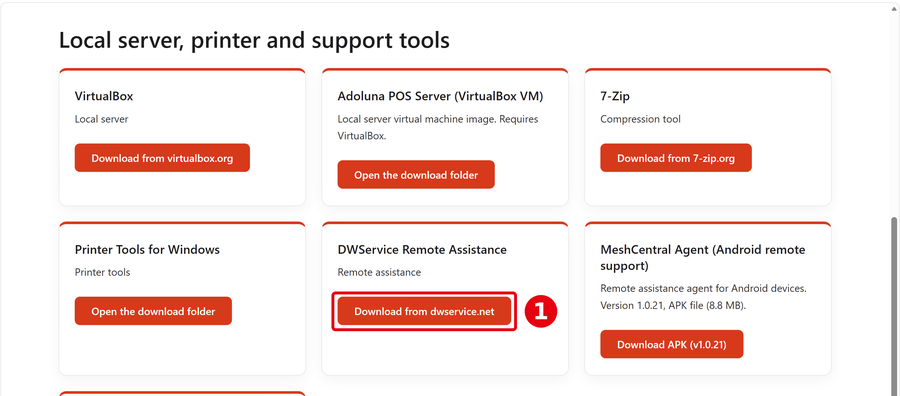
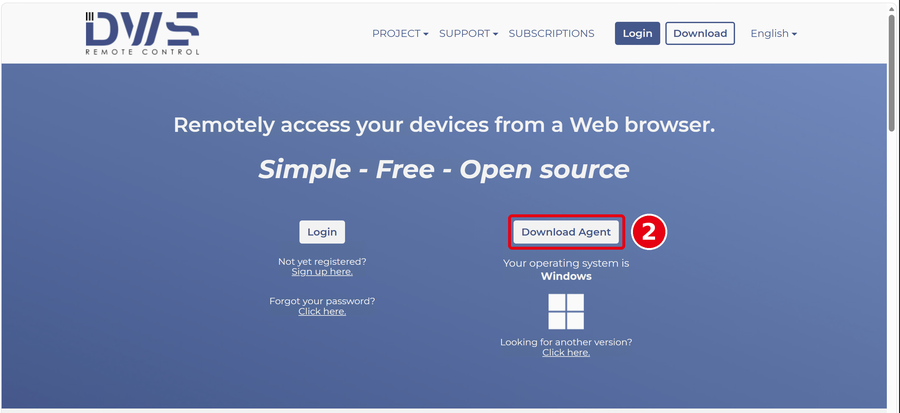
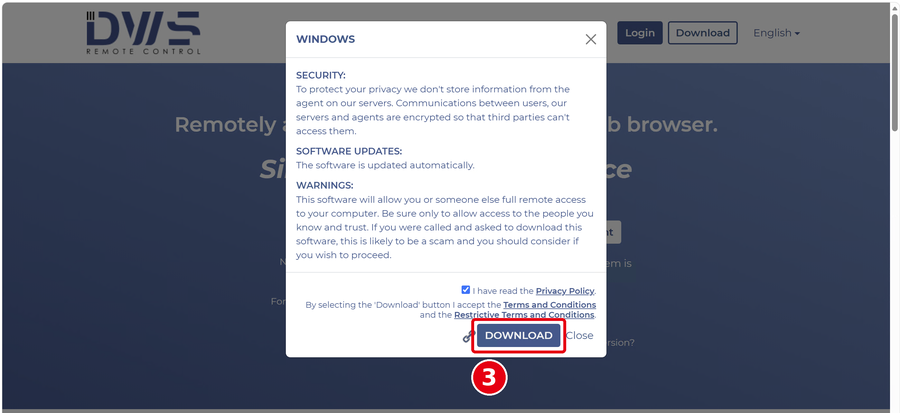
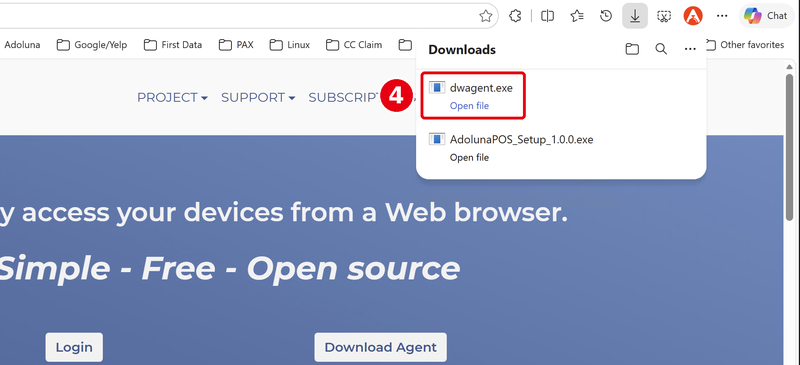
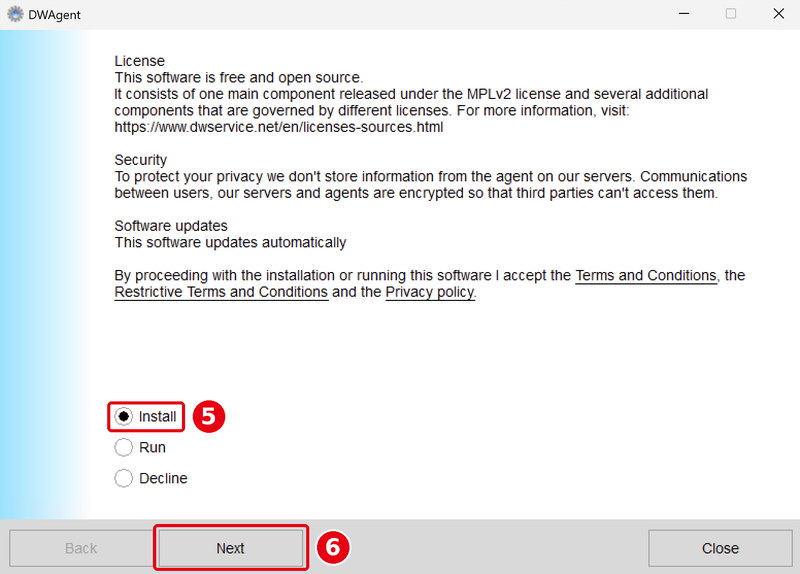
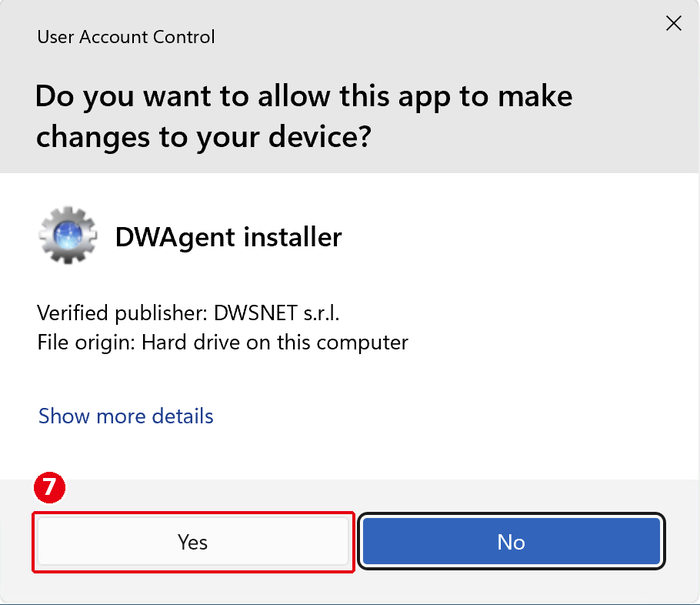
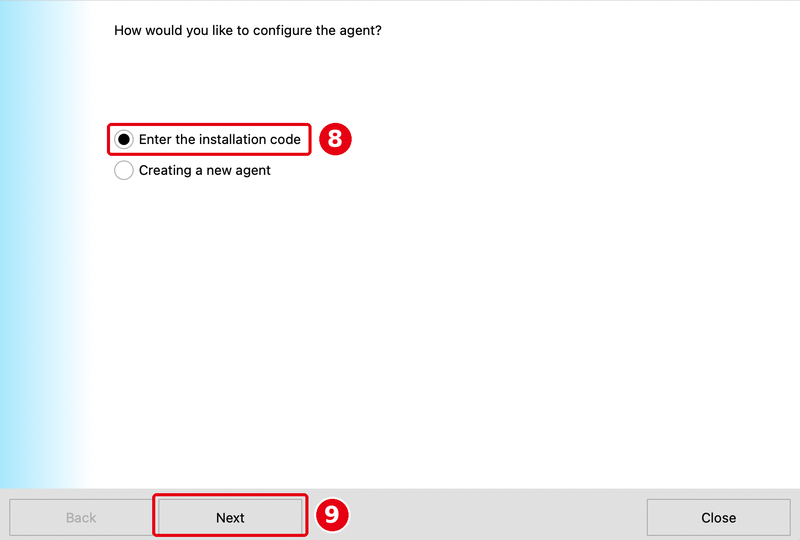
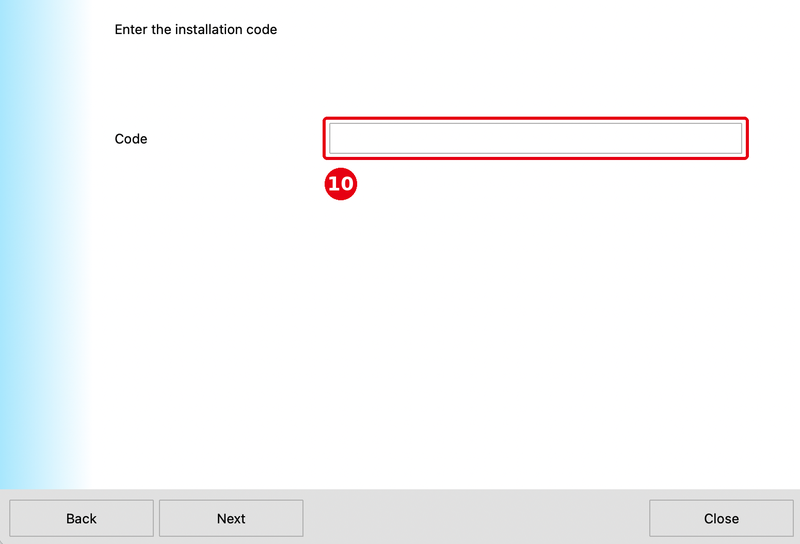
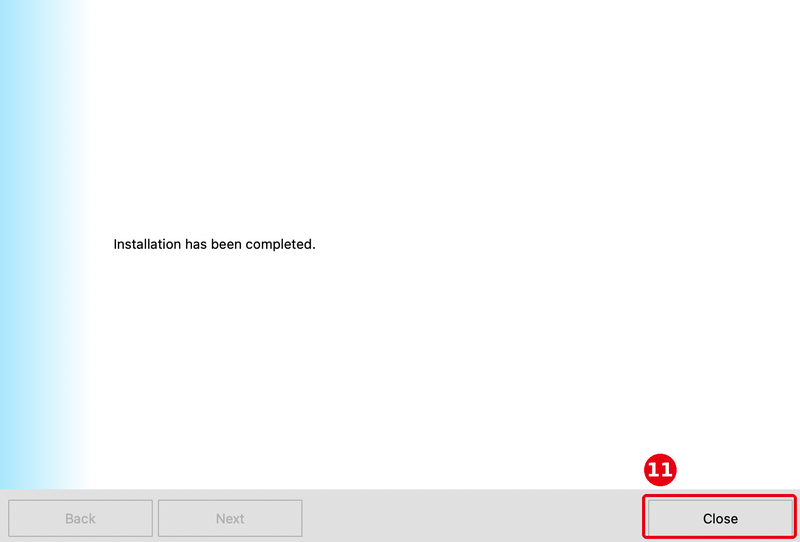
Figure: DWService install (① downloads page; ② Download Agent; ③ DOWNLOAD; ④ open dwagent.exe; ⑤ choose Install; ⑥ Next; ⑦ UAC Yes; ⑧ enter installation code; ⑨ Next; ⑩ Code from Adoluna; ⑪ Close). MeshCentral stays text-only (no shots).
2. Android devices (MeshCentral Agent):
-
In the device’s browser, download the MeshCentral Agent APK.
-
Open the downloaded file to install it. If the system blocks apps from unknown sources, follow the prompt to allow the browser to install it.
-
After opening MeshCentral Agent, an Adoluna technician completes the pairing, so Adoluna can then support this device remotely. The pairing method is for Adoluna internal use only and isn’t covered in this manual.
3. Install other tools as needed: AnySoftKeyboard (Android x86 devices) and Printer Tools for Windows (printer language / code page, see 3.3.2 How to print a config page and change a printer’s IP).
4. After installing, ask the Adoluna technical team to test a remote connection: +1 (866) 588-8868, support@adoluna.com.
Notes #
-
Record which remote tools are installed on each device in the device list, for future support.
-
The remote tools are for the Adoluna technical team only. Don’t share pairing details with anyone else.


