
Purpose: Print the customer receipt after payment, reprint a receipt, or send a digital receipt by text or email. For: cashiers, servers.
Steps #
Print right after payment
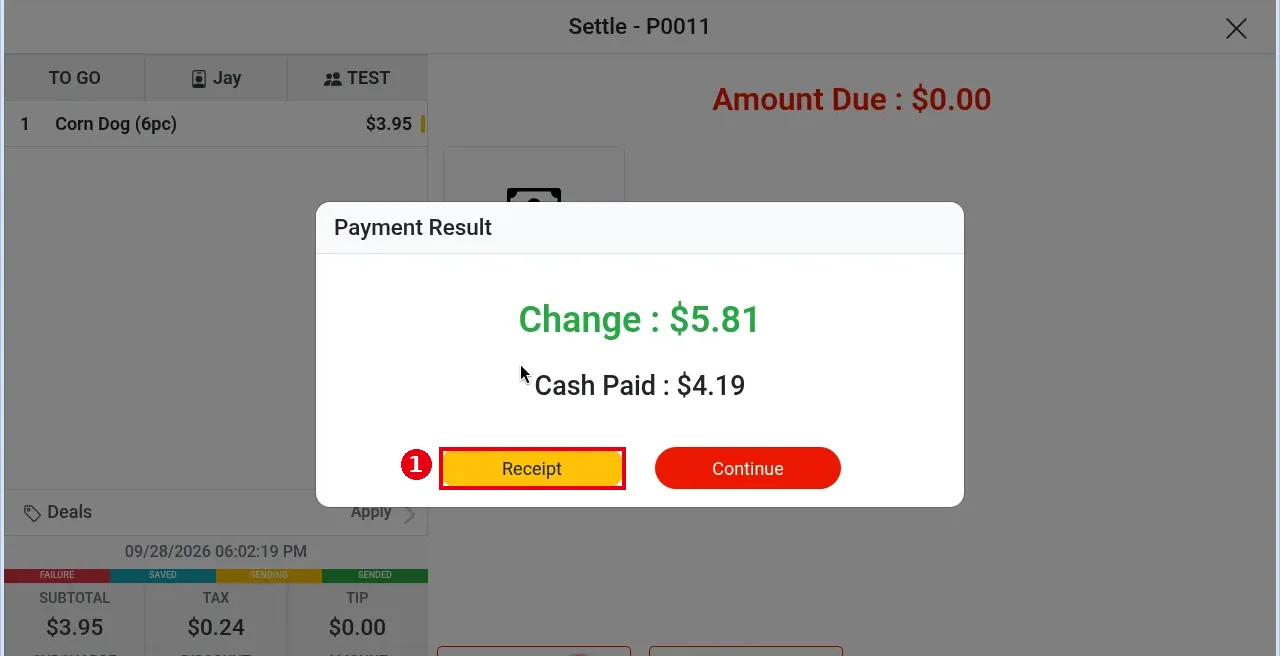
1. In the Payment Result window after payment, tap Receipt (see 1.3.1).
Reprint a receipt (Reprint)
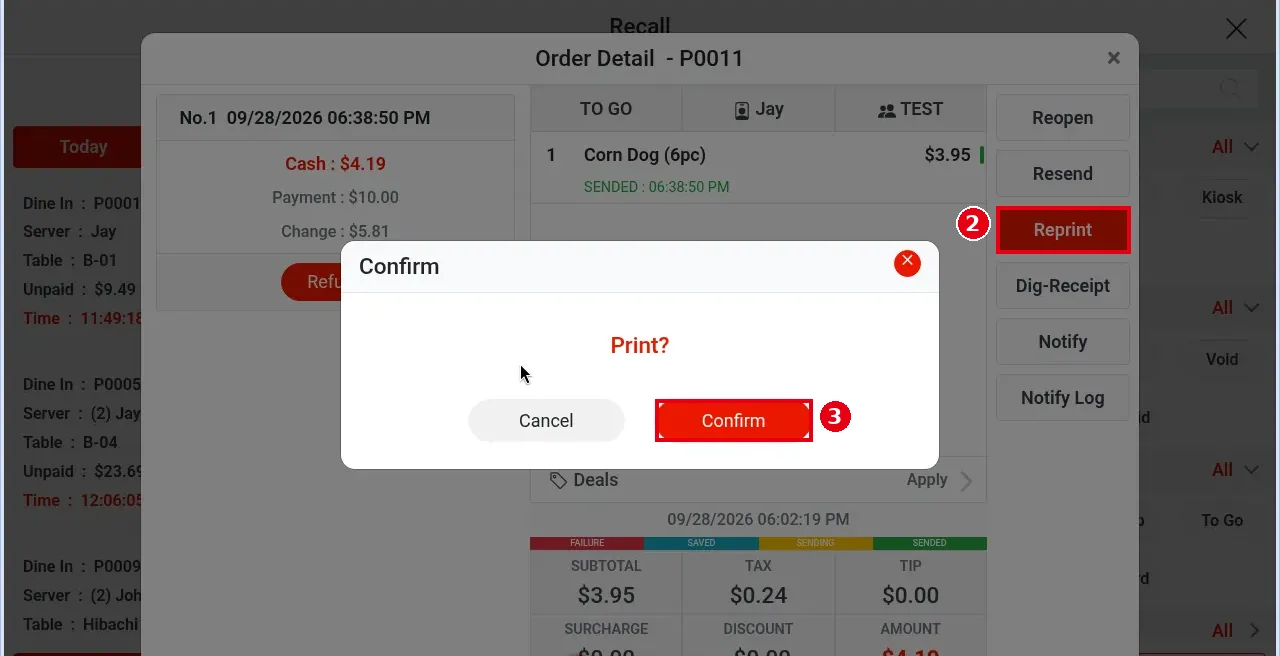
2. Find the order in Recall (for a paid order select Paid, see 1.4.1), open Order Detail and tap Reprint.
3. Print? appears; tap Confirm to print (Cancel to go back).
Send a digital receipt (Dig-Receipt)
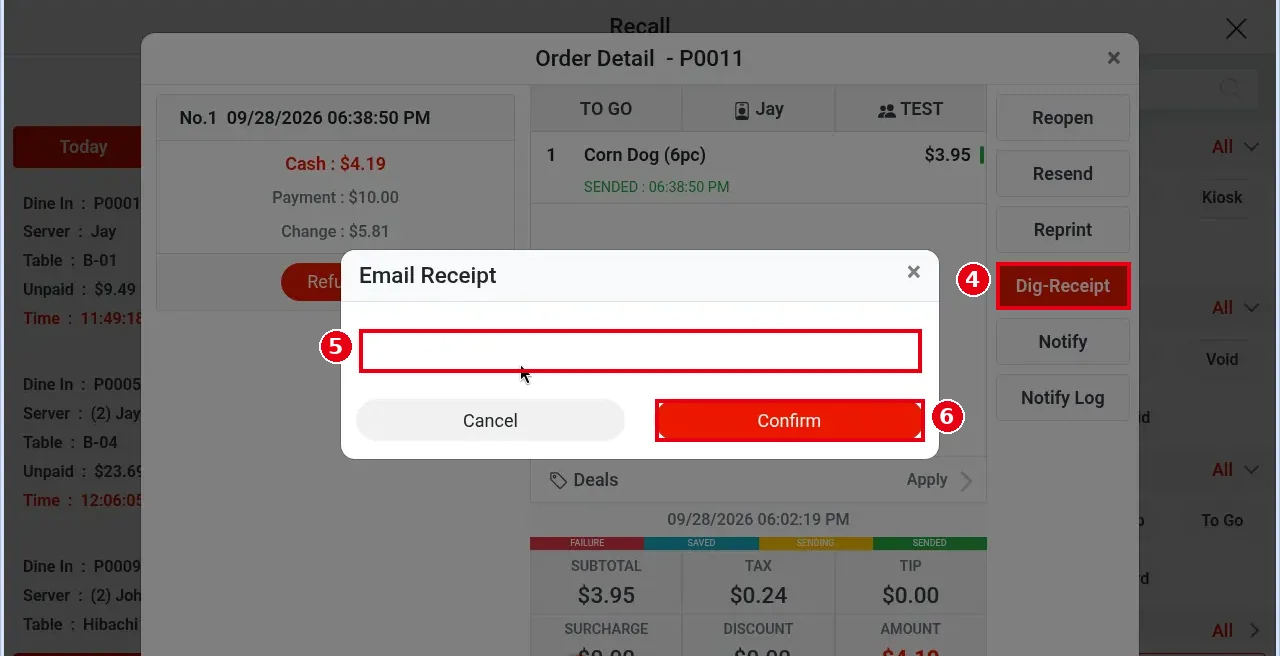
4. In Order Detail, tap Dig-Receipt and choose Email Receipt or SMS Receipt.
5. For Email Receipt, type the guest’s email address in the field. For SMS Receipt, enter the phone number.
6. Tap Confirm to send (Cancel to go back).
Notes / FAQ #
-
Reprint prints the customer receipt, marked UNPAID if the order is unpaid or SETTLED if it is paid.
-
SMS Receipt does not fill in the customer’s phone number; staff type it into the popup.
-
Customer and packing receipts show Amount Due, Change (only when there is change) and Gift Card Balance.
-
The receipt’s second language is set separately in the back office and does not follow the POS display language (see 1.1.3).
-
If a printer is offline, the system reports the print failure within 5 seconds. If the printer reconnects within 30 minutes, only kitchen tickets reprint automatically; customer receipts and other receipts must be reprinted manually with Reprint. Notifications for failed receipt printing are in the Print tab of the Notification Center (see 1.1.4).
-
Resending kitchen tickets: see 1.4.2.


