
Purpose: After a delivery order is sent to the kitchen, assign it to the driver who’s heading out, so its status changes from pending to departed. For: delivery drivers, managers.
Before you start: A delivery order moves from Pending (waiting for a driver) → Departure (driver assigned and on the way) → Arrival (delivered). Drivers work in Driver on the POS home screen. The driver must exist as an employee in the Backoffice (the Driver section holds licence and insurance details, see 2.8.2 How to add an employee and set their passcode) and their position needs the Driver permission (see 2.8.1 How to create positions and set permissions).
Steps #
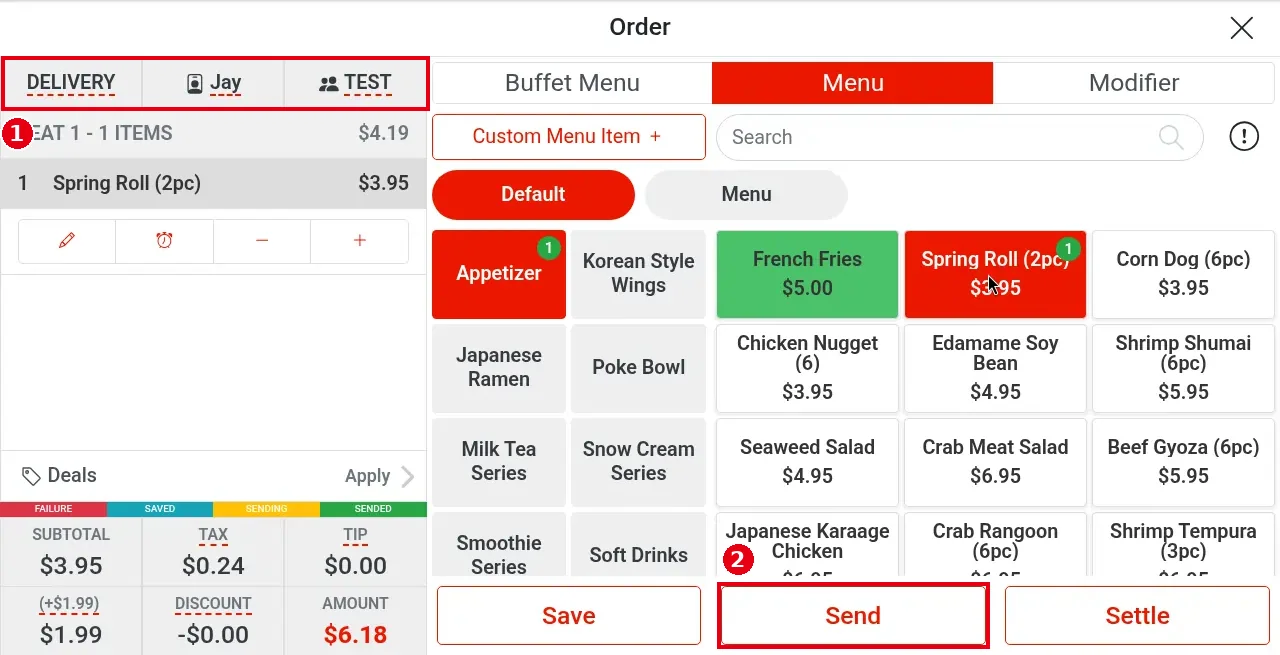
1. Create the delivery order and send it: on the home screen tap Delivery, pick or add the customer, add items and tap Send (see 1.2.4 How to take a delivery order). In the picture, ① is the order type DELIVERY, the server and the customer (e.g. TEST), and ② is Send.
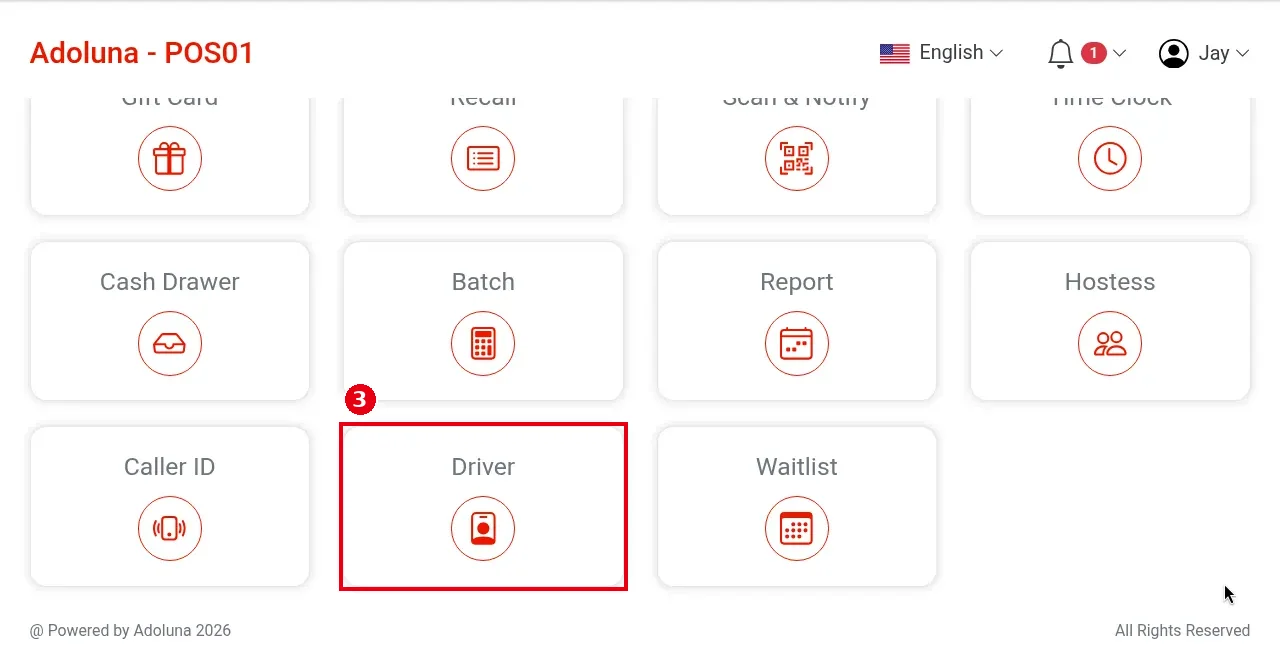
2. Back on the home screen, scroll down and tap ③ Driver.
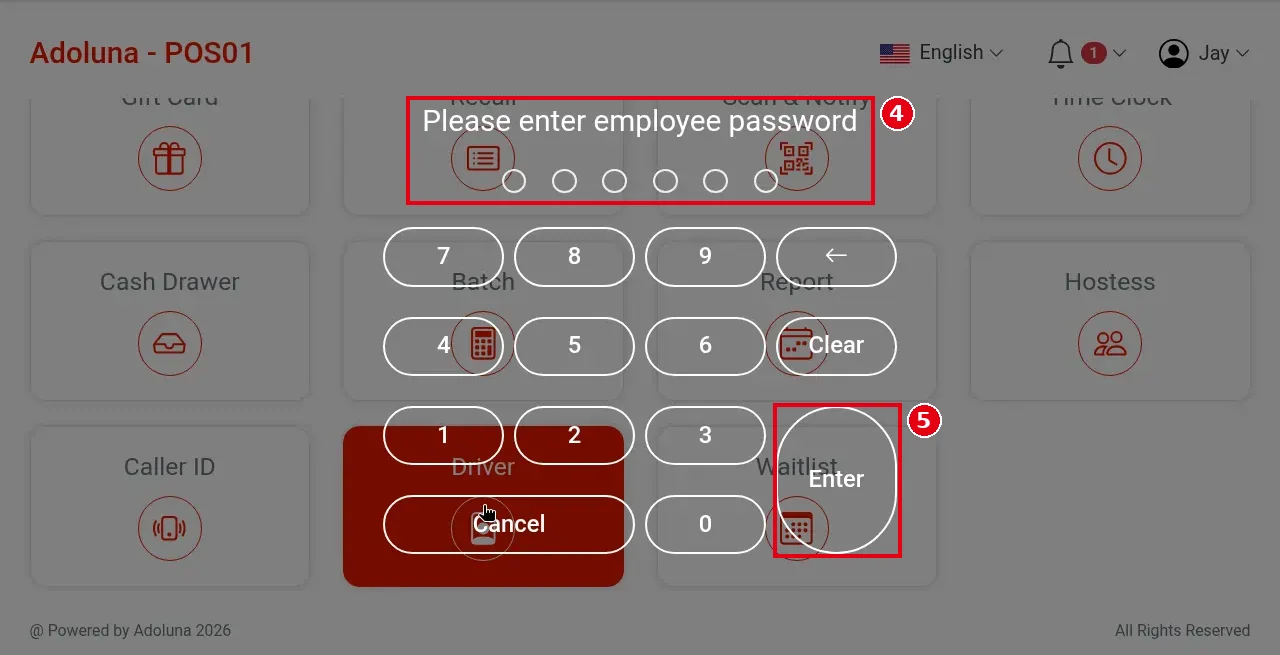
3. ④ Please enter employee password appears. Enter the driver’s employee passcode (6 dots) and tap ⑤ Enter (Clear clears it, Cancel closes). The driver must be an employee with a passcode. The order goes to the driver you pick in Driver Select in step 5.
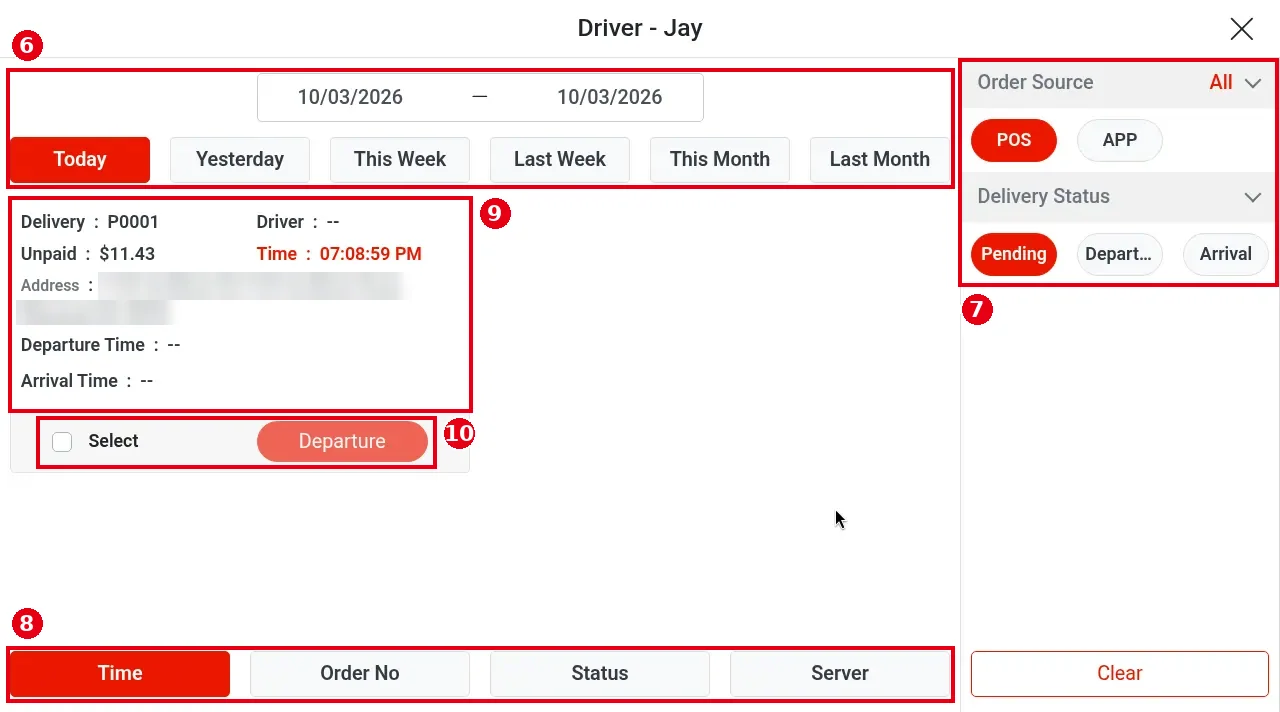
4. The driver screen opens, titled Driver – employee name. ⑥ At the top, choose a date range or tap Today, Yesterday, This Week, Last Week, This Month or Last Month. ⑦ On the right, filter by Order Source (POS, APP) and Delivery Status (Pending waiting for a driver, Departure on the way, Arrival delivered). Once an order has a driver, a Driver filter also appears (see the last picture in step 5). Tap Clear at the bottom right to clear the filters. ⑧ At the bottom, sort by Time, Order No, Status or Server.
5. Find the order to deliver among the Pending orders: ⑨ the card shows the Delivery order number, Unpaid (amount not yet paid), the address and the order Time, with Driver showing —. ⑩ Tick Select and tap Departure. You can tick several orders at once and assign them all to the same driver. Once assigned, a delivery order can’t be unassigned or reassigned to another driver, so check before confirming.
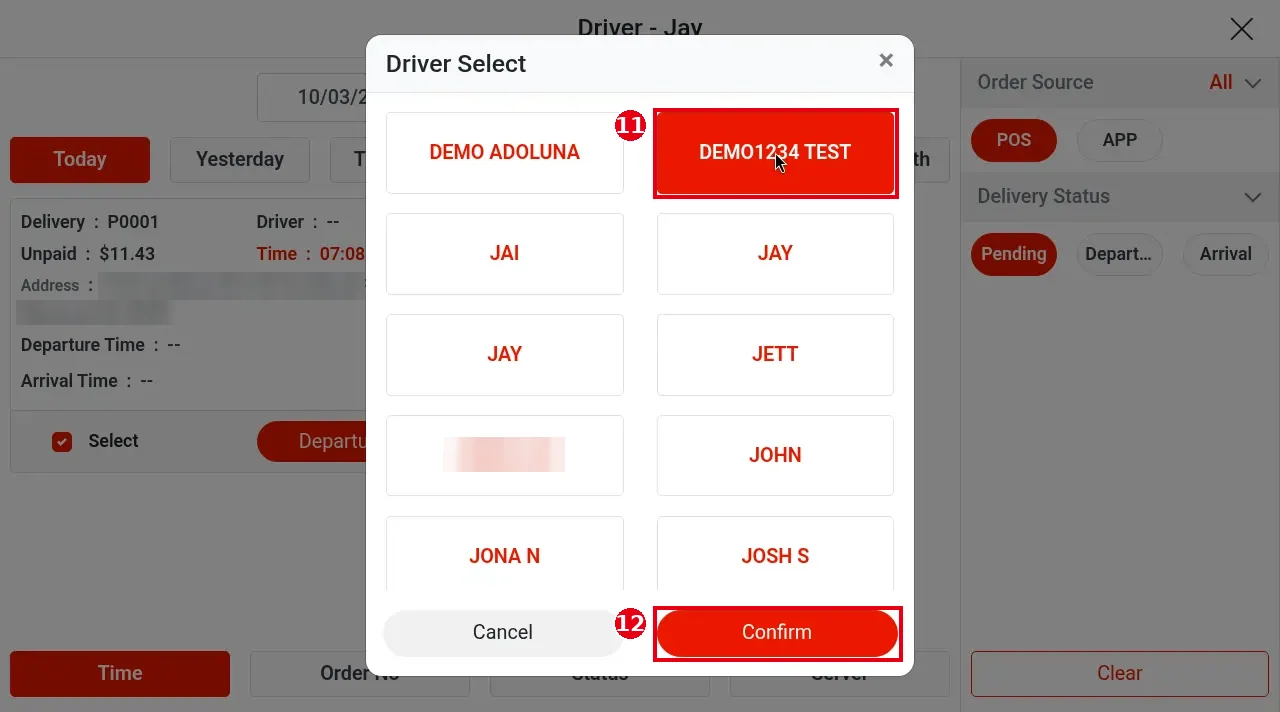
Driver Select opens: ⑪ tap the driver (the selected one turns red) and tap ⑫ Confirm.
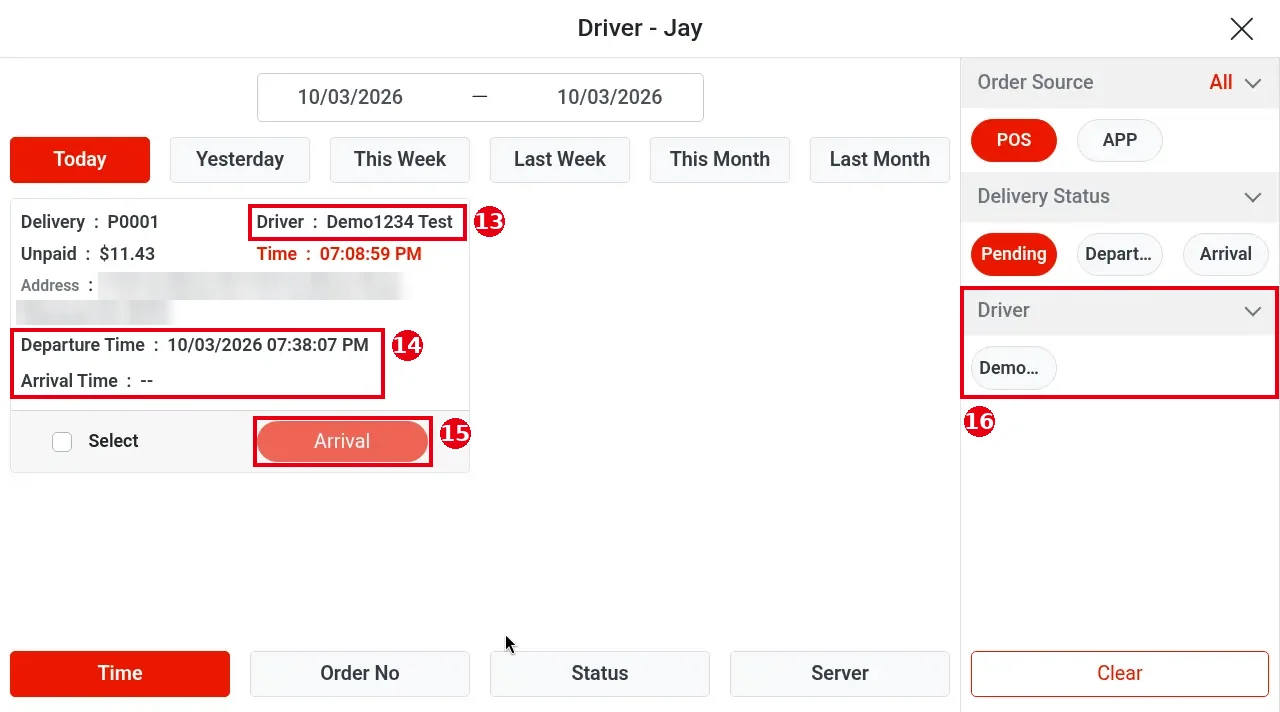
The order moves to Departure (on the way) and the departure time is recorded. The card shows ⑬ Driver (the driver’s name), ⑭ Departure Time and Arrival Time (— until delivered), and the button changes to ⑮ Arrival. ⑯ A Driver filter appears on the right so you can view orders by driver.
6. When the order is delivered, mark it Arrival; see 1.10.2 How to mark a delivery as arrived.
Notes / FAQ #
-
Online store delivery orders show as APP under Order Source, so you can filter them separately from POS delivery orders.
-
Each driver’s totals are on the POS under Report > Driver (Driver Balance Report; see 1.10.2 How to mark a delivery as arrived and 1.5.6 How to view, print or email POS reports).
-
For delivery charges and delivery areas, see 2.5.2 How to configure To Go, Pick Up and Delivery settings and 2.9.2 How to set online pick-up and delivery rules.


