
Purpose: Submit the day’s credit card transactions for settlement (close the batch). For: managers, cashiers. Hardware: card terminals.
Steps #
1. Add tips first (see 1.6.1 How to add credit card tips in bulk), then reconcile (see 1.6.2 How to reconcile card transactions before batching).
2. On the home screen tap Batch, choose Batch – PAX, then tap Actions > Batch at the bottom right.
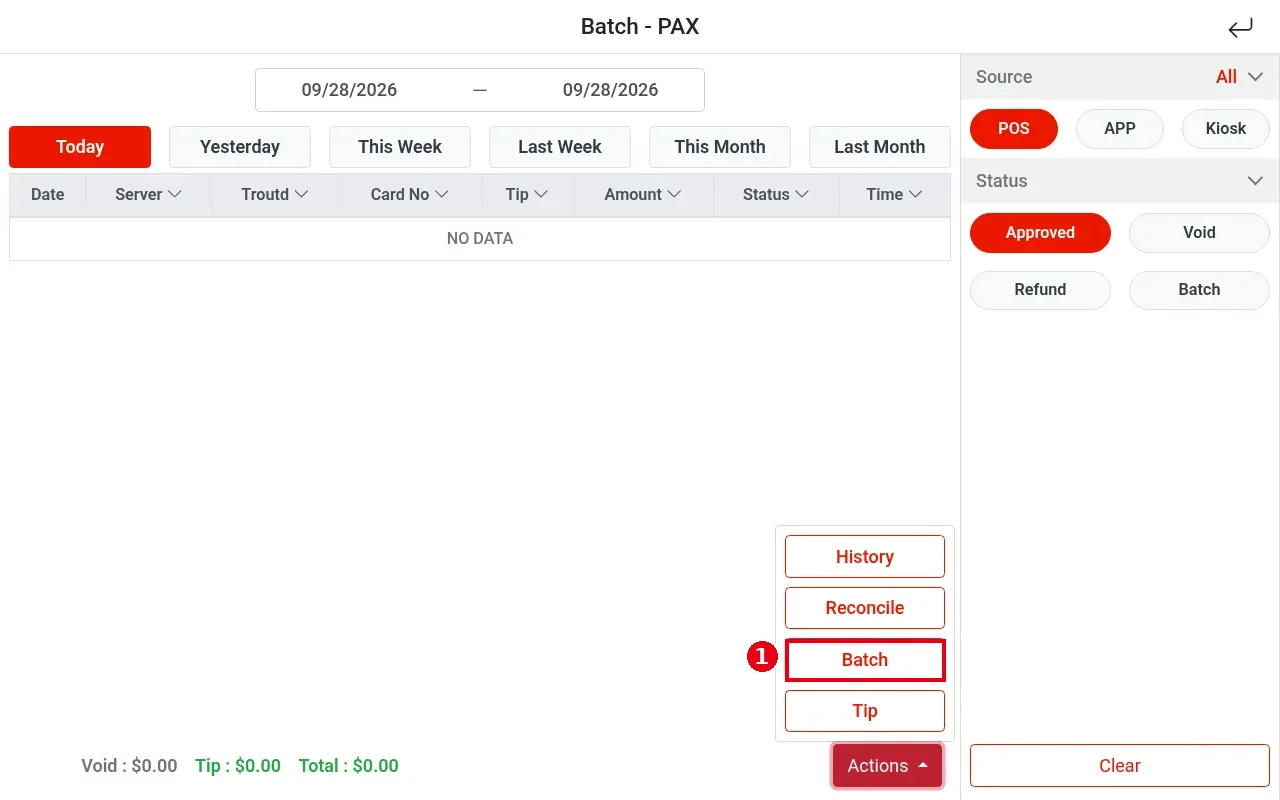
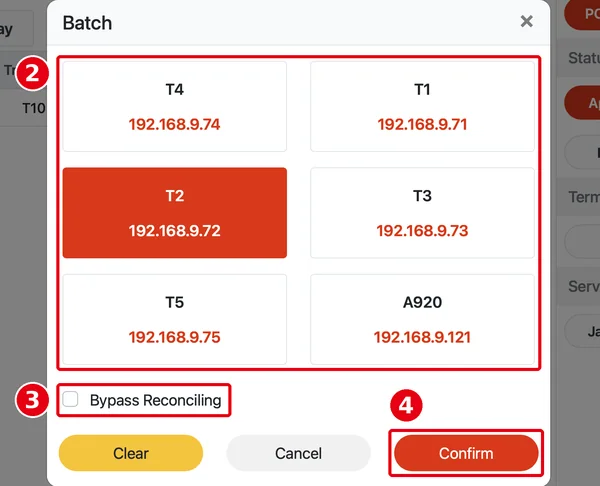
3. The Batch window ② lists the card terminals with their IP addresses. All terminals are selected (red) by default; tap a terminal to deselect it, or Clear to clear all. To batch just one terminal, tap Clear and then that terminal (e.g. only T2).
4. ③ Bypass Reconciling below is unchecked by default: the system reconciles first. If everything matches, no reconciliation result is shown and the batch goes straight ahead; any mismatched transactions must be fixed first (see 1.6.2 How to reconcile card transactions before batching). Checking it skips reconciliation: the batch is closed even when reconciliation doesn’t match (UNRECONCILED). Use it only in this case: an old terminal broke so it couldn’t batch, and after a new terminal was swapped in there are reconciliation problems. Anyone with Batch permission can check it (see 4.1.3 What to do when a batch fails or doesn’t reconcile).
5. Tap ④ Confirm to close the batch (Cancel to go back).
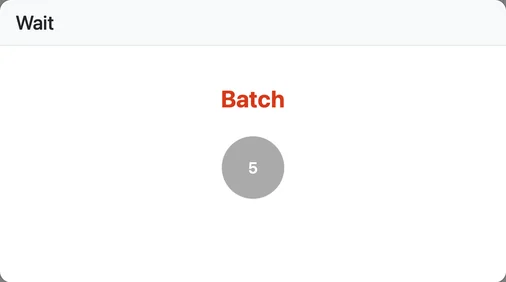
A Wait window (Batch) shows while the POS waits for the terminal. In this example reconciliation matched, so no reconciliation result was shown and batching started straight away.
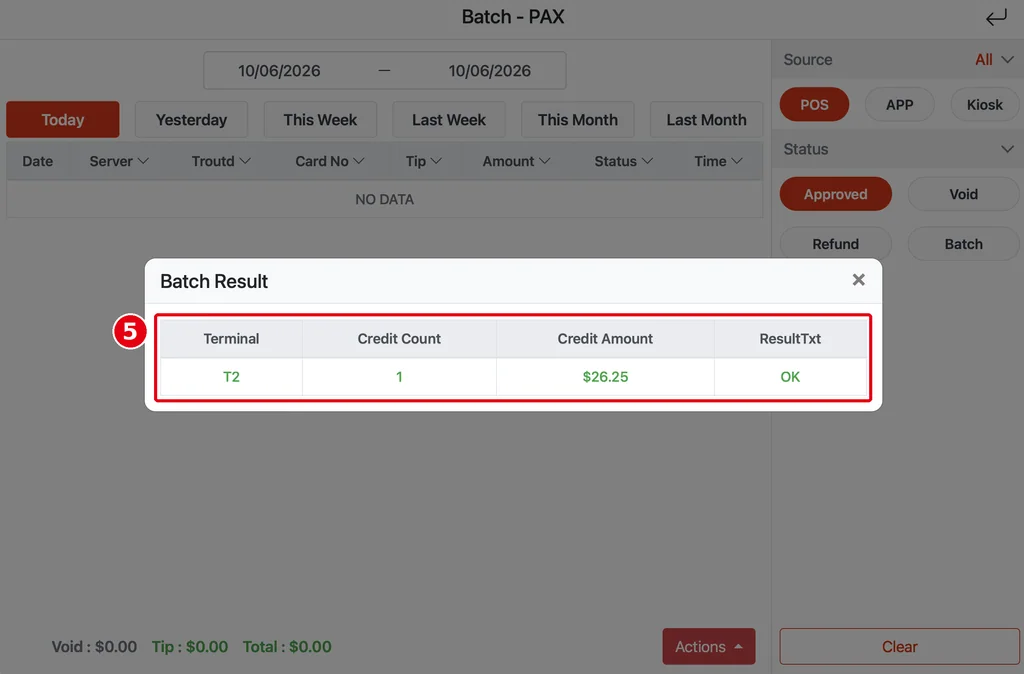
6. When the batch finishes, ⑤ Batch Result opens: one row per terminal with Terminal, Credit Count, Credit Amount and ResultTxt (the result; OK on success), e.g. T2, 1, $26.25, OK. On failure it shows the reason. The POS you’re using also prints the batch result (see the batch receipt below).
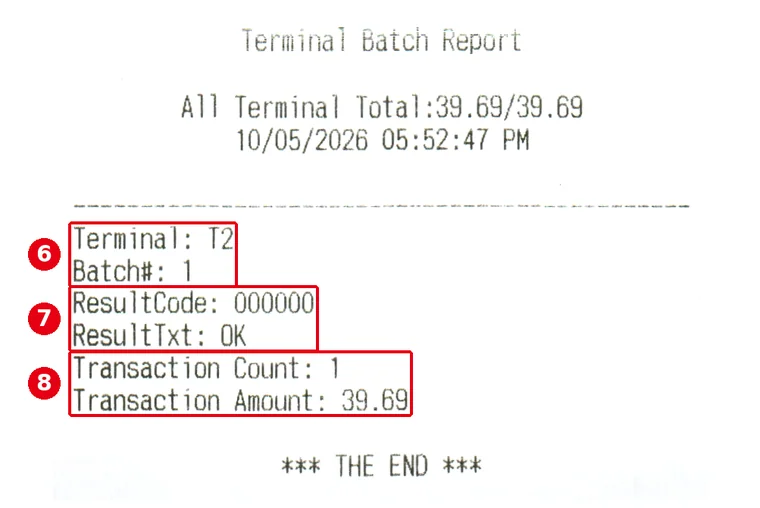
The printed batch receipt (Terminal Batch Report) shows the batch time at the top, then one section per terminal: ⑥ Terminal (e.g. T2) and Batch# (the batch number); ⑦ ResultCode and ResultTxt (the result; 000000 and OK on success); ⑧ Transaction Count and Transaction Amount (the number and amount of transactions batched on that terminal).
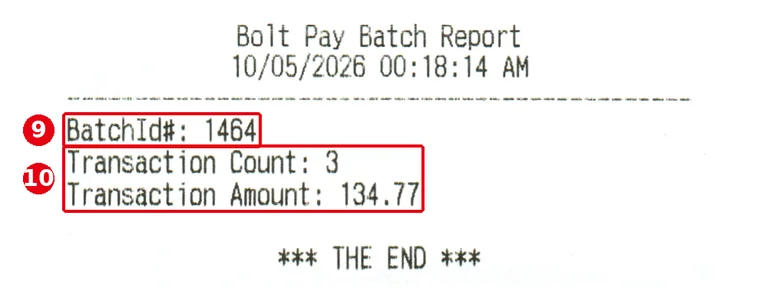
Below is the Bolt terminal batch report (Bolt Pay Batch Report) printed by the automatic Backoffice batch (see 2.2.3 How to set up Auto Batch; printed at 00:18 in the photo): ⑨ BatchId# (the batch number); ⑩ Transaction Count and Transaction Amount.
7. After the batch, the transaction list no longer shows the batched transactions under the default Approved filter (it shows NO DATA and the totals at the bottom go to zero; see the picture above). See batch records under Actions > History (see 1.6.4 How to view batch history), and batched transactions by setting the list’s Status filter to Batch (see 1.6.1 How to add credit card tips in bulk).
Notes / FAQ #
-
Add tips before closing the batch (see 1.6.1 How to add credit card tips in bulk). Once the batch is closed, tips can’t be added or changed.
-
The store can set up auto batch in the back office; see 2.2.3 How to set up Auto Batch.
-
Retrying after a failed batch is safe and doesn’t settle twice (see 4.1.3 What to do when a batch fails or doesn’t reconcile).
-
After the batch, a credit card payment can no longer be voided, only refunded (see 1.4.7 How to refund an order and 4.7.1 Why do voids and refunds affect different report dates?).


