
Purpose: Use the Backoffice Dashboard charts to see sales, tax, tips and order count, broken down by service type, order source and payment type. For: owners, managers.
Steps #
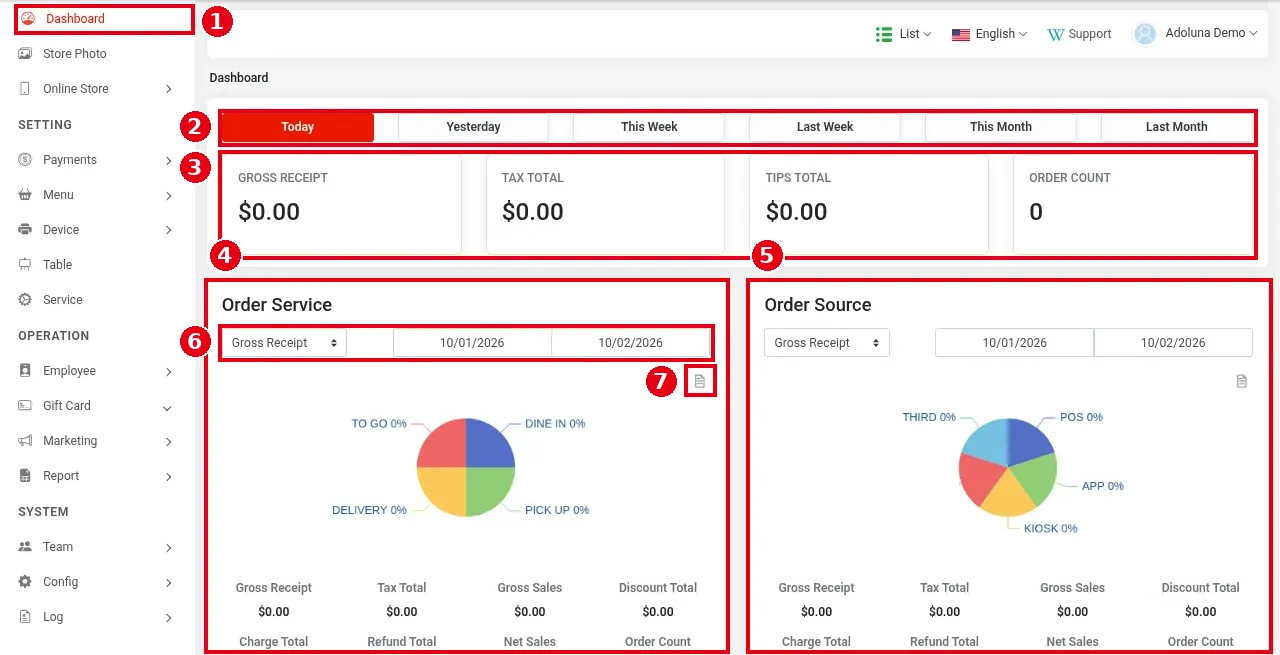
1. In the Backoffice left menu click ① Dashboard.
2. Choose the period in ②: Today, Yesterday, This Week, Last Week, This Month or Last Month.
3. The four cards ③ show totals for that period: GROSS RECEIPT, TAX TOTAL, TIPS TOTAL and ORDER COUNT.
4. ④ Order Service is a pie chart by service type (DINE IN, TO GO, PICK UP, DELIVERY); ⑤ Order Source is a pie chart by order source (POS, APP (online store), KIOSK, THIRD (third-party platforms)). Under each chart are Gross Receipt, Tax Total, Gross Sales, Discount Total, Charge Total, Refund Total, Net Sales and Order Count.
5. Each chart has its own ⑥ measure (Gross Receipt in the screenshot) and date range; click icon ⑦ to download the chart’s data.
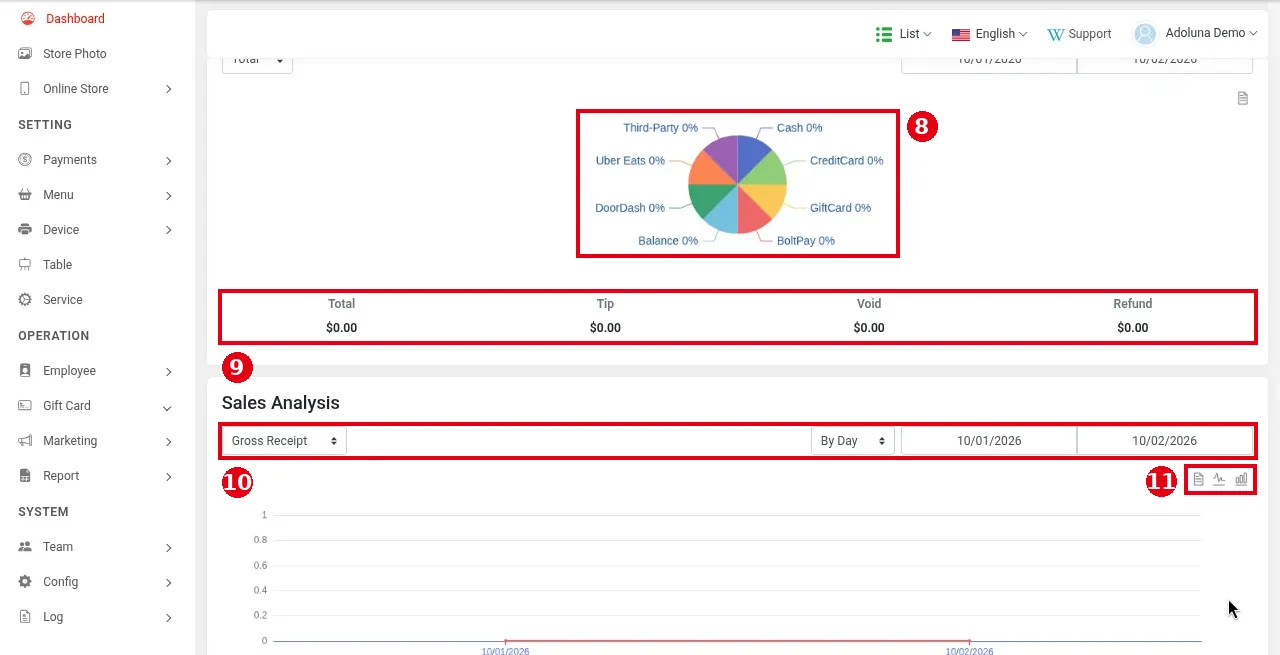
6. Scroll down: ⑧ is a pie chart by payment type (Cash, CreditCard, GiftCard, BoltPay, Balance, DoorDash, Uber Eats, Third-Party), with ⑨ Total, Tip, Void and Refund totals below.
7. ⑩ Sales Analysis is a sales trend chart; choose the measure (e.g. Gross Receipt), By Day and the date range. The icons ⑪ at the top right download the data or switch between a line and a bar chart.
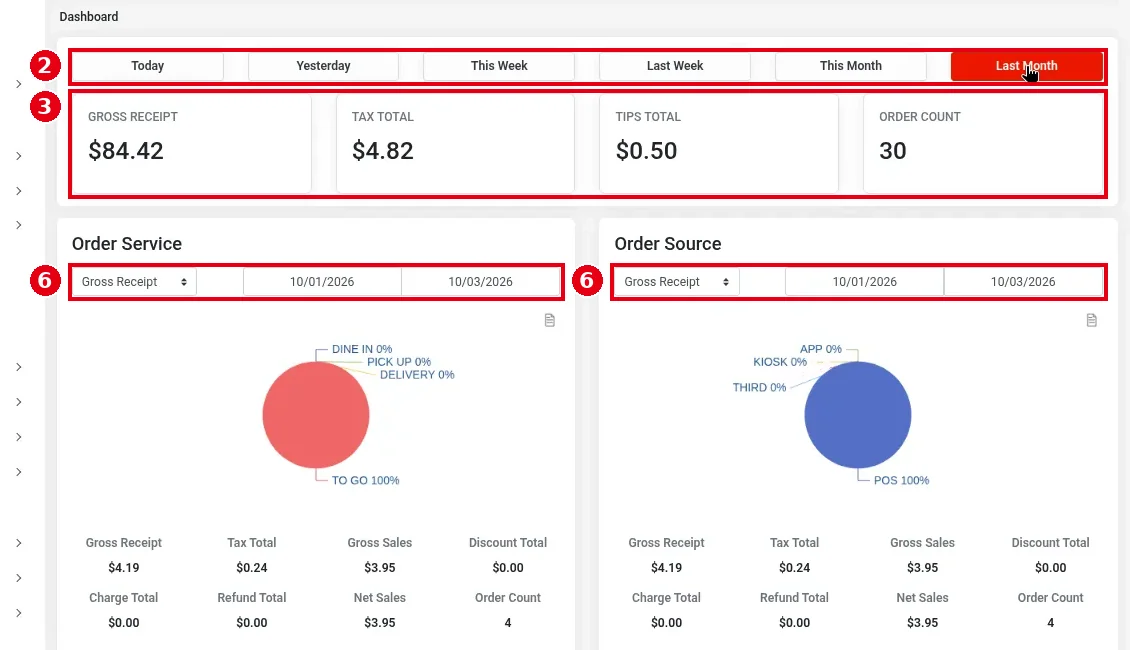
Example (with ② Last Month selected): the cards ③ show last month’s totals (GROSS RECEIPT $84.42 and ORDER COUNT 30 in the screenshot). The period buttons ② only change the cards ③; each chart’s date range ⑥ is set separately (both charts still show 10/01–10/03 in the screenshot). In the figures under the charts, Gross Sales $3.95 plus Tax Total $0.24 equals Gross Receipt $4.19; with no discounts or refunds, Net Sales equals Gross Sales.
Notes / FAQ #
-
Gross Receipt, Gross Sales and Net Sales are calculated the same way as in the POS Settlement report (see 1.5.6 How to view, print or email POS reports), depending on the Backoffice Tax Calculation setting (see 2.2.2 How to choose the tax calculation method). Either way, Gross Receipt − tax (the store’s own tax and third-party platform tax) = Gross Sales. Discount after tax (After Tax): Gross Sales − Discount Total + Charge Total − Refund Total = Net Sales. Discount before tax (Before Tax): Gross Sales − Refund Total = Net Sales, and Discount Total and Charge Total are display only, not used in the calculation. Gross Receipt includes the amounts of third-party platform orders.
-
Net Sales = subtotal − refunds − gift cards sold − discounts + surcharges, and excludes tax and tips. Gross Receipt doesn’t include tips either; tips are counted separately in TIPS TOTAL (including tips added when a guest pays for a meal with a gift card). Gift card sales are not sales.
-
Sales include orders in the date range that are still unpaid, and exclude earlier orders that were paid within the range (the same rule as the POS Settlement report; see 1.5.6 How to view, print or email POS reports).
-
The Dashboard includes third-party platform sales (see 4.7.2 How do third-party sales and tax show in reports?). Tax Total is a single figure that includes third-party platform tax; unlike the POS daily report, it isn’t split into one line per platform.
-
For day-by-day figures to export, use the Daily Summary (see 2.11.2 How to run the Daily Summary report); for individual item sales, use the Menu Summary (see 2.11.3 How to run the Menu Summary report).


