
This page lists new features and fixes in Adoluna POS, newest first. 中文版:更新日志:新功能与修复
Update – October 5, 2026 #
Features #
- Card readers (Clover Go 3 / VP3350): The Clover Go 3 works on Android and iOS (iPhone / iPad); the VP3350 works on Android only. To use either reader you need the latest Adoluna App from the app store. The new version is waiting for app store approval and is coming soon; we’ll let you know when it’s available.
- Host/Seating: Tables can now be cleared right from the Host/Seating screen, and
Assign Serverhas a new Reset button that clears all selected servers at once. - Kitchen tickets: When an order has a pickup time, the kitchen ticket now shows it, so the kitchen can plan when to have it ready.
- Dish details on the POS order screen: On the order screen, tap the
iicon next to theSearchbar and aDetailbutton appears on each dish tile. TapDetailto see a large photo of the dish with its name, description (when one has been entered) and price, and tap+to add it to the order. Tapping a dish tile to add it works the same as before. - Buffet menu hours: The buffet menu’s schedule now controls when it shows on both the POS and the Kiosk. Once the schedule ends, the buffet menu can no longer be ordered on the POS, but a Kiosk table that is already open and still within its dining time can keep ordering from it.
- Kiosk card payment: When a guest opens the credit card payment screen, the order is saved automatically. The guest can no longer go back to the menu to change the order, only back to the payment method screen.
- Kiosk table list: When you choose a table number in the back-office Kiosk settings, tables are now sorted A–Z so they’re easier to find.
- Kiosk dish notes button: A new setting lets you hide the dish notes button in the Kiosk cart.
- Gift cards: Frozen (disabled) gift cards can no longer be reloaded.
Fixes #
- Multiple servers per order:
- Fixed: an order with multiple servers couldn’t be changed back to a single server.
- Fixed: orders split from a multi-server order didn’t keep all the servers.
- Fixed: the server report showed
P0001*S2on screen but printedP0001. - Fixed: back-office (Company) reports didn’t split tips on multi-server orders evenly among the servers.
- Fixed: after paying one of the split orders, the order stayed on screen until you switched screens.
- Fixed: table status didn’t update after payment on the table selection screen.
Update – August 31, 2026 #
POS #
- Fixed several known issues and improved system stability.
Credit Card Integration #
- Added support for the VP3300 Bluetooth card reader.
- Tip selection and e-signature can be configured and turned on or off to suit each merchant.
Update – June 28, 2026 #
Printing #
- Label printers now show the order type, making it easy to tell dine-in, to-go, online and other order sources apart.
Credit Card Integration #
- The VP3350 now supports configuring tip selection and e-signature, which can be turned on or off to suit each merchant.
iFrame Embedding #
- Adoluna POS can now be embedded in any web page via iFrame, making it easier to integrate with third-party systems or custom back offices.
Gift Cards #
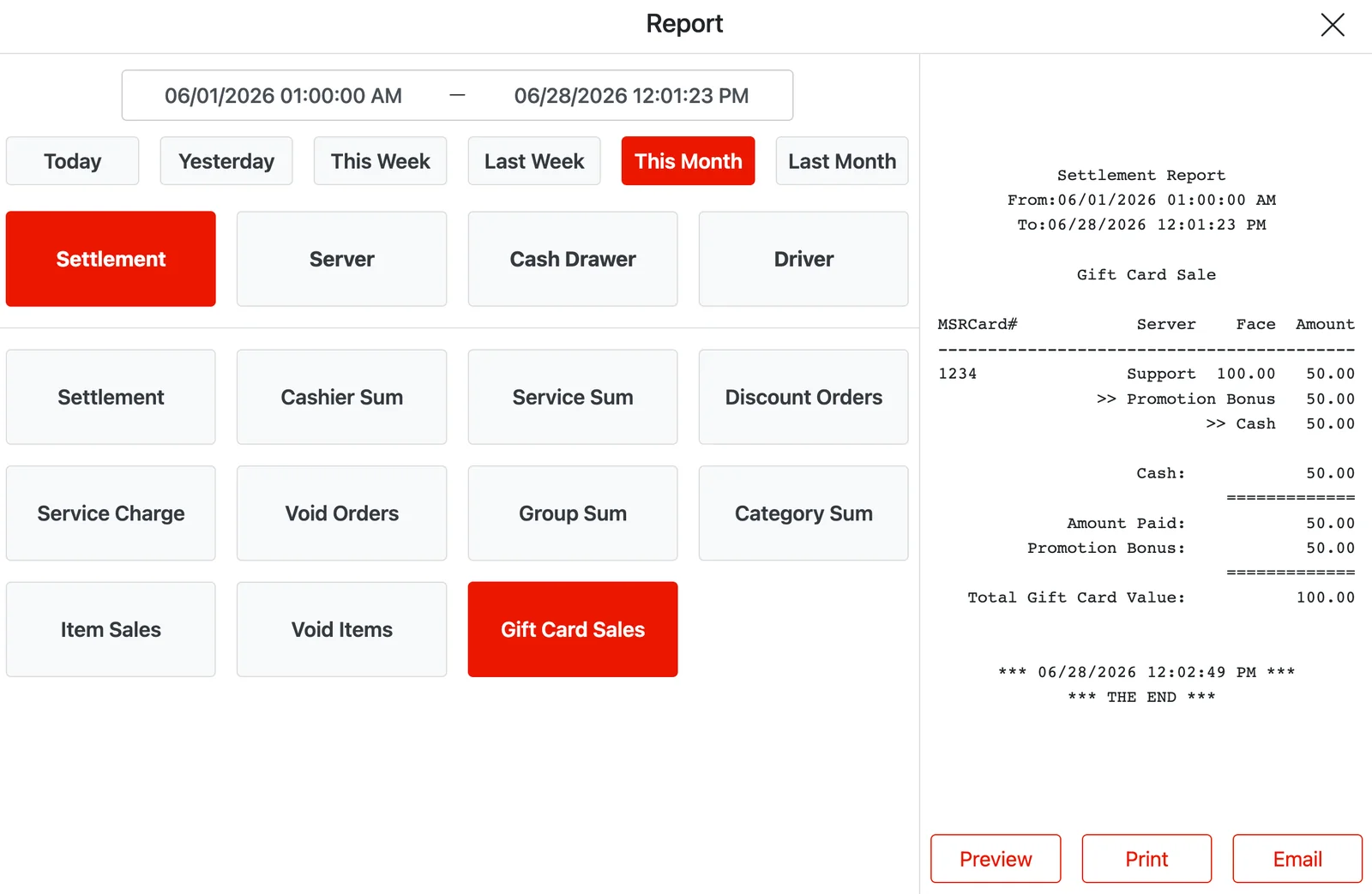
- Reports now include gift card statistics, showing:
- Gift card payment amount
- Gift card discount amount
- Gift card actual face value
POS #
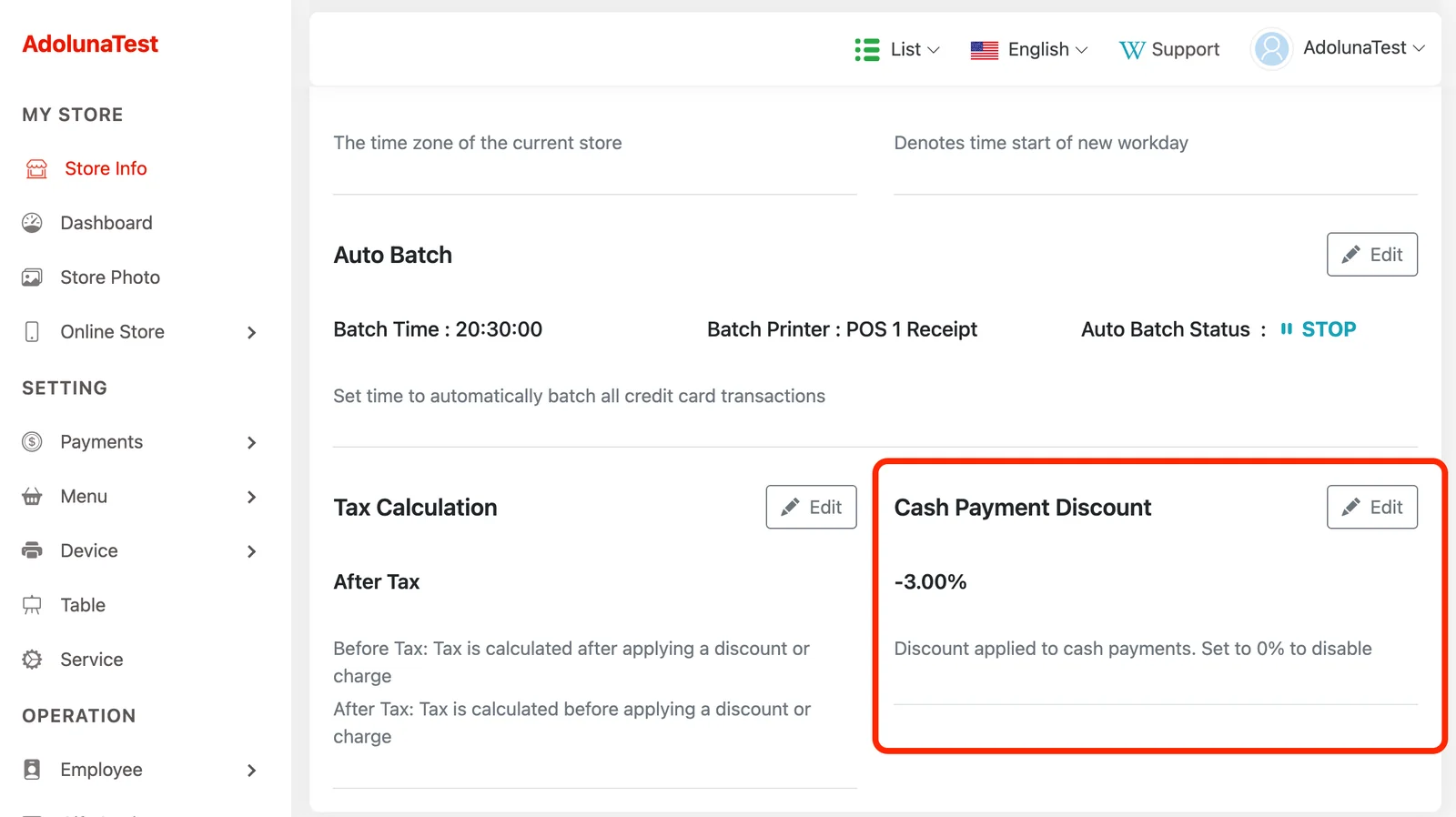
- New cash payment discount: you can choose in the back office whether to apply a discount to cash payments. When a customer pays by cash, the tip portion is not included in the discount calculation.
- Multi-server shared orders:
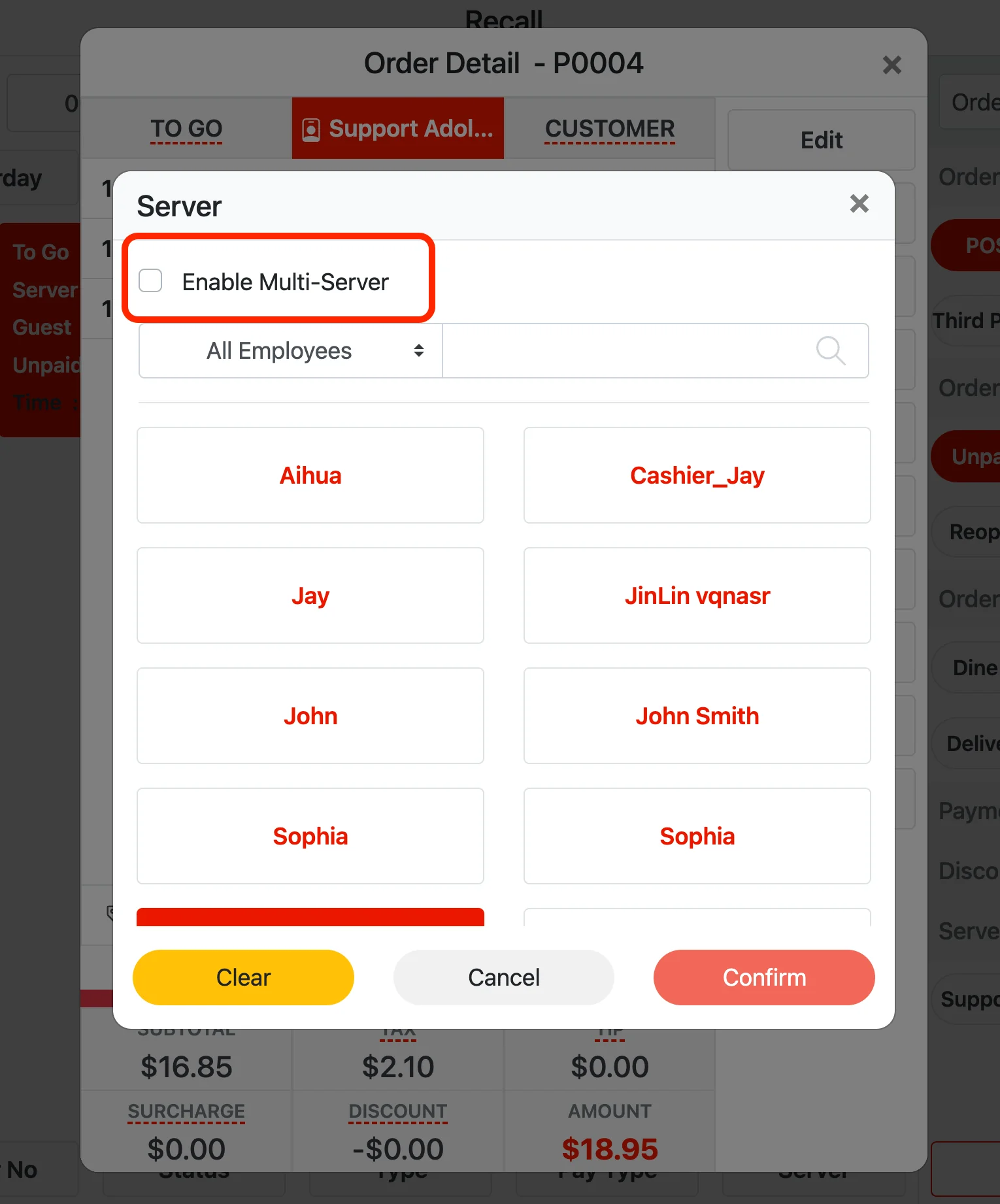
- One order can be assigned to multiple servers, for large tables served by several servers together.
- Multiple servers can edit the same order at the same time, and order contents sync in real time.
- The order’s sales, tips and tip share are automatically split evenly among the servers.
- Server filter:
- Added filtering by position and name.
- Available on these screens:
- Clock-in screen
- Report screen
- Seating screen
- Change table server screen
Update – May 11, 2026 #
POS #
- On the dine-in table selection screen, tables served by the current server are shown in green; other servers’ tables stay red.
- The report screen now has time-range permission control, which can be turned off in employee permission settings.
Kiosk #
- New scan-to-open-table ordering.
- After a customer pays through the POS, a QR code is printed on the customer receipt.
- The kiosk can scan the QR code on the customer receipt with its camera to open a table.
- Currently Android devices only; the iOS version will be released in the next update.
Update – March 16, 2026 #
Printing #
- Kitchen tickets now show the order round (Order Round: #).
- This can be turned on or off in the back office under Service → Other (show order round on kitchen tickets).
POS #
- When two devices open the same order at the same time and save it, the order contents sync to the other device in real time.
Kiosk #
- When a customer taps “Need Help” on the kiosk, the system automatically saves the current order.
- The “Need Help” feature can be turned on under Device → Kiosk → select the device → check “Allow Guest to Call Help”.
- The POS shows the kiosk device name and order number of the help request.
- Staff can open the order on the POS to make changes; after saving, the changes sync back to the kiosk in real time.
Kiosk Dine-In Mode: New Server-Opened Table Mode #
- A server must enter a passcode to unlock the kiosk for ordering, and a server passcode is also required to exit.
Use case
- After seating the guests, the server enters the passcode on the kiosk and goes to the table selection screen.
- After selecting the table number and server, the kiosk opens the menu screen.
- The server can help the guests choose an all-you-can-eat set or other items.
- After the first order is submitted, the ordering screen automatically switches to the matching set menu mode.
- From then on, guests can only order items included in that set.
Update – January 9, 2026 #
Gift Cards #
- With this update, the system supports gift cards with a PIN.
- These gift cards can be used online or in store.
- The card numbers and their PINs must be imported into the system through the back office before the cards can be sold and used.
- The image below shows the import format.

New All You Can Eat Ordering Mode #
This mode is designed for sushi, hot pot, BBQ and other buffet restaurants with different price levels.
Features
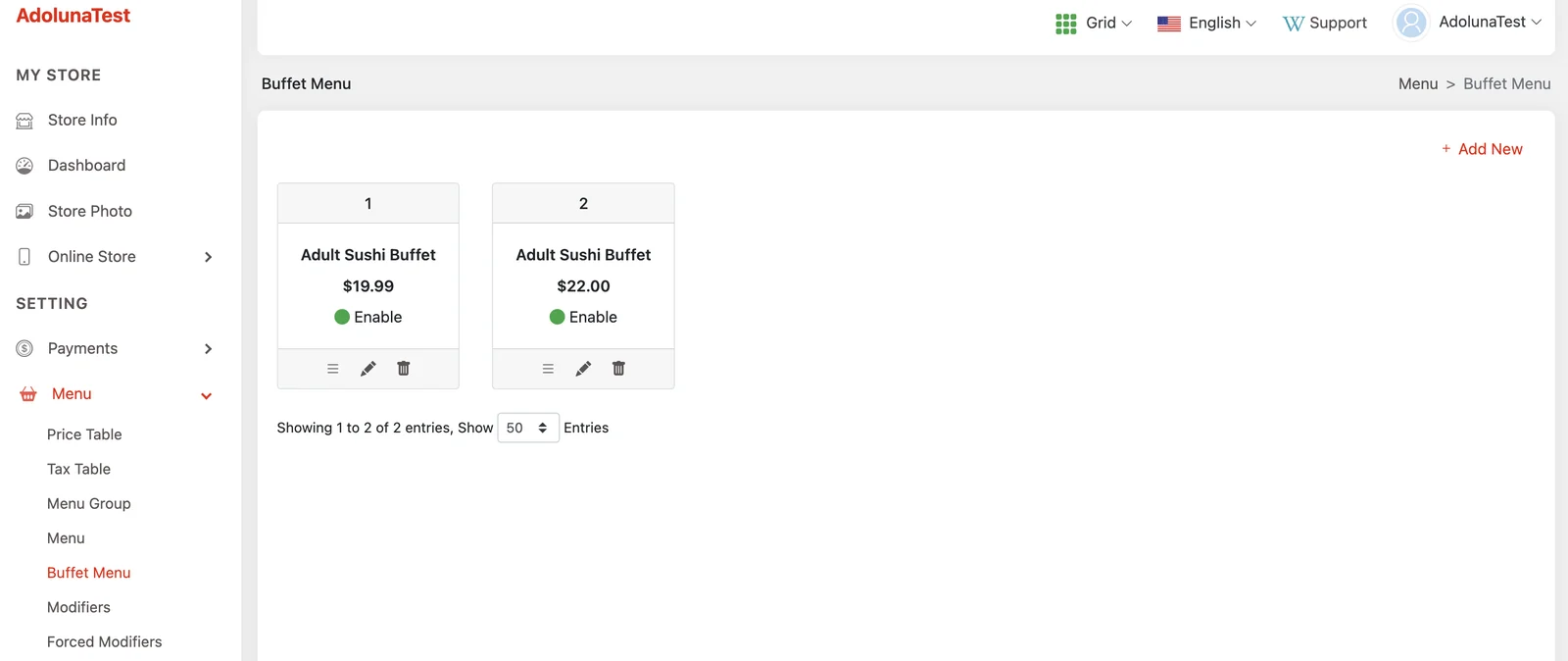
- Merchants can create Buffet menus in the back office.
- Buffet menus can be configured with a price and a dining schedule.
- Items are chosen from the main menu (all items are still created through the normal menu screens).
- Items can have their own price and a quantity limit.
All You Can Eat ordering flow
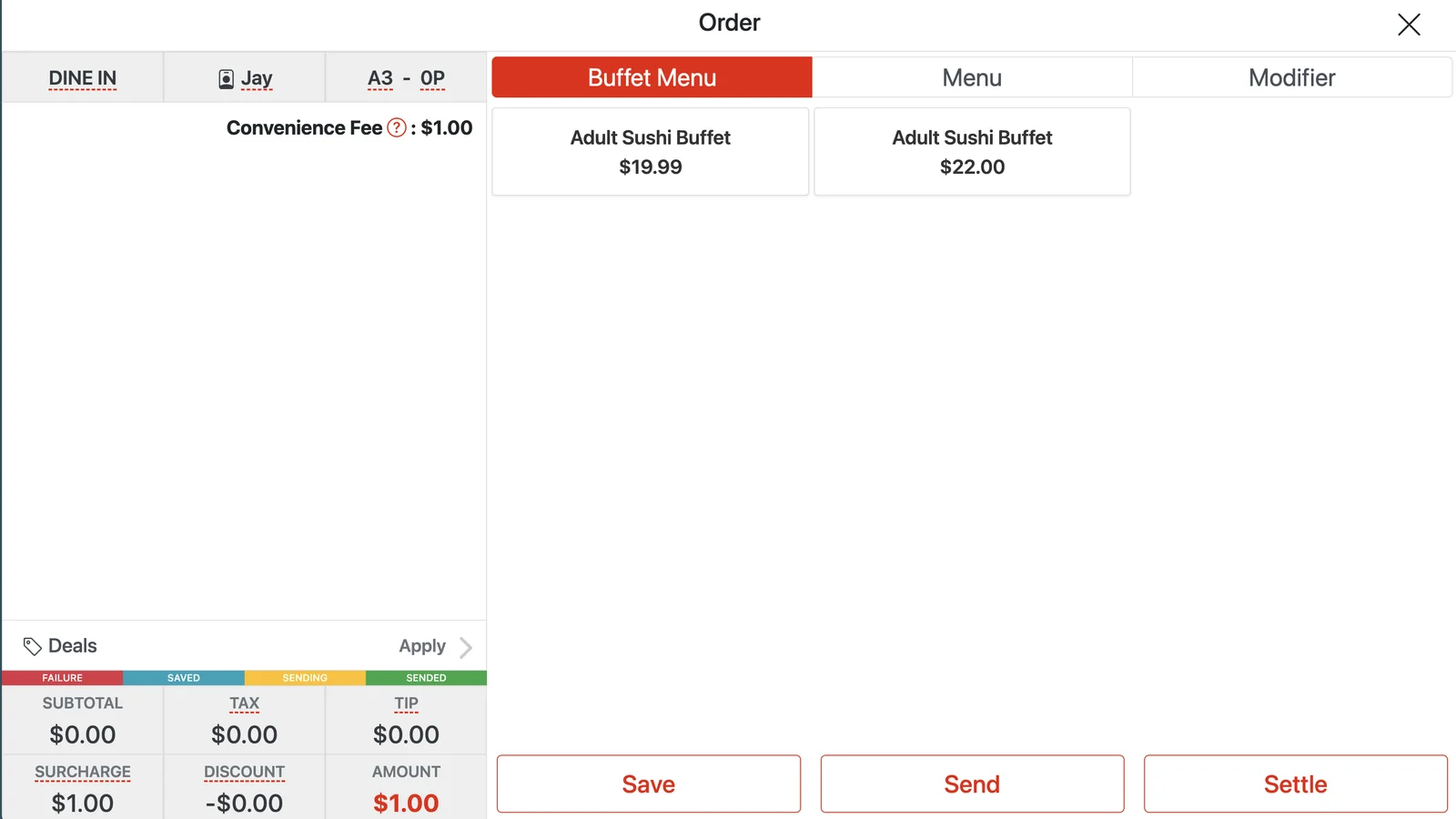
- The server opens the table on the POS and selects the Buffet menu.
- Once a menu is selected, all item prices automatically switch to that Buffet menu’s prices.
- After the order is saved, customers can order from a kiosk or by scanning a QR code.
- Checkout must be done by the server (payment on self-service devices will be developed later).
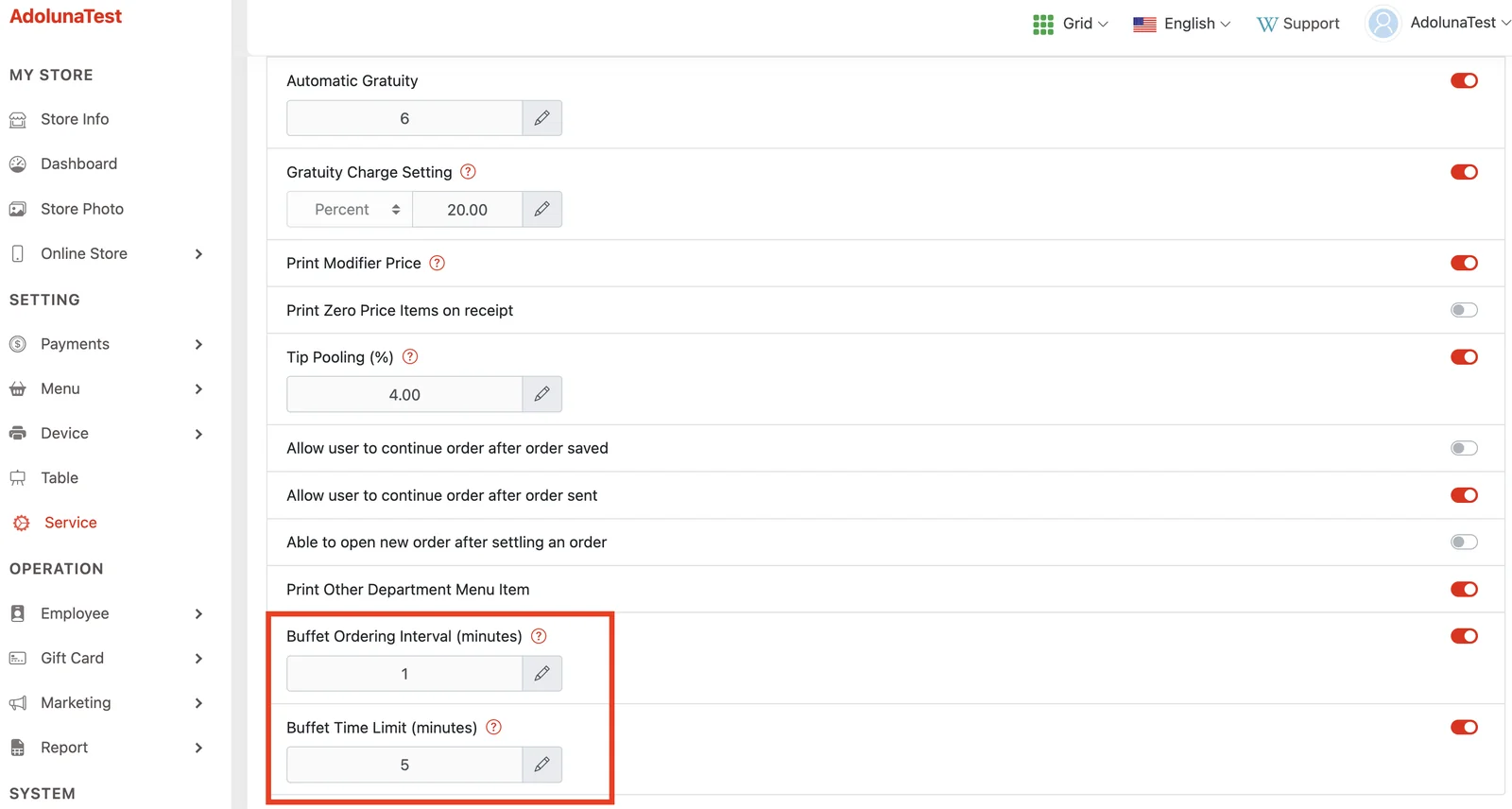
- Table dining time and ordering interval can be configured in the back office under Service → Dine In.
POS #
New features
- Supports payment with gift cards with a PIN.
- Supports Buffet (All You Can Eat) ordering mode.
UI improvements
- Improved the ordering screen experience.
- Recommended and best-selling items are shown as categories.
Orders and tables
- After payment, an order is no longer tied to its table.
Credit card transaction reconciliation
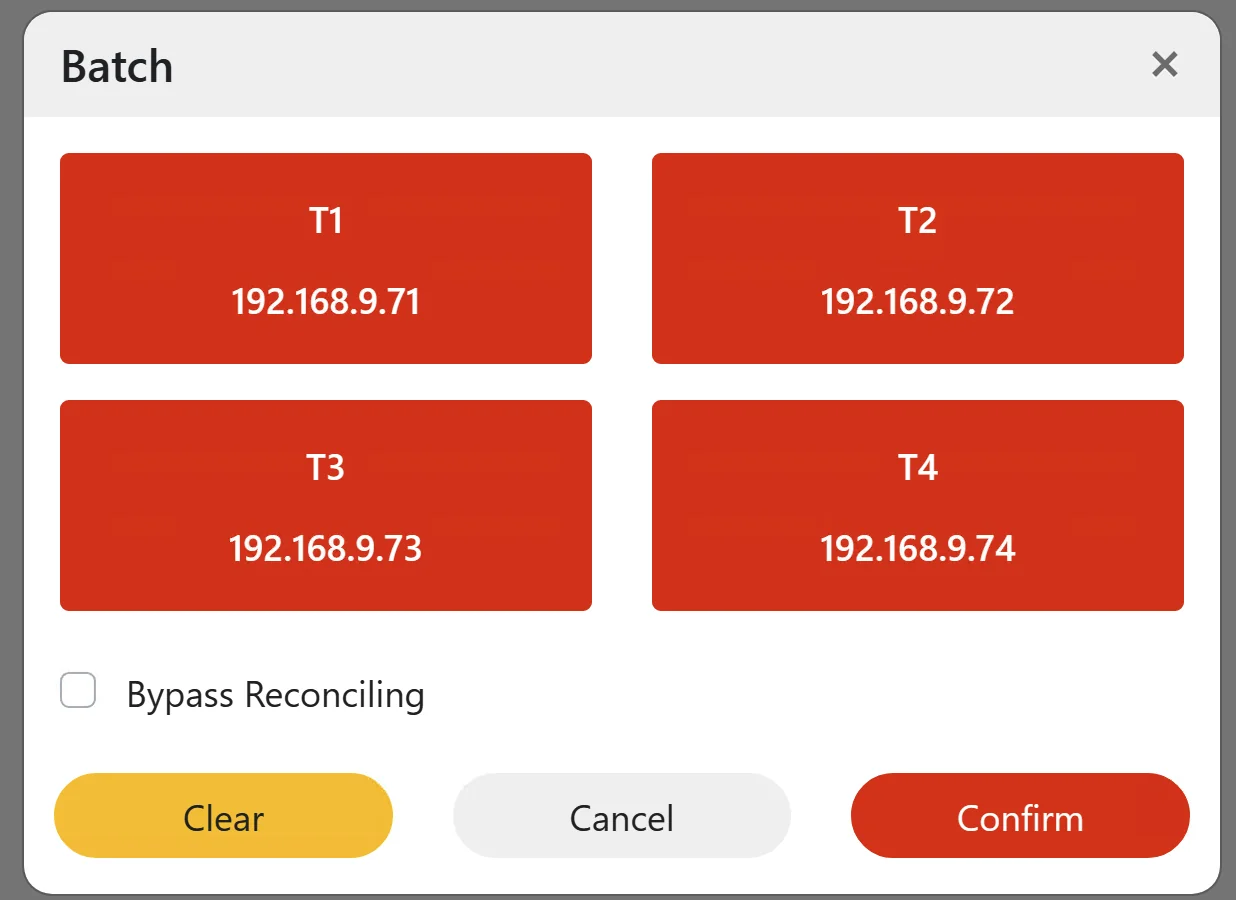
- Added reconciliation to the Batch screen.
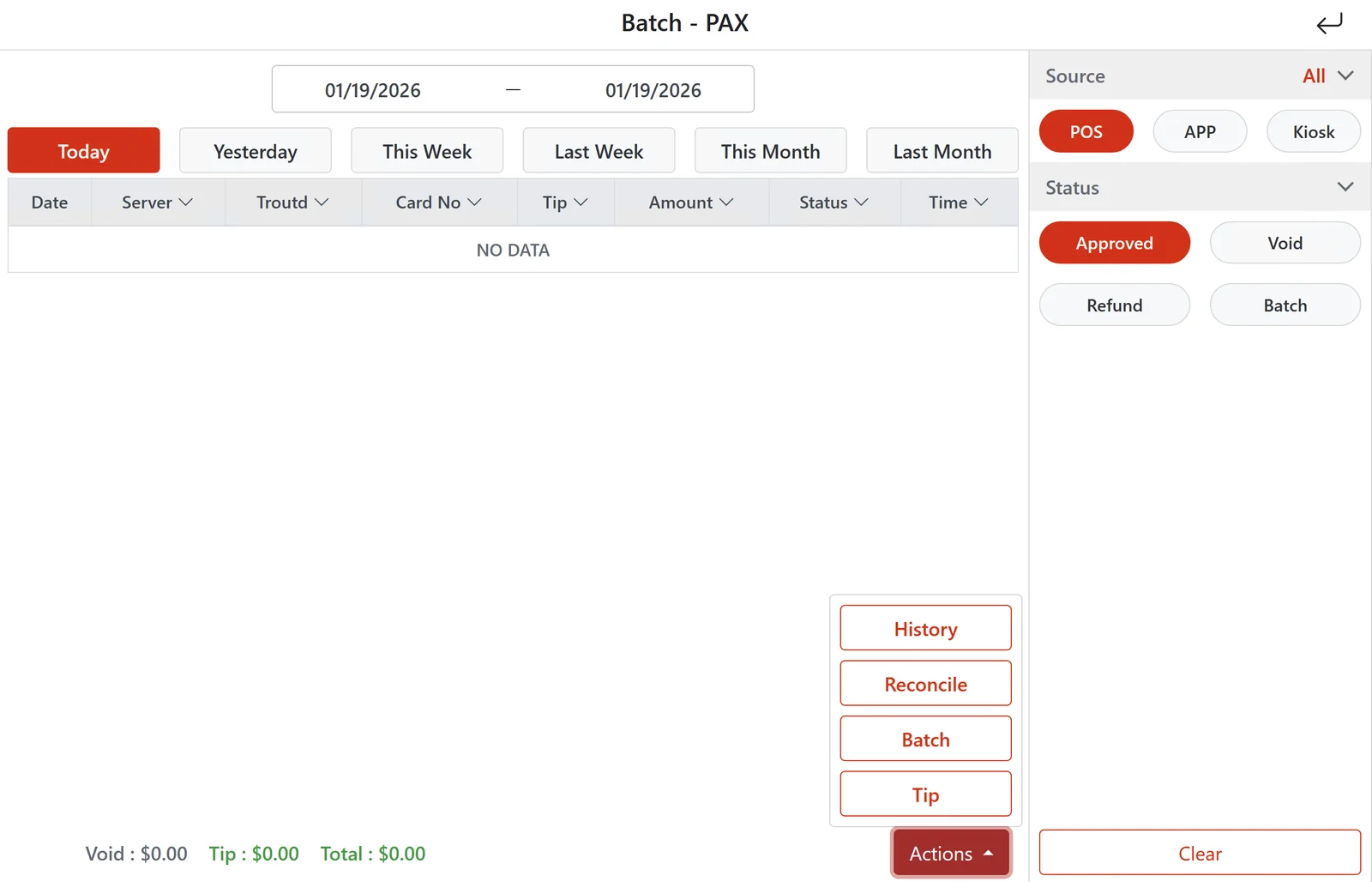
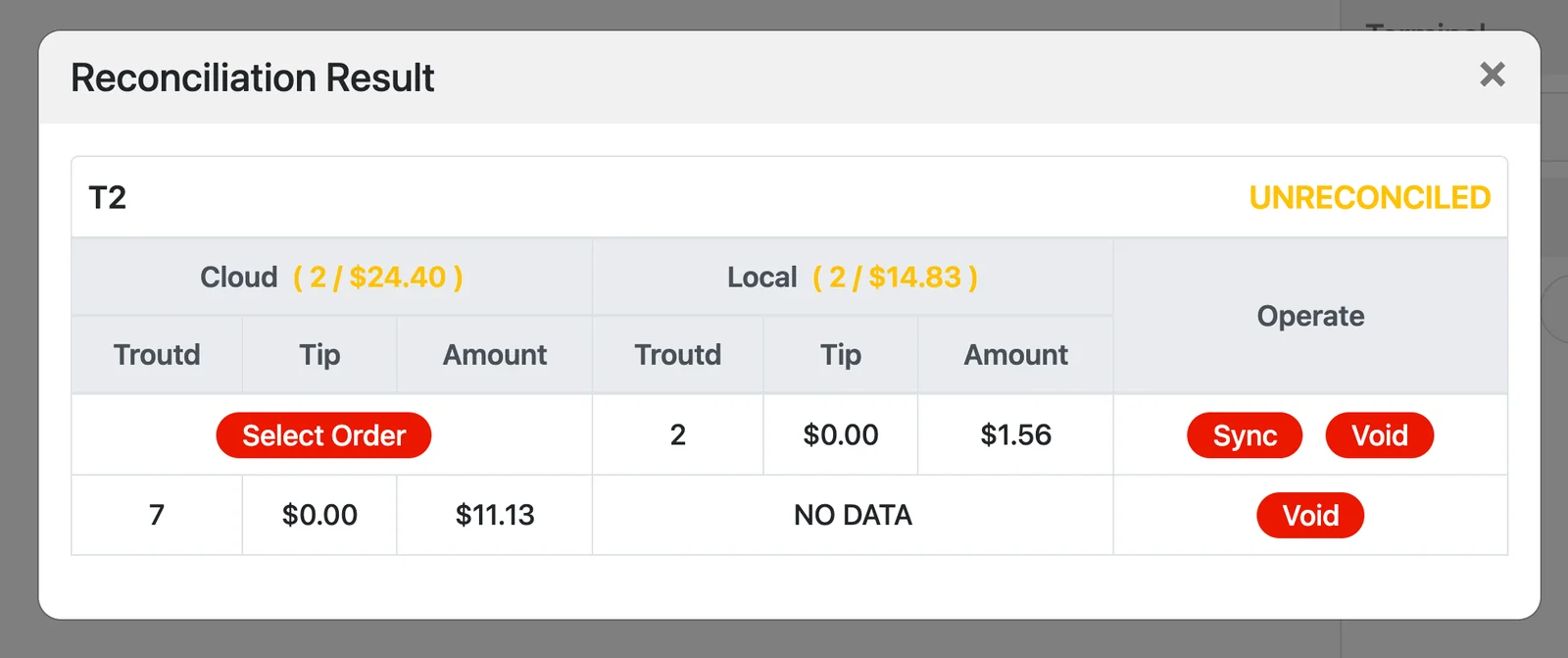
- If the records don’t match after reconciliation:
- Extra transactions on the card terminal: void the transaction here, or match it to a POS order.
- Extra transactions in the POS: void the payment record on the POS order here and collect payment again.
- When posting a batch, the system runs reconciliation first by default; if a mismatch is found, the reconciliation adjustments must be completed first.
- You can choose Bypass Reconciling to force the batch to post.
Order data improvement
- When a server completes payment for a kiosk or online order, the order is automatically assigned to that employee.
Kiosk #
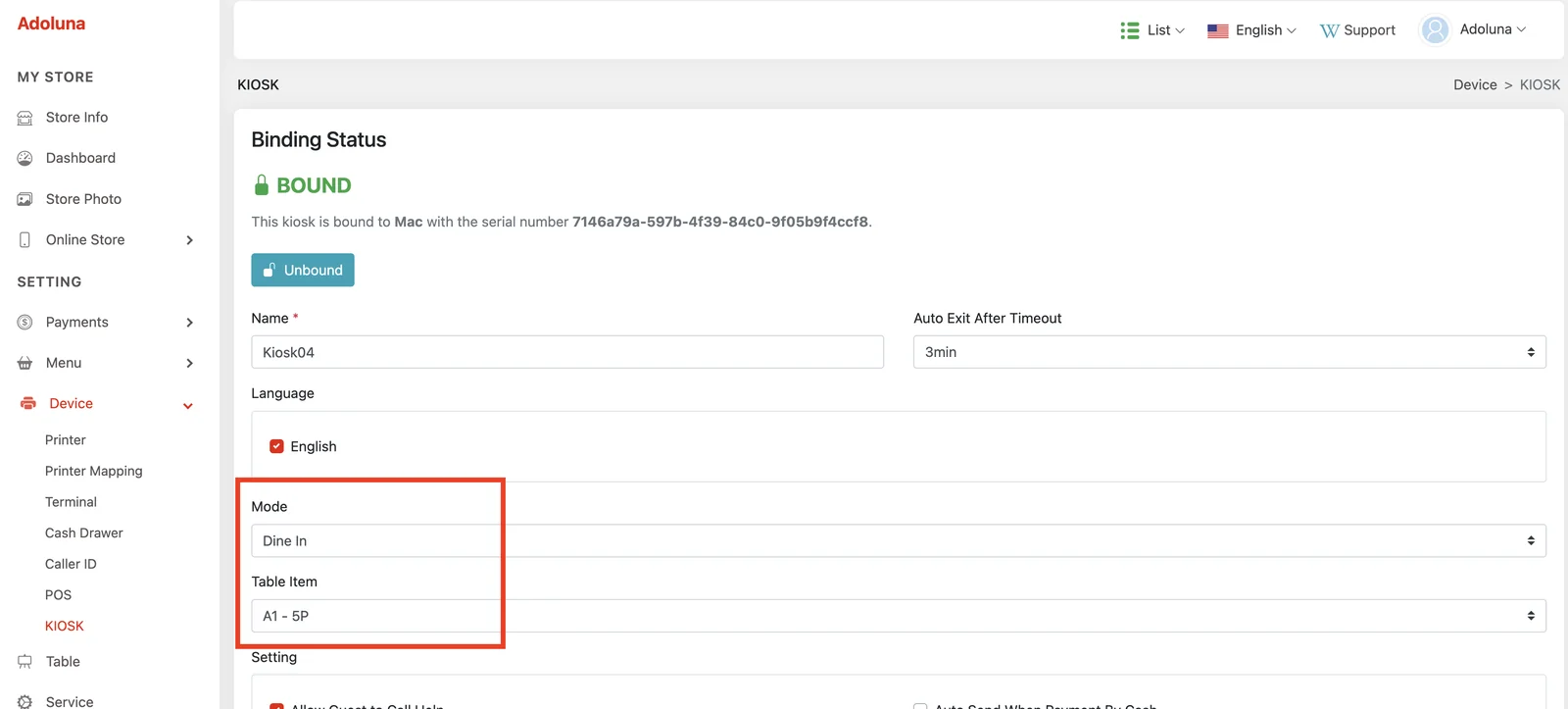
- Supports Buffet (All You Can Eat) ordering mode.
- The kiosk must be set to Dine In mode and bound to a table number in the back office.
- Supports payment with gift cards with a PIN.
- Improved the ordering screen experience.
- Recommended and best-selling items are shown as categories.
Scan to Order #
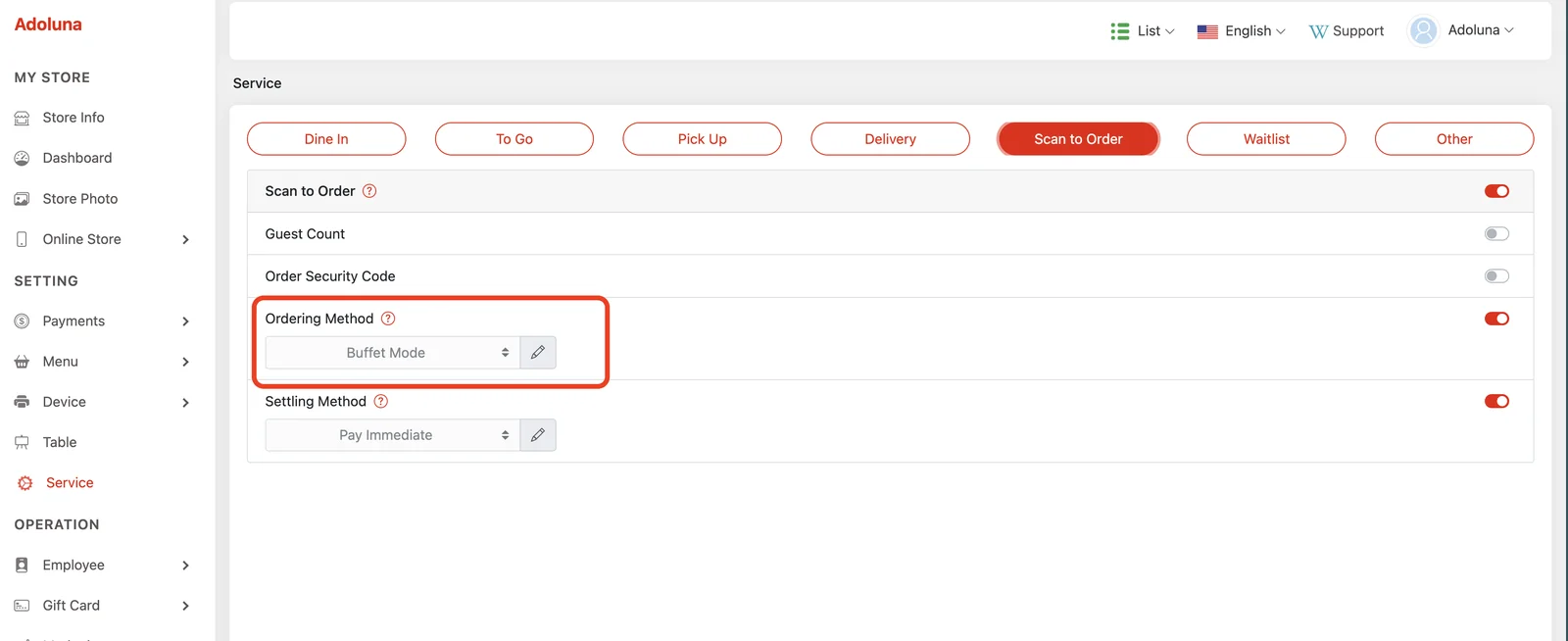
- Supports Buffet (All You Can Eat) ordering mode.
- Scan to order must be set to Buffet mode and bound to a table number in the back office.
- Improved the ordering screen experience.
- Recommended and best-selling items are shown as categories.
- Supports payment with gift cards with a PIN.
- Improved the screen shown after payment.
App #
- Supports payment with gift cards with a PIN.
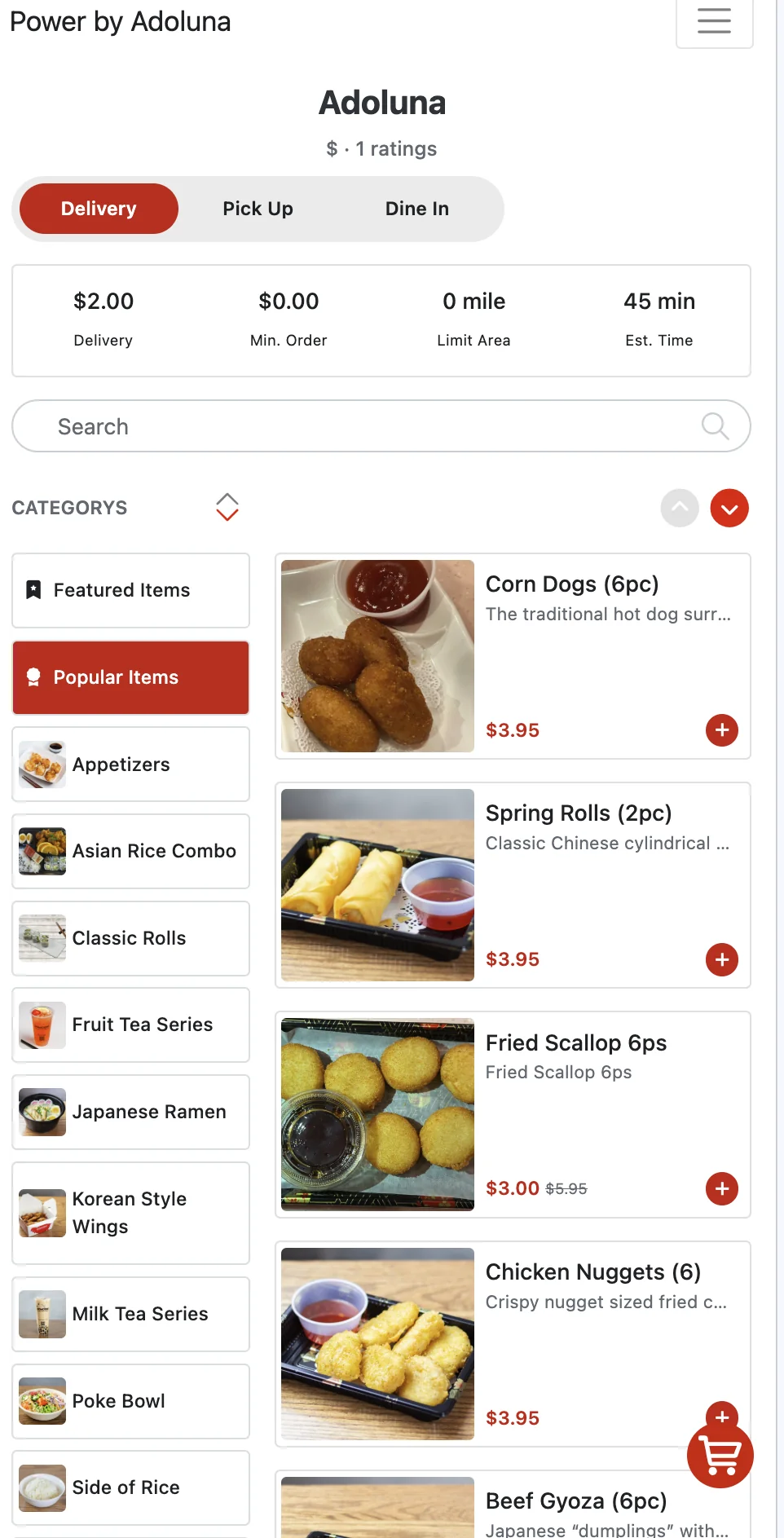
- Improved the ordering screen experience.
- Recommended and best-selling items are shown as categories.
Company (Back Office) #
- Menu
- A menu category can be pinned to the top (one category only).
- This works well with virtual categories: for example, create a virtual category called New Item to showcase new dishes, then add the new items from each category to it to promote them in one place.
- Forced modifiers (required modifiers with a minimum set) now support default options.
- For example, when the minimum is 3, you can set 3 default options.
- Default options are not mandatory; customers can still change them.
- When ordering on the POS, kiosk and app, default options are selected automatically.
- A menu category can be pinned to the top (one category only).
- SMS marketing (in testing)
- Promotional text messages can be edited and sent from the Company screen.
- Choose the customer group to send to.
- Custom message content is supported.
- Customers who reply STOP are unsubscribed automatically.
- Employee status
- Frozen
- The passcode is kept, and the employee cannot log in.
- Employee data (clock-in records, order records) can still be viewed.
- After the employee is restored, the original passcode works again.
- Deleted
- The passcode is released, and the employee cannot log in.
- Employee data can still be viewed.
- After the employee is restored, a new passcode must be set.
- Frozen
Update – September 9, 2025 #
Menu #
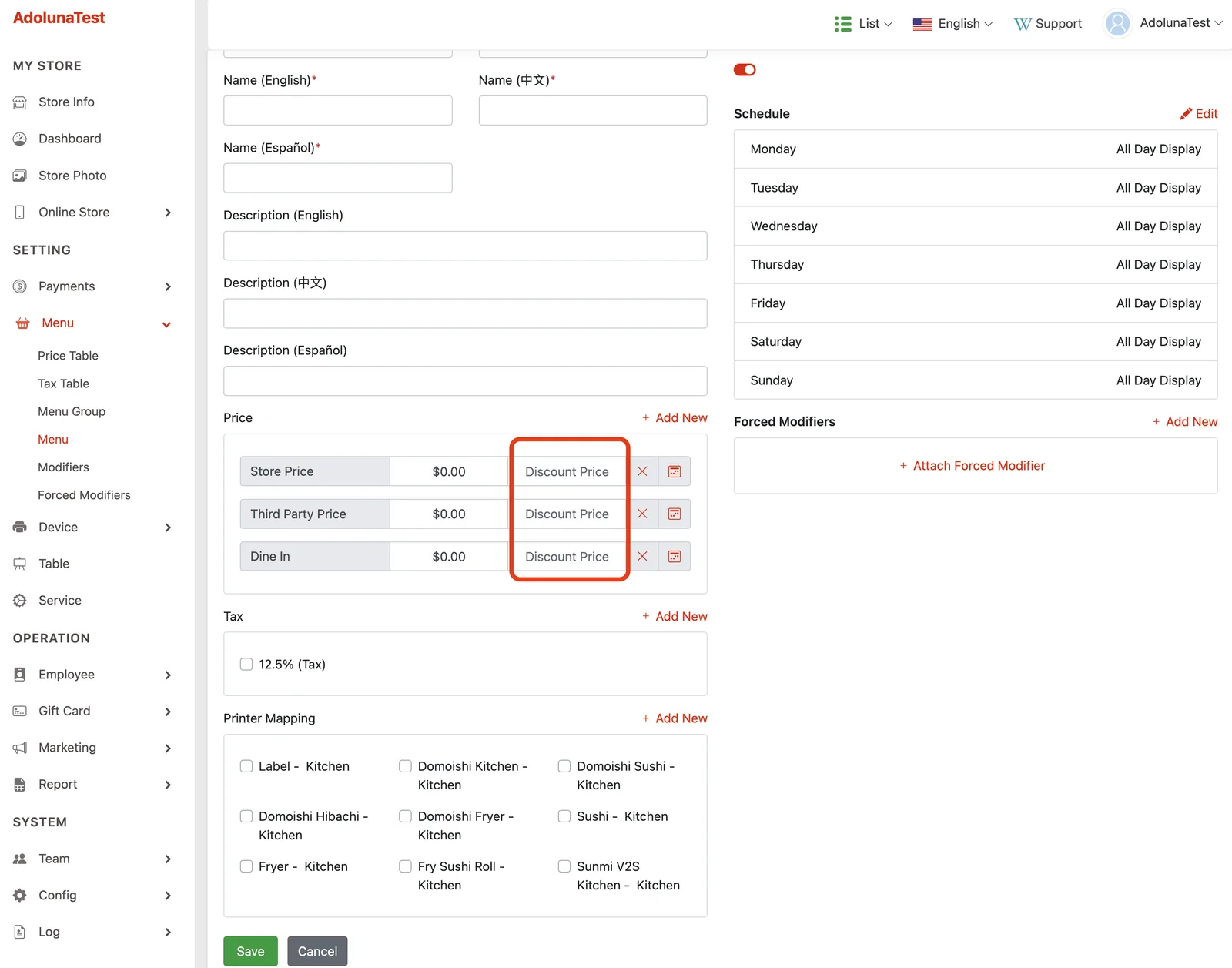
- Discount Price Items
- Can be configured in the Menu Item Info section of the back office.
- On the front end, both prices are displayed, with the original price crossed out (example:
$4.00$2.00). - If the special price is set to $0.00, the item is free.
- To remove the special price, click the X icon.
POS #
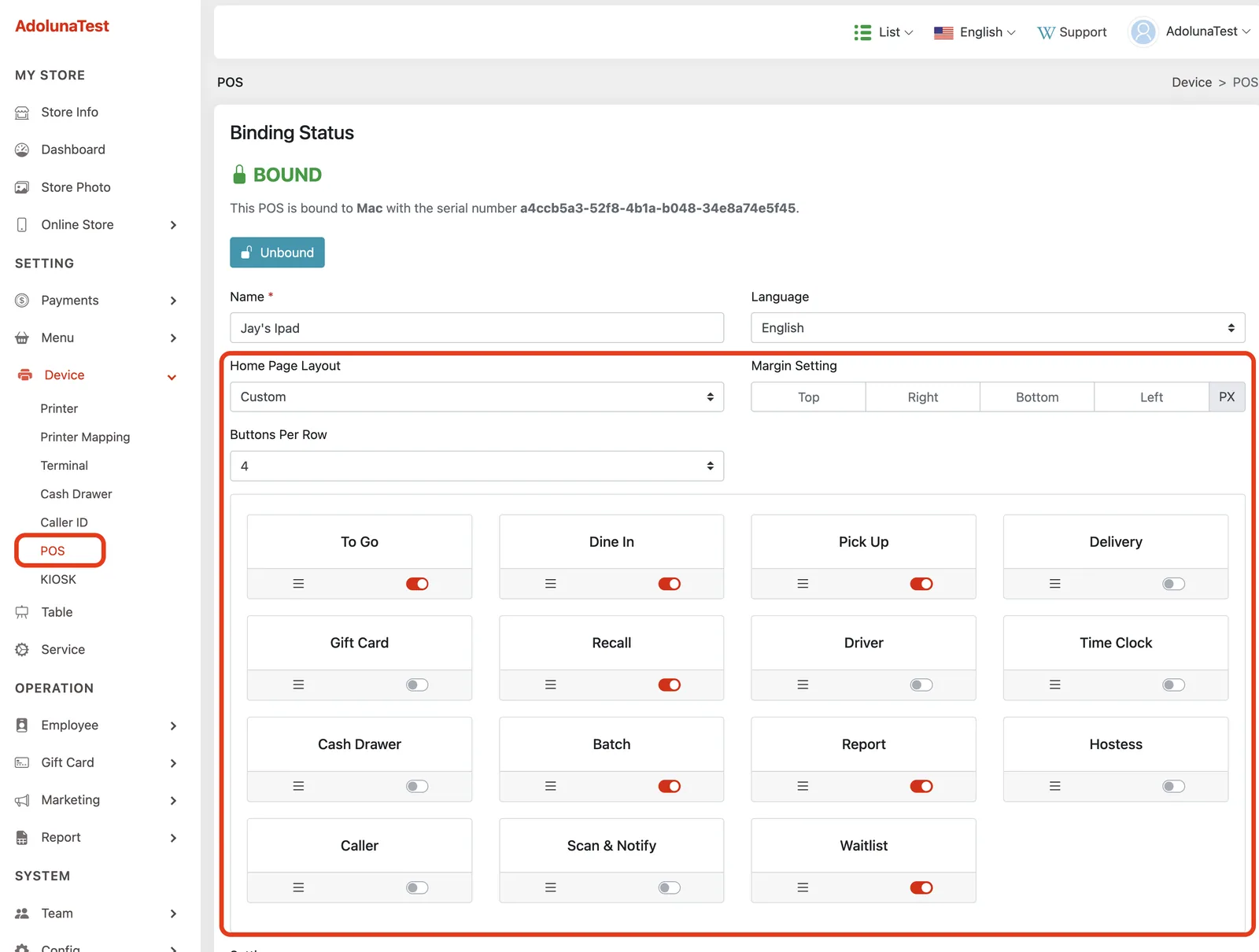
- Home Screen Module Customization
- Each POS terminal can be configured individually in the back office.
- Modules can be hidden; hidden modules appear under More.
- Module positions can be rearranged.
- The number of modules displayed per row can be configured.
- Module margins can be configured.
- Customer Display Payment Screen Optimization
- Flow updated: tip selection comes before payment.
- After a payment method is selected, no confirmation is required; the system sends the payment request directly to the card reader.
- Receipt Optimization
- Packing receipts and customer receipts now include:
- Amount Due
- Change (only displayed when there is a value)
- Gift Card Balance (replacing the old “Balance”)
- Packing receipts and customer receipts now include:
- Printing Mechanism
- If the printer is offline, the system displays a print failure warning within 5 seconds.
- If the printer reconnects within 30 minutes, kitchen tickets reprint automatically; other tickets must be reprinted manually.
- If the local server is offline, the print attempt duration follows the printer timeout setting configured in the back office.
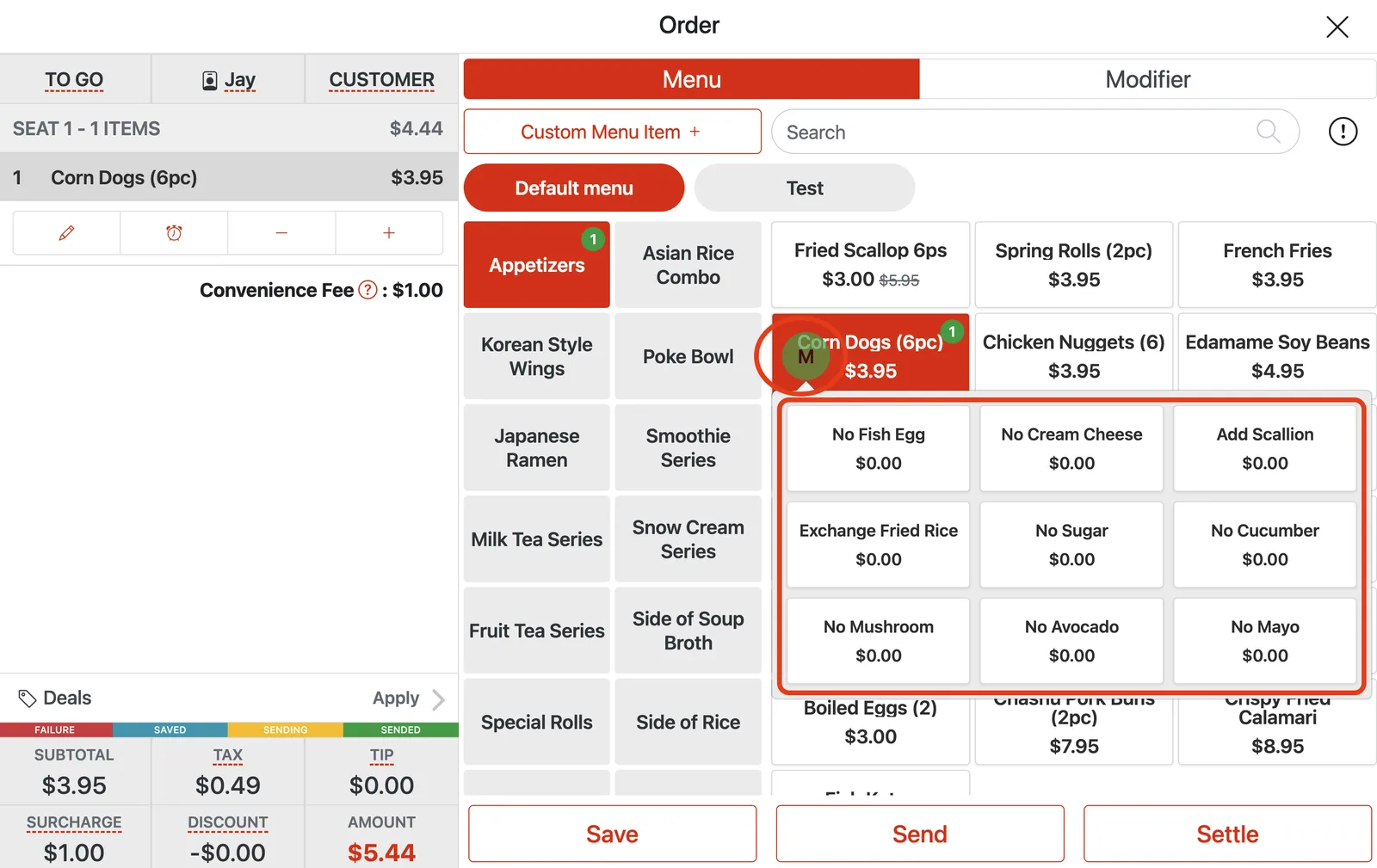
- Item Modifier Memory
- The system remembers each item’s modifier selections (e.g., Add, No).
- If an item has past modifiers, an Ⓜ icon appears above the button when the item is selected.
- Clicking the Ⓜ icon displays the 9 most frequently used modifiers for that item.
- Order Details Screen
- SMS Notification: if the customer’s phone number is unsubscribed, the system shows: “This number is unsubscribed from text updates. Reply START to (866) 370-0007 to resume.”
- Customers must reply “START” to (866) 370-0007 to resume receiving SMS updates.
- Added an SMS notification status display.
Kiosk #
- Payment screen optimization:
- Flow updated: tip selection comes before payment.
- After a payment method is selected, no confirmation is required; the system sends the payment request directly to the card reader.
- Supports partial payments.
Online Store #
- Rebuilt the customer ordering interface.
- Supports sending verification codes by voice call.
Third-Party Platforms #
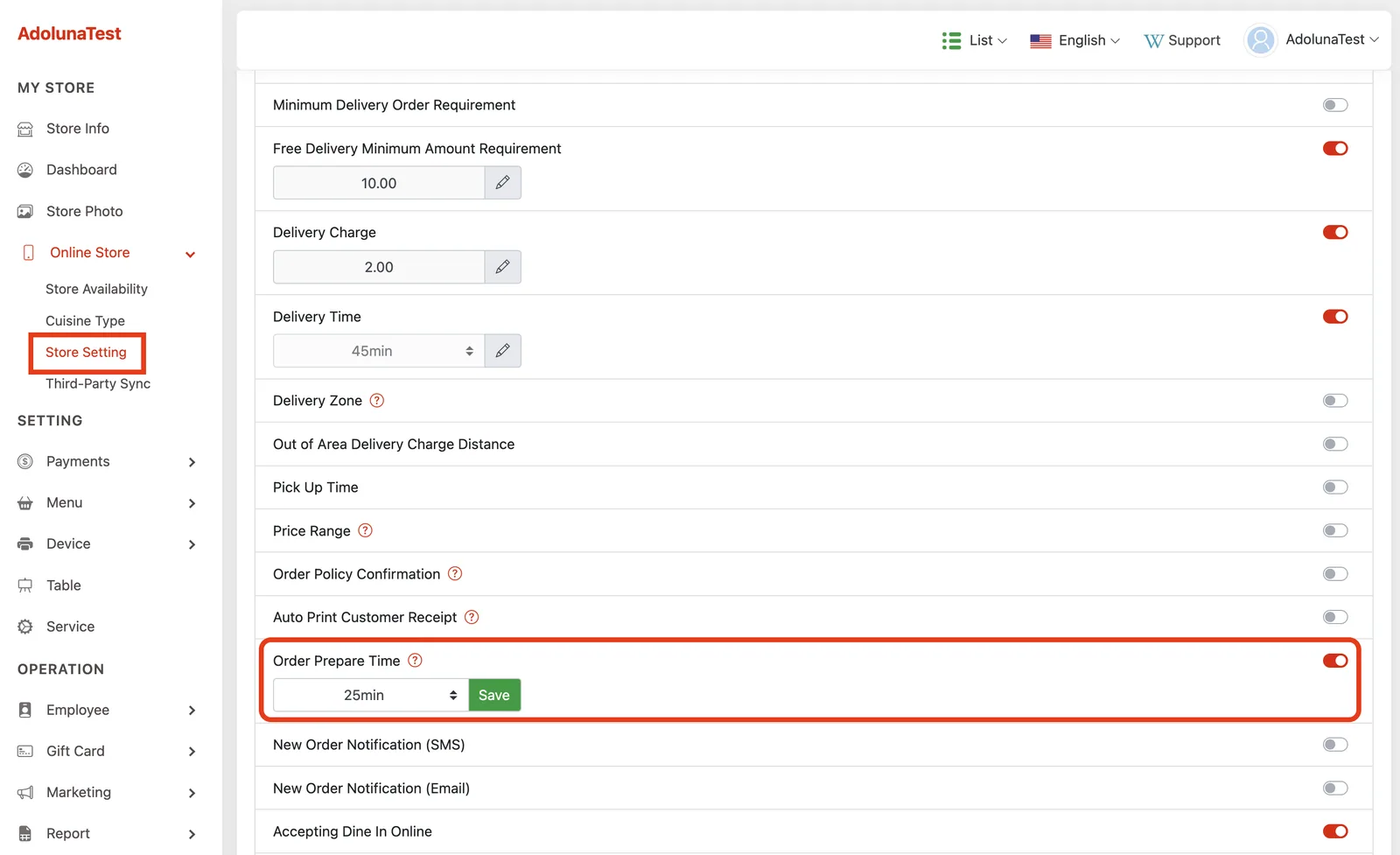
- Scheduled Orders to Kitchen: can be configured in the back office Online Store settings.
- This setting is shared with the online store.
Waitlist System Optimization #
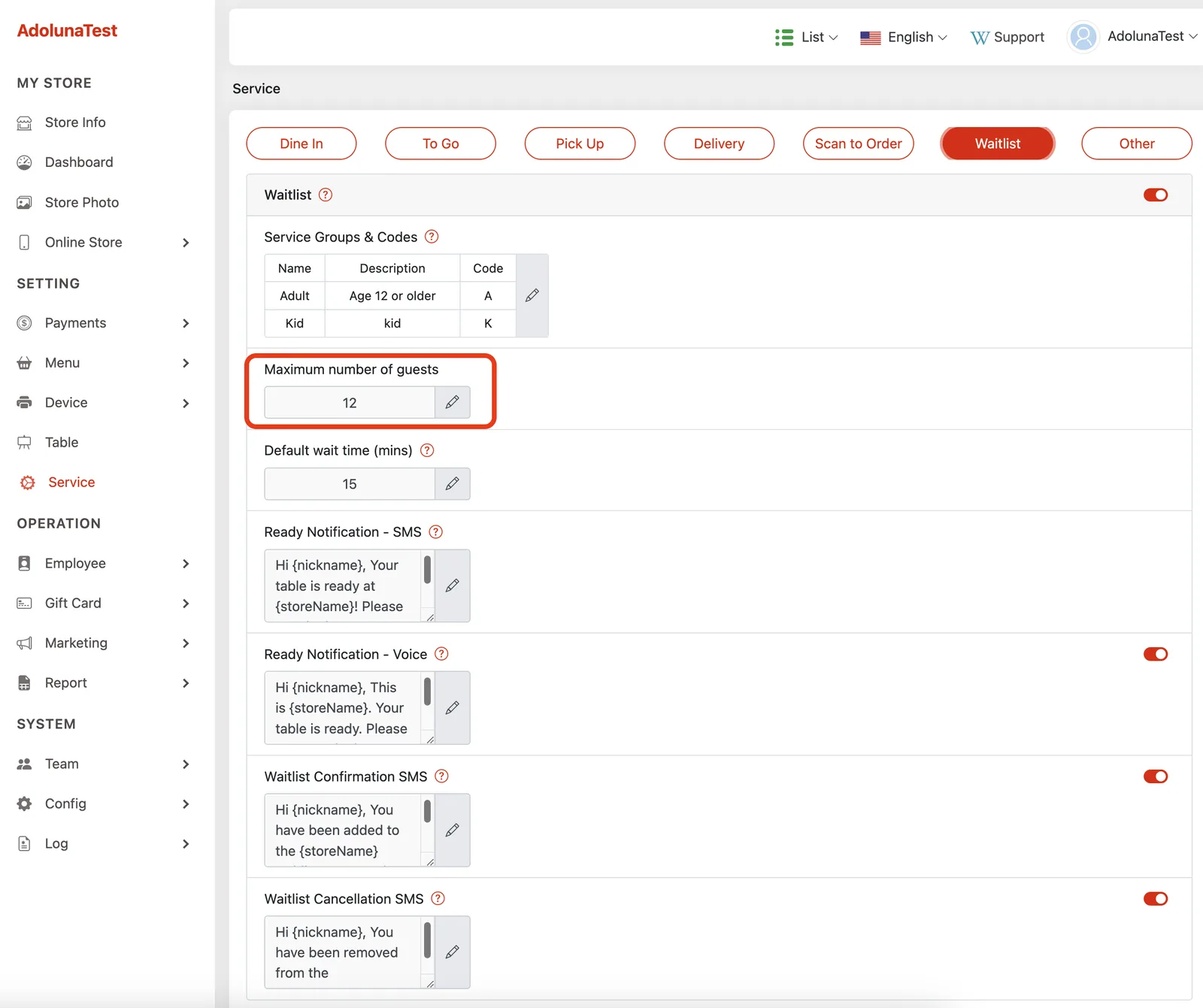
- The maximum capacity (total of all waiting parties) can be configured in the back office.
- Check-in and SMS notifications: if the customer’s phone number is unsubscribed, the system shows: “This number is unsubscribed from text updates. Reply START to (866) 370-0007 to resume.”
- Customers must reply “START” to (866) 370-0007 to resume receiving SMS updates.
- SMS status optimization:
- In Progress – Orange
- Successful – Green
- Failed – Red
Local Server Rebuild #
- Real-time monitoring of all local server statuses.
- Real-time monitoring of the entire printing process.
Update – April 21, 2025 #
Waitlist System #
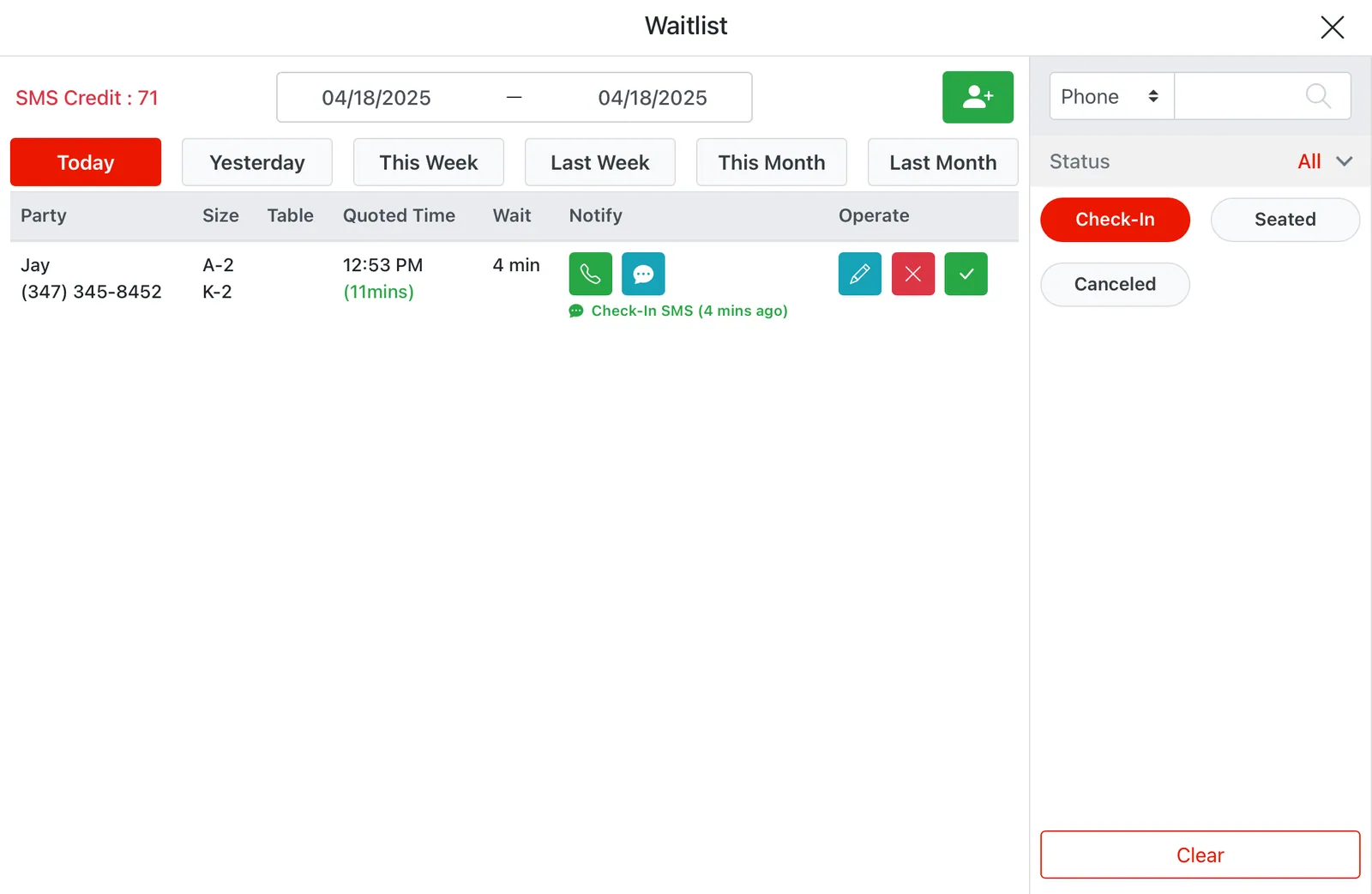
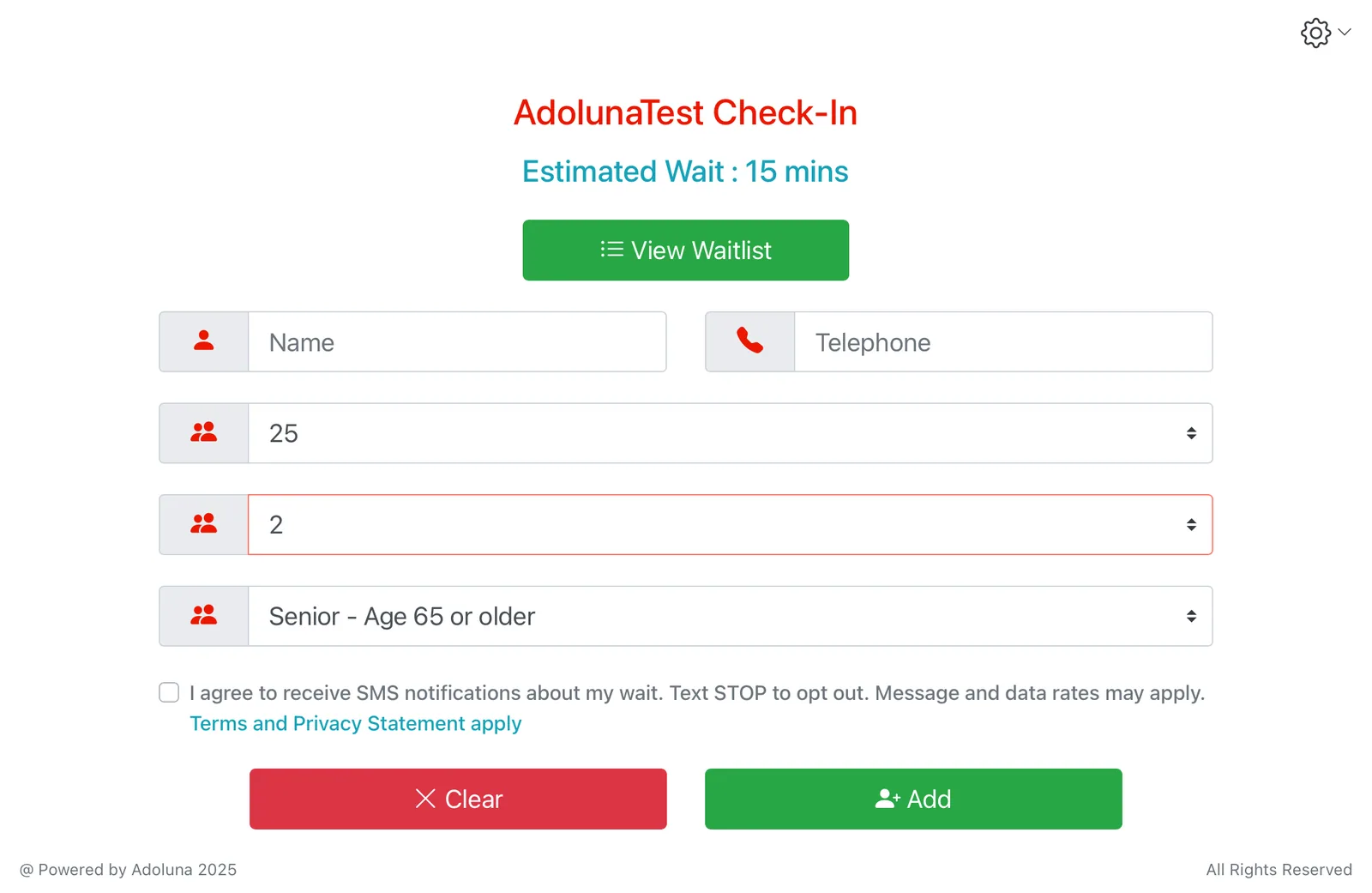
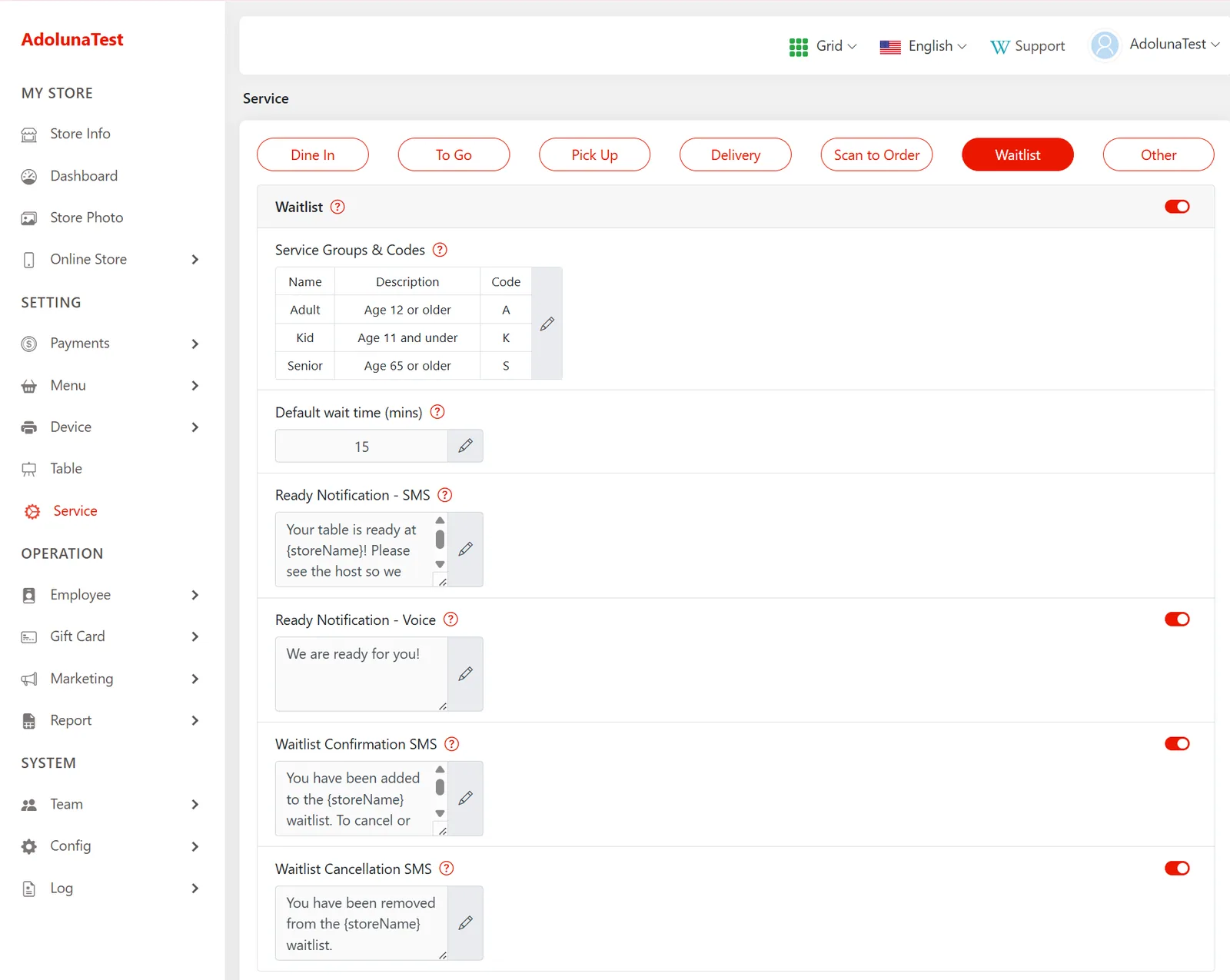
Easily manage your busy hours with our new waitlist module. Customers can check in through a self-service kiosk or with staff assistance on the POS. Once checked in, they receive a confirmation SMS with a live status link to track their place in line. When the table is ready, staff can notify customers by SMS or voice call directly from the system.
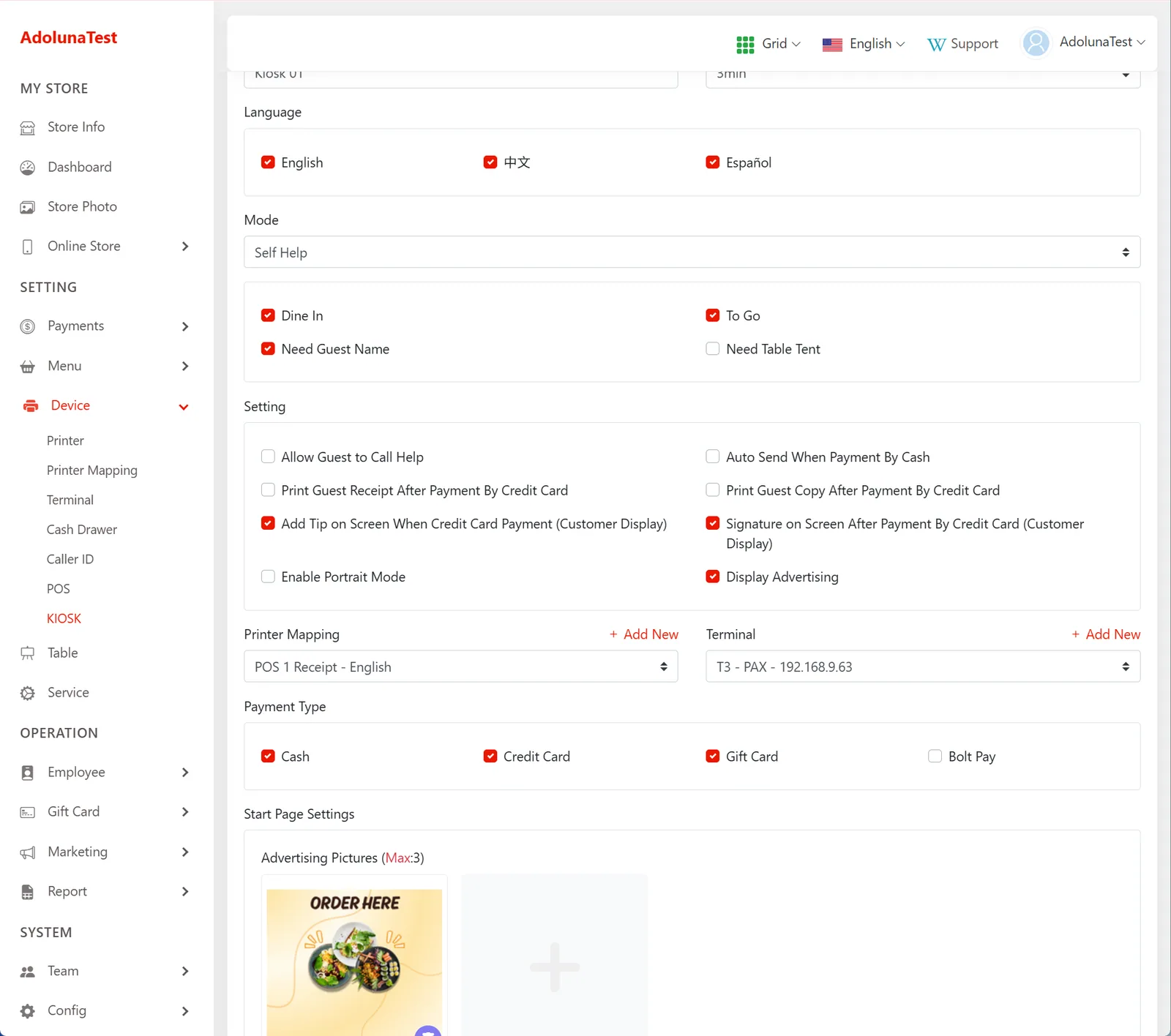
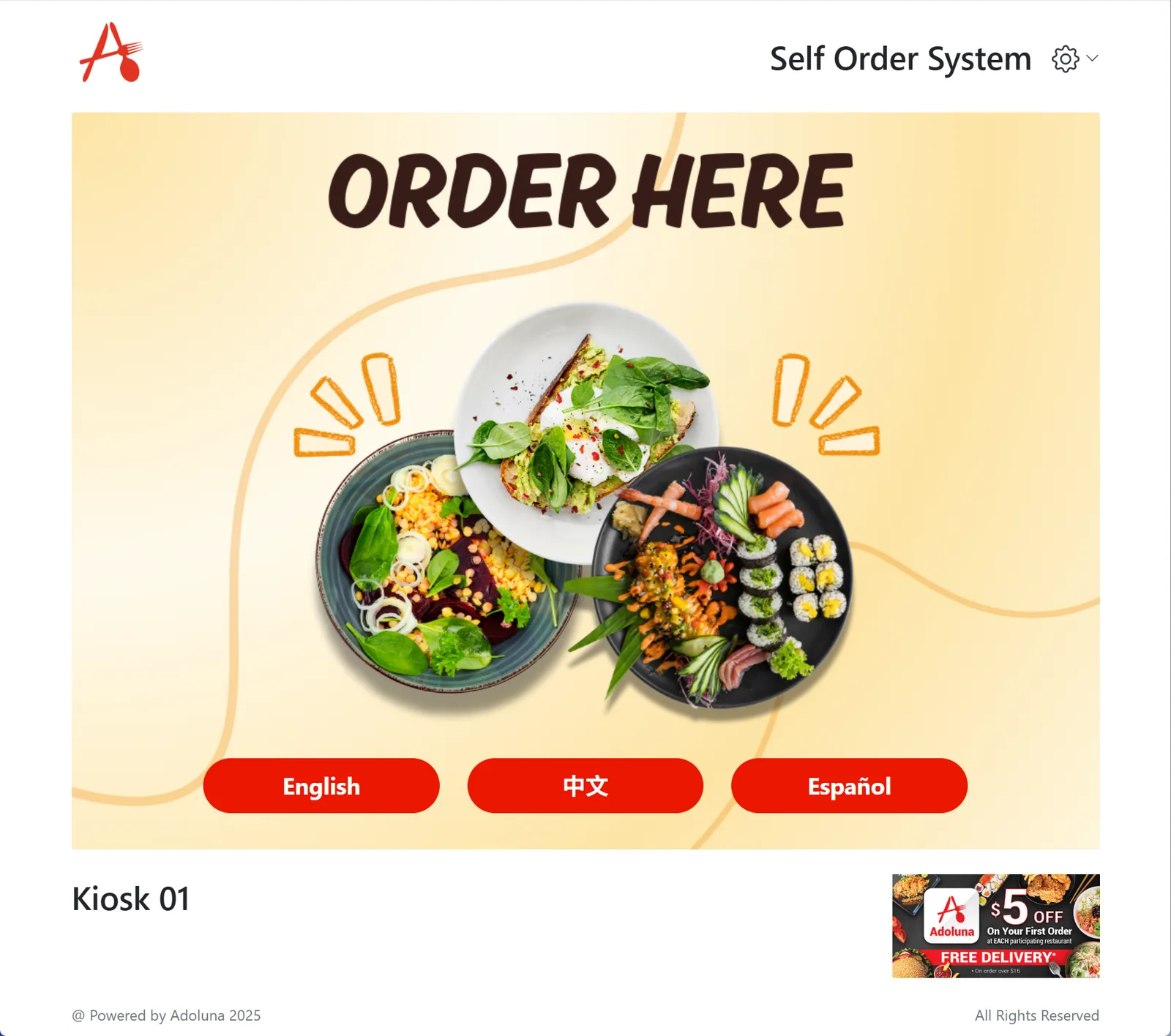
Kiosk New Features #
- Multi-Language Support: customers can select their preferred language on the welcome screen.
- Gift Card Payment: customers can pay with gift cards issued by the store (a magnetic card reader is required).
- Configuration is in the back office under Device → Kiosk → Edit Device Settings.
Update – March 30, 2025 #
New Features #
- Spanish Language Support: the system now supports Spanish.
- New Promotion and Coupon Structure:
- Each order can use only one promotion or coupon.
- Note: all old promotions and coupons will be disabled.
- New Tip Structure:
- Minimum tip: if the calculated tip is lower than the set minimum, the system applies the minimum tip instead.
- Tips can be calculated based on:
- Subtotal
- Subtotal – Discount + Surcharge
- Order Total (default)
- Scan and Notify: now supports continuous SMS notifications.
POS Updates #
- Orders that include a refund cannot be voided.
- Fixed an issue where the server’s name was not shown on an order after the server was removed from the back office.
- Third-party tax is now displayed separately in the daily report.
- Fixed an issue where third-party orders could not print in a second language.
- The Void Item Report now shows the order number the voided item belonged to.
- New structure for applying promotions and coupons.
- Scan and Notify now displays SMS records.
- Orders are locked while a credit card payment is being requested. See 1.3.2 How to take a credit card payment.
- If an order is paid twice or overpaid by credit card, the system displays a notification. See 4.1.1 Why was a card charged twice, and how do I fix it?
Kiosk Updates #
- New structure for applying promotions and coupons.
Online Ordering Updates #
- New structure for applying promotions and coupons.
Backoffice Updates #
- The Dashboard now displays third-party sales.
- The Daily Summary now includes third-party sales.


