
Purpose: Understand why an order can be charged twice on a card (duplicate or over-payment), and how to find and void the extra payment. For: managers, cashiers.
Common causes #
-
Two employees settle the same order at the same time.
-
The payment request goes to the wrong terminal while another employee runs the card on the right one.
-
Network lag makes the employee think the request didn’t go through, so they send it again.
How to spot a duplicate charge #
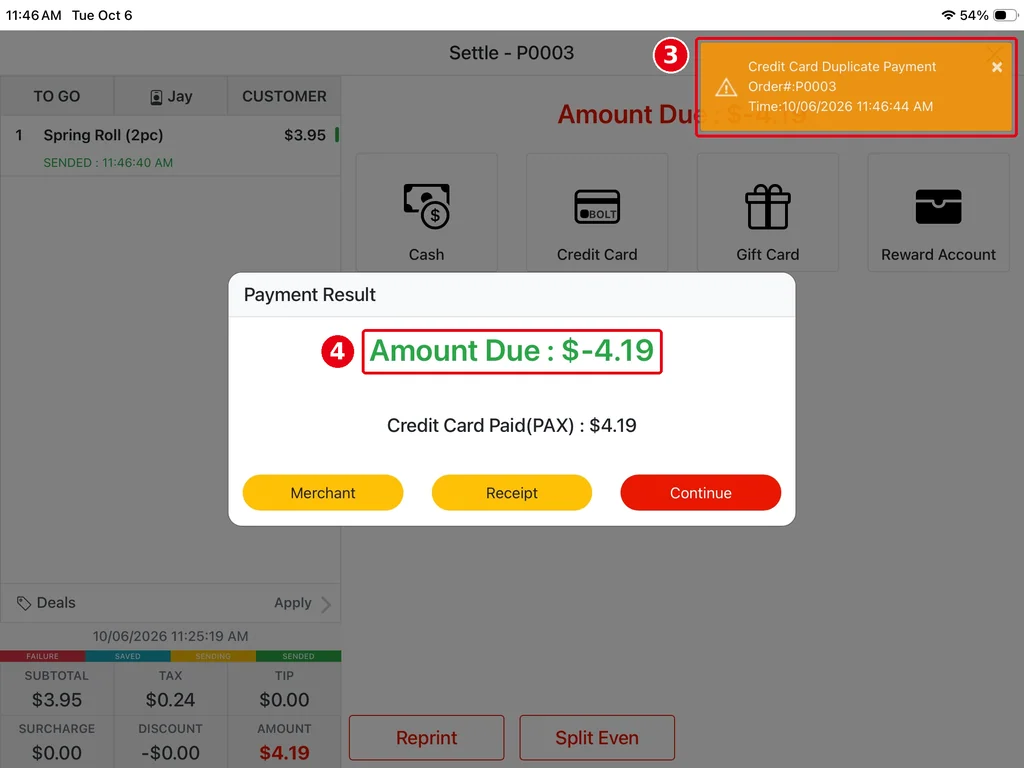
1. Notification Center: all devices get a notification when a duplicate or over-payment happens. On the screen being settled, an orange ③ Credit Card Duplicate Payment alert pops up at the top right (with the order number and time, e.g. Order#:P0003).
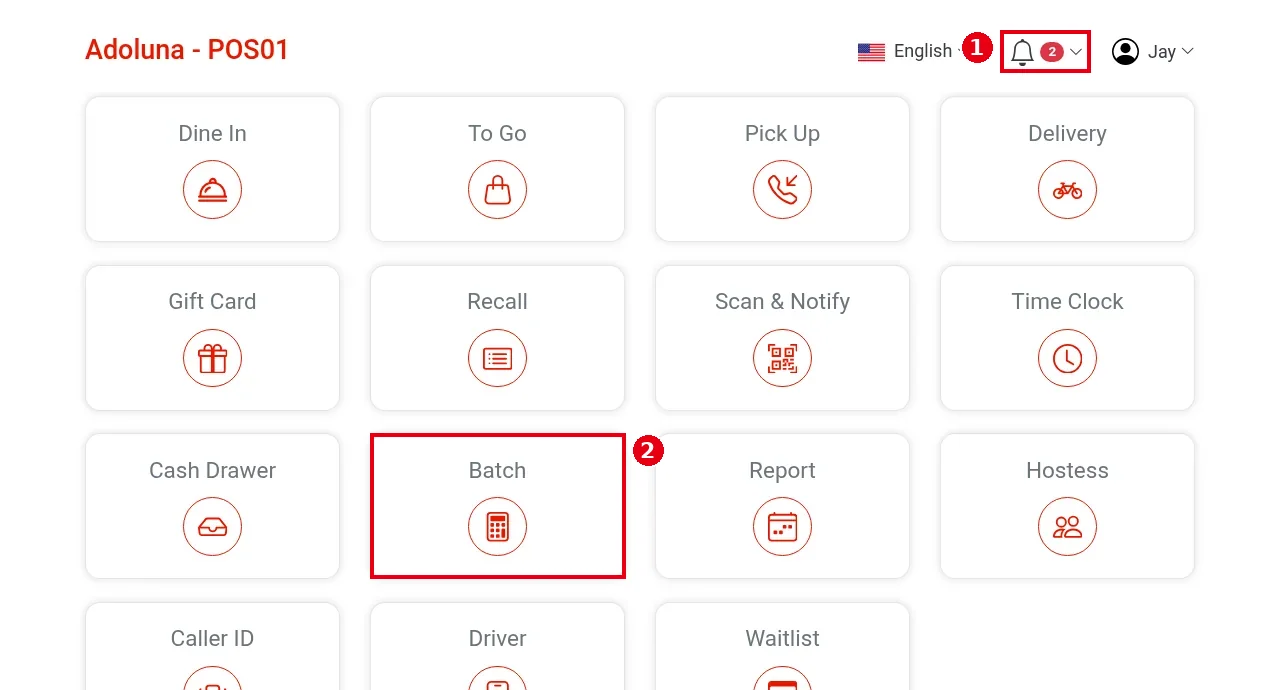
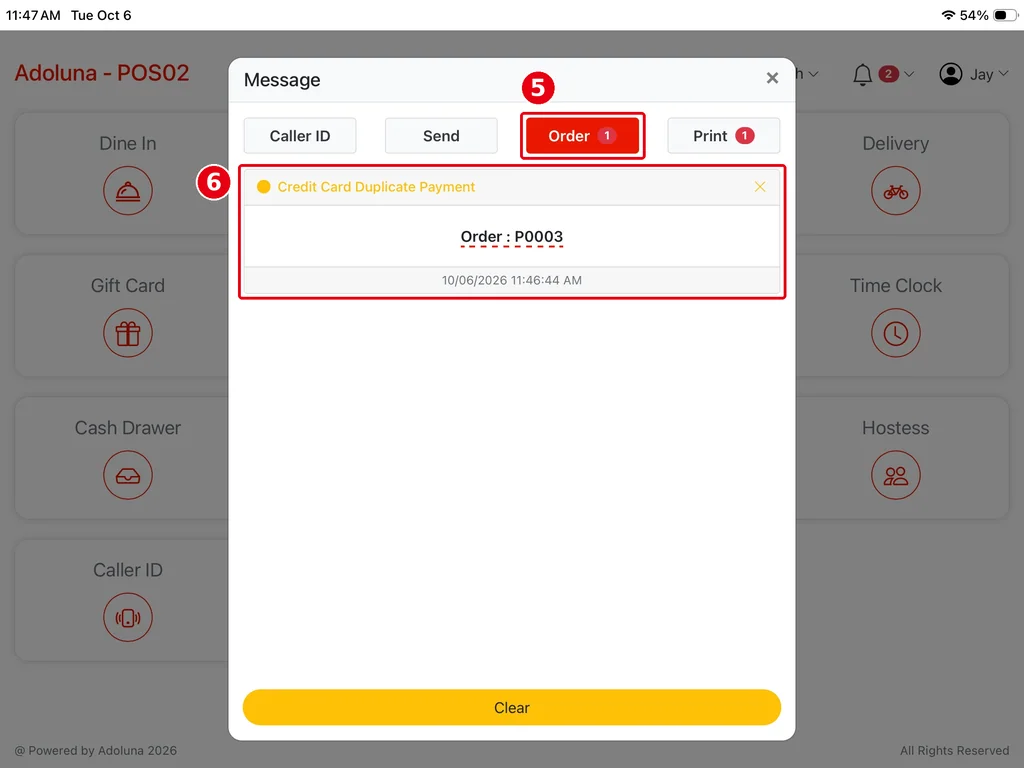
Tap the ① bell at the top right of the home screen, find the ⑥ Credit Card Duplicate Payment notice on the ⑤ Order tab, and tap the order number (e.g. Order : P0003) to open the order (see 1.1.4 How to check the Notification Center).
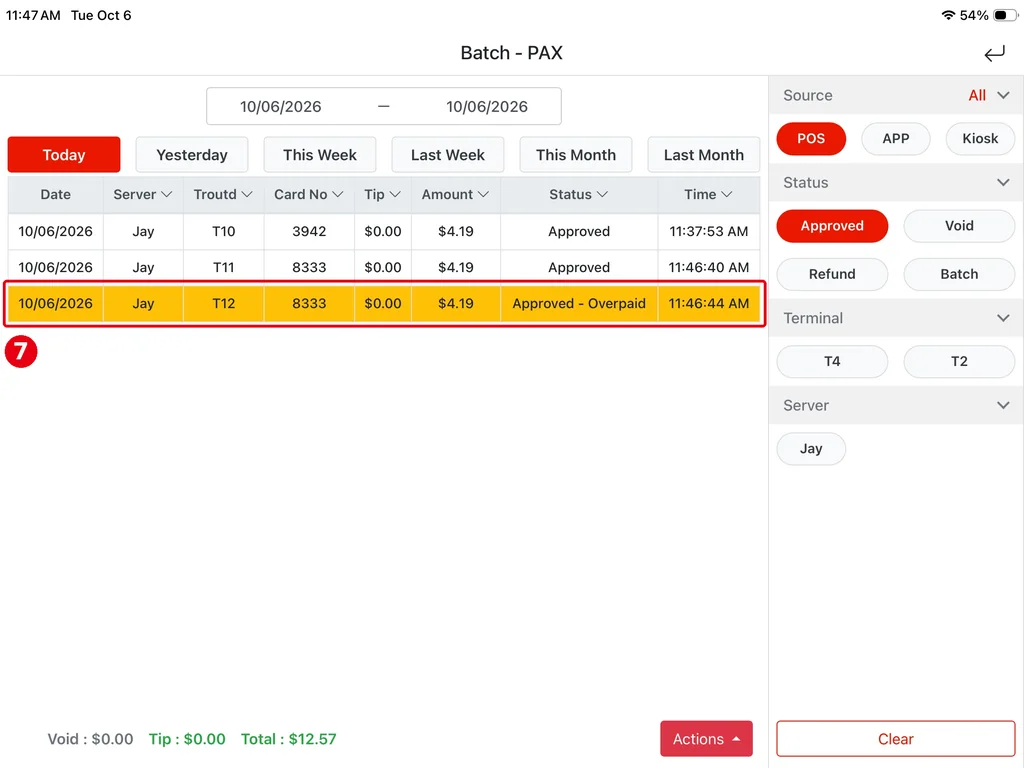
2. A count badge on the home ② Batch button means there is a duplicate charge; it disappears once you’ve opened Batch. In the Batch – PAX transaction list the duplicate ⑦ is highlighted yellow with Status = Approved – Overpaid (see 1.6.1 How to add credit card tips in bulk). Example: the same card (8333) paid $4.19 at 11:46:40 AM and again at 11:46:44 AM; the second payment is Approved – Overpaid.
3. On the order itself: an over-paid order shows a negative Amount Due (④ Amount Due : $-4.19 in the first picture of step 1).
How to fix it #
1. Find the order in Recall (see 1.4.1 How to find an order in Recall), open Order Detail and tap Reopen (see 1.4.3 How to reopen and edit a paid order).
2. In the payments on the left, find the extra card payment, tap Void under it, then Confirm at Void? (voiding a payment is step 3 of 1.4.6 How to void a paid order).
3. Then settle the order with a $0.00 cash payment to close it (see 1.3.1 How to take a cash payment).
4. Do this before closing the batch (see 1.5.7 How to close out the day (end-of-day checklist)).
How to prevent it #
-
When a second payment request is started for the same order, the system asks for confirmation: tap Cancel to cancel the new request; tap Confirm only if you’re sure the first request was cancelled.
-
The order is locked while a card payment is requested, so other employees can’t work on it at the same time (see 1.3.2 How to take a credit card payment).
-
Before sending the request, make sure the selected terminal (name and IP address) is the one in front of the guest.


