
Purpose: When the driver has delivered an order, change it from departed to delivered, and check the driver’s report. For: delivery drivers, managers.
Before you start: The order must already be assigned to a driver (status Departure); see 1.10.1 How to assign a driver to a delivery order. Opening Driver needs an employee passcode, as in steps 2–3 of 1.10.1 How to assign a driver to a delivery order.
Steps #
1. On the home screen tap Driver, enter the passcode and tap Enter.
2. At the top of the driver screen choose the date (e.g. Today).
3. Under Delivery Status on the right tap Departure to list the orders that are out for delivery. Each card shows the Delivery order number, ⑤ Driver, Unpaid (amount not yet paid), the address, ⑥ Departure Time and Arrival Time (— until delivered).
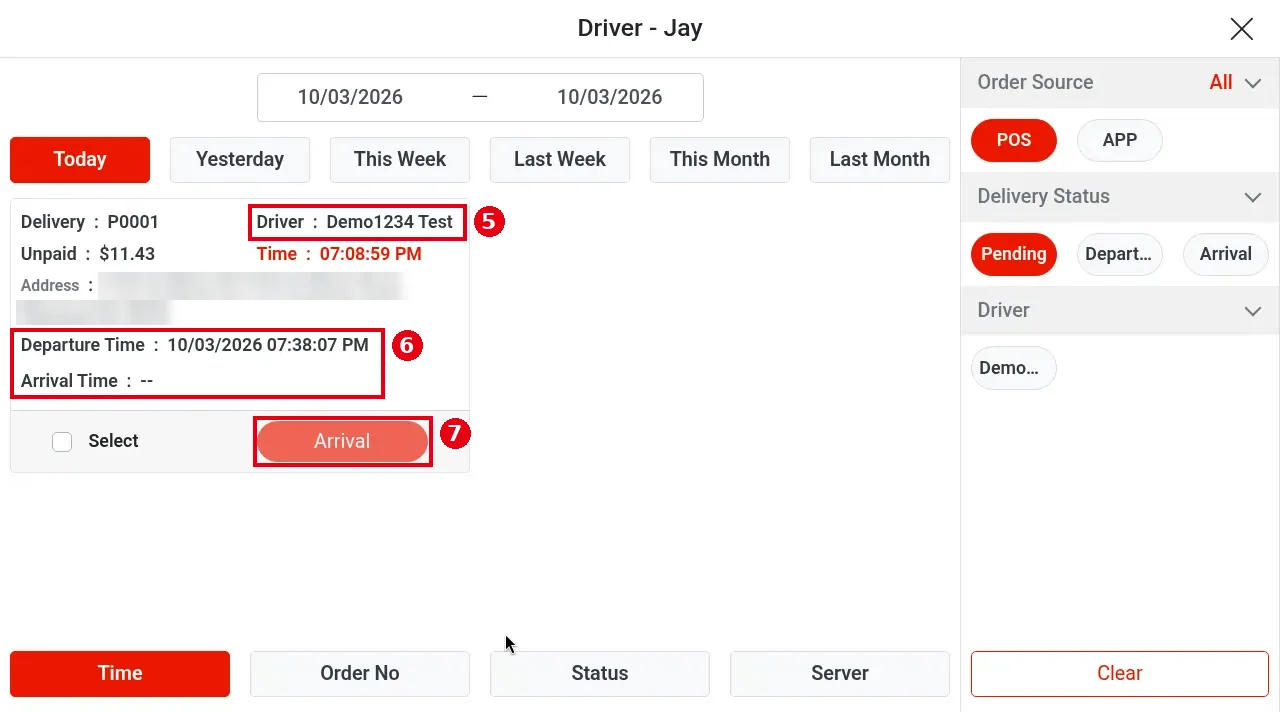
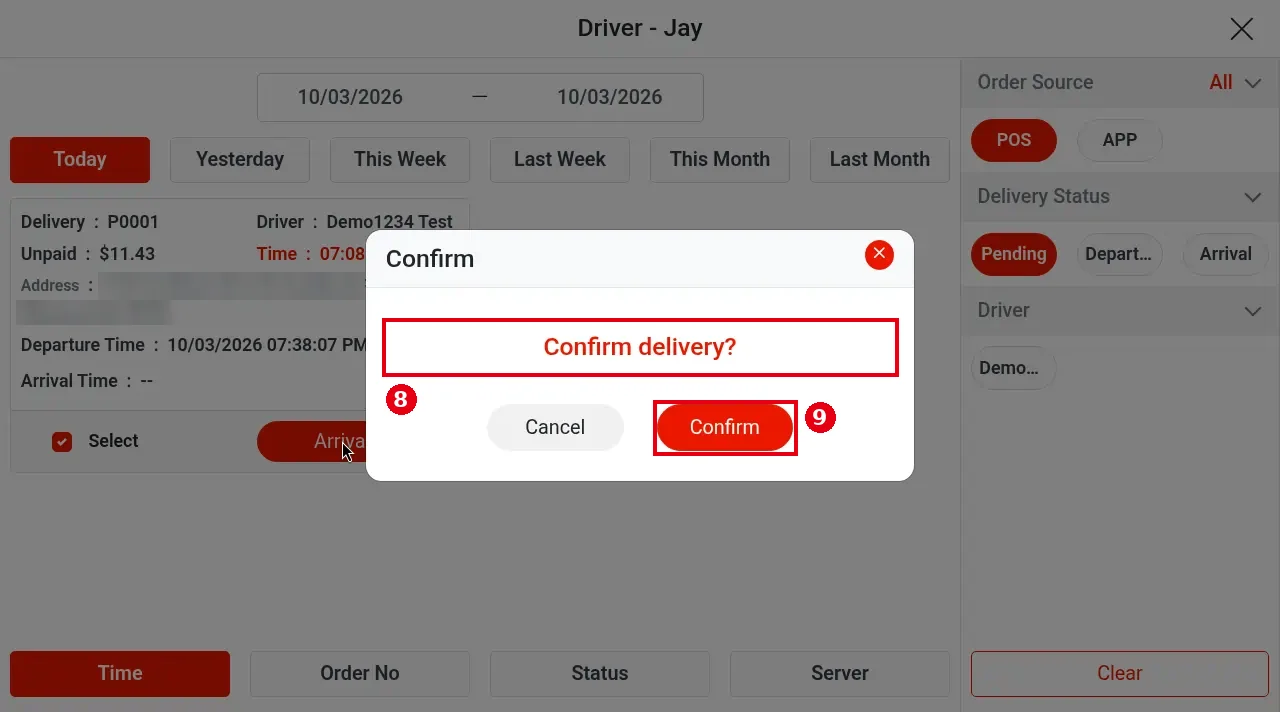
4. Find the delivered order, tick Select and tap ⑦ Arrival. ⑧ Confirm delivery? appears; tap ⑨ Confirm.
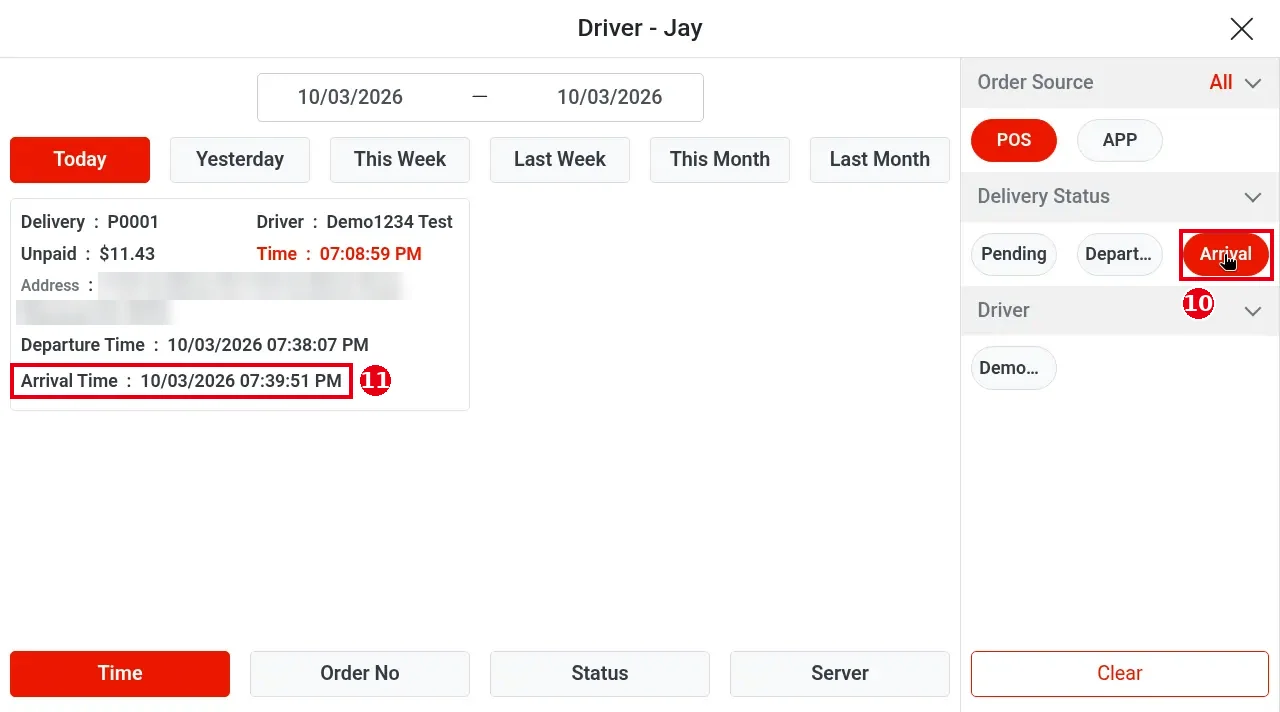
The order moves to Arrival (delivered) and the delivery time is recorded. Tap ⑩ Arrival under Delivery Status on the right to see the order; ⑪ Arrival Time shows when it was delivered.
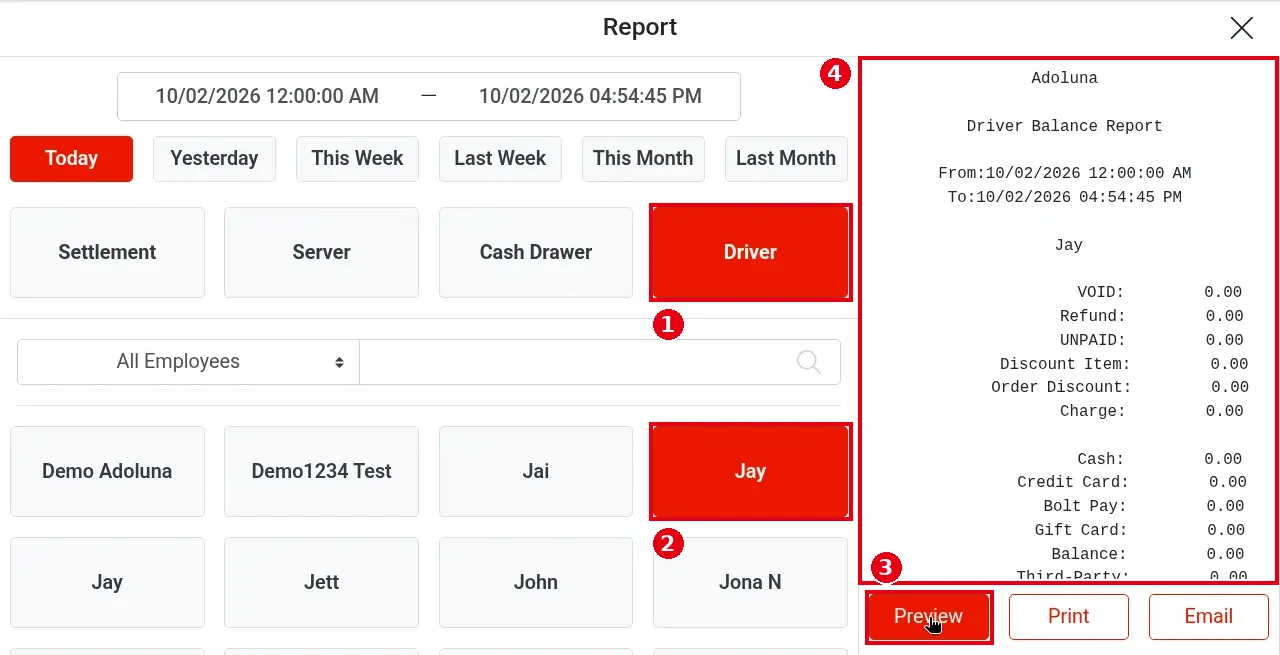
5. To check the driver report: on the home screen tap Report, select ① Driver, then select ② the driver (e.g. Jay; you can filter with All Employees or search above the list) and tap ③ Preview. ④ on the right shows the Driver Balance Report: the date range, the driver’s name, VOID, Refund, UNPAID, Discount Item, Order Discount, Charge, and totals by payment type such as Cash, Credit Card, Bolt Pay, Gift Card, Balance and Third-Party. Tap Print to print or Email to email it (see 1.5.6 How to view, print or email POS reports).
Notes / FAQ #
-
A delivered order still has to be settled. The driver hands the cash collected to a server, who settles the order on the POS. In the Driver Balance Report, UNPAID means unpaid orders.
-
Viewing every driver’s report needs the Driver All Report permission (set in the position, see 2.8.1 How to create positions and set permissions).


