
Purpose: View employees’ clock-in/out punches and hours. For: all staff; managers checking everyone’s hours.
Steps #
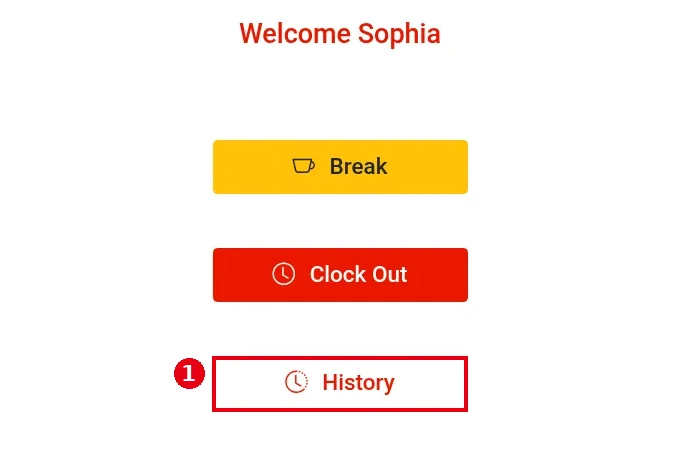
1. Open Time Clock, enter your password (see 1.5.1 How to clock in, take a break and clock out) and tap ① History.
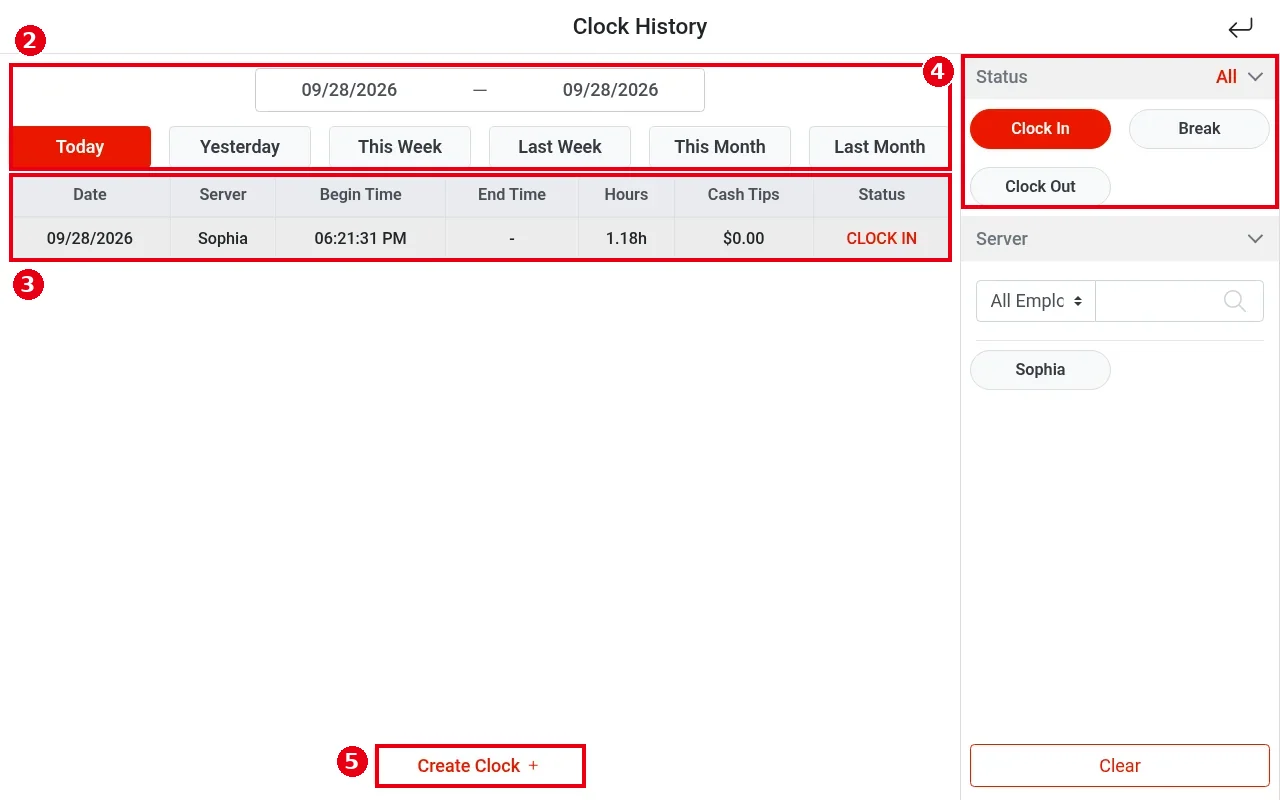
2. Clock History opens. ② Pick a date range at the top, or tap a shortcut: Today, Yesterday, This Week, Last Week, This Month, Last Month.
3. ③ Columns: Date, Server (employee), Begin Time, End Time, Hours, Cash Tips, Status (e.g. 09/28/2026 | Sophia | 06:21:31 PM | – | 1.18h | $0.00 | CLOCK IN).
4. ④ Filters on the right: Status can be All, Clock In, Break or Clock Out (Clock In, i.e. currently on the clock, is selected by default); Server filters by employee (by role or name). Clear resets the filters.
5. ⑤ Create Clock + at the bottom adds a missed punch. Employees with the permission can use it, and the entry can still be edited or deleted afterwards.
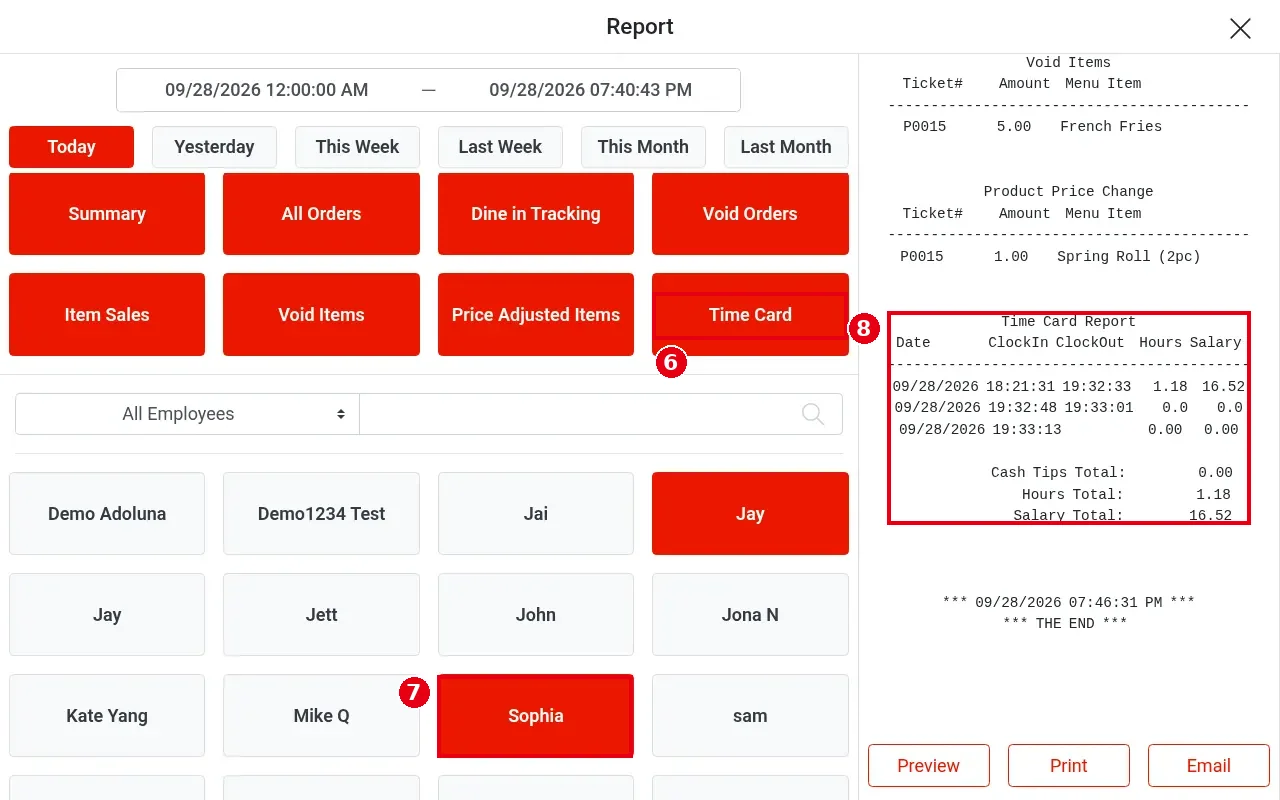
6. For full punch details and totals, use the report: home Report > Server > ⑥ select Time Card > ⑦ pick the employee > Preview (see 1.5.6 How to view, print or email POS reports). ⑧ The Time Card Report lists each entry’s Date, ClockIn, ClockOut, Hours and Salary, with Cash Tips Total, Hours Total and Salary Total at the bottom (e.g. Hours Total 1.18, Salary Total 16.52).
Notes / FAQ #
-
In testing, choosing Status = Clock Out showed NO DATA; completed punches are not listed there. To see all punches for a day, use the Time Card report (step 6 above).
-
Selecting Time Card shows The Time Card report generates data by dates, not by specific times within the selected range.: Time Card works by whole dates, not by the times inside the selected range.
-
Punch records of frozen or deleted employees can still be looked up.


