
Purpose: Fix or add time card records when an employee clocked in or out wrongly or forgot to. For: managers.
Before you start: Time card records are edited and added at the POS, by someone with the ① View All Time Card and Edit Time Card permissions (set in the position, see 2.8.1 How to create positions and set permissions). Report > Time Card in the Backoffice is for viewing and exporting only; records can’t be edited there. Managers with permission edit time card records on the POS. For clocking in and out, see 1.5.1 How to clock in, take a break and clock out; for viewing your own time card, see 1.5.2 How to view your time card history.

Steps #
1. On the POS home screen, tap Time Clock, enter the passcode of a manager with those permissions and tap History to open time card management (see 1.5.2 How to view your time card history).
2. Choose the date range (Today, Yesterday, This Week and so on). You can filter on the right ② by status (Status: Clock In, Break, Clock Out) and by employee (Server); Clear resets the filters. The list columns are Date, Server, Begin Time, End Time, Hours, Cash Tips and Status.
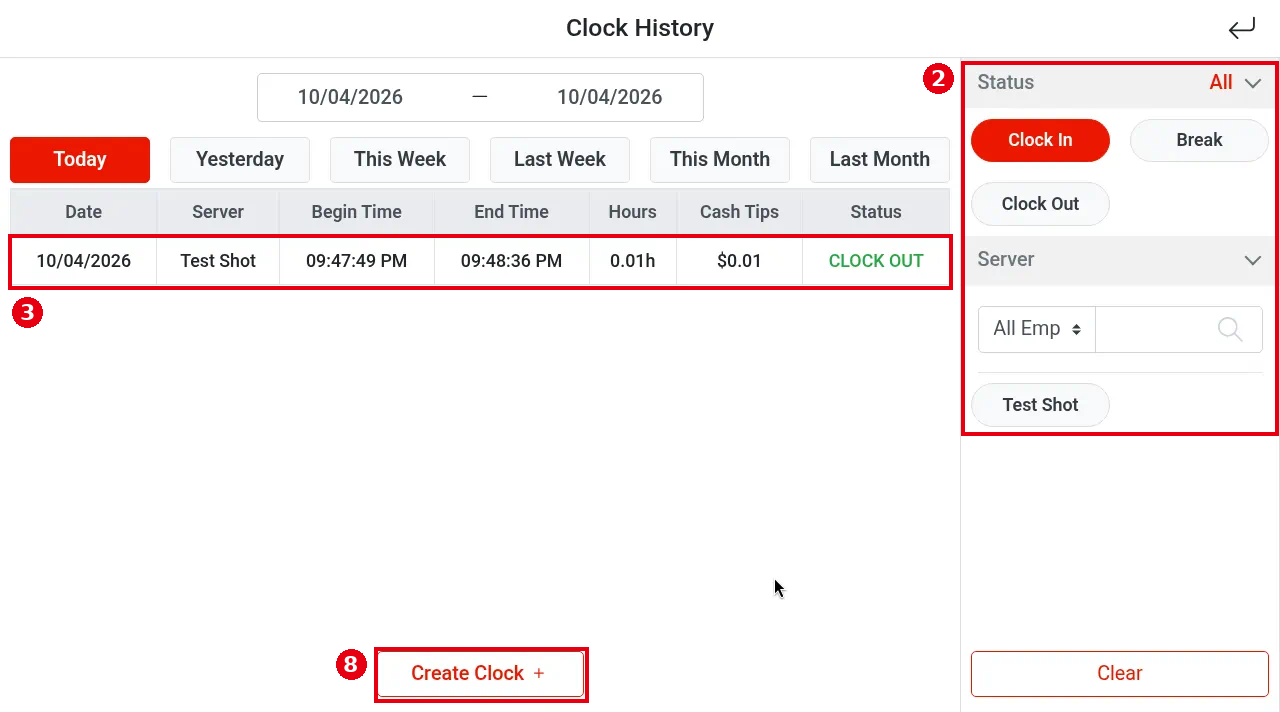
3. To edit, tap ③ the record. Clock Detail opens with the record’s clock-in and clock-out times, hours (Hours) and cash tips (Cash Tips). Tap ④ Modify (Cancel to close).
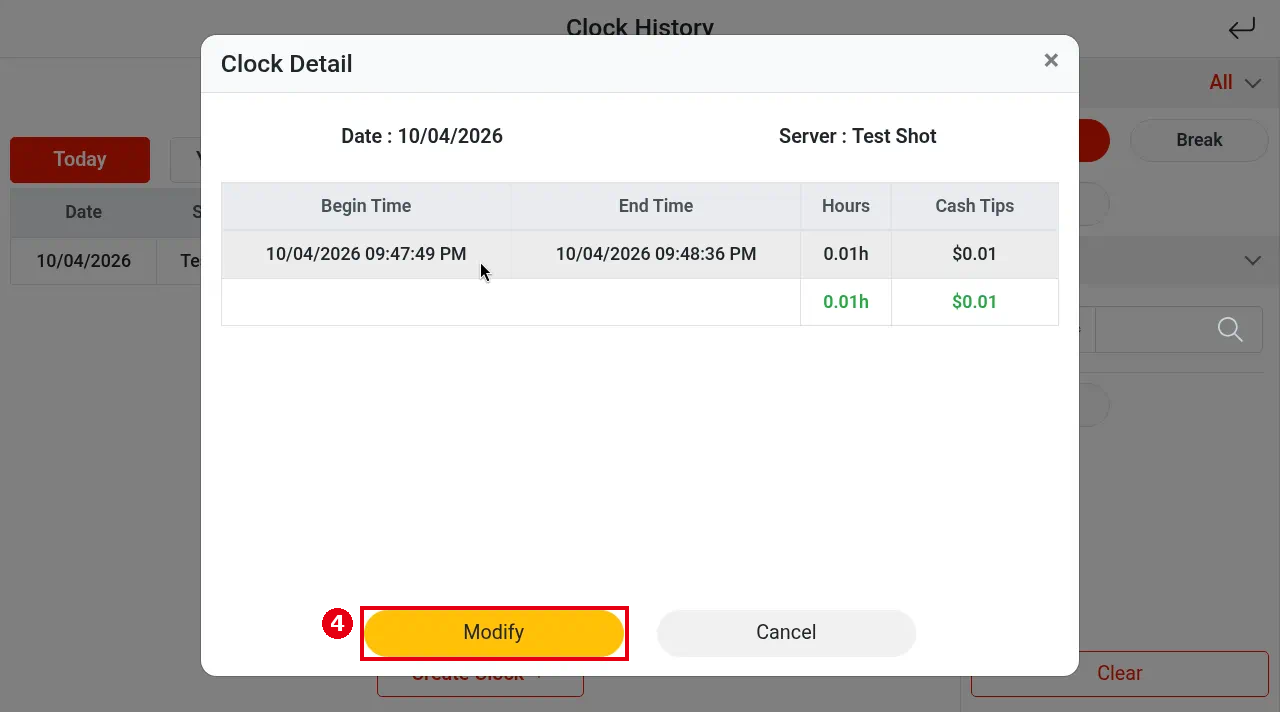
In edit mode, ⑤ Begin Time, End Time and Cash Tips can be edited and Hours is worked out automatically; the bin icon under Operate deletes that shift. Tap ⑥ Add to add another shift if needed, then tap ⑦ Confirm to save (Cancel discards the changes).
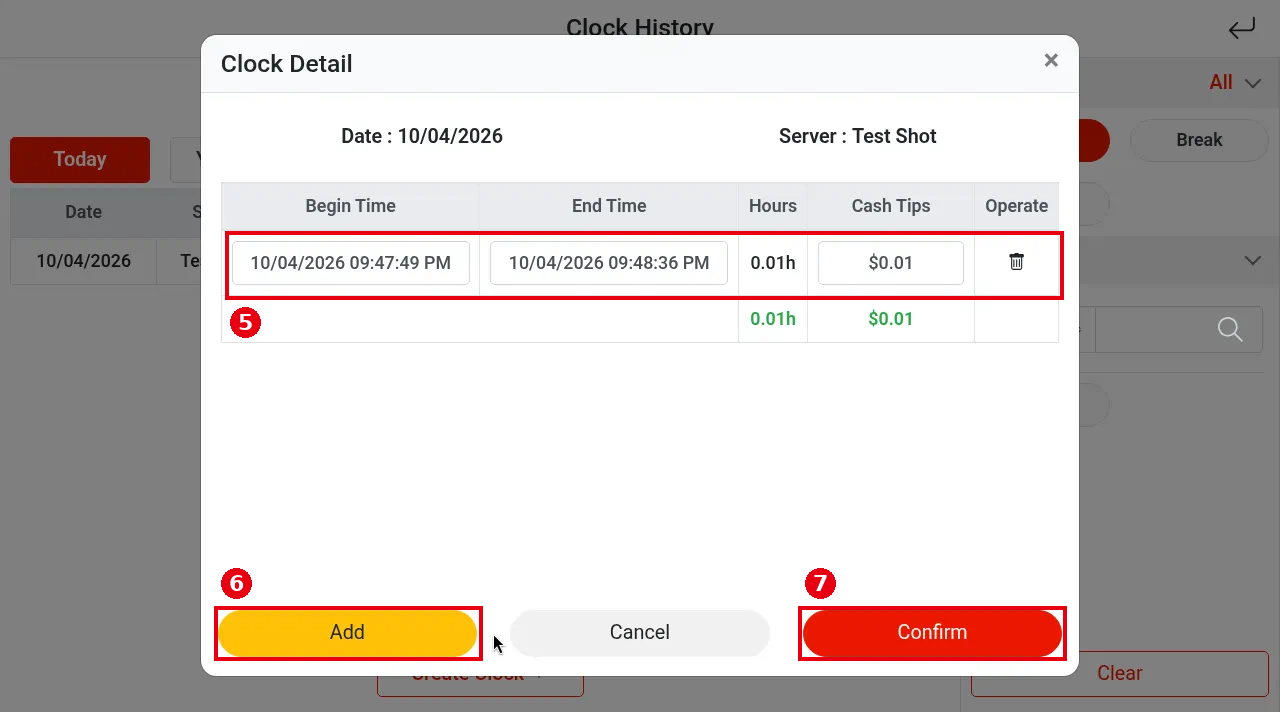
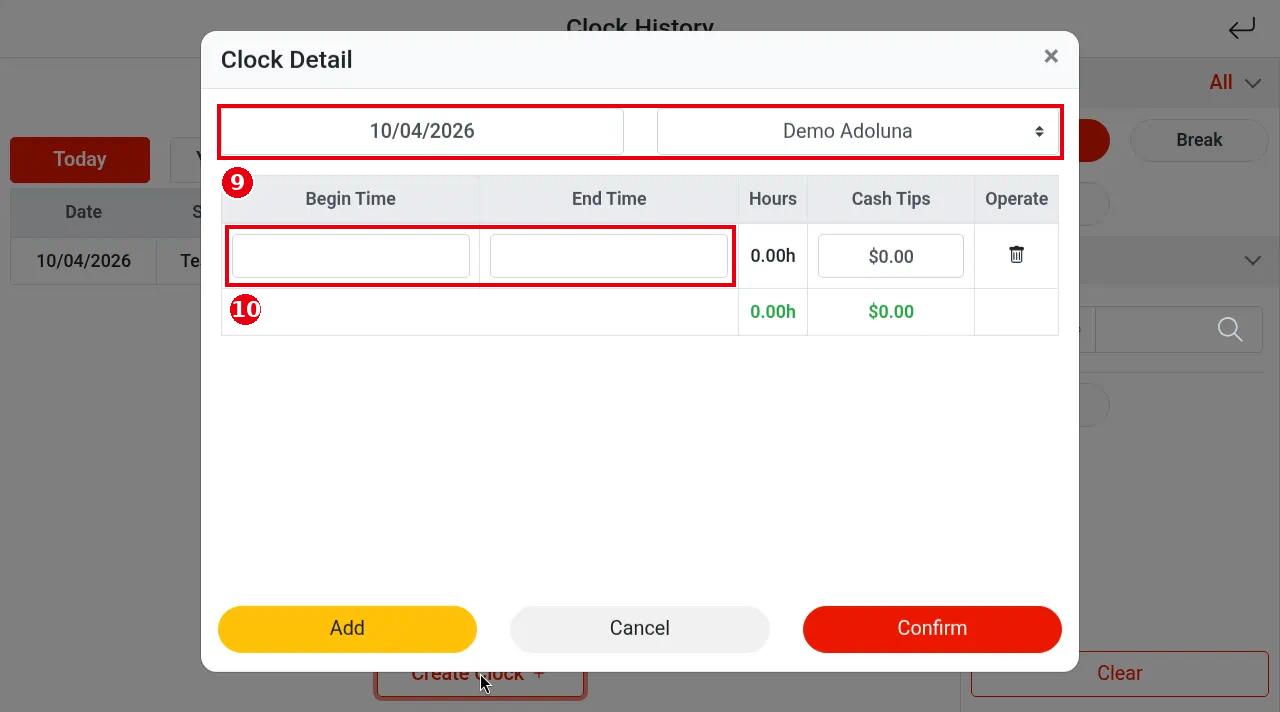
4. To add a record, tap ⑧ Create Clock +. A blank Clock Detail opens. ⑨ Choose the date and the employee, enter ⑩ Begin Time and End Time, and fill in Cash Tips if needed. Tap Add to add another shift if needed, then tap Confirm to save.
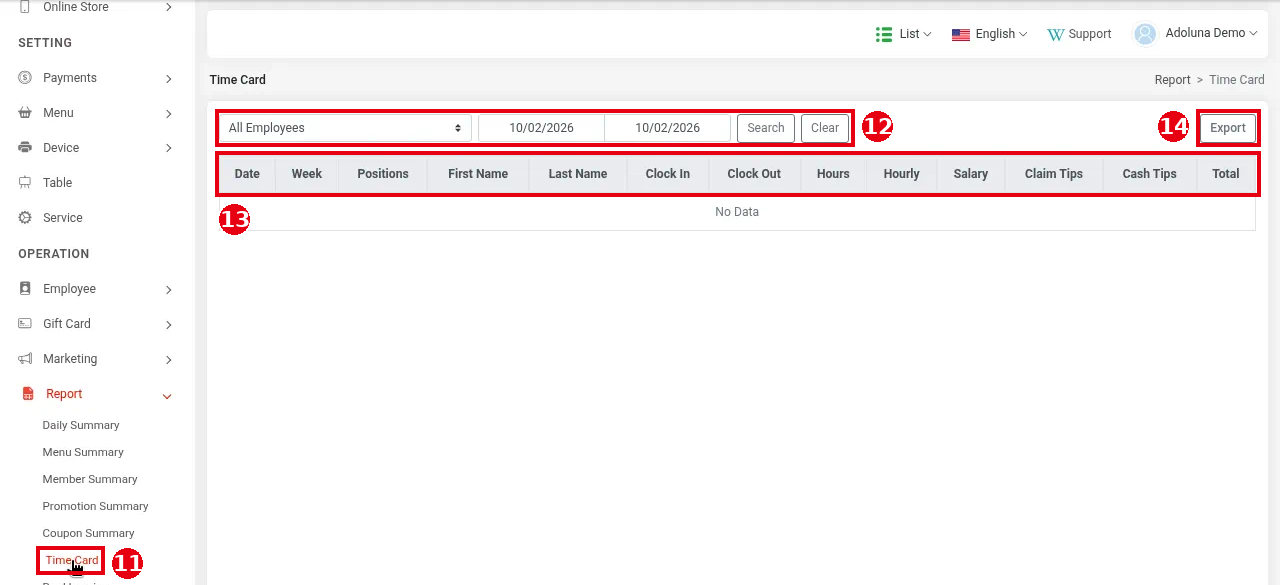
5. Check it in the Backoffice: in the left menu click Report > ⑪ Time Card. ⑫ Choose the employee (All Employees) and date range and click Search (Clear resets the filters). ⑬ The columns are Date, Week, Positions, First Name, Last Name, Clock In, Clock Out, Hours, Hourly, Salary, Claim Tips, Cash Tips and Total. Click ⑭ Export to export.
Claim Tips is the tip the server is owed: Claim Tips = Total Tip − Tip Pooling (see 2.5.4 How to set up tip pooling) − Transaction Fee.
Notes / FAQ #
-
Breaks don’t count as hours worked; a break splits the day’s record into two entries (see 1.5.1 How to clock in, take a break and clock out).
-
Salary is based on the employee’s Pay Basis and Pay Rate (see 2.8.2 How to add an employee and set their passcode).
-
For the Time Card report on the POS, see 1.5.6 How to view, print or email POS reports.


