
Purpose: What the system does when two POS devices (or a POS and a Kiosk) open and edit the same order at the same time, and how to avoid mistakes. For: servers, cashiers, managers.
How it works #
1. Opening an order a colleague is editing shows a prompt: if another employee is editing the order when you open it, the POS shows a Confirm window: ① XX is editing this order. Do you want to continue? (XX is the name of the employee editing it, e.g. Jay is editing this order. Do you want to continue?). Tap Confirm to open it anyway, or Cancel to leave it. The prompt only appears when a different employee is editing the order; the same employee opening the same order on two devices doesn’t get it, so take care when you have one order open on two devices yourself. When you see it, check with that colleague first so two people don’t change it at once.
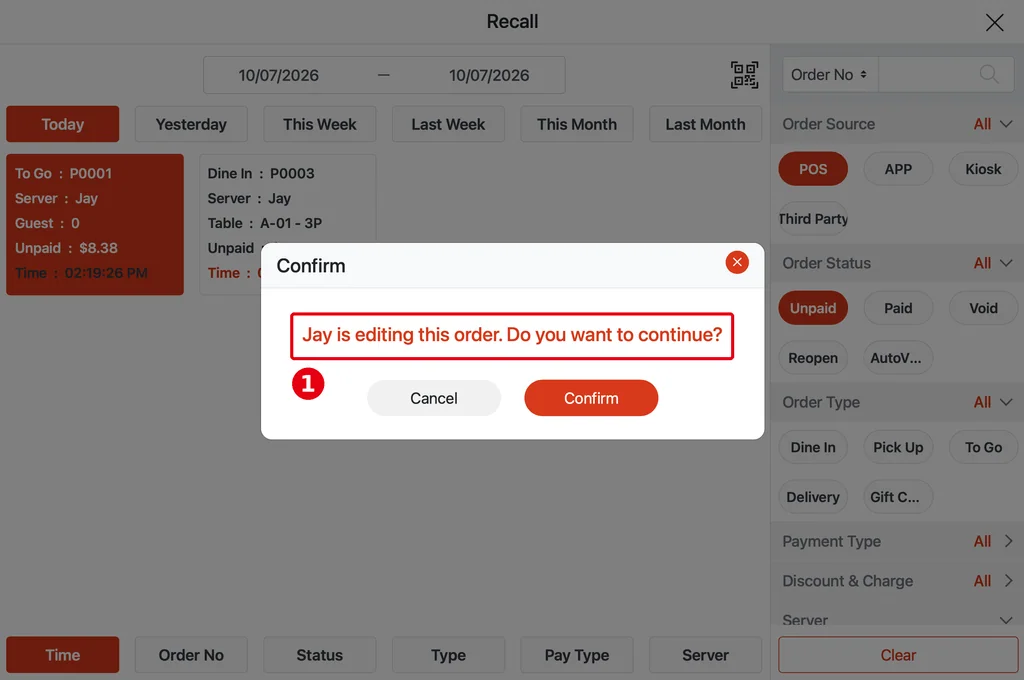
2. Saves sync live: when two devices have the same order open and save, the order content syncs to the other device in real time (release notes, 2026-03-16). Several servers sharing one order can also edit it at the same time, with the content synced live (release notes, 2026-06-28; see 1.2.14 How to share an order among multiple servers). When two devices change the same item at the same time, the system syncs that too: when the order is saved, the two devices sync with each other.
3. Kiosk orders: after a guest taps Help on the Kiosk, staff can open that order on the POS and change it; the changes sync back to the Kiosk in real time when saved (see 1.8.2 How to respond to a Kiosk Need Help request).
4. The order is locked during payment: when a card payment is requested, the order is locked (release notes, 2025-03-30). Starting another payment while one is in progress shows A payment is already in progress. Do you want to start a new payment process? Don’t continue unless you’re sure the earlier payment failed, or the card may be charged twice (see 4.1.1 Why was a card charged twice, and how do I fix it?).
Notes / FAQ #
-
Try to have one person change an order at a time; if two people need to, one saves first and then the other opens it.
-
Don’t take payment for the same order on two devices at once (see 4.1.1 Why was a card charged twice, and how do I fix it?).
-
If the other device doesn’t show the change, refresh the POS (see 4.4.3 How to refresh or restart the POS).


