
Purpose: Add a gratuity to Dine In orders automatically when the party reaches a set size. For: owners, managers.
Steps #
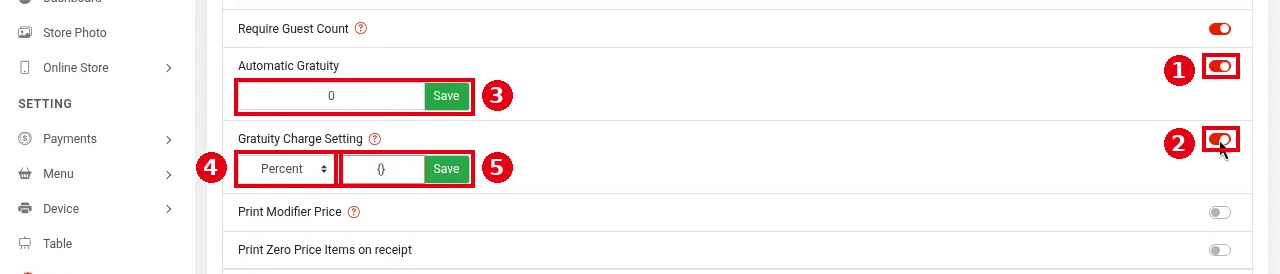
1. In the Backoffice left menu, click Service, choose the Dine In tab and scroll down.
2. Turn on ① Automatic Gratuity. Input box ③ appears below it; enter the minimum party size that triggers the gratuity and click Save.
3. Turn on ② Gratuity Charge Setting (with an ⓘ description), choose how the gratuity is calculated in dropdown ④ (Percent in the screenshot), enter the amount in ⑤ and click Save.
Both were off in the demo store (first picture); the second picture shows them turned on temporarily, with nothing entered or saved. According to the old website docs, the Gratuity Charge Setting amount doesn’t apply while Automatic Gratuity is off.

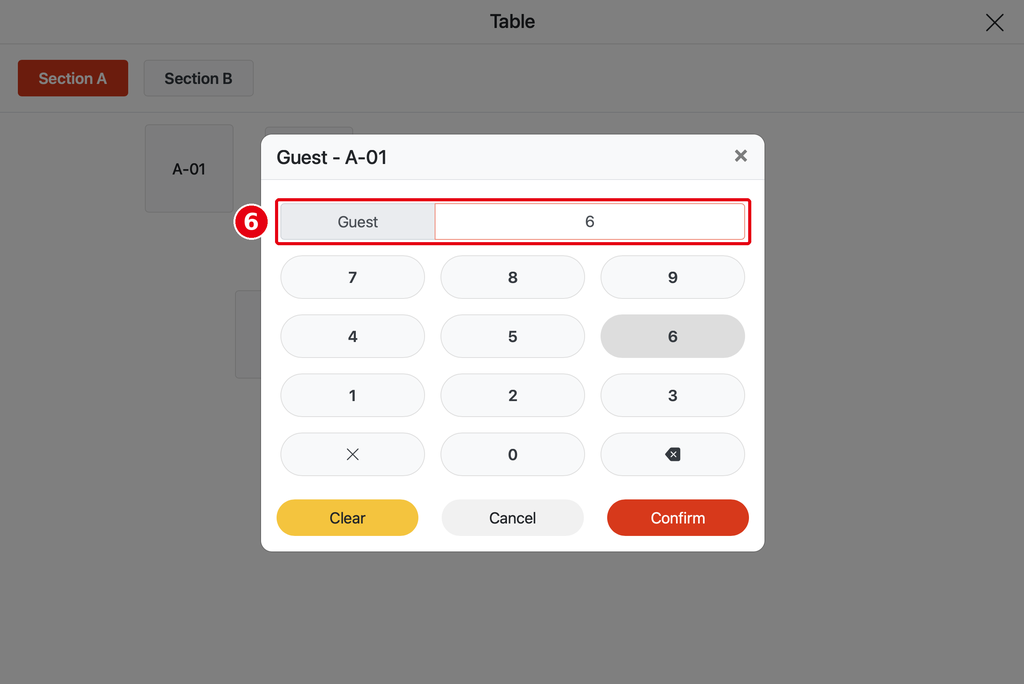
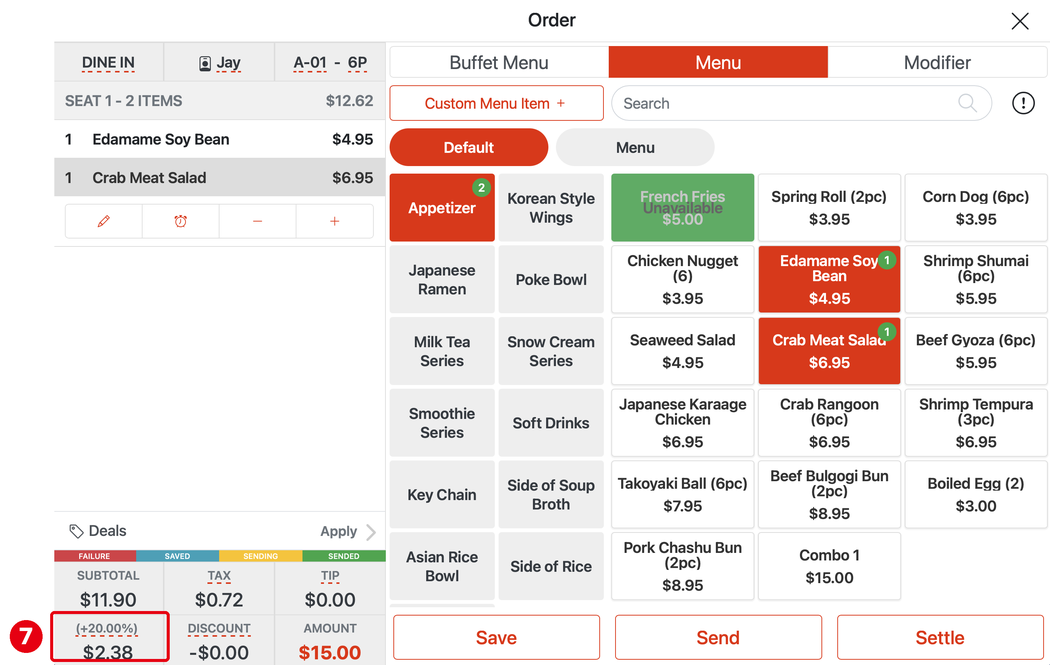
When you open a table, enter the guest count (⑥ e.g. 6). Once the count reaches the threshold, the order totals show the gratuity automatically (⑦ e.g. (+20.00%) $2.38).
Backoffice example (① Automatic Gratuity threshold and Gratuity Charge Setting percent):

The gratuity can be a percentage or a fixed amount. Staff can remove it on the POS. It’s a surcharge, not a tip.
Notes / FAQ #
-
The party size comes from the guest count entered when the order starts. Turn on Require Guest Count as well so staff must enter it for Dine In orders (see 2.5.1 How to configure Dine In service settings).
-
Only Dine In has this setting; To Go, Pick Up and Delivery don’t.
-
For staff adding a surcharge by hand, see 1.2.10 How to add an order-level discount, charge or tip; for surcharge options, see 2.4.2 How to set up surcharges.


