
Purpose: Choose whether tax is calculated on the amount before or after discounts and surcharges. For: owners, managers.
Steps #
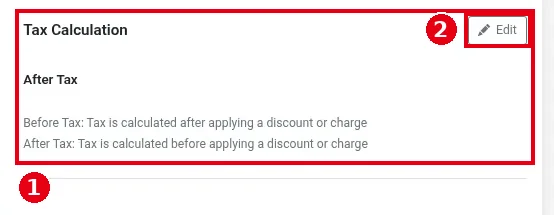
1. In the Backoffice left menu, click Store Info and scroll down to ① Tax Calculation (After Tax in the screenshot).
2. Click ② Edit, choose Before Tax or After Tax, and save. The page explains:
-
Before Tax: Tax is calculated after applying a discount or charge, i.e. the discount or surcharge is applied first and tax is calculated on the adjusted amount.
-
After Tax: Tax is calculated before applying a discount or charge, i.e. tax is calculated on the amount before the discount or surcharge.
After you click Edit, choose Before Tax or After Tax in dropdown ③ and click ④ Save (or Cancel).

Example: a $100 item, 10% off (-$10), 6% tax:
-
Before Tax: tax = $90 × 6% = $5.40.
-
After Tax: tax = $100 × 6% = $6.00.
Surcharges are calculated the same way.
Effect on the POS daily report: this setting also decides how the sales section of the Settlement report is calculated (see 1.5.6 How to view, print or email POS reports). Example: subtotal 10, discount 4, tax rate 12.5%, no surcharge or refund:
| After Tax (discount after tax) | Before Tax (discount before tax) | |
|---|---|---|
| Tax | 10 × 12.5% = 1.25 | (10 − 4) × 12.5% = 0.75 |
| Gross Receipt | 11.25 | 6.75 |
| Gross Sales | 11.25 − 1.25 = 10 | 6.75 − 0.75 = 6 |
| Net Sales | 10 − 4 = 6 | 6 |
-
After Tax (discount after tax): Gross Receipt − Tax − each third-party platform’s (T) tax = Gross Sales; Gross Sales − Discount Total + Subcharge Total − Refund Total = Net Sales. Gross Receipt is the amount before the discount is taken off.
-
Before Tax (discount before tax): Gross Receipt − Tax − each third-party platform’s (T) tax = Gross Sales; Gross Sales − Refund Total = Net Sales. Discount Total and Subcharge Total are display only and are not used in the calculation.
Notes / FAQ #
-
This setting applies to the whole store and affects discounts (2.4.1 How to set up discounts) and surcharges (2.4.2 How to set up surcharges).
-
Tax rates themselves are set in Menu > Tax Table (see 2.3.2 How to set up tax tables); for making one order tax-exempt, see 1.2.11 How to make an order tax-exempt.
-
Before changing it, place a test order to check the amounts (see 3.6.2 How to run a go-live test (test orders, printing, cards, Batch)).


