
Purpose: The first time you open Adoluna POS, bind the device as one of the POS, Kiosk or customer display devices set up in the Backoffice. For: Adoluna onboarding staff, store managers. Needs: Adoluna POS installed (3.2.1 How to install Adoluna POS on each platform) and the device set up in the Backoffice (3.2.2 How to create POS and Kiosk devices in the Backoffice).
Steps #
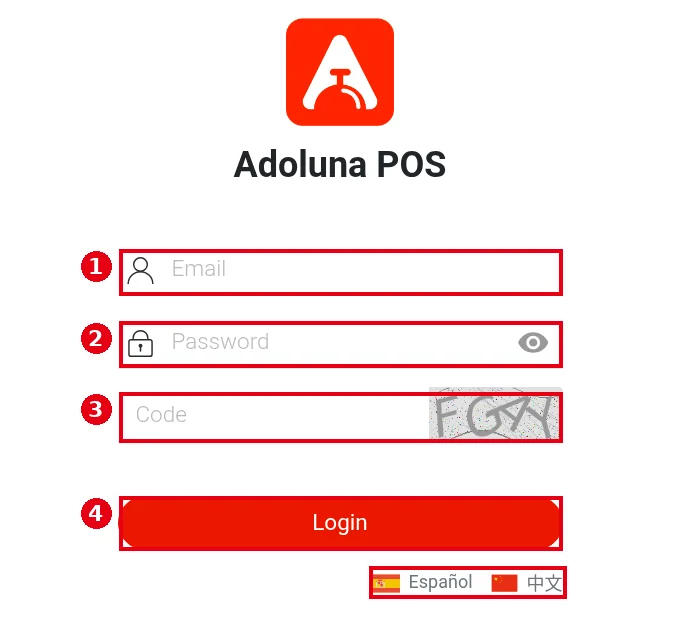
1. Open the Adoluna POS app, or open pos.adoluna.com in a browser. Log in with the Backoffice account (the one used at company.adoluna.com): enter ① Email, ② Password and ③ Code (the characters in the picture on the right). Tap Español / 中文 below to switch language if needed.
2. Tap ④ Login.
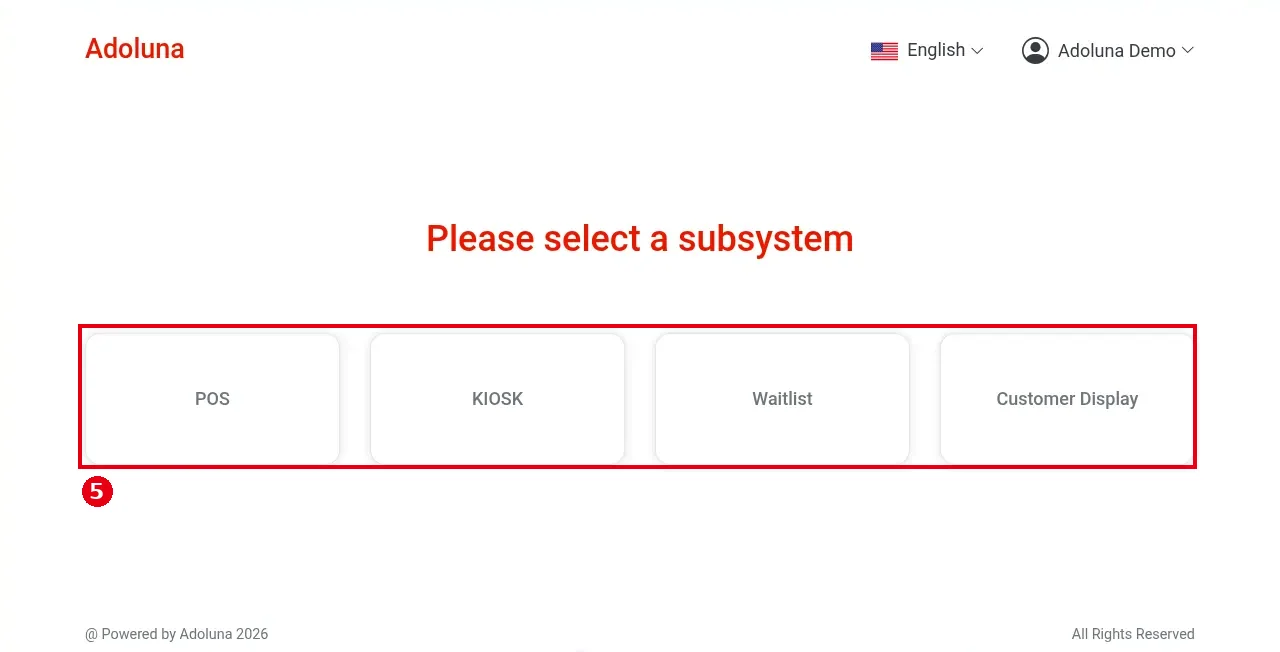
3. Under Please select a subsystem, choose what this device is for ⑤:
-
POS: front-of-house register.
-
KIOSK: guest self-ordering.
-
Waitlist: the waitlist self check-in screen, where guests add themselves to the waitlist (see 3.5.3 How to set up a Waitlist self check-in kiosk).
-
Customer Display: customer display. Any device can be a customer display; first turn on Customer Display for its POS in the Backoffice (see 3.5.1 How to set up the customer display). On Sunmi dual-screen devices the second screen shows it without separate binding.
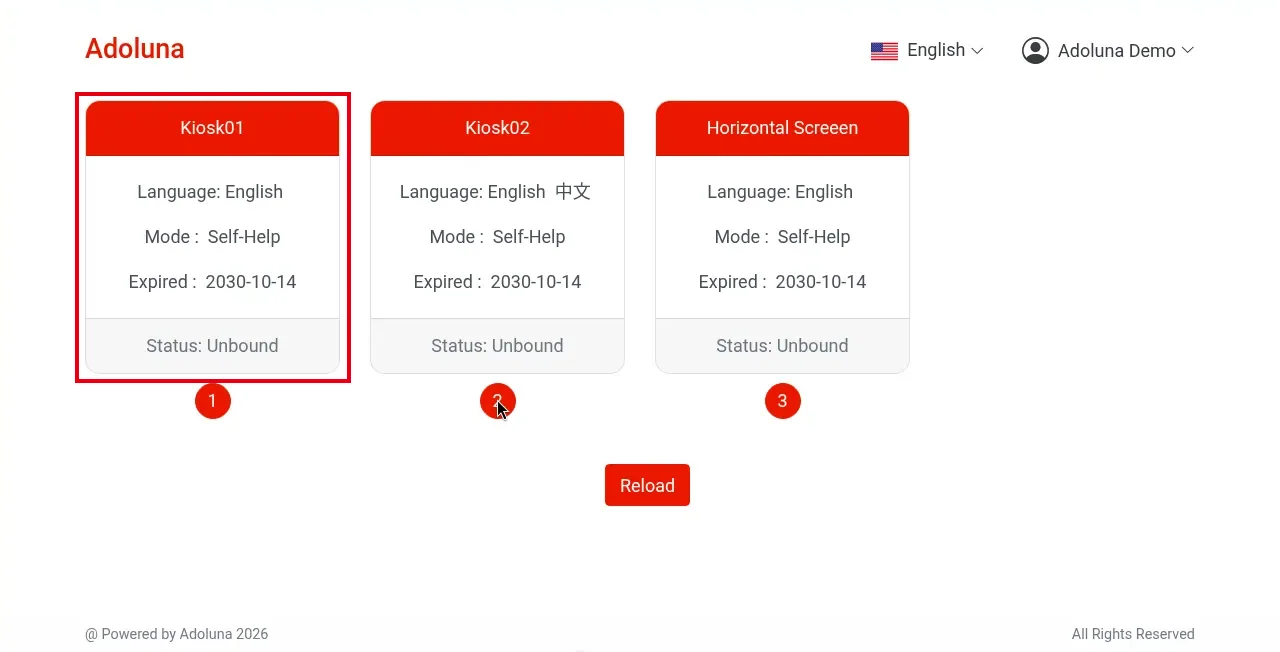
4. Choose the device to bind. The list shows the devices set up in the Backoffice (the screenshot shows the list after choosing KIOSK: Kiosk01, Kiosk02, Horizontal Screen). Each card shows the device name, Language, Mode, Expired date and status; tap one that shows Status: Unbound. Tap Reload if the list is out of date. When binding a customer display, choosing Customer Display shows a card for every POS that has Customer Display turned on in the Backoffice; tap the POS to pair with.
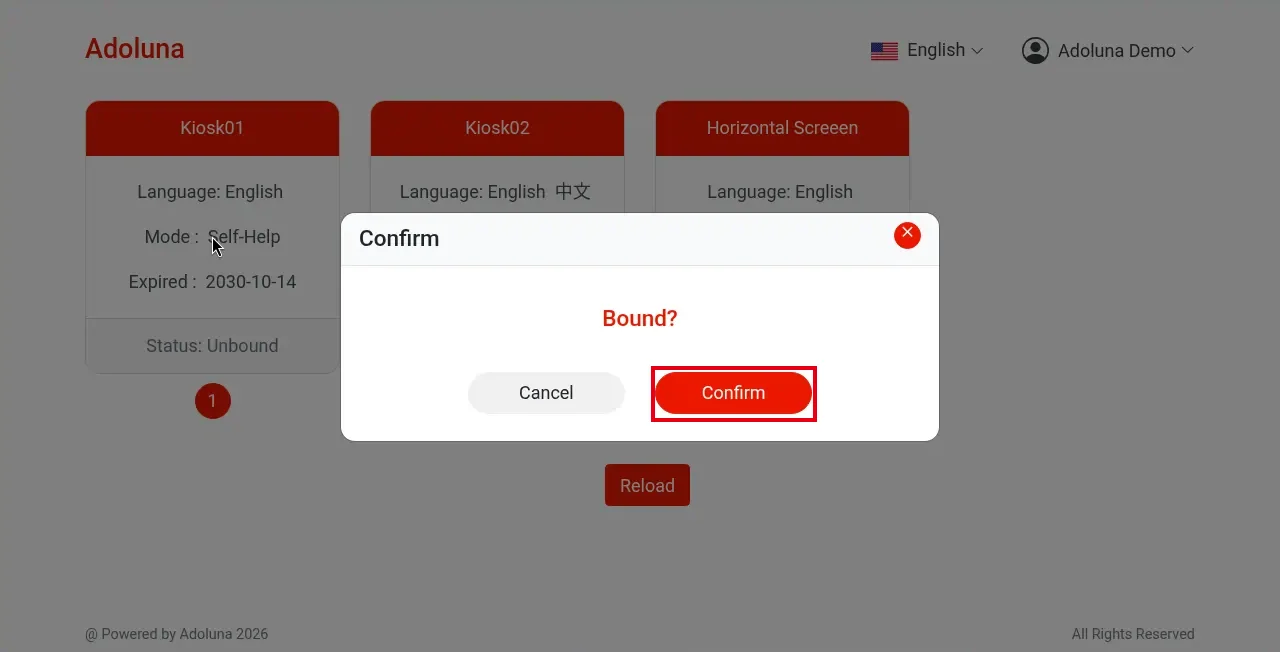
5. “Bound?” appears; tap Confirm to bind (Cancel to go back). No passcode is needed.
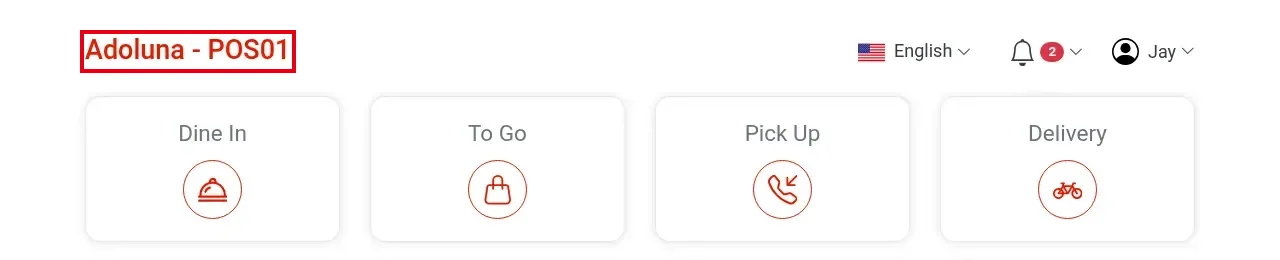
6. Binding is done and the home screen opens. The top left shows “store name – device name”, e.g. “Adoluna – POS01”. Staff can now log in (see 1.1.1 How to log in and out of the POS).
Notes / FAQ #
-
Each device only needs binding once. It stays that POS until it’s unbound (see 3.2.4 How to unbind or replace a device).
-
If no device shows Unbound, all devices are in use: unbind one in the Backoffice or on the old device, or ask Adoluna Sales for another license (see 3.2.2 How to create POS and Kiosk devices in the Backoffice).
-
In the browser version, you need to bind again after clearing browser data or switching browsers.


