
Purpose: Unbind a device from its POS / Kiosk / customer display in the Backoffice, or swap a broken device for a new one. For: managers, Adoluna onboarding staff.
Option 1: unbind on the device (when it still works) #
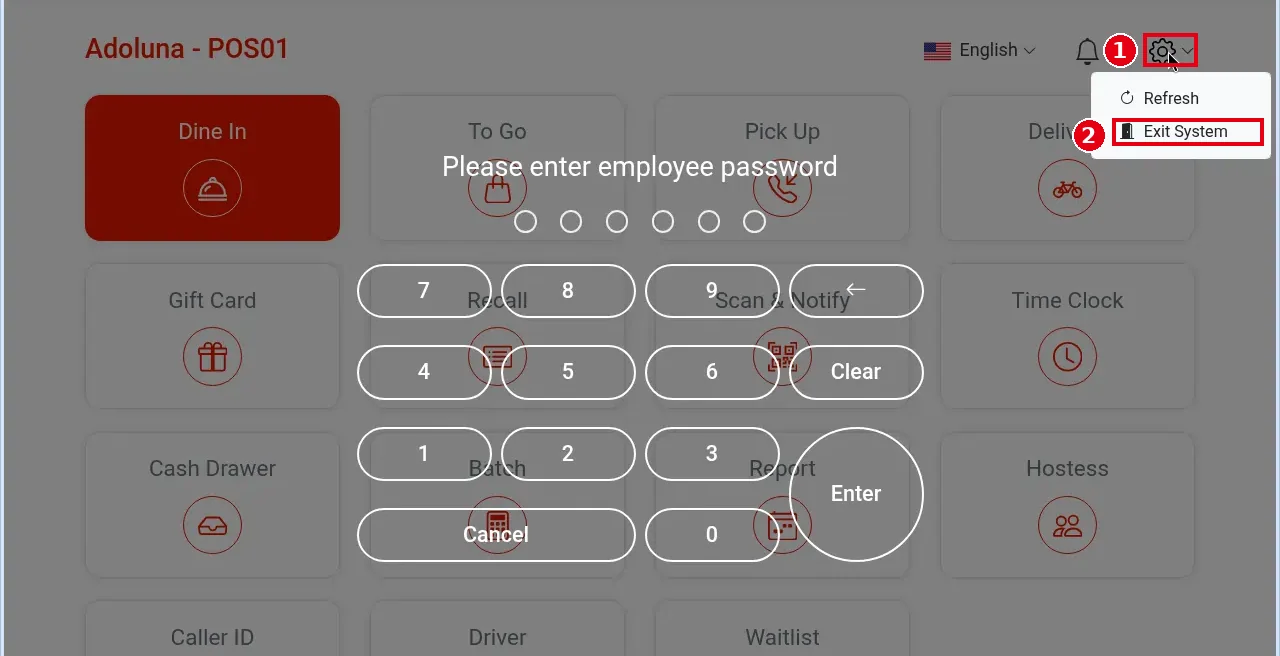
1. The employee logs out first (employee-name menu > Logout) so the gear icon shows at the top right of the home screen.
2. Tap the gear icon ①, then ② Exit System, and enter the password of the account used to bind (the Backoffice account). The device is unbound and goes back to the very first login screen (see step 1 of 3.2.3 How to bind a device); you enter the password again to bind.
Option 2: unbind in the Backoffice (device broken, lost or not at hand) #
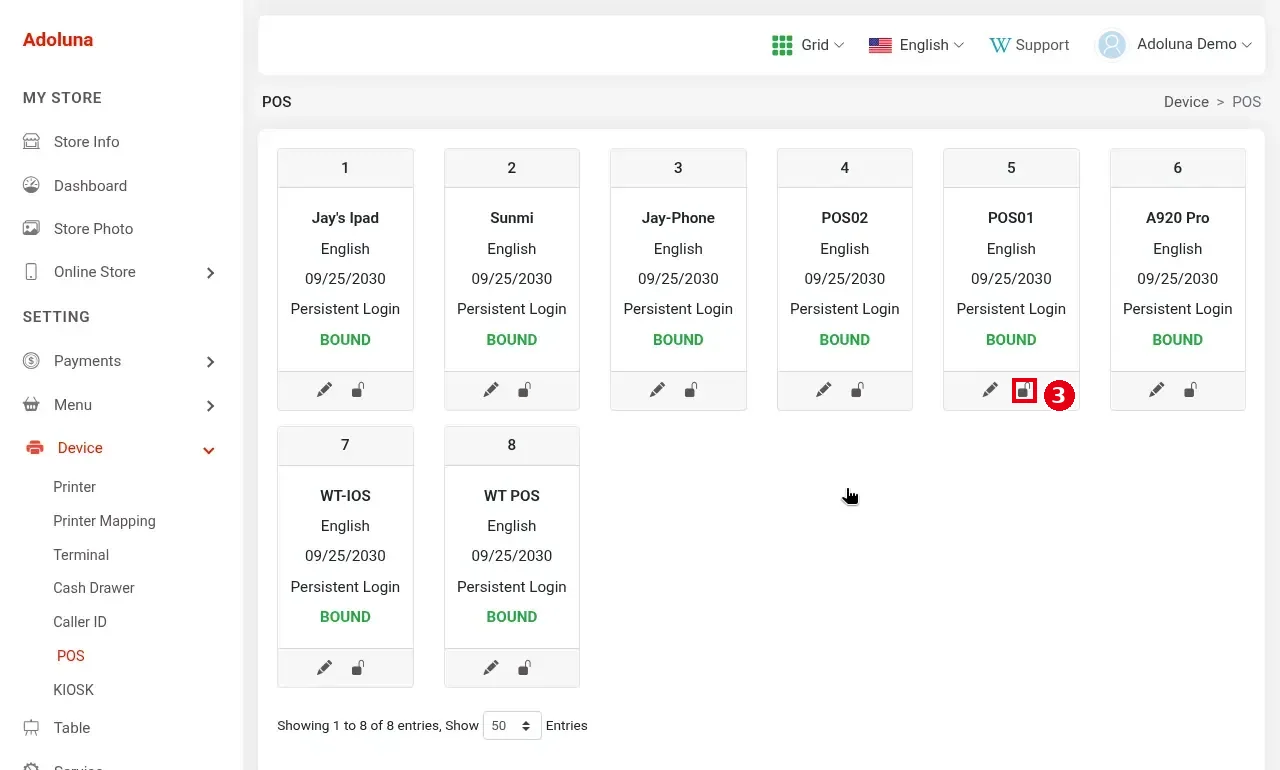
1. Sign in to the Backoffice at company.adoluna.com and click Device > POS (or KIOSK) in the left menu.
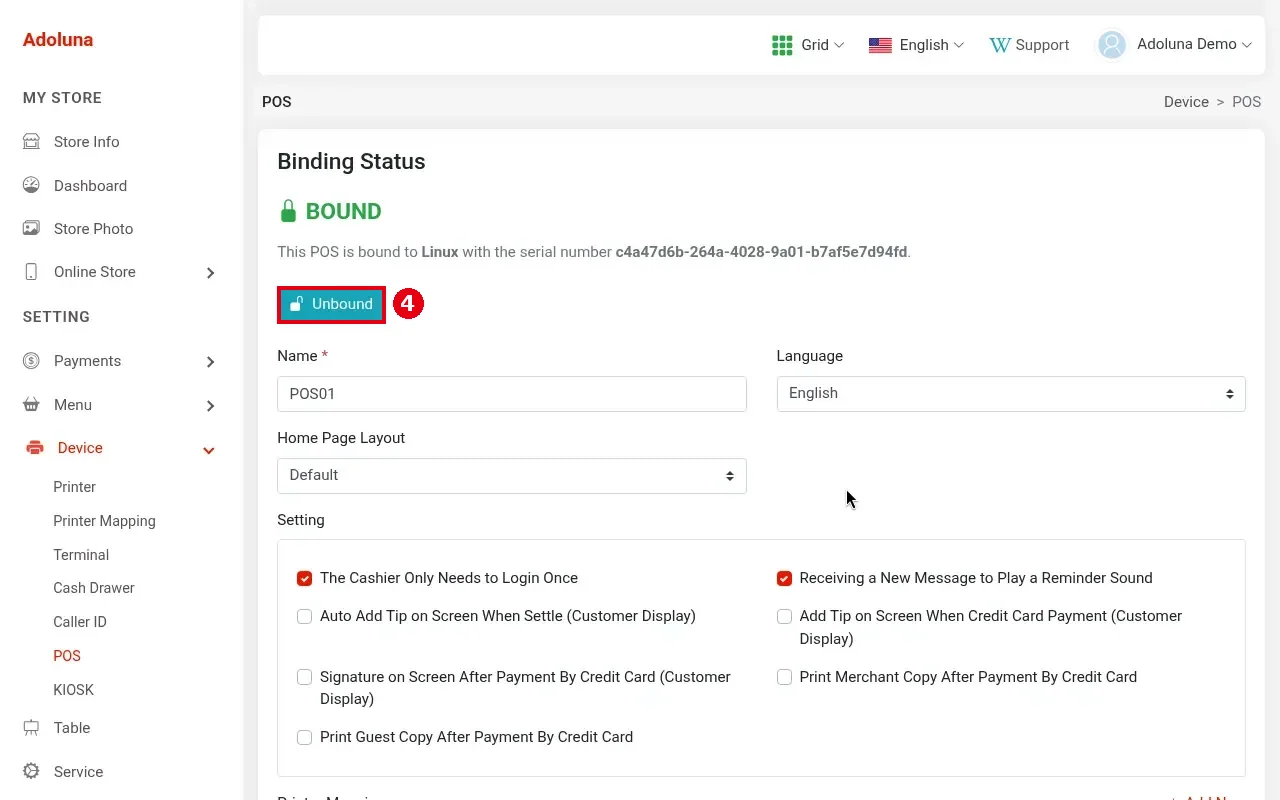
2. Click the lock icon ③ under the device card, or open it with the pencil icon and click ④ Unbound.
3. To unbind a customer display: on that POS’s edit page, scroll down to Customer Display. When a display is bound it shows ① BOUND and an ② Unbound button (③ Enable Cloud Connection may be on or off); click Unbound to unbind:
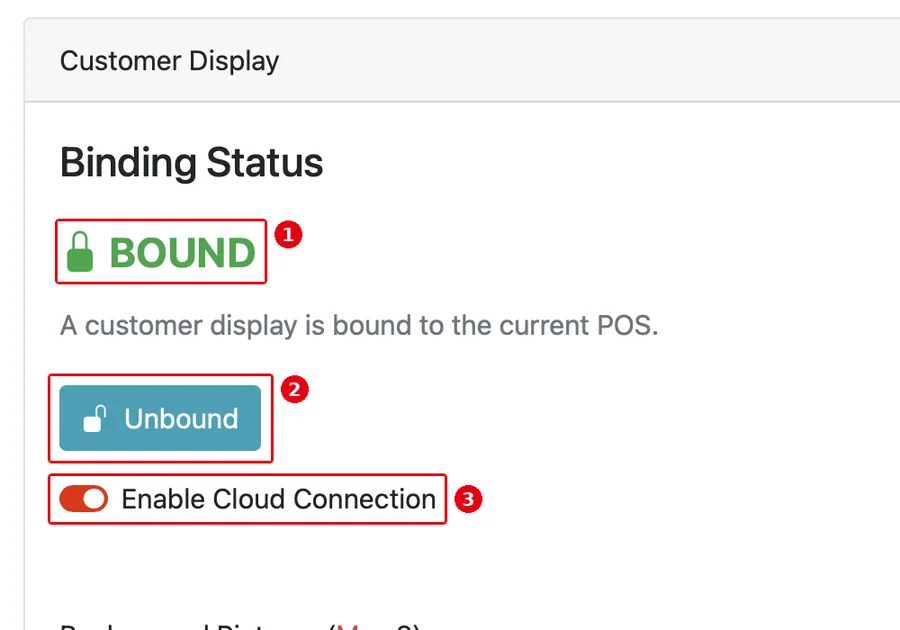
When none is bound it shows UNBOUND (below).
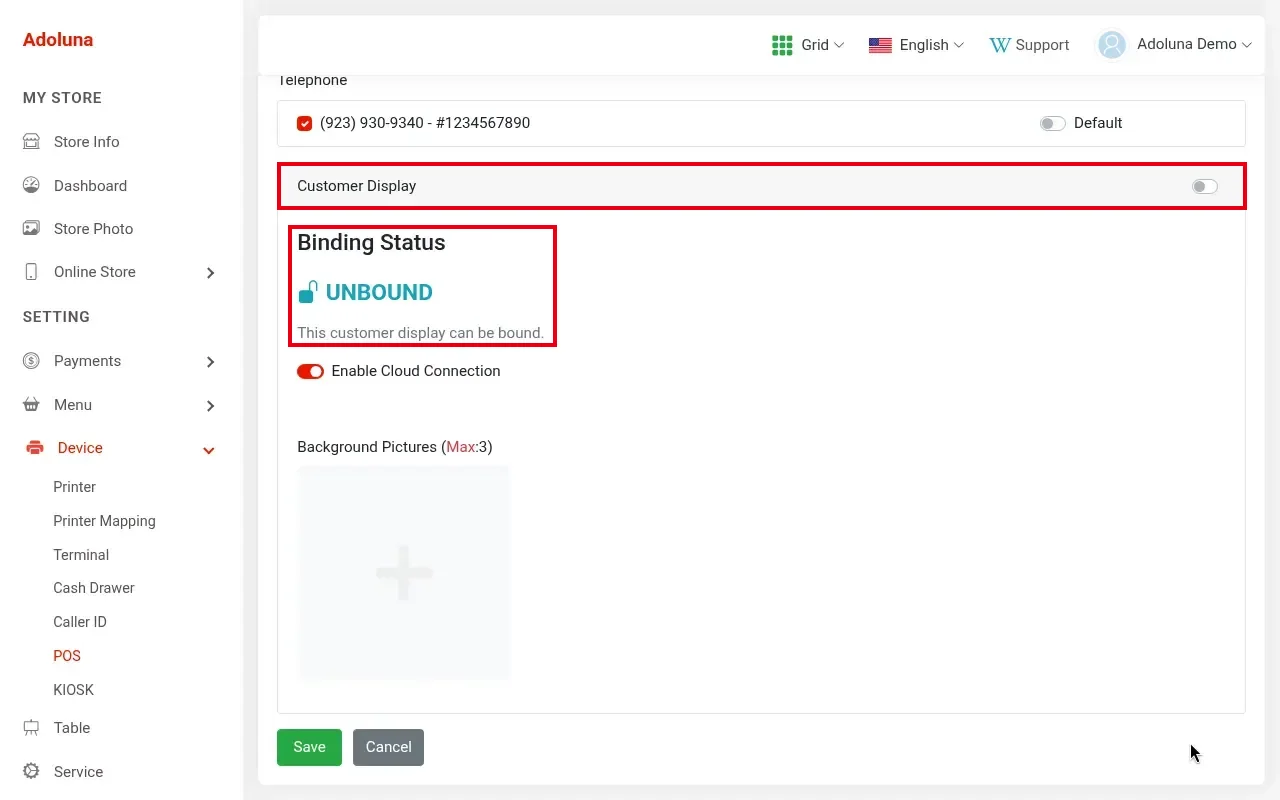
4. After unbinding, Binding Status no longer shows BOUND, and the device shows as Unbound when binding, ready to bind again.
Replace a device #
1. Unbind the old device (Option 1 if it still works, otherwise Option 2).
2. Install Adoluna POS on the new device (3.2.1 How to install Adoluna POS on each platform).
3. Bind the new device to the same POS (3.2.3 How to bind a device). All of that POS’s Backoffice settings (printers, terminals, language…) are kept; the new device just binds to the same POS.
4. Test printing and a card payment to make sure the printer and terminal work.
Notes #
-
Exit System unbinds the device (it asks for the binding account’s password), so don’t use it day to day. To reload, use Refresh (see 4.4.3 How to refresh or restart the POS).
-
The gear menu only shows when no employee is logged in; once someone logs in, the top right shows the employee-name menu (Refresh / Logout).


