
Purpose: For each order type, set whether guest checks, customer receipts and packager tickets print automatically on send or on settle. For: store managers, Adoluna onboarding staff.
Before you start:
-
Guest check: the bill shown to the guest before payment.
-
Customer receipt: the receipt after payment.
-
Packager receipt: a ticket for the packing staff, printed to a Packager printer mapping (see 3.3.3 How to set up printer mapping and route items to kitchen printers).
Steps #
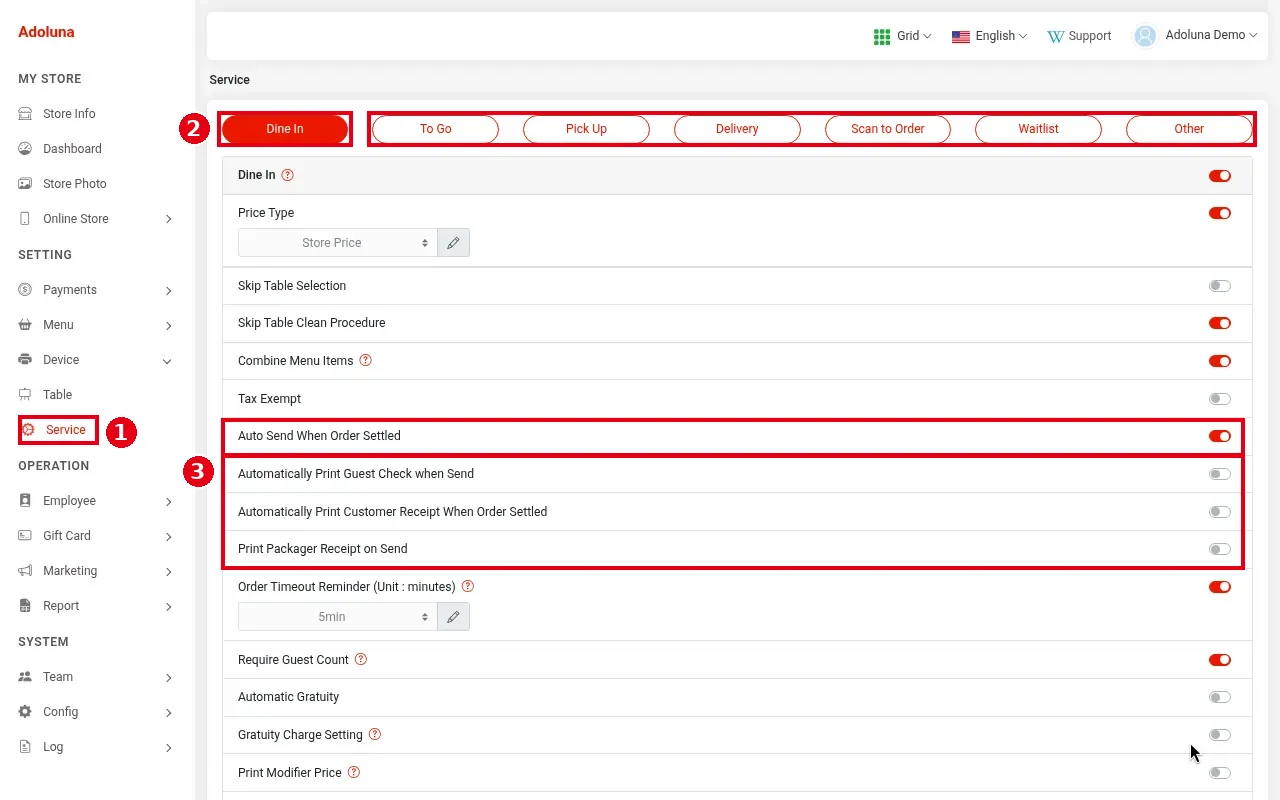
1. In the Backoffice left menu, click ① Service.
2. Choose the order type at the top ②: Dine In, To Go, Pick Up, Delivery, Scan to Order, etc. Each order type is set separately.
3. Turn these switches ③ on or off as needed:
-
Automatically Print Guest Check when Send: print the guest check when the order is sent.
-
Automatically Print Customer Receipt When Order Settled: print the customer receipt after payment.
-
Print Packager Receipt on Send: print a packager ticket when the order is sent.
Auto Send When Order Settled in the row above also affects printing: when it’s on, items not yet sent are sent to the kitchen (and kitchen tickets print) at settlement. In the screenshot, all three auto-print switches for Dine In are off and Auto Send When Order Settled is on. The switches take effect immediately; there’s no Save to click.
4. Place a test order on the POS and check the printouts (see 3.6.2 How to run a go-live test (test orders, printing, cards, Batch)).
Notes / FAQ #
-
With auto print off, staff can print by hand on the POS: tap Receipt at checkout (see 1.3.1 How to take a cash payment, 1.3.9 How to print or text a receipt) or reprint from Recall (see 1.4.2 How to resend or reprint an order).
-
Auto-printed receipts go to the POS’s default Receipt printer mapping (see step 4 of 3.3.3 How to set up printer mapping and route items to kitchen printers).
-
Packager tickets need a Packager printer mapping first. With several Packager mappings, the packager ticket prints at all of them.
-
The same page has other print options such as Print Modifier Price. For the other service settings, see 2.5.1 How to configure Dine In service settings.
-
Auto send for Kiosk orders is set separately in the Kiosk settings (see 3.5.2 How to configure a Kiosk).


