
Purpose: List the hardware a store needs before go-live, what each piece is for and how it connects. For: Adoluna onboarding staff, store managers.
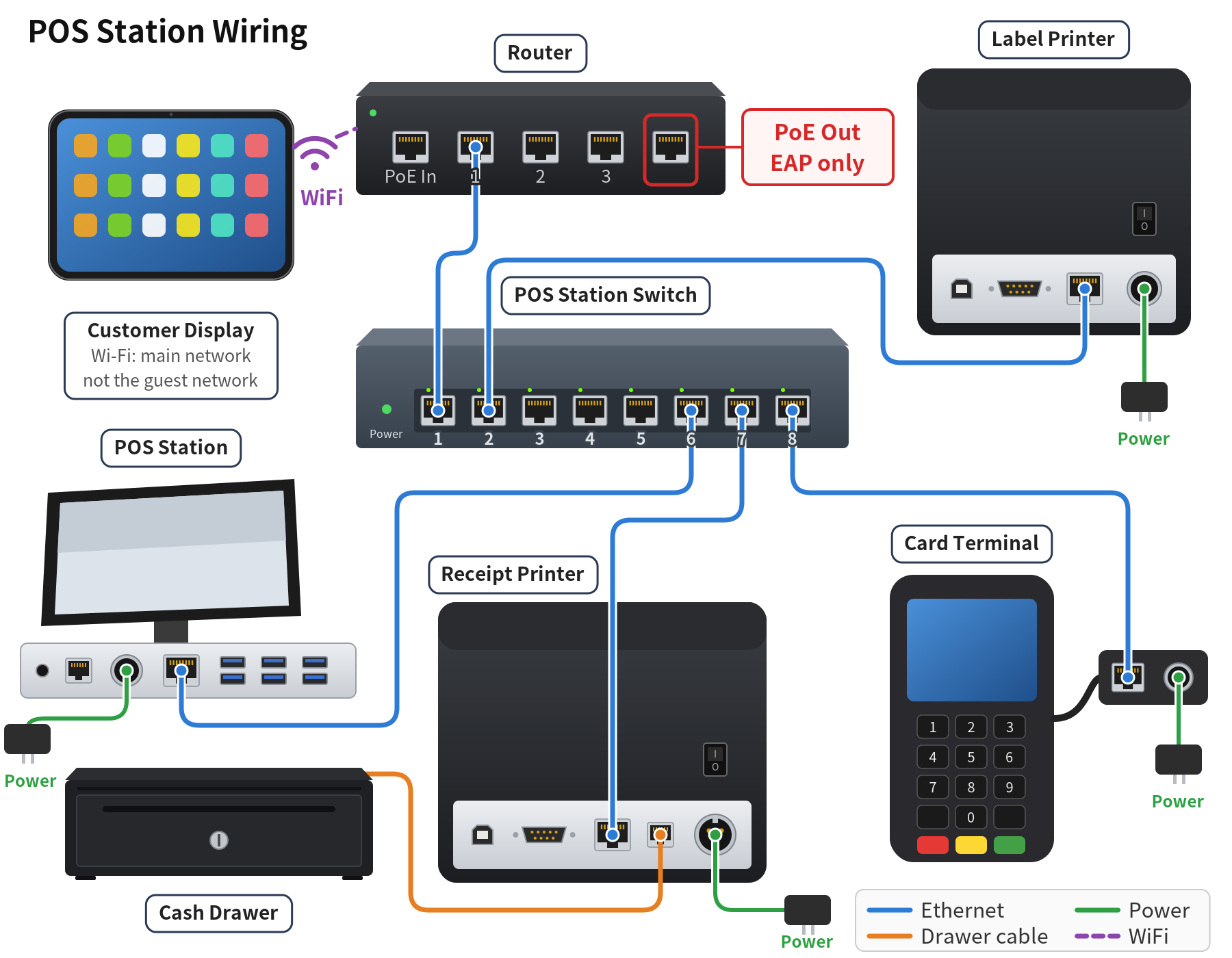
Figure: POS station wiring
Hardware list #
| Hardware | What it’s for | Notes |
|---|---|---|
| POS device | Taking orders and payments | iPad / iPhone, Mac (Apple silicon), Android device, Windows PC, Linux PC, or any device with a web browser (see 3.2.1 How to install Adoluna POS on each platform). A wired connection to the switch is recommended for POS devices. |
| Router | Store internet | The system is cloud based; the router must stay online at all times. Recommended: GL.iNet GL-MT6000 (Flint 2), which can use a phone hotspot as a backup connection. |
| Switch | Connects the devices at a station | One per POS station and one per Kiosk station, each cabled to the router. Recommended: TP-Link TL-SG105 (5-port) or TL-SG108 (8-port). |
| Wireless AP (WiFi) | Internet for tablets and customer displays | For large restaurants, add TP-Link EAP access points. |
| Cable modem | Internet line | Supplied by the internet provider. If the line goes down, the Flint 2 can use a phone hotspot as a backup; a PoE adapter and backup 4G modem are no longer recommended. |
| Local Server (Adoluna Local Server) | Connects printers and PAX terminals | Installed by an Adoluna technician; at least 1GB of RAM, 2GB recommended, and set to power on automatically after a power cut. Must be on the same network as the receipt printers and card terminals (see 3.2.5 How to set up the Adoluna Local Server). |
| Receipt printer | Prints checks and receipts | The printer must have an Ethernet port; cable it to the switch. The cash drawer plugs into it. |
| Kitchen printer | Prints kitchen tickets | Must have an Ethernet port. |
| Label printer (optional) | Drink / packaging labels | Must have an Ethernet port. |
| Cash drawer | Holds cash | Connects to the receipt printer with an RJ11/RJ12 data cable. |
| Card terminal / reader | Card payments | PAX terminals, integrated through CardConnect (e.g. A35, A920, cabled); Bolt terminals (Bolt is a CardConnect product); VP3350 readers (the older VP3300 is still available for purchase but not recommended) and Clover Go 3 connect directly to the POS device. |
| Customer display (optional) | Shows the order to the guest; tip and signature | Any device: install Adoluna POS and choose Customer Display when binding. On Sunmi dual-screen devices the second screen shows it without a separate install. |
| Kiosk machine (optional) | Guest self-ordering | Cabled to the Kiosk station switch, with its own Kiosk printer and card terminal (see 3.1.3 How to wire a Kiosk station). |
| Magnetic stripe reader (MSR, optional) | Swiping gift cards | PAX / Bolt terminals can’t read gift cards, so a separate MSR is needed; a Kiosk also needs one to take gift cards, connected to the Kiosk machine by USB. |
| Barcode scanner (optional) | Scan & Notify pickup notices | See 1.1.2 How to find your way around the POS home screen. |
| Caller ID device (optional) | Caller ID shows incoming calls | Any USB 2.0 56K fax modem works; it plugs straight into the Local Server’s USB port. Setup in 3.5.4 How to set up Caller ID. |
| Network cables | Connecting devices | Cat 5 or better. |
Notes #
-
Recommended models: router GL.iNet GL-MT6000 (Flint 2); switch TP-Link TL-SG105 (5-port) or TL-SG108 (8-port); TP-Link EAP access points for large restaurants; PAX card terminals (integrated through CardConnect); any USB 2.0 56K fax modem for Caller ID. Printers must have an Ethernet port. POS runs on Linux, Windows, Mac, iOS and Android.
-
Adoluna quotes all the hardware. Support: +1 (866) 588-8868, support@adoluna.com.


