
Purpose: Open the cash drawer without a sale (e.g. to make change) and record why. For: cashiers, managers. Hardware: cash drawer.
Steps #
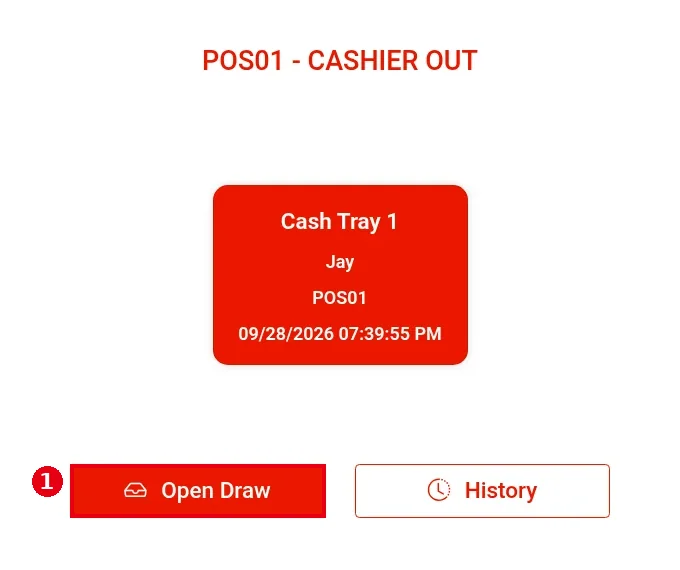
1. On the home screen tap Cash Drawer, then tap Open Draw on the Cashier In/Out screen. The button appears only while a drawer is cashiered in (heading POS01 – CASHIER OUT; see 1.5.3 How to start a cash drawer (Cashier In)).
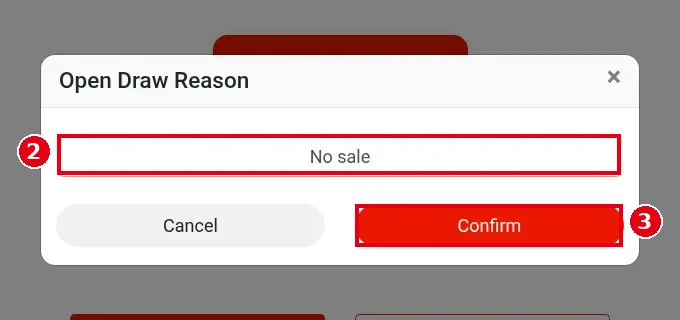
2. Open Draw Reason opens. Type the reason in Reason (e.g. No sale).
3. Tap Confirm (Cancel to go back). The drawer pops open at once and the window closes with no further message.
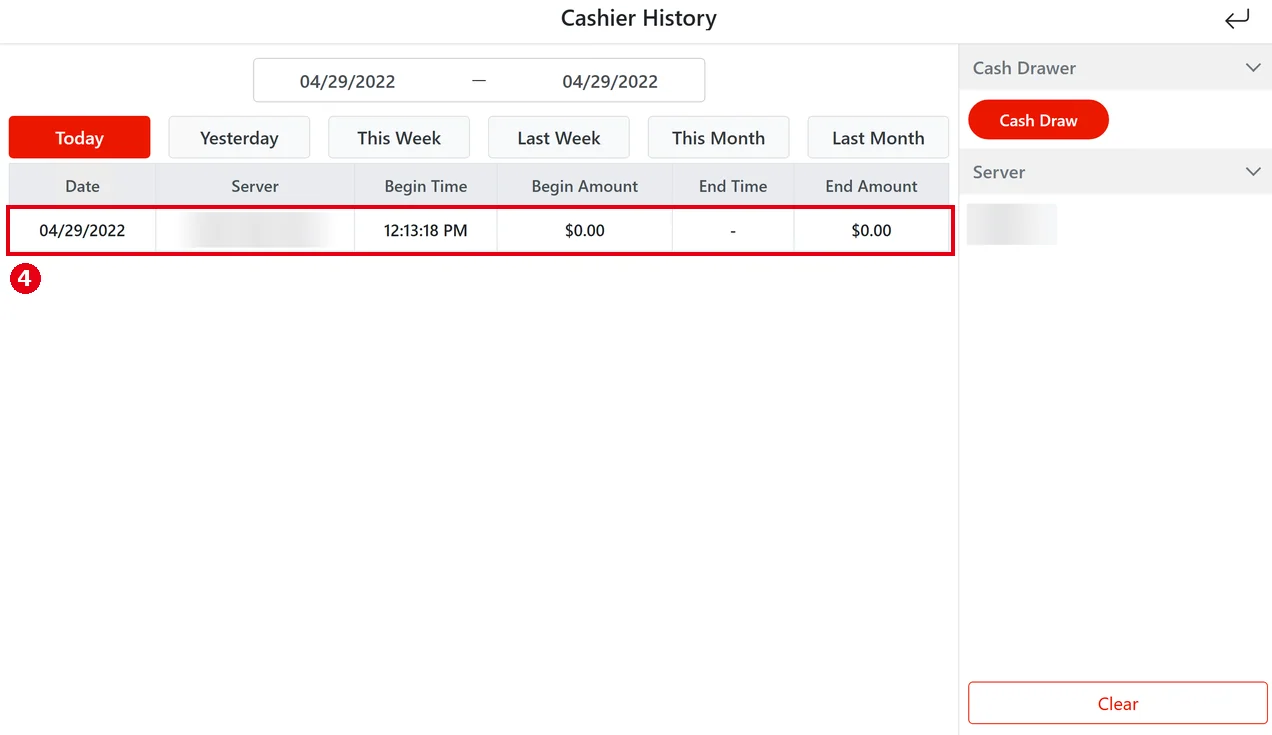
4. To see drawer openings, tap History on the Cashier In/Out screen to open Cashier History (see 1.5.4 How to close out a cash drawer (Cashier Out)), then tap ④ the record you want to view.
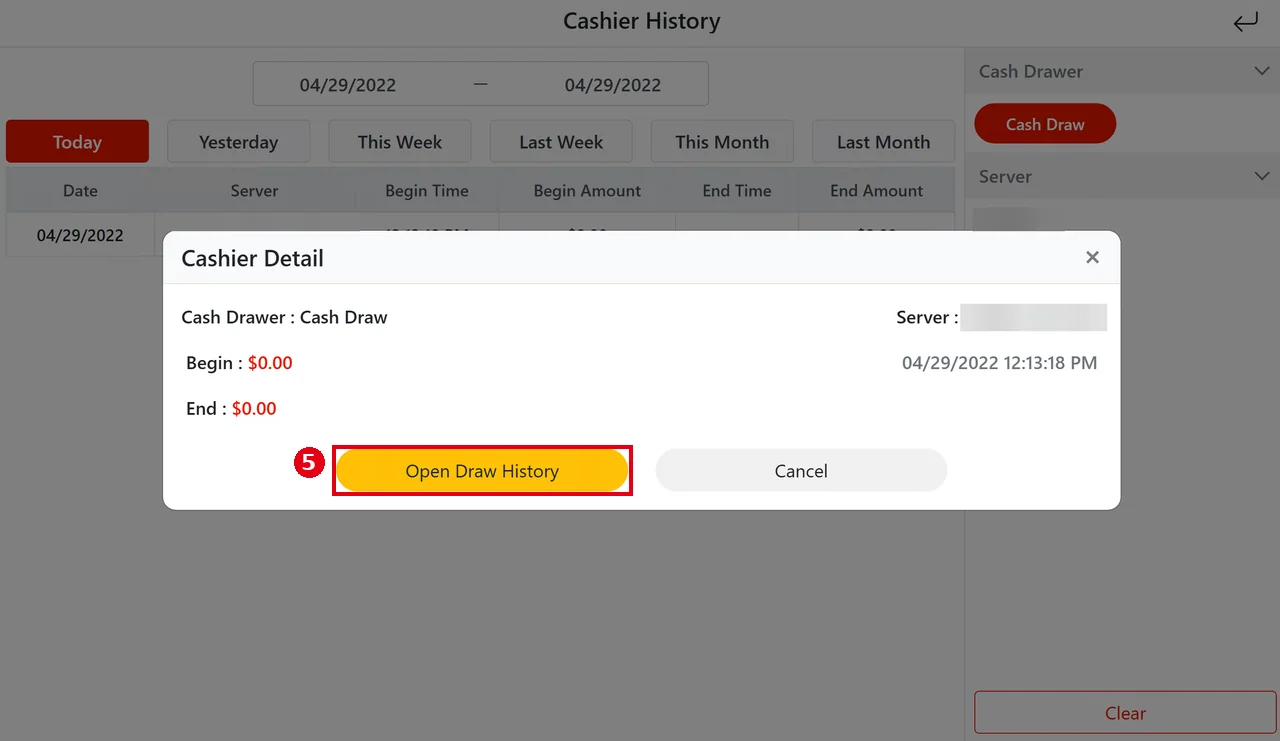
5. Cashier Detail opens. Tap the yellow ⑤ Open Draw History (Cancel to close).
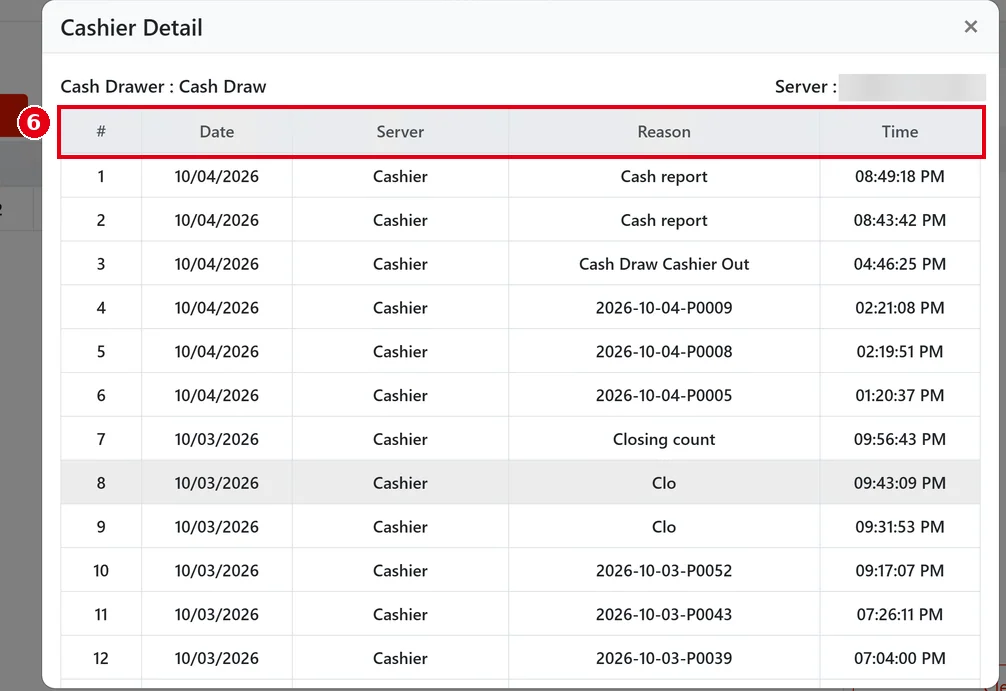
6. The list of drawer openings opens, newest first, with every time the drawer was opened during that record. ⑥ The columns are #, Date, Server (the employee who opened the drawer), Reason and Time. Reason can be:
– An order number (e.g. 2026-10-04-P0009): the drawer opened automatically at payment.
– Cash Draw Cashier Out: the drawer opened at cashier out.
– Cash report: the drawer opened from the cash report.
– Any other text (e.g. Closing count): the reason typed when opening the drawer with Open Draw (see step 2).
Notes / FAQ #
-
Whether Open Draw needs manager approval depends on each employee’s permissions (set per employee on the back-office Employees screen). The employee logged in during the demo did not need a manager password.
-
If no drawer is connected, Confirm gives no warning at all, so make sure the drawer is connected.


