
Purpose: Give customers an automatic discount when they pay cash (to encourage cash payments). For: owners, managers.
Steps #
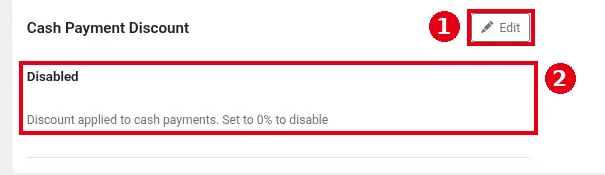
1. In the Backoffice left menu, click Store Info and scroll down to Cash Payment Discount. ② shows the current status, Disabled in the screenshot. The page says: Discount applied to cash payments. Set to 0% to disable.
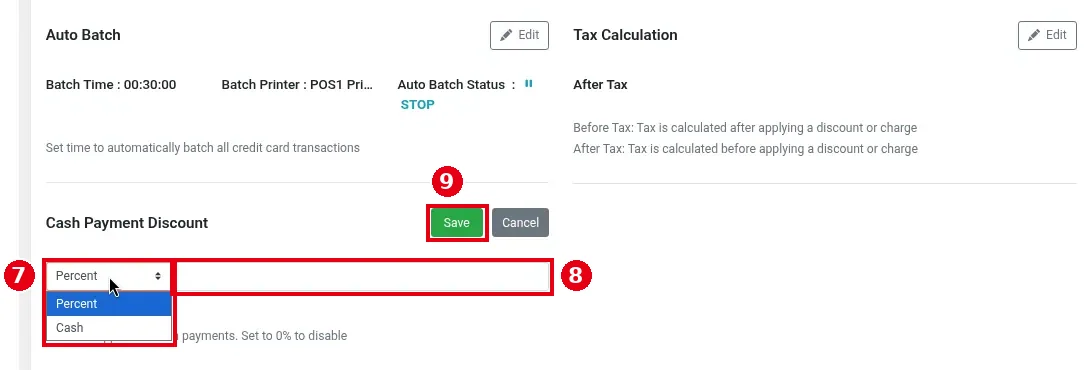
2. Click ① Edit, ⑦ choose the discount type, Percent or Cash (a fixed amount), ⑧ enter the value and click ⑨ Save (or Cancel). Set it to 0% to turn it off.
3. (Optional) Show a reminder on receipts: in the left menu, click Service > the Other tab and turn on ③ Print the Cash Payment Discount Reminder on Customer Receipt.

Once it’s on, the POS deducts the discount automatically when cash payment is selected. The discount is taken from the total including tax; tax is still calculated on the full subtotal and isn’t reduced by the cash discount. With the step 3 switch on, the receipt prints a cash discount notice.
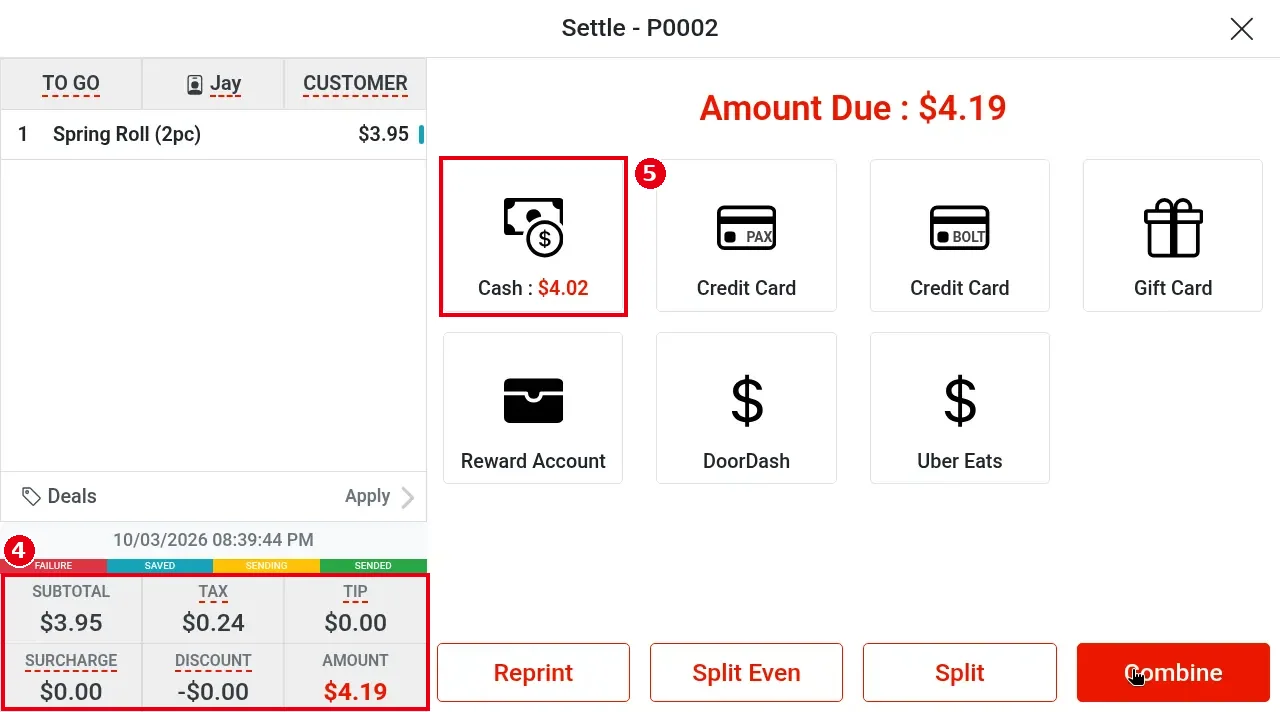
Example (tested in the demo store with a temporary 4%; the demo store normally has this Disabled): one Spring Roll, ④ SUBTOTAL $3.95, TAX $0.24, AMOUNT $4.19. On the Settle page, ⑤ the Cash button shows the amount after the cash discount, $4.02.
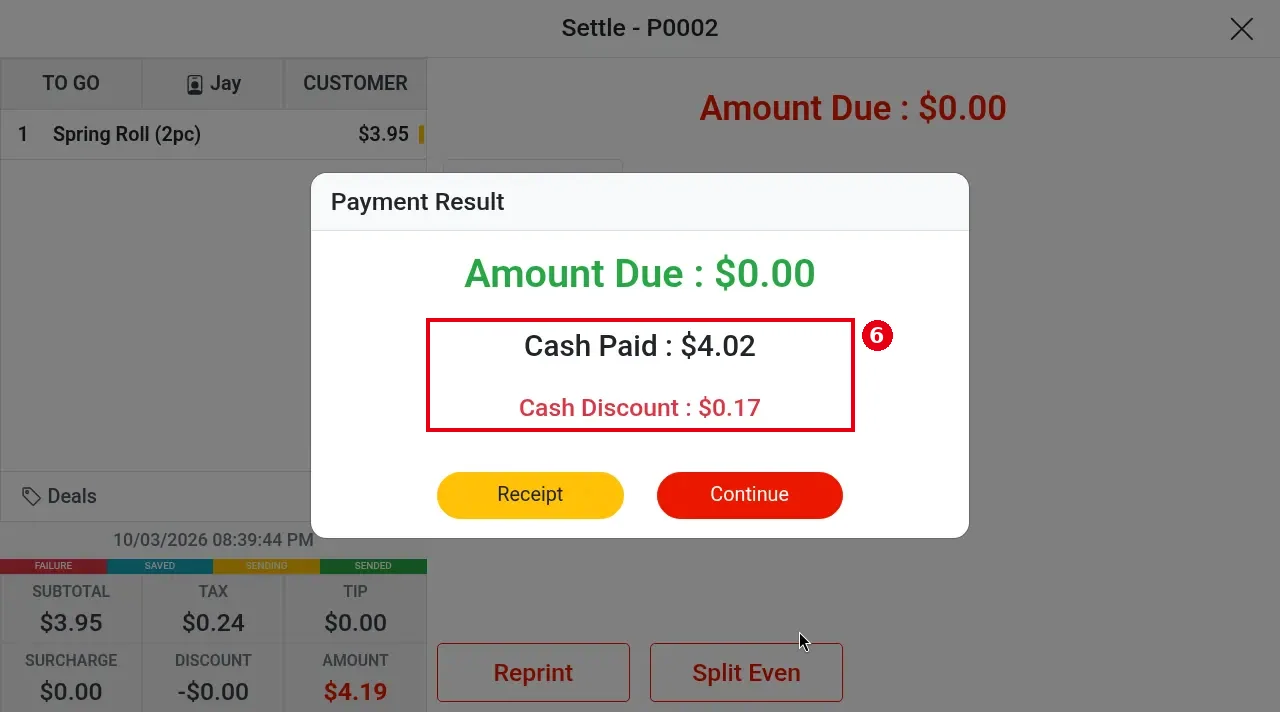
After payment, Payment Result shows ⑥ Cash Paid : $4.02 and Cash Discount : $0.17. $4.19 × 4% = $0.1676, which rounds to $0.17; on the subtotal it would be $3.95 × 4% = $0.158, about $0.16. So the discount is based on the total including tax, and tax stays at $0.24.
Notes / FAQ #
-
For cash checkout, see 1.3.1 How to take a cash payment.
-
Regular discounts (chosen by staff) are set under Payments > Discount, see 2.4.1 How to set up discounts.
-
For the other receipt settings on Service > Other, see 2.5.5 How to set receipt messages and tip guidelines.


