
Purpose: Record a payment that does not go through a POS card terminal, e.g. the guest already paid on DoorDash or Uber Eats. For: cashiers, servers.
Steps #
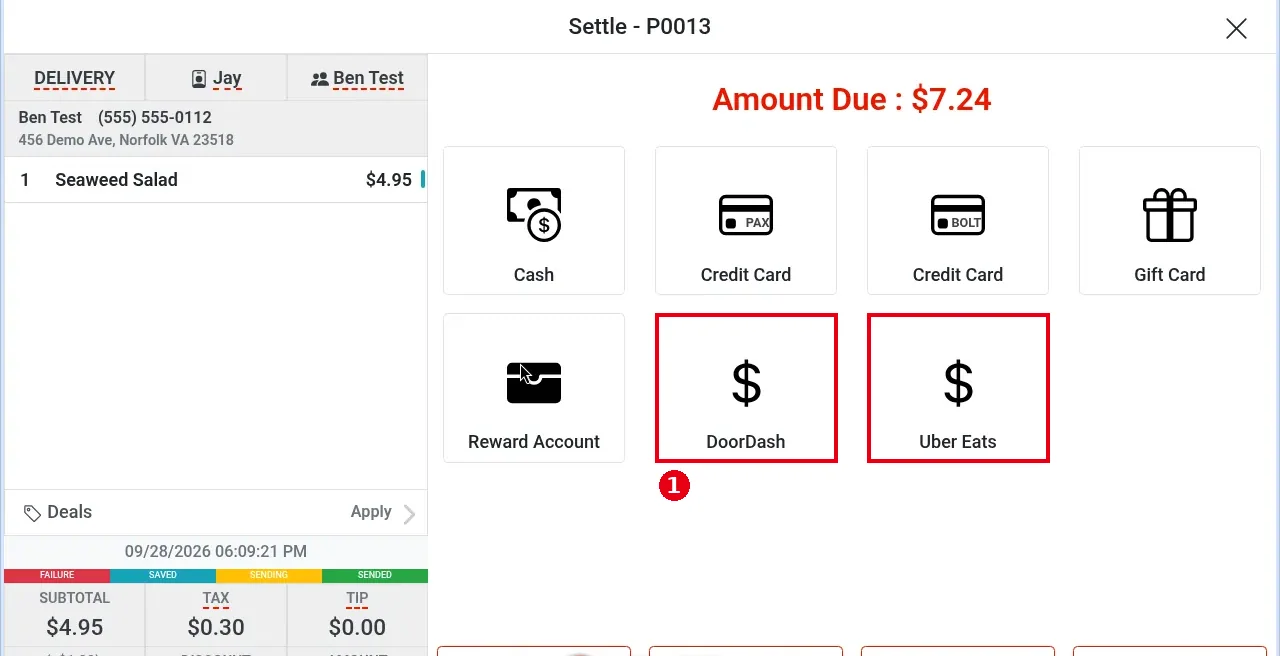
1. Open the order’s Settle screen (see 1.2.12; e.g. delivery order P0013, Amount Due : $7.24).
2. Tap the matching ① custom payment type button (the demo store has DoorDash and Uber Eats).
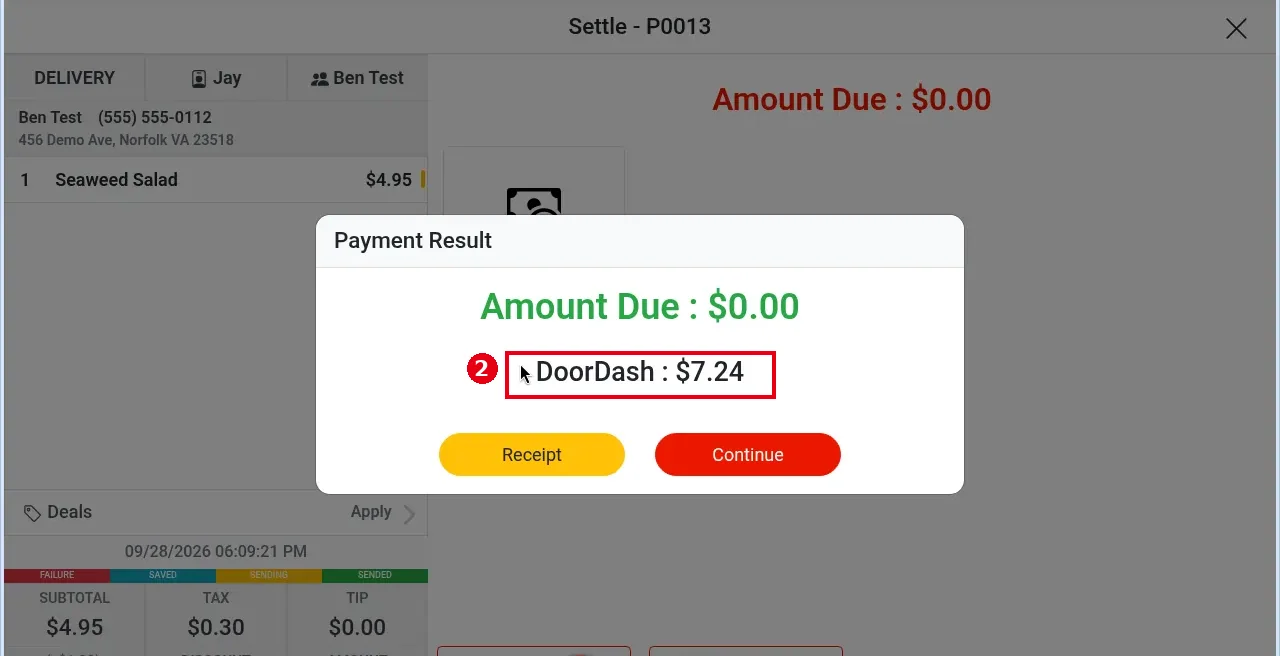
3. Payment Result opens: Amount Due : $0.00, with ② the payment type and amount below (e.g. DoorDash : $7.24). In this example the full amount due was recorded.
4. Tap Receipt to print a receipt, or Continue to close the window (see 1.3.1).
Notes / FAQ #
-
A custom payment type only records the payment type and amount in the POS; it does not send a charge to a card terminal.
-
Tapping a custom payment button (e.g. DoorDash, Uber Eats) shows the amount keypad, and a custom payment type can cover just part of the amount, with the rest paid another way (see 1.3.5 How to take a partial or split-tender payment).
-
Custom payment type buttons (named e.g. DoorDash, Uber Eats) are set up by the restaurant in the back office (back-office setup: see 2.4.4 How to add a custom payment type).
-
In Recall you can filter orders by these types under Payment Type (see 1.4.1).
-
To pay part in cash and the rest with a custom type, see 1.3.5.


