
Purpose: See on the POS which tables in each section are free or occupied, how long each party has been seated and how much they’ve ordered. For: hosts, servers, managers.
Steps #
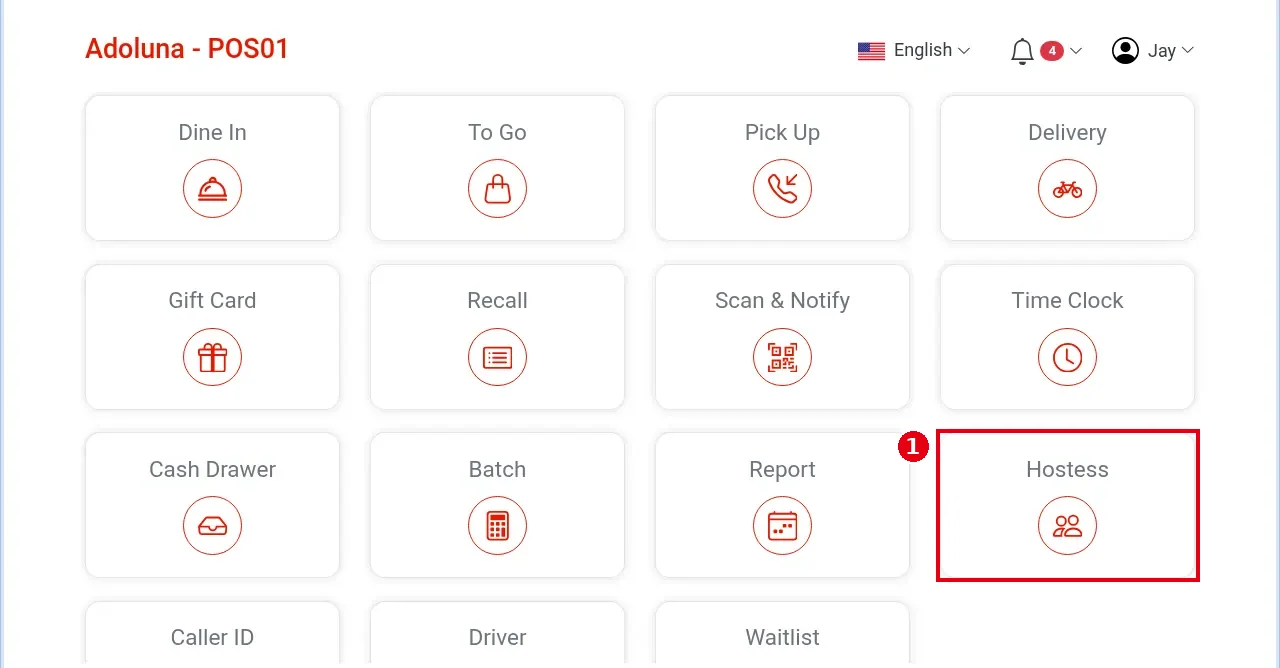
1. On the POS home screen, tap ① Hostess.
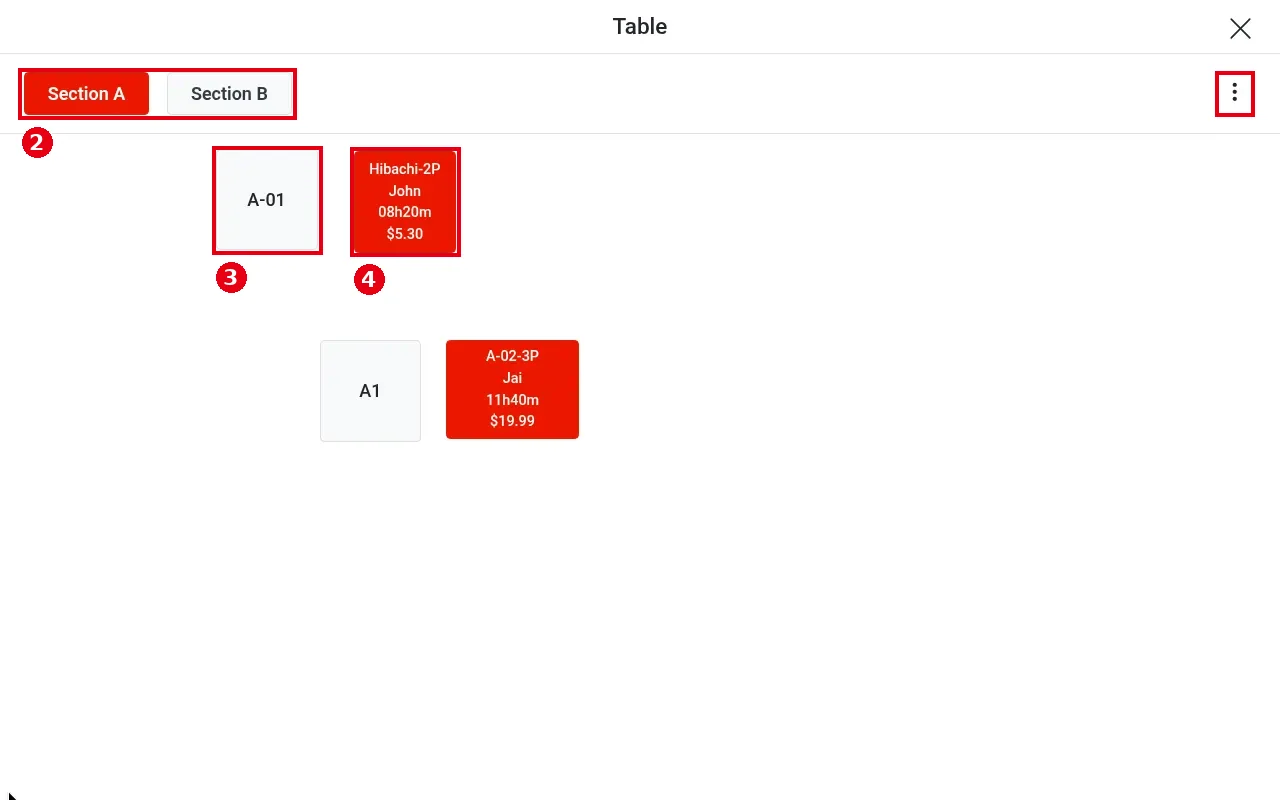
2. The Table screen opens:
-
② Switch sections at the top (Section A and Section B in the screenshot).
-
③ Gray tables are free, with no order (e.g. A-01).
-
④ Red tables: guests are seated at another server’s table, with an unpaid order. The tile shows the table name, guest name, time since the order was opened and the amount (e.g. “Hibachi-2P / John / 08h20m / $5.30”).
-
Green tables: guests are seated at your own table (the logged-in server’s).
The screen has no legend. The ⋮ menu at the top right has Assign Server, which picks from the servers currently clocked in; its Reset button clears all selected servers at once (updated 2026-10-05). Tapping a red table doesn’t open the order; to view or continue that table’s order, open it from Recall (see 1.4.1 How to find an order in Recall, 1.4.3 How to reopen and edit a paid order).
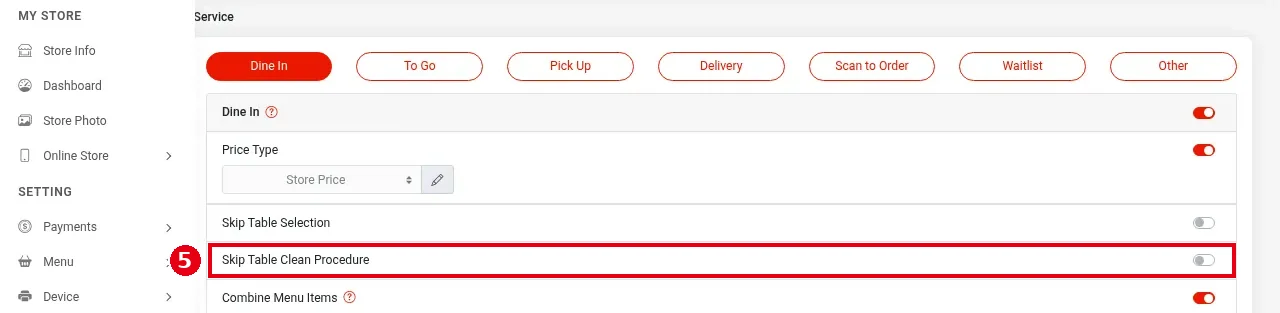
3. Marking tables clean: the table colours are grey = free, yellow = free but not cleaned, red = guests seated at another server’s table, green = guests seated at your own table (the logged-in server’s). Whether tables need cleaning depends on the ⑤ Skip Table Clean Procedure switch under Service > Dine In in the Backoffice. With it on, a table goes straight back to free after the guests pay and no cleaning step is needed (the demo store normally has it on). The pictures below were taken with the switch turned off temporarily; it was turned back on afterwards.
With Skip Table Clean Procedure off:
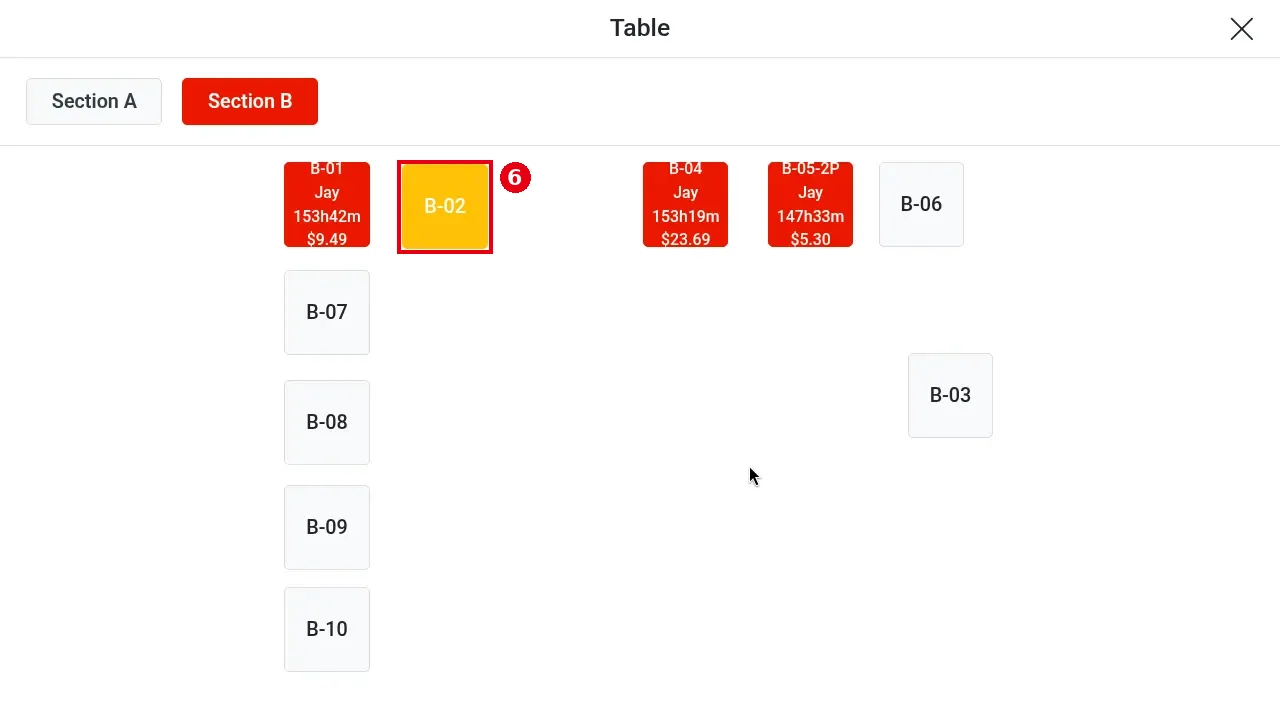
– After the guests pay, the table turns ⑥ yellow (waiting to be cleaned), e.g. B-02.
-
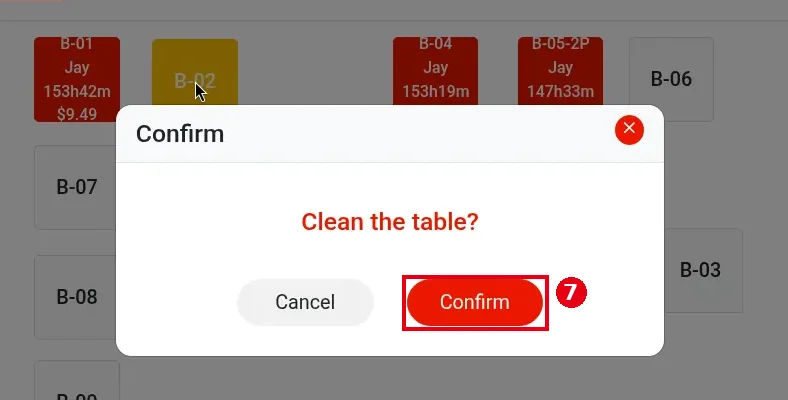
Once the table has been cleared, tap the yellow table. Confirm asks “Clean the table?”; tap ⑦ Confirm (or Cancel).
-
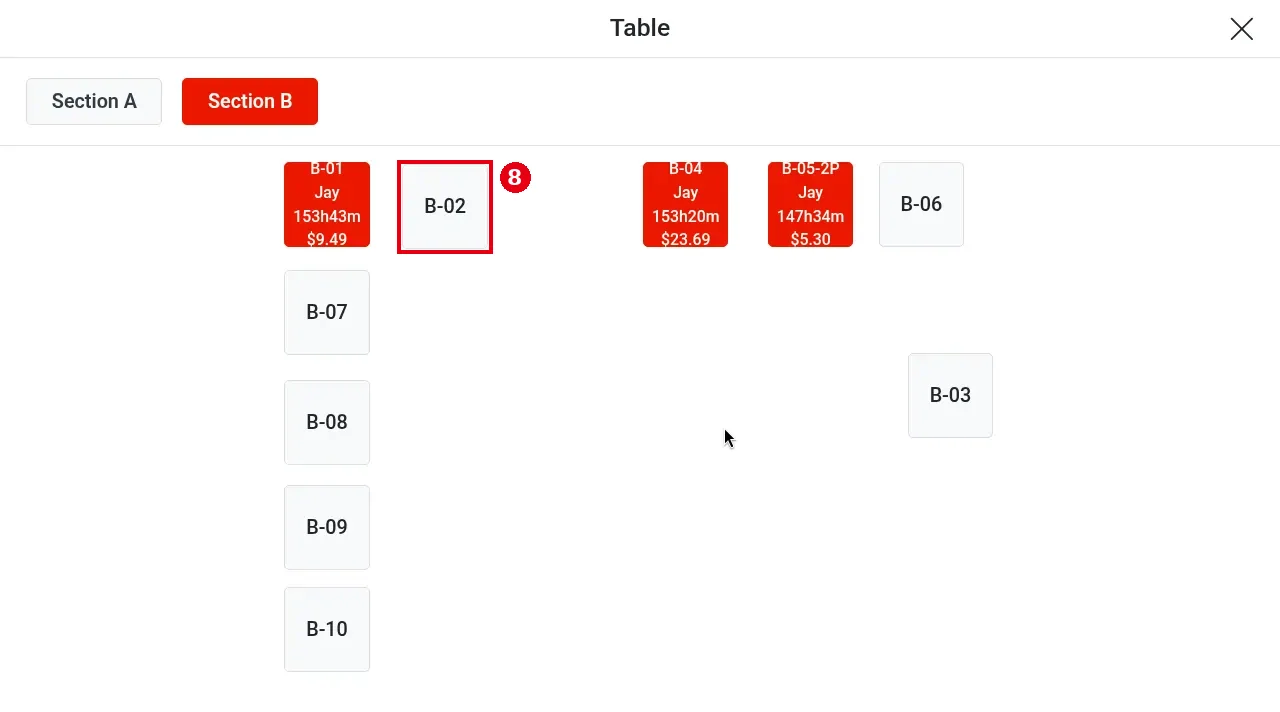
The table turns ⑧ grey (free) again and is ready for the next party.
Notes / FAQ #
-
To open a new order at a table, see 1.2.1 How to start a dine-in order.
-
Tables can be cleared right from the Host/Seating (Hostess) screen (updated 2026-10-05).
-
Once an order is paid it no longer holds the table, and the table goes back to free (with the clean step skipped).
-
Sections and table layout are set in the Backoffice; see 2.7.1 How to set up dining areas and table layout.
-
A red table with a very long time (e.g. 11h40m) is usually an order someone forgot to settle or void. A manager can find it in Recall (see 1.4.1 How to find an order in Recall).
-
The table colours follow the same rules as the Table screen for dine-in orders (see 1.2.1 How to start a dine-in order): red = guests seated at another server’s table, green = guests seated at your own table.


