
Purpose: Settle the check when All You Can Eat (buffet) guests finish: the server settles on the POS, or guests pay on the tableside Kiosk themselves. For: servers, cashiers.
Before you start:
-
Tableside Kiosk: guests can pay on the Kiosk themselves. The Kiosk needs a Bolt card reader (payment terminal, see 3.4.2 How to set up a Bolt terminal) and payment types ticked under its Payment Type (see 3.5.2 How to configure a Kiosk). When guests pay on the Kiosk, the server doesn’t need the steps below.
-
Scan to Order’s Buffet Mode only works with Pay with Server (the server settles), so guests can’t pay on their own phones (see 2.6.2 How to set up Scan to Order).
-
Otherwise the server settles on the POS with the steps below.
Steps #
1. On the home screen tap Dine In and tap ① the table (green) to open Order Detail (see step 11 of 1.2.1 How to start a dine-in order). You can also find it by table number in Recall (see 1.4.1 How to find an order in Recall).
2. Check ② the order: the buffet charges (e.g. the number of “Adult” and “Child” items; see step 3 of 1.8.5 How to start an All You Can Eat (buffet) table) match the party size, and every extra charged item (e.g. drinks) is there. Items guests add on the Kiosk or their phones all go into this same order. To change anything tap Edit (see 1.2.12 How to save, send and settle an order); for discounts, surcharges or tips see 1.2.10 How to add an order-level discount, charge or tip.
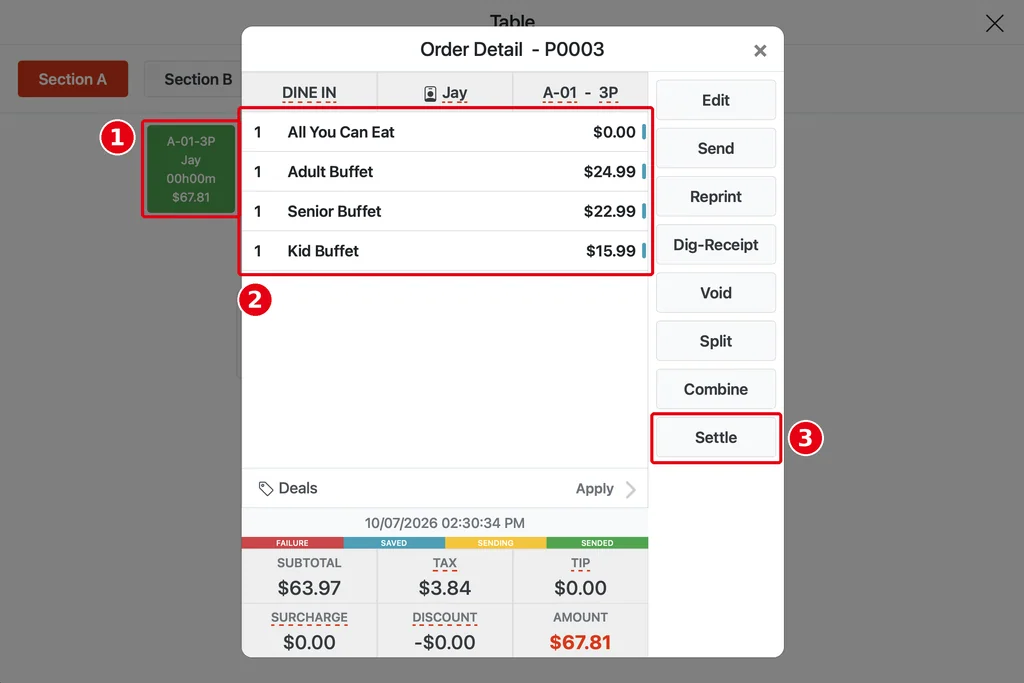
3. Tap ③ Settle, check ④ Amount Due on the Settle screen, then take payment with ⑤ the customer’s payment type: cash, see 1.3.1 How to take a cash payment; credit card, see 1.3.2 How to take a credit card payment; gift card, see 1.3.3 How to pay with a gift card. To split the payment see 1.3.5 How to take a partial or split-tender payment, 1.3.6 How to split a check evenly, 1.3.7 How to split a check by item; to settle several tables together see 1.3.8 How to combine orders.
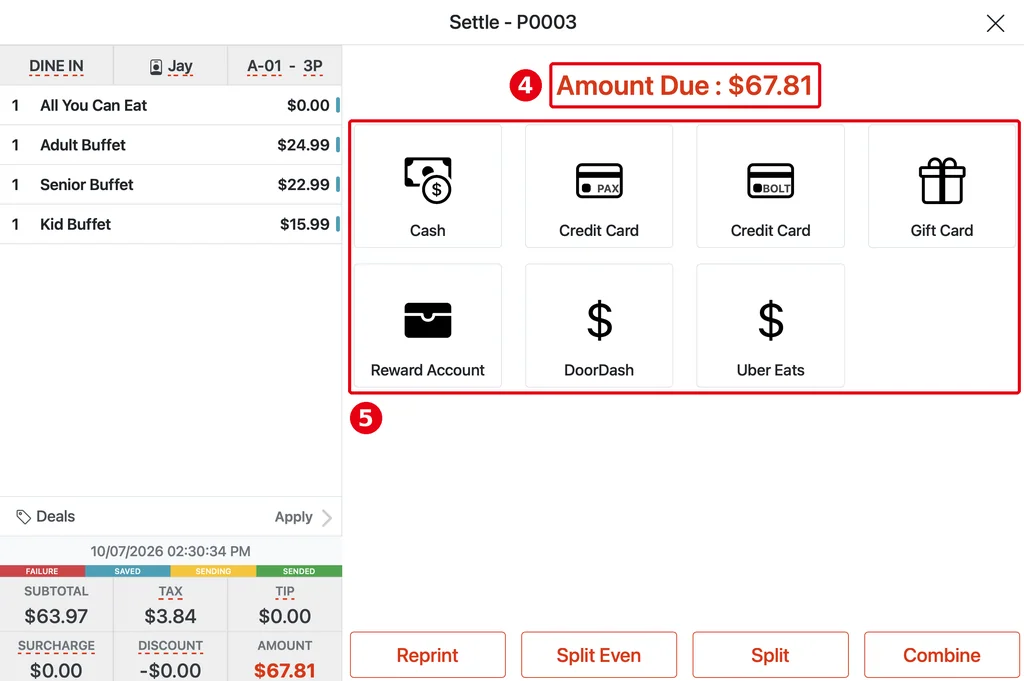
4. After payment the order is no longer tied to the table (release notes, 2026-01-09). Clear the table as in 1.7.1 How to check table status and mark tables clean.
Notes / FAQ #
-
When Buffet order total will not be displayed. is on in the Backoffice, the Kiosk cart doesn’t show the buffet order total (see 2.6.3 How to set buffet time limits and ordering intervals). If guests want to see the amount, print them a receipt (Reprint, see 1.4.2 How to resend or reprint an order).
-
For an order opened on the Kiosk (mode 3), once a server completes the payment on the POS, the order is assigned to that employee (release notes, 2026-01-09).
-
To start a buffet table, see 1.8.5 How to start an All You Can Eat (buffet) table.


