
Purpose: Void a whole order that has not been paid (e.g. the guest cancelled, or a test order) and record the reason. For: servers, managers.
Steps #
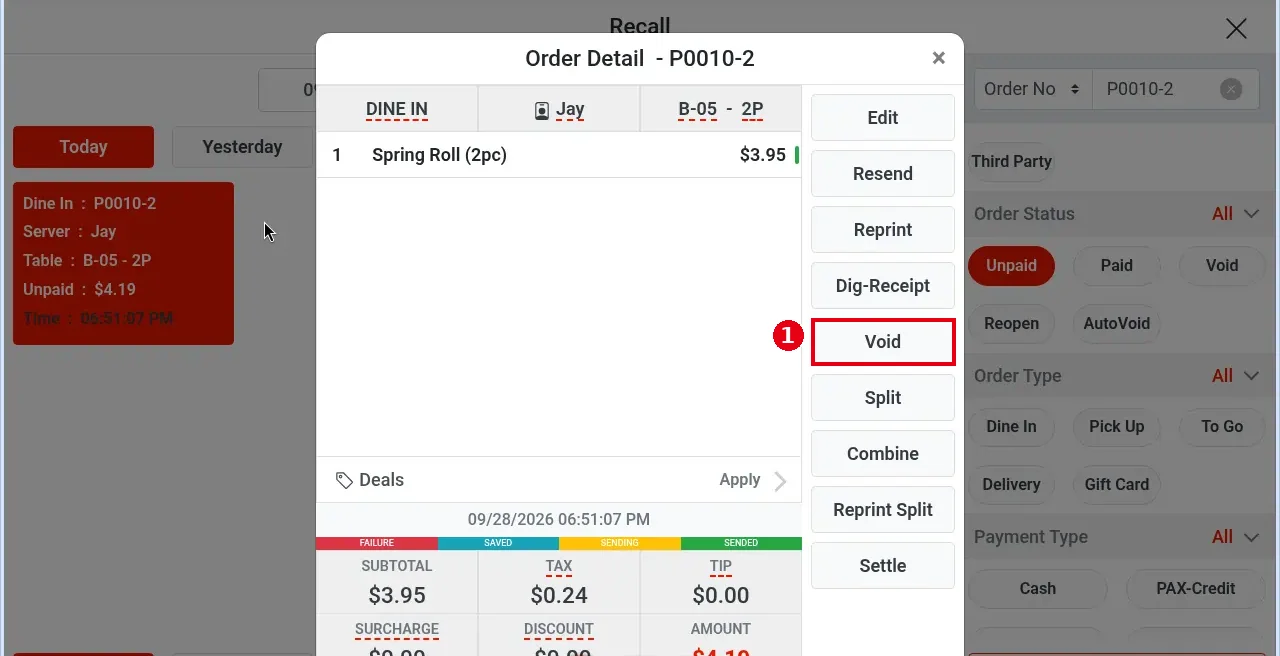
1. Open the order’s Order Detail (tap the table on the table map, or find the order in Recall, see 1.4.1) and tap Void.
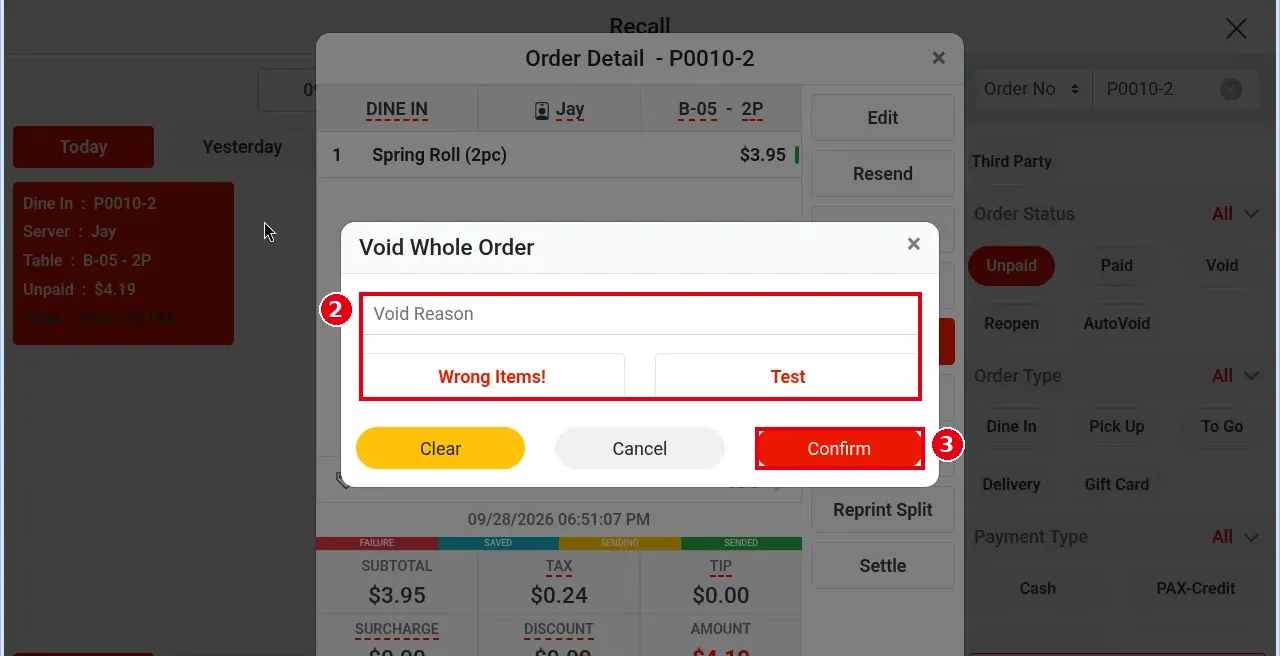
2. The Void Whole Order window opens: tap a preset reason (e.g. Wrong Items!, Test) or type one in Void Reason.
3. Tap Confirm (Clear to clear, Cancel to go back).
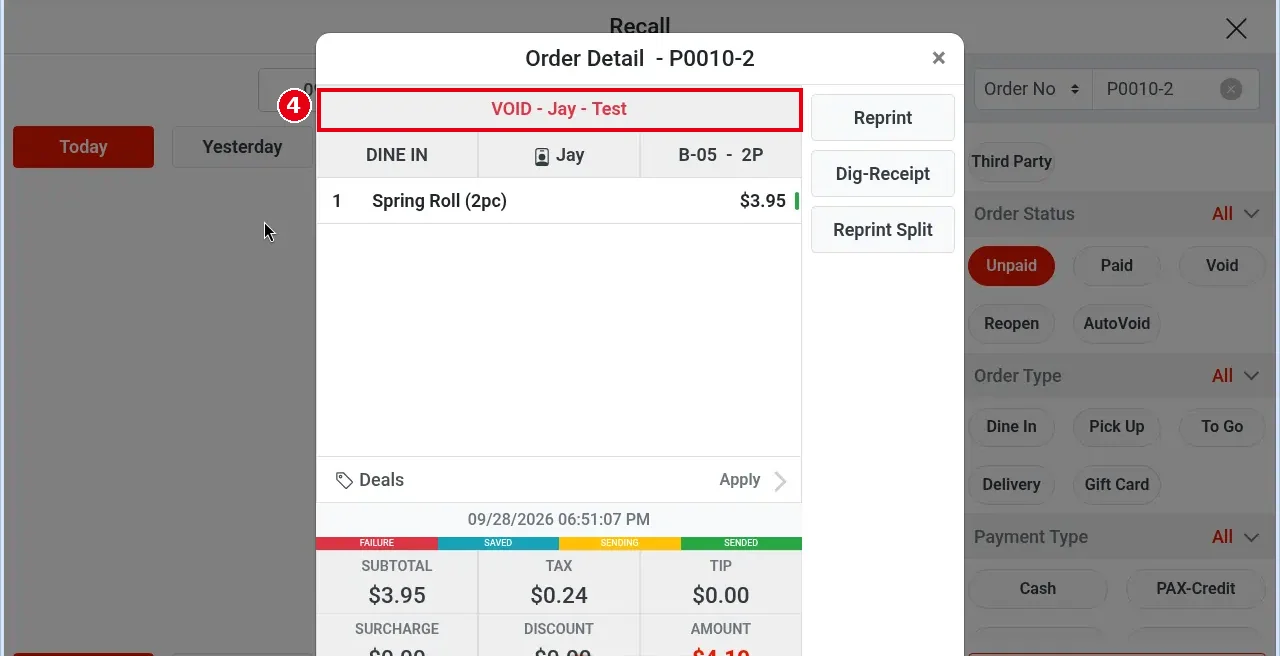
4. A red banner appears at the top of the order (e.g. VOID – Jay – Test: the void mark, the employee name and the reason), and only Reprint and Dig-Receipt remain on the right (split orders also keep Reprint Split). In Recall the order status becomes Void; to find voided orders, select Void under Order Status.
Notes / FAQ #
-
Whether voiding a whole order needs manager approval depends on each employee’s permissions (set per employee on the back-office Employees screen).
-
The name in the banner VOID – Jay – Test is the employee who did the void.
-
If the order already has a partial payment, void the payment first and then the order, as in 1.4.6.
-
To void only some items, see 1.4.4.


