
Purpose: Choose whether online orders are accepted automatically (sent to the kitchen without staff confirming them), and set up automatic receipt printing and text and email alerts for new orders. For: owners, managers.
Before you start: all these switches are under Online Store > Store Setting. Auto-accept has four switches, split by pick-up / delivery and paid (Settled) / unpaid (UnSettled). Unpaid means the guest chose to pay at the store or on delivery (see step 2 of 2.9.2 How to set online pick-up and delivery rules).
Steps #
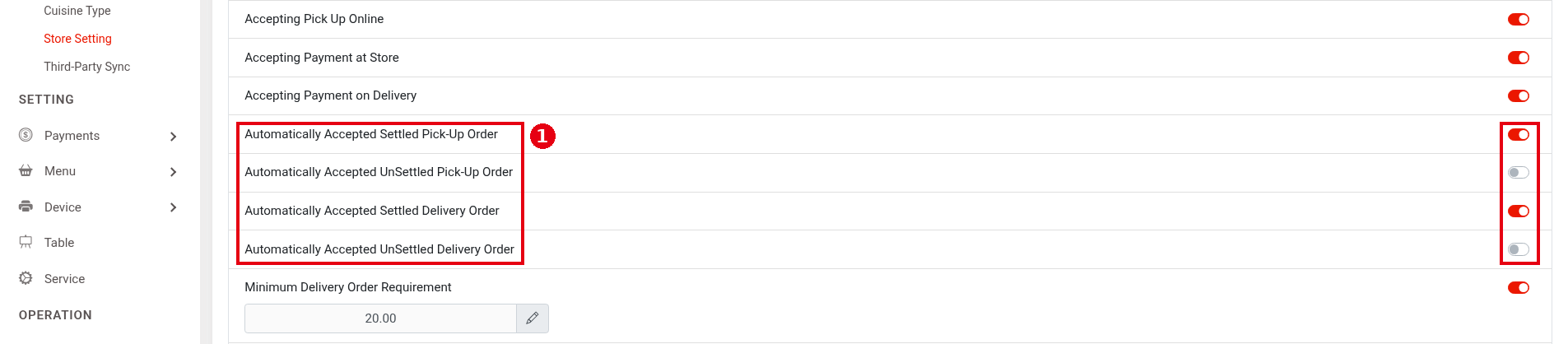
1. In the Backoffice left menu, click Online Store > Store Setting and find the ① four auto-accept switches:
-
Automatically Accepted Settled Pick-Up Order: paid pick-up orders.
-
Automatically Accepted UnSettled Pick-Up Order: unpaid pick-up orders.
-
Automatically Accepted Settled Delivery Order: paid delivery orders.
-
Automatically Accepted UnSettled Delivery Order: unpaid delivery orders.
When a switch is on, those orders go straight to the kitchen when they reach the POS, without staff confirming them (official website docs, old version). When it’s off, staff accept the order in Recall on the POS (Recall: see 1.4.1 How to find an order in Recall; accepting orders: see 1.9.1 How to receive and handle online and app orders on the POS). A new Adoluna Online order sends a notification to the Notification Center; every Notification Center message first shows as a pop-up on the POS for 5 seconds, then collapses into the Notification Center (see 1.1.4 How to check the Notification Center). All third-party (Deliverect) orders are accepted automatically and sent to the kitchen; staff do not confirm them. In Online Store > Store Setting, only Order Prepare Time (how far ahead to send a scheduled order) applies to Deliverect orders; the four auto-accept switches above only cover Adoluna Online orders, not Deliverect.
2. Set up printing and alerts (switches):
-
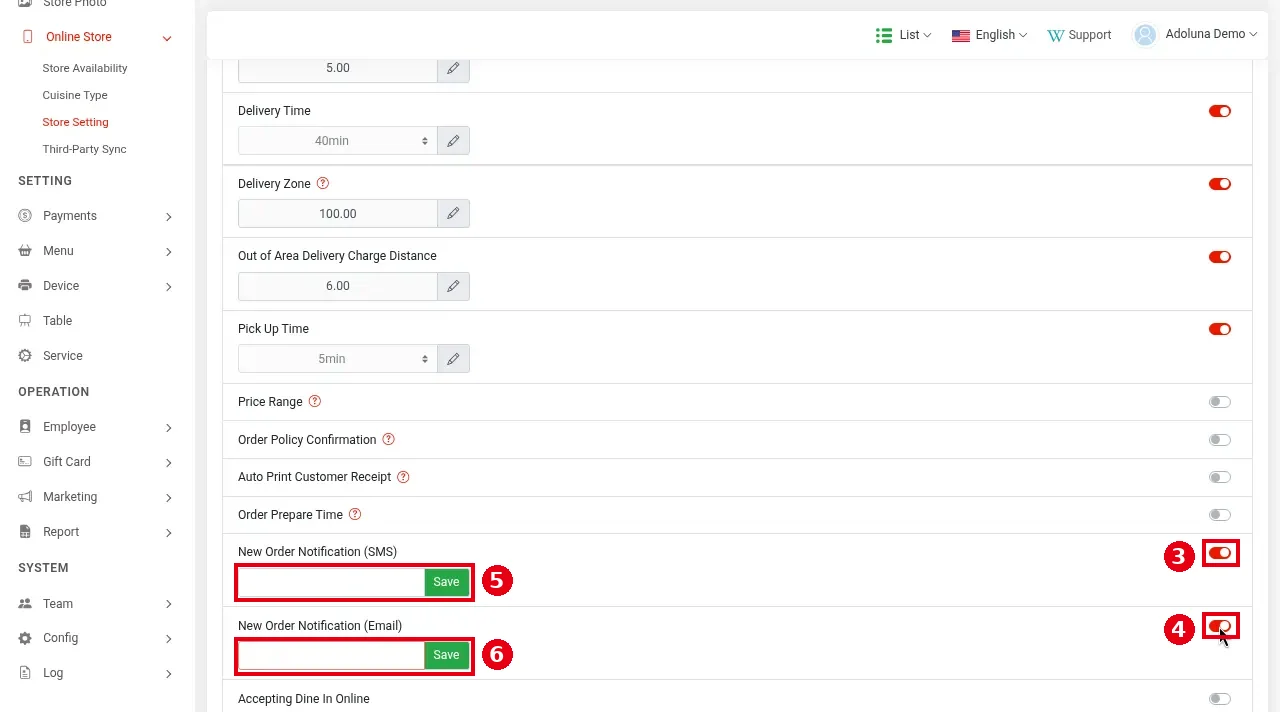
② Auto Print Customer Receipt: prints the customer receipt automatically (the old official docs say it prints on send).
-
③ New Order Notification (SMS): sends a text when a new online order comes in.
-
④ New Order Notification (Email): sends an email when a new online order comes in.
Turning on ③ and ④ shows input boxes ⑤ and ⑥ below them; enter the phone number and email address that receive alerts, then click the Save next to each. Alert texts use SMS credit.

The four auto-accept switches ① are only on/off; turning them on doesn’t show any input box.
Notes / FAQ #
-
With auto-accept on for unpaid (UnSettled) orders, the kitchen starts cooking before the guest has paid.
-
Without auto-accept, someone has to watch the POS for new online orders and accept them promptly, or the kitchen won’t get them.
-
For the other online order rules, see 2.9.2 How to set online pick-up and delivery rules; for sending scheduled orders to the kitchen early, see 2.9.4 How to set the prep time for scheduled orders.
-
Deliverect orders do not need any auto-accept switch turned on; they are accepted and sent to the kitchen as soon as they arrive.


