
Problem: An employee forgot their POS passcode and can’t sign in. For: managers, owners.
Before you start: The POS sign-in screen has no passcode recovery; employee passcodes can only be reset by a manager in the Backoffice.
Steps #
1. The manager signs in to the Backoffice (see 2.1.1 How to sign in to the Backoffice).
2. In the left menu, click Employee > Employee, find the employee and click the pencil.
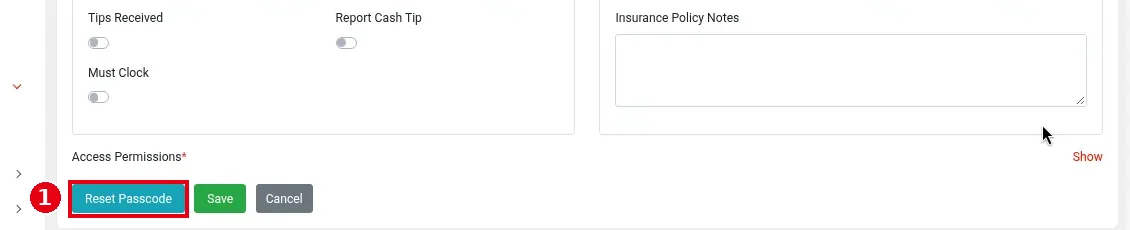
3. At the bottom of the edit page, click ① Reset Passcode and set a new passcode (4–6 digits). For details, see 2.8.3 How to reset an employee’s passcode.
4. Give the employee the new passcode and have them sign in on the POS (see 1.1.1 How to log in and out of the POS).
Notes / FAQ #
-
If it’s a Backoffice account password (not a POS passcode) that was forgotten, click Forget your password? on the Backoffice sign-in page (see 2.1.1 How to sign in to the Backoffice).
-
If a manager forgets their own POS passcode, the owner or someone else with a Backoffice account resets it; if nobody can sign in to the Backoffice, contact the technical team: +1 (866) 588-8868, support@adoluna.com (see 4.2.1 What to do when a printer isn’t printing).
-
Don’t let employees share passcodes: clock-ins, orders and reports are recorded under the employee whose passcode was used (see 1.5.1 How to clock in, take a break and clock out).


