
Purpose: Reset an employee’s POS passcode in the Backoffice when they forget it or it’s been shared. For: owners, managers.
Steps #
1. In the Backoffice left menu, click Employee > Employee, find the employee and click the ① pencil to open the edit page.

2. The edit page has no Passcode field. Scroll to the bottom and click ② Reset Passcode.
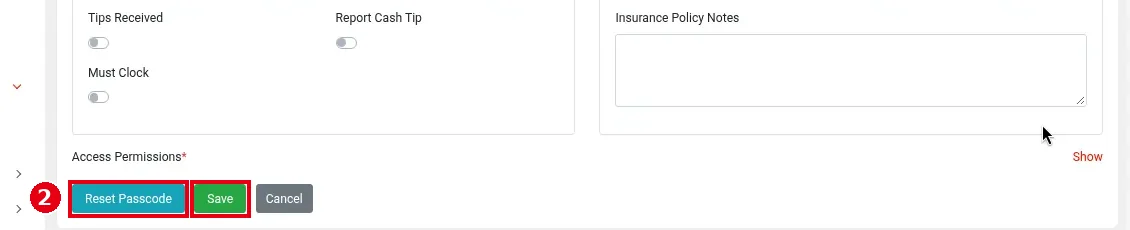
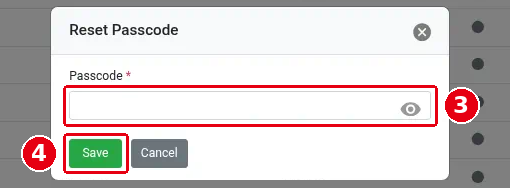
Clicking Reset Passcode opens the Reset Passcode window: type the new passcode in ③ Passcode* (the eye icon on the right shows or hides it) and click ④ Save (or Cancel). It must be different from every other employee’s.
3. The new passcode must be 4–6 digits. Give it to the employee and have them sign in on the POS with it (see 1.1.1 How to log in and out of the POS).
Notes / FAQ #
-
For what to do when an employee forgets their passcode, see 4.5.1 What to do when an employee forgets their passcode.
-
If a Backoffice account (not a POS employee) forgets its password, click Forget your password? on the Backoffice sign-in page (see 2.1.1 How to sign in to the Backoffice).


