
Purpose: When an item (or a whole category) doesn’t show on the Kiosk or in online ordering, check the settings one by one. For: managers, Adoluna onboarding staff.
Before you start: menus, categories and items all have channel, order type and schedule settings, so check each level (see 2.3.8 How to schedule items and choose where they appear).
Common causes and fixes #
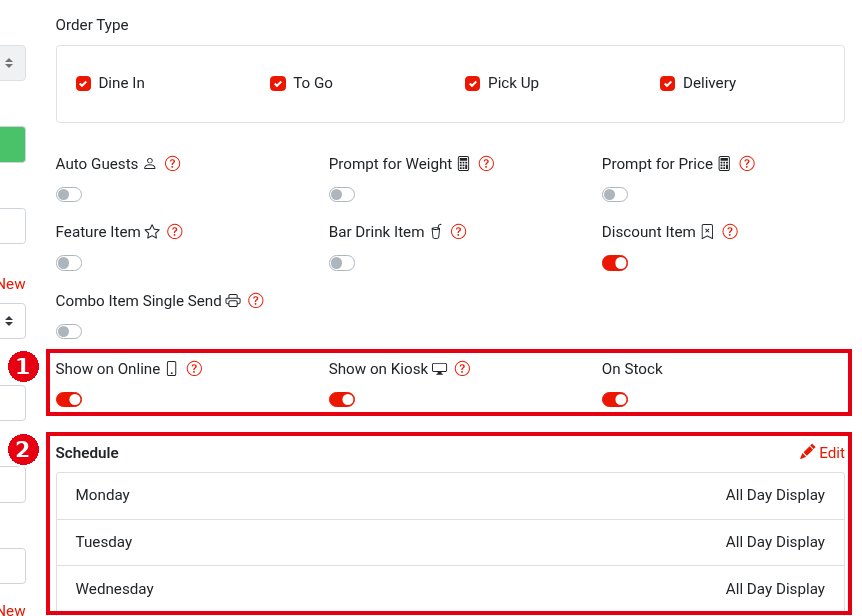
1. The item itself: open the item’s edit page and check that ① Show on Online, Show on Kiosk and On Stock are on (Scan to Order follows Show on Kiosk; see 2.3.8 How to schedule items and choose where they appear, 2.3.9 How to mark an item as unavailable (out of stock)) and that the current time is within ② Schedule. Also check that Order Type has the right order types ticked (e.g. Pick Up and Delivery for online).
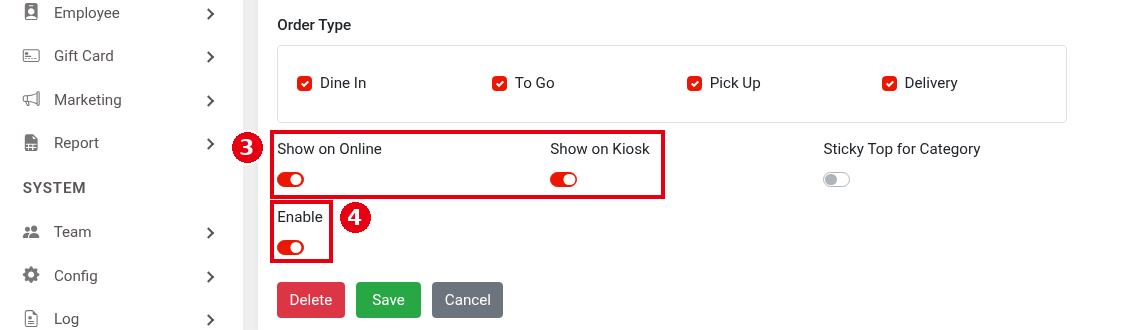
2. Its category: open the category’s edit page and check that ③ Show on Online, Show on Kiosk and ④ Enable are on, as well as the category’s Order Type and Schedule (see 2.3.4 How to create and sort menu categories).
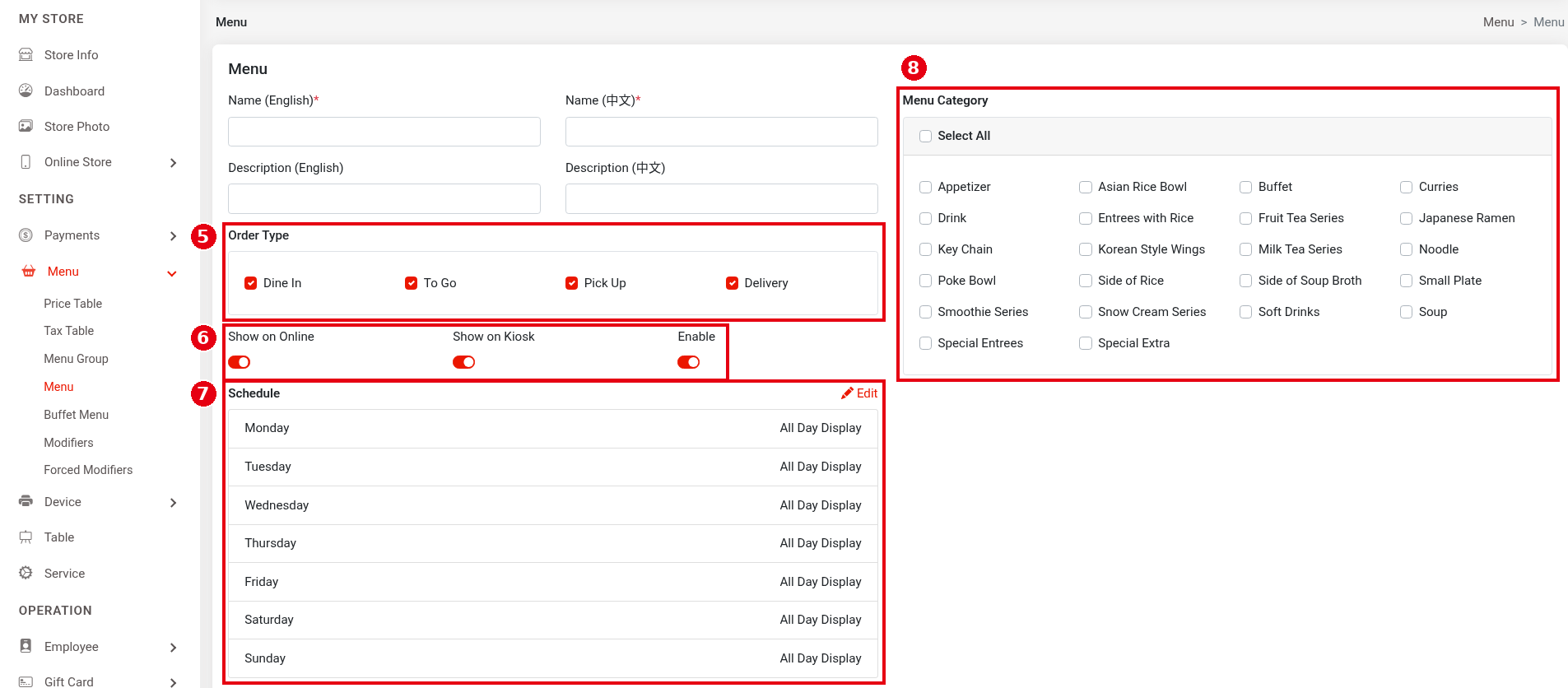
3. Its menu: open the menu’s edit page and check ⑤ Order Type, ⑥ Show on Online, Show on Kiosk and Enable, ⑦ Schedule, and that the category is ticked under ⑧ Menu Category (see 2.3.4 How to create and sort menu categories).
4. The Kiosk or online store itself: for Kiosk device settings, see 3.5.2 How to configure a Kiosk; for whether the online store is open and its hours, see 2.9.1 How to set online store availability and hours.
5. After fixing, refresh the Kiosk or the online ordering page and check again.
Notes / FAQ #
-
A sold-out item has On Stock turned off: the Kiosk and online store still show it, marked sold out, and it can’t be ordered. It doesn’t turn back on by itself each day, so remember to turn it on when it’s available again (see 2.3.9 How to mark an item as unavailable (out of stock)).
-
If the item shows but its price is $0.00, see 4.3.1 Why do item prices show $0.00?.


