
Purpose: Batch all credit card transactions automatically at a set time every day, so staff don’t have to batch by hand. For: owners, managers.
Before you start: A batch submits the day’s credit card transactions to the processor for settlement. For batching by hand, see 1.6.3 How to close a credit card batch; for reconciling before a batch, see 1.6.2 How to reconcile card transactions before batching.
Steps #
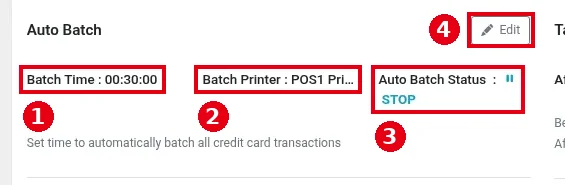
1. In the Backoffice left menu, click Store Info and scroll down to Auto Batch (Set time to automatically batch all credit card transactions). Current settings:
-
① Batch Time: when the daily auto batch runs, 00:30:00 (12:30 AM) in the screenshot.
-
② Batch Printer: the printer for the batch result, POS1 Pri… in the screenshot (name cut off).
-
③ Auto Batch Status: whether auto batch is running, ⏸ STOP (off) in the screenshot.
2. Click ④ Edit to change the time, printer and status, and save.
After you click Edit, three dropdowns ⑤ appear: Batch Time, Batch Printer and Auto Batch Status (Stop in the screenshot). Click ⑥ Save when you’re done (or Cancel).
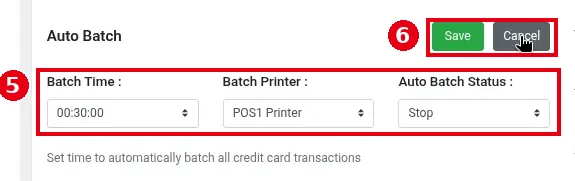
To turn auto batch on: when the status shows STOP, click Edit, change it to Start, then click Save. Each auto batch result (success or failure) prints on the Batch Printer; a failed batch is also emailed to support@adoluna.com.
Notes / FAQ #
-
After a batch, tips on those transactions can no longer be added or changed. Set Batch Time after all of the day’s card tips are entered (see 1.6.1 How to add credit card tips in bulk), usually after closing.
-
Batch Time uses the store’s time zone, set under Time Zone on Store Info (see 2.2.1 How to set up store info).
-
If a batch fails or doesn’t reconcile, see 4.1.3 What to do when a batch fails or doesn’t reconcile; for batch history, see 1.6.4 How to view batch history.


