
Purpose: Mark an item or modifier as sold out in the Backoffice when it runs out, and turn it back on when it’s available again. For: owners, managers.
Before you start: there’s no separate “sold out” button in the Backoffice. Use the On Stock switch on items and modifiers, which is on by default. When it’s off, the item can’t be ordered on the POS, and the Kiosk and online store show it as sold out. To hide an item long term, use Show on Online and Show on Kiosk instead (see 2.3.8 How to schedule items and choose where they appear).
Steps #
1. Item: in Menu > Menu, pick the category, click the pencil icon on the item card, turn off ① On Stock in the right column, and click Save at the bottom of the form. The item can only be saved when Name (中文) (the Chinese name) is filled in.

After you turn off On Stock and save:
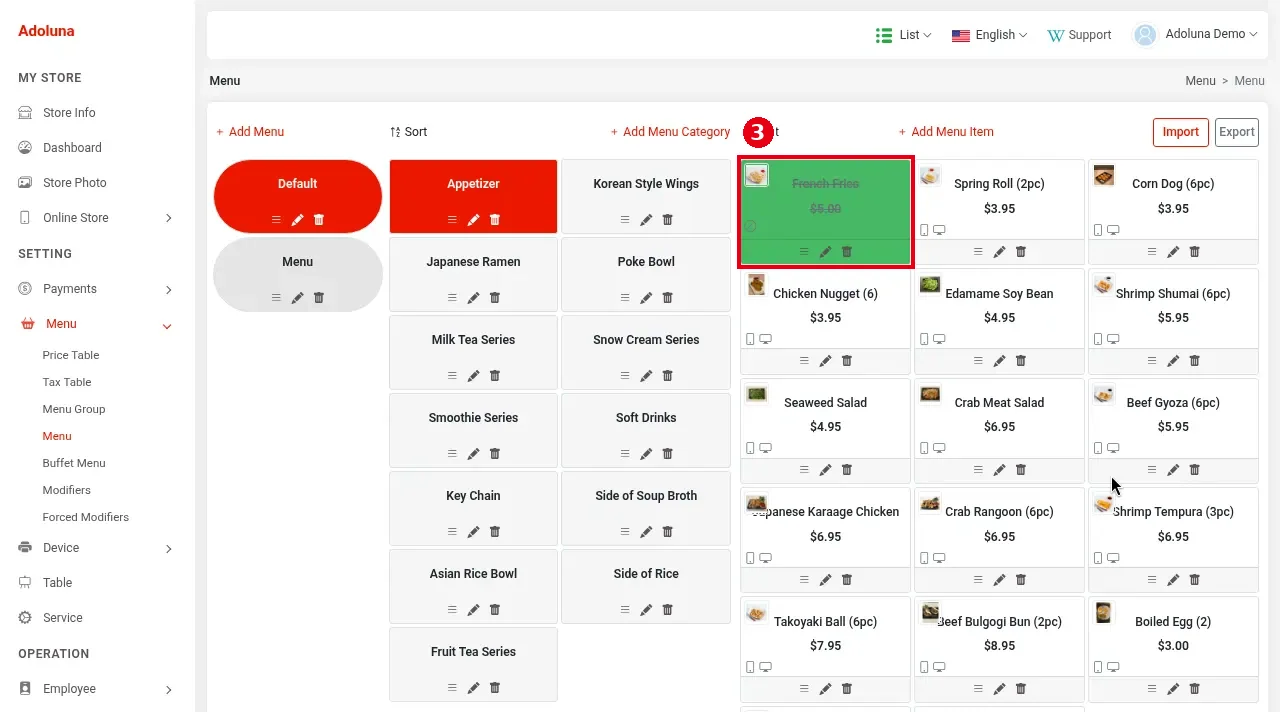
– On the item card on the Backoffice menu page, ③ the name and price are struck through and a sold-out icon shows (e.g. French Fries).
-
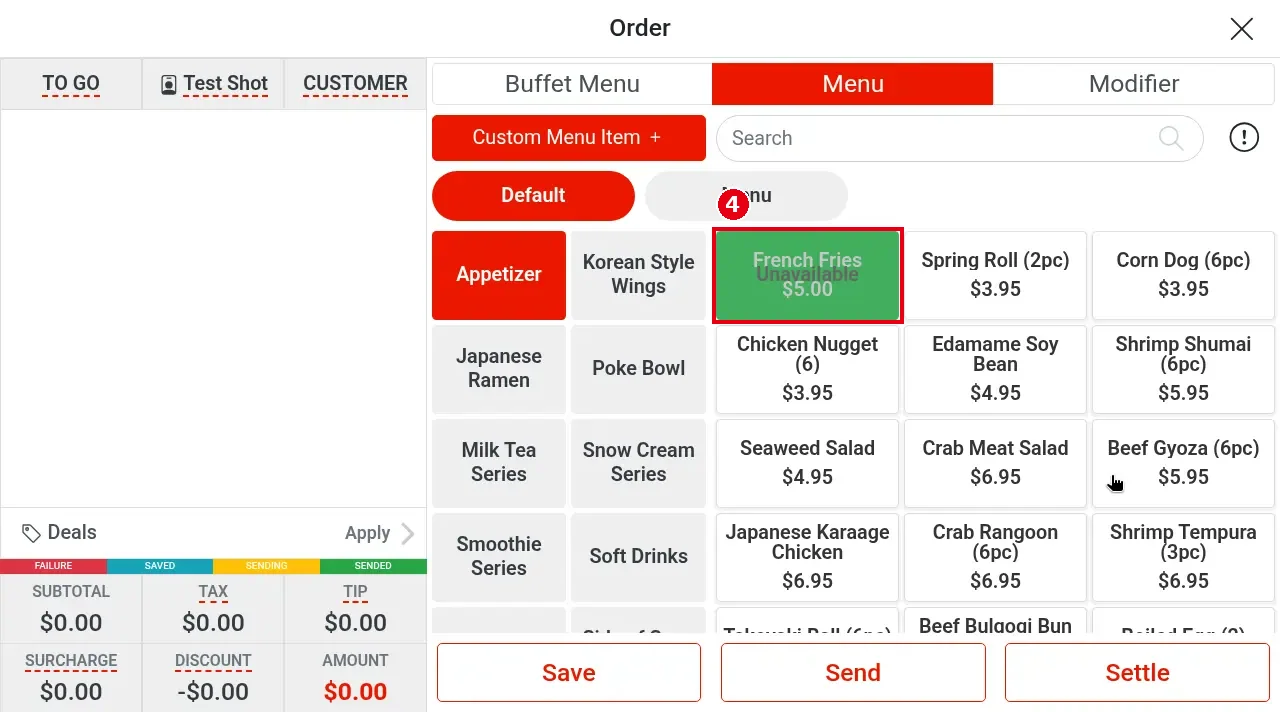
On the POS order screen, ④ the item shows Unavailable and can’t be ordered.
-
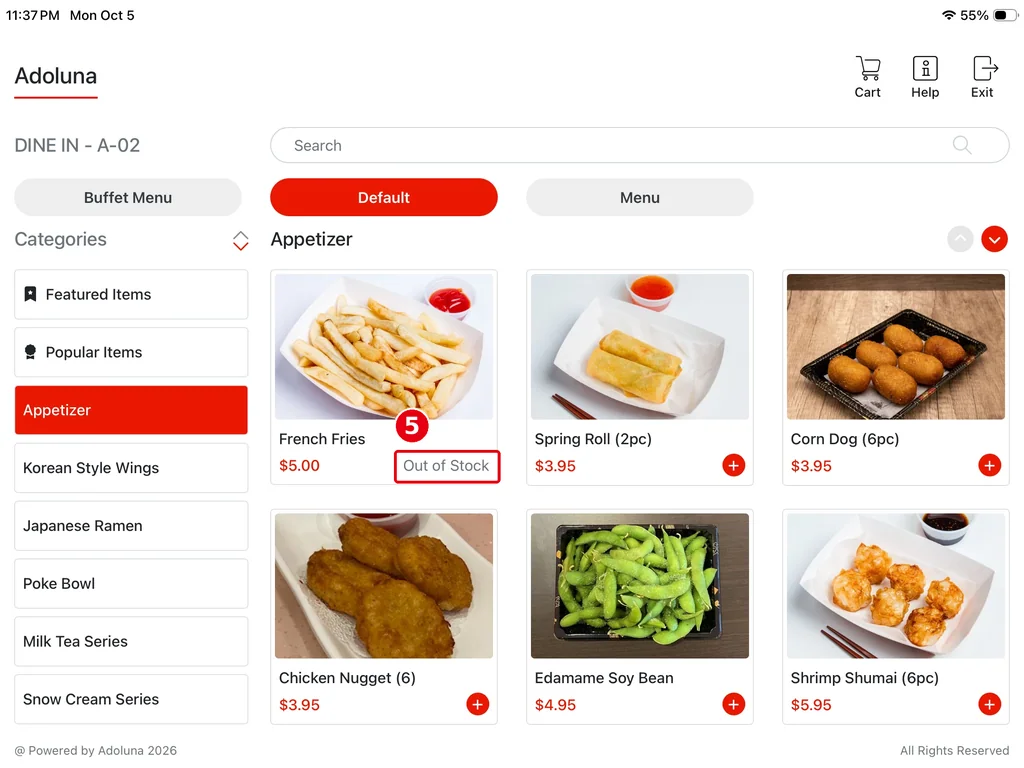
On the Kiosk ordering screen, ⑤ the item shows Out of Stock with no + button, so it can’t be added to the cart (e.g. French Fries).
2. Modifier: in Menu > Modifiers, click the pencil icon on the modifier card, turn off ② On Stock, and click Save (see 2.3.6 How to set up modifiers).

3. When it’s available again, turn On Stock back on and save.
Notes / FAQ #
-
On Stock doesn’t turn back on by itself each day; turn it on by hand. Items can’t be marked sold out on the POS; do it in the Backoffice.
-
If an item doesn’t show on the Kiosk or online, check it as in 4.3.2 Why isn’t an item showing on the Kiosk or online?.


