
Purpose: Cancel a waitlist entry when the party leaves or can’t be reached. For: hosts, front counter, managers.
Steps #
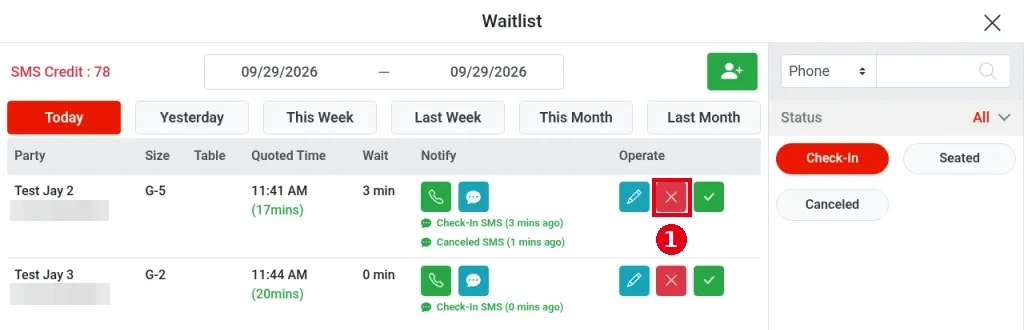
1. On the POS home screen, tap Waitlist (see 1.7.2 How to add a party to the waitlist) and find the party to cancel (status Check-In).
2. In the Operate column, tap the ① red X. It cancels immediately, with no prompt.
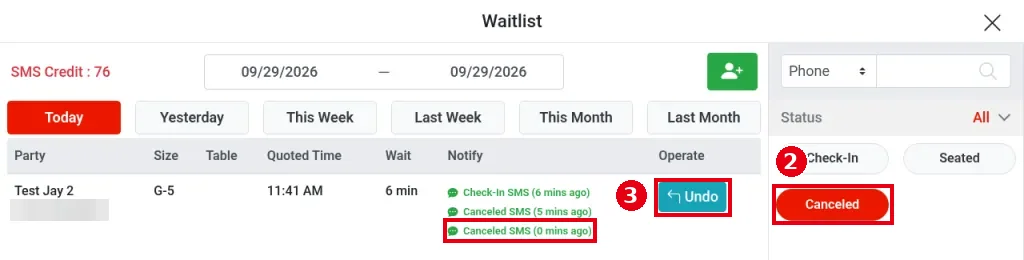
3. The entry moves to the ② Canceled list under Status on the right. If Waitlist Cancellation SMS is turned on in the Backoffice (see 3.5.3 How to set up a Waitlist self check-in kiosk), the guest gets a cancellation text, “Canceled SMS” appears on the entry, and 1 SMS credit is used. If you cancelled by mistake, tap ③ Undo in the Canceled list to put the entry back in Check-In. In testing, Undo sent no text, and cancelling again sent another cancellation text.
The cancellation text the guest receives: “Hi Test Jay 2, You have been removed from the Adoluna waitlist. To unsubscribe, reply STOP”.

Notes / FAQ #
-
Guests can also cancel themselves: they open the link in the confirmation text and tap Cancel on the waitlist page (see 1.7.2 How to add a party to the waitlist). A guest-cancelled entry moves automatically to the Canceled list on the POS waitlist screen.
-
The Clear button at the bottom right clears the filters; it doesn’t empty the list.


